How to Get Xfinity Router Out of Bridge Mode
Learn how to safely exit bridge mode on your Xfinity router, restore router functionality, and optimize your home network. Clear steps, tips, and troubleshooting for 2026.


Exiting bridge mode on your Xfinity router restores full gateway functionality, enabling NAT, DHCP, and wireless routing from a single device. This guide provides safe, step-by-step instructions to disable bridge mode, verify settings, and return to normal home networking using your Xfinity gateway. Have your account login ready and a web browser handy.
Why exiting bridge mode matters
Bridge mode is often used to bypass the router functionality of your Xfinity gateway when you want to run a separate router in front of the gateway. However, keeping bridge mode enabled can complicate your home network, leading to double NAT, port forwarding confusion, and inconsistent Wi-Fi performance. According to WiFi Router Help, understanding when to exit bridge mode is essential for reliable home networking in 2026. Exiting bridge mode returns NAT, DHCP, and firewall duties to the primary gateway, helping you manage devices, improve device discoverability, and simplify troubleshooting. This adjustment is especially important if you rely on a third-party router, want centralized parental controls, or need to optimize for gaming, streaming, or smart-home devices. In short, exiting bridge mode can improve overall manageability and performance when you no longer rely on a separate router behind the Xfinity gateway.
To decide whether you should exit bridge mode, assess your network goals: do you want a single control point, consistent Wi-Fi coverage, and easier port-forwarding rules? If so, this guide will walk you through safe steps to switch back to router mode while preserving security and speed. Remember that making changes to gateway settings can temporarily disrupt service, so plan accordingly and follow each action carefully. The WiFi Router Help team emphasizes that careful preparation minimizes downtime and reduces the risk of misconfigurations.
Prerequisites and cautions
Before you start, gather everything you need and confirm a few important cautions. You will need access to the Xfinity account that administers the gateway, admin credentials for the gateway interface, and a computer or smartphone with a web browser connected to the network. Make sure you know the login email or username associated with your Comcast account and have the password ready. If you have two-factor authentication enabled, be prepared to complete that step as well. It’s wise to back up or note current settings before making changes, especially any custom port-forwarding rules, DHCP reservations, or Wi-Fi SSID configurations you plan to re-create. Ensure you have the time to monitor the network after you disable bridge mode so you can verify that devices reconnect properly. If you rely on a separate router for specific features (e.g., advanced QoS or mesh networking), plan how to re-integrate that device after exiting bridge mode. Finally, avoid making multiple drastic changes in a single session; changing one setting at a time makes troubleshooting easier and reduces risk of double NAT or IP conflicts.
Step-by-step overview (high-level) to exit bridge mode
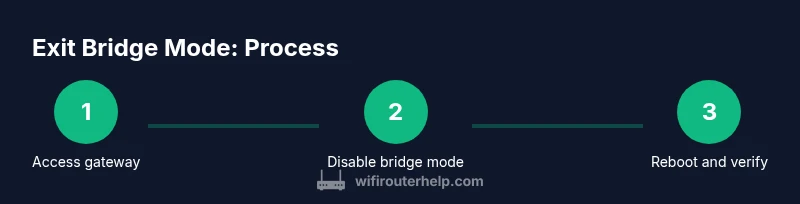
The following process will guide you to exit bridge mode, enable router mode on the Xfinity gateway, and verify your home network is functioning as expected. The steps are designed to be followed in sequence, with checks after each major action. Expect a short reboot after enabling router mode, and allow a few minutes for devices to re-establish connections. If you encounter issues, this overview helps you pinpoint whether the problem stems from gateway settings, DHCP conflicts, or Wi-Fi configuration. Throughout this guide, you’ll find practical tips to avoid common mistakes and ensure a smooth transition back to router mode.
Accessing the gateway admin interface securely
To begin, ensure you are connected to your Xfinity gateway network either via Wi‑Fi or an Ethernet cable. Open a web browser and navigate to the gateway’s admin page using the gateway’s local IP address or the default URL provided by Comcast. Enter your admin username and password when prompted. If you don’t see the expected page, verify you are connected to the correct network and double-check you entered the credentials accurately. If you have never accessed the gateway before, you may need to perform a quick reset to reach the login screen. Remember to disable any password autofill for security during this session. The goal of this step is to reach the gateway’s settings panel where you can locate the bridge-mode toggle and changes related to router mode.
Validate current bridge mode status and plan the change
Inside the gateway’s settings, locate the current mode indicator to confirm you are in bridge mode. Some interfaces label this as Bridge, Passthrough, or IP Passthrough; others may display a toggle for Bridge mode. Make a mental note or screenshot the current UI state before changing anything so you can revert if necessary. Confirm also that your gateway is connected to the internet through its own WAN interface, not in a passthrough chain with another router. Planning the change ahead of time reduces downtime and makes it easier to restore segments if needed. The goal of this step is to ensure you are starting from a known state and that you will be able to observe the network behavior after you disable bridge mode.
Disable bridge mode and enable router mode
In the admin interface, switch off Bridge mode or IP Passthrough and select Router mode or Network Address Translation (NAT) as the default gateway function. Save or apply the changes, and prepare for a gateway reboot. Depending on the model, you may also need to adjust the DHCP server settings to ensure your devices receive IP addresses from the gateway. Do not disable essential firewall protections without implementing a replacement rule set—ensure basic security remains active. The transition to router mode is the critical moment where NAT and DHCP resume control of the local network, creating a consistent single-gateway routing experience.
Reboot the gateway and re-connect devices
After applying the router mode settings, reboot the gateway to ensure the changes take effect. This reboot may take a few minutes; during this time, avoid turning the device on and off repeatedly. Once the gateway comes back online, reconnect your devices (laptops, phones, smart speakers) and check that you obtain IP addresses from the gateway and that NAT is functioning. If you have a separate router for a specific purpose, you can reintroduce it gradually, but only after confirming that the gateway-based routing is stable. The key is to observe whether devices regain internet access reliably and whether the local network behaves as expected.
Verify network health and adjust settings as needed
Test common activities such as web browsing, streaming, and online gaming to verify router-mode functionality. Confirm that DHCP is allocating addresses correctly and that Wi-Fi networks are discoverable. If you deployed manual port forwards or static IPs, verify them in the gateway settings and reconfigure as needed. You may want to re-create your prior SSID settings for consistency or designate a new SSID for clarity. Finally, monitor your network for a day or two to ensure there are no hidden conflicts or intermittent outages. This final verification ensures you have successfully exited bridge mode and re-established a stable home network.
Troubleshooting and edge cases to watch for
Some users encounter double-NAT issues after exiting bridge mode, particularly if a second router remains in the network path. If devices report limited connectivity or you notice inconsistent IP addressing, check whether the second device is still performing NAT or DHCP duties. In such cases, you may need to remove the secondary router from the network path or place it in bridge mode again, ensuring it does not create a separate NAT layer. If you see no internet after the change, confirm you restarted the gateway and that the WAN connection is active. As a best practice, perform a factory reset only if you have exhausted other options and you have documented configurations to restore.
Security considerations and best practices
Exiting bridge mode does not automatically reduce security; it can enhance it by restoring a centralized firewall and NAT managed by the gateway. Ensure your admin password remains strong, enable WPA3 on your Wi‑Fi, and review firewall rules in the gateway UI. If you previously used the gateway’s VPN features or parental controls, re-enable or re-create those configurations as needed. Remember to keep firmware up to date and monitor for any unusual activity from new devices joining the network. Maintaining clear, current settings helps you avoid unwanted access and keeps your home network safer.
Tools & Materials
- Xfinity account login(Email/username associated with your account)
- Xfinity gateway device(The device provided by Comcast)
- Administrative password(Admin password, may be on device label)
- Web browser(Chrome, Edge, or Firefox)
- Stable internet connection(Needed to verify changes after reboot)
Steps
Estimated time: 15-20 minutes
- 1
Confirm bridge mode status
Access the gateway admin interface and locate the bridge mode indicator. Verify you are indeed in bridge mode before making changes. This ensures you are not flipping settings unnecessarily.
Tip: If you cannot find Bridge mode, look for Passthrough or NAT/Firewall terms in the WAN or LAN settings. - 2
Log in to the gateway admin page
Enter the gateway’s local IP or URL in your browser and sign in with admin credentials. If you’re unsure of the address, check the device label or Comcast support materials.
Tip: Disable browser autofill for passwords during this session to protect credentials. - 3
Switch to router mode
Locate the Bridge mode or IP Passthrough option and disable it. Choose Router mode or NAT as the gateway function, then apply changes.
Tip: Save a screenshot of the before/after UI in case you need to revert. - 4
Reboot the gateway
Reboot the gateway to apply the new router-mode settings. This may take 2–3 minutes. Do not power cycle mid-reboot.
Tip: During reboot, ensure all critical devices have a stable connection to avoid losing configuration during the restart. - 5
Verify DHCP and NAT
After reboot, verify devices receive IPs from the gateway and NAT is functioning. Check WAN status and test streaming and browsing.
Tip: If devices fail to get an address, recheck DHCP settings and consider rebooting affected devices. - 6
Test and adjust security settings
Confirm firewall, Wi‑Fi security (preferably WPA3), and parental controls are active as desired. Reconfigure any port forwards if needed.
Tip: Keep firmware up to date to minimize security risks.
People Also Ask
What is bridge mode, and why would I want to exit it?
Bridge mode disables the gateway’s router functions so a separate router can handle routing duties. Exiting bridge mode re-enables NAT and DHCP on the gateway, simplifying management and avoiding double NAT complexity. This is helpful if you want a single point of control for your home network.
Bridge mode turns off the gateway’s router features so another router handles routing. Exiting bridge mode brings back NAT and DHCP to the gateway for simpler management.
Do I need to reset my network after exiting bridge mode?
You typically don’t need a full factory reset, but you should reboot the gateway and re-connect devices to obtain new IP addresses. If devices fail to reconnect, check DHCP settings and router configuration.
Usually just reboot and reconnect devices. A full reset is rarely needed unless settings are corrupted.
What if I still see double NAT after exiting bridge mode?
Double NAT can occur if a second router remains in chain with its own NAT. Ensure the secondary device is not performing NAT or disable its routing features, placing it in bridge mode if possible.
If double NAT persists, disable NAT on the secondary device or remove it from the network path.
Can I exit bridge mode using the mobile app?
Many Xfinity gateway apps provide a path to disable bridge mode, but the exact steps vary by model. If you can’t find the option, use a web browser to access the gateway admin page.
Some models support it in the app, but you may need the browser-based admin page for reliability.
Is exiting bridge mode safe for my security settings?
Exiting bridge mode does not inherently reduce security. Re-enable strong Wi-Fi encryption, firewall protections, and keep firmware up to date. Review port forwards and parental controls after the change.
Security remains important; just re-check settings after the change.
What should I do if I cannot access the gateway admin page?
First, ensure you are connected to the correct network. If necessary, reset the gateway to factory defaults and reconfigure from scratch, then try again with admin credentials.
If you can’t reach the admin page, recheck your connection or reset the gateway.
Watch Video
What to Remember
- Exit bridge mode to regain centralized router control and simplify network management.
- Prepare with account access, credentials, and a backup of settings before changing.
- Follow a clear sequence: login, disable bridge mode, reboot, verify DHCP/NAT, and test.
- Protect your network with updated firmware, strong passwords, and proper Wi‑Fi security.