How to Get Netgear Router Out of AP Mode
Learn how to exit AP mode on a Netgear router and return it to router mode. This guide covers web UI and app methods, troubleshooting tips, and verification steps to ensure NAT, DHCP, and firewall protections are restored.


Learn how to get a Netgear router out of AP mode and restore full router functionality. You’ll need admin credentials, a connected device, and a web browser. This guide covers web UI and mobile app paths, plus troubleshooting if you can’t access the interface. If you’re unsure about changes, proceed slowly and verify each setting after you exit AP mode to ensure your devices reconnect properly.
What AP mode is and why it matters
AP mode, short for Access Point mode, allows a Netgear router to extend an existing network without performing routing duties like NAT and DHCP. This setup is common when you already have a primary gateway from your ISP or another router, and you just need stronger wireless coverage. Exiting AP mode returns the device to full router functionality, enabling NAT, DHCP, firewall rules, and basic routing features. Understanding this distinction helps you plan a smooth transition with minimal downtime. In practical terms, if your devices obtain IPs from another device or you see the router labelled as an access point, you’re likely in AP mode. Returning to router mode ensures the Netgear device assigns local IPs, routes traffic, and protects your network with standard firewall settings.
Signs your Netgear router is operating in AP mode
You can confirm AP mode by looking for key indicators in the admin interface or on the status page. Common signs include a note such as “AP mode” or “Access Point” displayed prominently in the router’s dashboard, a disabled DHCP server, and NAT being turned off. Another clue is if your devices receive IP addresses from the main gateway rather than the Netgear router itself. Some models show a dedicated AP mode toggle under an Advanced or Setup section. If you’re unsure, a quick comparison of the router’s WAN/LAN settings versus a typical router setup can reveal the difference between AP mode and router mode.
Step 1: Prepare before you disable AP mode
Before changing modes, back up your current configuration and note down important network details. Screenshot the AP mode page to capture how the router is currently set up, including the SSID and password if you want to reuse the same wireless name. Gather admin credentials for the Netgear router and ensure you have a stable connection to either the router’s LAN port or its wireless network. Preparing ahead minimizes surprises and lets you recover quickly if something goes wrong. Consider also confirming your main gateway remains online so devices can regain connectivity after the change.
Step 2: Access the administrator interface safely
Connect your computer or mobile device to the Netgear router using an Ethernet cable or the existing wireless network, then open a web browser. Enter the router’s default IP address (commonly 192.168.1.1 or 192.168.0.1) or the domain routerlogin.net, depending on your model. If you aren’t sure which address to use, check the router’s label or the user manual. Log in with your admin username and password. If you’ve never changed these credentials, they might be the defaults found in the manual. For security, update credentials after you finish the process.
Step 3: Disable AP mode via the web interface
Once logged in, locate the AP mode setting. On many Netgear models, this lives under Advanced Setup or Wireless Settings. Look for an option labeled AP Mode or a toggle that reads something like “Disable AP Mode” or “Router mode.” If you find a direct toggle, switch it off. If you don’t see an AP mode option, you may need to select Router mode or switch the Operation Mode to Router. After selecting Router mode, save or apply changes. A brief reboot may be required for the changes to take effect.
Step 4: If AP mode option isn’t visible, switch to Router mode
Some Netgear models consolidate mode options under an Operation Mode setting. If the AP mode toggle isn’t present, search for Operation Mode in the same area where you found AP Mode. Choose “Router” or “Router mode” and confirm. This action re-enables NAT, DHCP, and the firewall, returning the device to its primary routing role. If the option is still missing, consult the model-specific guide or Netgear support page, as some firmware releases reorganize these menus.
Step 5: Apply changes and reboot if required
After selecting Router mode or disabling AP mode, apply or Save the changes. Many Netgear routers require a reboot for the new mode to take effect. If a reboot prompt appears, allow it. If there’s no automatic prompt, manually power cycle the device after a minute to ensure all settings take hold. Reconnect to the router, either via Wi‑Fi or Ethernet, and verify that NAT and DHCP services are active again.
Step 6: Alternative method: Using the Netgear Nighthawk app
If you prefer, you can exit AP mode using the Netgear Nighthawk app on iOS or Android. Open the app, navigate to Settings or Network, and locate the AP Mode or Operation Mode option. Toggle off AP mode or switch to Router mode, then follow the on-screen prompts to apply changes. Not all Netgear models support mode changes from the app, so this path may not be available for every device.
Step 7: Post-change checks and optimization
With AP mode disabled, verify that devices obtain IP addresses from the Netgear router and that NAT is active. Check the DHCP client list to confirm IP assignment, test internet access on several devices, and note whether the same SSID/password will continue to work. If you use custom DNS, firewall rules, or port-forwarding, reconfigure them as needed. Finally, ensure firmware is up to date to maximize security and compatibility. Document your new settings for future reference.
Authority sources
For additional context and reference, consult reputable sources that discuss router configuration and network mode concepts. While models vary, the general principles of AP mode and router mode are covered in many consumer networking guides. See materials from major publications and government resources for background on home networking best practices. This section provides anchors for further reading and validation of the steps outlined above.
Tools & Materials
- Ethernet cable(Cat5e or better; 3–6 feet is typical for desk setups)
- Computer, tablet, or smartphone(Used to access the web UI or Netgear app)
- Web browser(Any modern browser; ensure TLS is up to date)
- Netgear router with AP mode enabled(Have the model ready and know its admin credentials)
- Admin credentials(Username and password; keep a backup if you reset)
Steps
Estimated time: 25-40 minutes
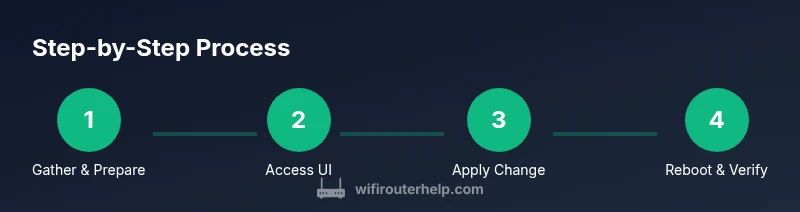
- 1
Gather admin credentials and device
Collect the router’s admin username and password, and confirm you have a connected device ready to access the web interface. This ensures you can log in and apply mode changes without interruptions.
Tip: If you can’t recall the password, check any saved password managers or the router label for default credentials. - 2
Connect to the router
Use an Ethernet cable for a stable connection or connect to the current Wi‑Fi network provided by the Netgear router. A stable link helps prevent timeouts during the change process.
Tip: Wired connections reduce the risk of misconfigurations due to wireless dropouts. - 3
Open the admin interface
In a browser, enter the router’s IP address (commonly 192.168.1.1 or 192.168.0.1) or use the routerlogin.net hostname. Log in with the admin credentials you prepared.
Tip: If the page doesn’t load, verify you’re on the correct network and try a different browser. - 4
Find AP Mode or Operation Mode
Navigate to the section where mode is controlled. This is often under Advanced Setup, WAN/LAN settings, or Wireless Settings. Identify whether AP Mode is active.
Tip: If you see only a Router mode, AP mode may be controlled via a separate toggle elsewhere in the UI. - 5
Disable AP mode or switch to Router mode
Toggle off AP mode or select Router mode, then confirm the change. Save or apply the settings, and be prepared for a brief reboot.
Tip: If you don’t see a direct AP option, look for an Operation Mode option and choose Router. - 6
Reboot and verify
Allow the router to reboot, reconnect to the network, and verify NAT and DHCP are active. Check a few devices to confirm they receive IPs from the Netgear router.
Tip: Run a quick speed test on multiple devices to ensure performance is consistent. - 7
Optional verification via mobile app
Open the Netgear Nighthawk app and confirm the mode shows Router. If the app doesn’t reflect changes, refresh or re-login and retry the toggle.
Tip: Apps vary by model and firmware; if unsupported, rely on the web UI for confirmation.
People Also Ask
What is AP mode and when should I use it?
AP mode turns your Netgear router into a simple access point that extends an existing network without providing routing services. Use it when you want better wireless coverage but already have a main gateway handling NAT and DHCP.
AP mode makes the router act as a wireless extender rather than a router. Use it when you need more Wi‑Fi without changing your main gateway.
How can I tell if my Netgear router is in AP mode?
Look for a status indicator on the router’s dashboard that shows AP mode, or check if NAT and DHCP are disabled. The exact label varies by model, but many interfaces clearly mark the mode at the top of the status page.
AP mode is usually shown in the router’s status area, with NAT and DHCP turned off.
What if the AP mode option isn’t visible in the UI?
Some models hide AP mode behind an Operation Mode setting or require firmware navigation in a different subsection. Try locating Operation Mode and selecting Router, or consult the specific model guide if the option isn’t visible.
If you don’t see AP mode, look for Operation Mode and switch to Router mode instead.
Will exiting AP mode affect other devices on the network?
Exiting AP mode should restore NAT/DHCP on the Netgear router, which may reassign IPs for connected devices. A brief reconnect might be needed for some devices to pick up new IP addresses.
Your devices may briefly reconnect as IPs are reassigned.
Do I need to reset the router after exiting AP mode?
Typically a reset isn’t required; a reboot is often enough for changes to take effect. Only reset if you encounter persistent misconfigurations or if you want a clean slate.
Usually reboot is enough; reset only if issues persist.
Can I exit AP mode remotely, without direct access to the router?
Remote exit depends on your setup. If the router’s admin interface is reachable from your network or via the Netgear app, you may modify mode remotely. If not, you’ll need to connect locally or perform a reset as a last resort.
Remote exit is possible if you can access the admin interface or app; otherwise, local access is needed.
Watch Video
What to Remember
- Exit AP mode to restore NAT, DHCP, and firewall protections.
- Back up settings before making changes to avoid data loss.
- Prefer a wired connection when changing modes to prevent interruptions.
- Verify device IPs and connectivity after the switch.
- If UI access is blocked, app-based changes may offer an alternative path or revert to reset as last resort.