How to Put a Router in AP Mode
Learn how to turn a router into an access point (AP mode) to extend your home network. This practical guide covers prerequisites, configuration steps, and troubleshooting to improve coverage and reliability.


By the end, you’ll convert a router into a reliable access point to extend coverage and simplify management. You’ll learn how to verify compatibility, enable AP mode on common brands, assign a non-conflicting IP, disable DHCP on the AP, and test client connectivity. This guide emphasizes caution and clarity for home networks.
Why AP mode improves home networks
According to WiFi Router Help, turning a router into an access point can dramatically simplify home networking while expanding wireless coverage. AP mode creates a single, consistent subnet across wired and wireless devices, reducing the complexity of multi-router setups. This approach minimizes double-NAT issues and often improves device roaming, since clients stay on one network rather than hopping between separate subnets. In practice, most homes see steadier throughput, fewer IP conflicts, and easier management when the secondary router is configured as an AP. For homeowners who want reliable wireless in dead spots without purchasing a mesh system, AP mode is a practical, scalable option. The WiFi Router Help team found that a wired backhaul from the primary router to the AP yields the most stable performance and predictable behavior for most devices.
AP mode vs bridge mode vs repeater
Understanding the differences helps you choose the right approach. AP mode keeps NAT on the main router, treats the AP as a simple access point, and shares a single DHCP server. Bridge mode disables NAT on the primary router and makes the second router behave as a bridge, which can limit features like guest networks or advanced firewall rules. A repeater extends wireless coverage wirelessly but often halves bandwidth to clients. In most home networks where you control the main router, AP mode offers the best balance of performance, ease of setup, and consistent roaming. If you need a seamless wired backhaul, consider bridging only when you don’t require a second router’s routing features.
Prerequisites and compatibility
Before you start, confirm the AP-capable features exist on your device and locate the device’s admin interface. A wired Ethernet connection to the main router provides a reliable backhaul during setup. Have your main router’s IP address and admin credentials handy, along with the current Wi‑Fi name (SSID) and password. If you’re unsure how to put router in ap mode, check the device manual or the manufacturer’s support site. In many cases, you’ll find an AP mode option under LAN settings or WAN settings labeled as “AP,” “Access Point,” or “Bridge.” Ensure your firmware is up-to-date to avoid known bugs during configuration. How to put router in ap mode is generally straightforward on most consumer-grade gear, but exact steps vary by model.
Choosing which device to convert
Not every router is ideal for AP mode. If the device is older or lacks a stable wireless chipset, consider upgrading to a newer model that explicitly supports AP mode. If you already have a spare router that can run reliably, converting it to an AP is a cost-effective way to extend coverage. For best results, choose a device with at least one Ethernet port that you can run to the main router, and verify it can operate without conflicting DHCP services. If you own a dedicated gigabit-capable router from a reputable brand, you’ll typically find AP mode options clearly labeled in the admin interface. Remember, the goal is to create a stable, wired backhaul and a single network to minimize roaming complications.
Configuring AP mode: generic steps
Configuring AP mode involves several non-brand-specific actions that apply to most routers. You’ll set a static LAN IP for the AP, disable its DHCP server, and assign a consistent SSID and security settings. If your router offers an explicit AP mode switch, use it; otherwise you’ll manually reconfigure the LAN and DHCP settings. The steps below outline the core actions, but consult your device’s manual for model-specific tweaks. For readers wondering how to put router in ap mode, following these steps will typically provide a reliable result with minimal risk of misconfiguration. After we complete the setup, test the connection by connecting a device to the AP and confirming it receives an IP from the main router.
Securing your AP mode network
Security is essential when adding an AP to your network. Use WPA3 if available, or WPA2 at minimum with a strong passphrase. Disable remote management on the AP to reduce exposure, and change the AP’s admin password immediately after configuration. Use unique SSID names for the AP to help identify the device during roaming, and avoid using the same SSID as the main router unless you enable seamless roaming. Keeping firmware updated is critical to protect against known vulnerabilities and to benefit from performance improvements.
Performance tuning and placement
Placement matters in AP mode. Position the AP centrally in areas with poor coverage and align the antenna direction for optimal signal distribution. Select the least congested channel for both 2.4 GHz and 5 GHz bands, and prefer wired backhaul whenever possible to maximize throughput. If your AP supports both bands, ensure clients can roam between bands without constant reconnection. For best results, run a brief site survey using a mobile device to observe signal strength and adjust placement accordingly. The goal is consistent coverage with minimal interference, especially in multi-story homes where walls can impede signals.
Troubleshooting common issues
If devices cannot obtain an IP address, recheck that DHCP is disabled on the AP and that the AP’s IP is within the main router’s subnet. Confirm Ethernet cables are securely connected and that the AP’s LAN port is used for client connections (not the WAN port unless the device supports WAN-as-LAN). If the AP’s admin page is inaccessible, ensure you’re on the correct IP and that your device is in the same subnet. When roaming fails or appears unstable, verify that the main router and AP share the same SSID and security settings, and confirm there are no conflicting DHCP servers on the network. Regularly rebooting the AP and router can clear minor glitches, but avoid frequent resets.
Validation and maintenance checklist
Before considering the setup complete, validate all devices acquire IP addresses from the primary router and test a few hours of steady streaming or gaming to confirm stability. Check that wired backhaul remains active and that the AP remains reachable from different rooms. Document the AP’s static IP, DHCP status, SSID, security, and firmware version for future reference. Schedule periodic firmware checks and re-run a quick site survey after any major network change to maintain optimal performance.
Tools & Materials
- Computer or smartphone with web browser(Used to access router admin page and adjust AP settings)
- Ethernet cable (Cat5e or better)(For a stable wired backhaul between routers)
- Main router network credentials(SSID, password, and LAN IP range for reference during setup)
- Notepad or password manager(To record new AP settings and IPs)
Steps
Estimated time: 30-45 minutes
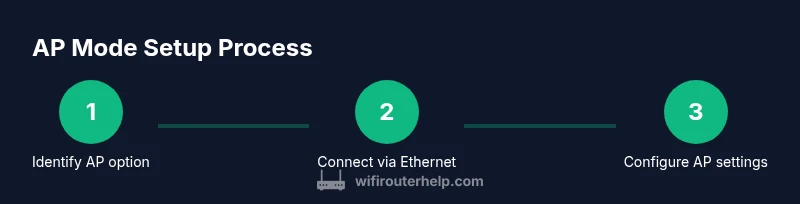
- 1
Identify AP mode capability
Check your AP's user manual or web interface to confirm it supports AP mode. If an explicit AP mode option exists, enable it, otherwise prepare for manual reconfiguration of LAN/DHCP settings.
Tip: If unsure, search the brand’s official support page for “AP mode” or “Access Point.” - 2
Connect the AP to the main router via Ethernet
Power on the AP and connect its LAN port to a LAN port on the main router using a wired Ethernet cable. This wired backhaul is essential for stable performance and reliable roaming.
Tip: Avoid using the WAN port on the AP unless the device documentation specifies it as LAN for AP mode. - 3
Log in to the AP’s admin interface
Open a browser and enter the AP’s current IP address. Log in with default credentials (or those you set earlier). If you don’t know the IP, check the device label or the manual.
Tip: If you can’t reach the page, ensure your computer is on the same subnet as the AP. - 4
Assign a static LAN IP to the AP
Set a static IP for the AP within the main router’s subnet but outside the main DHCP pool to avoid IP conflicts. Note this IP for future access.
Tip: Choose a IP that is easy to remember and clearly outside the main router’s DHCP range. - 5
Disable the AP’s DHCP server
Turn off DHCP on the AP so the main router remains the sole DHCP server. This prevents duplicate IP assignments.
Tip: Do not leave DHCP enabled on both devices unless you are intentionally building a multi-router network with separate subnets. - 6
Configure network settings on the AP
Set the AP to operate in AP mode or Bridge mode per device. Ensure the LAN IP matches what you configured in step 4 and that the AP uses the same SSID settings you want for roaming.
Tip: If available, enable the same security protocol as the main router for seamless roaming. - 7
Set a clean SSID and security
Choose an SSID distinct from your main network or ensure both share a unified roaming-friendly name. Enable WPA3 (or WPA2) with a strong password.
Tip: Avoid using WPS as it may introduce security vulnerabilities. - 8
Test the connection and roaming
Connect a client to the AP and verify it obtains an IP from the main router. Move around the house to ensure stable handoffs and consistent speeds.
Tip: Test both 2.4 GHz and 5 GHz bands if available to ensure coverage across devices. - 9
Document and save settings
Record the AP’s static IP, SSID, security, and firmware version for future troubleshooting. Create a simple diagram of your network topology.
Tip: Keep a written log or digital note for quick reference during future changes.
People Also Ask
What is AP mode and how does it differ from bridge mode?
AP mode turns a router into a wireless access point that shares a single LAN with the main router, keeping NAT active on the primary device. Bridge mode disables NAT on the secondary device, often removing features like guest networks. AP mode is typically easier for home networks that want seamless roaming and centralized management.
AP mode makes a second router act as just an access point, while bridge mode disables NAT and often limits features. This guide focuses on AP mode for simpler roaming and control.
Do I need to disable DHCP on the main router as well?
No. In AP mode, you should keep DHCP enabled only on the main router. The AP should have DHCP turned off to avoid IP conflicts and ensure all devices receive addresses from the primary DHCP server.
Only one device should assign IP addresses—usually the main router.
Can I use AP mode without a wired backhaul?
AP mode performs best with a wired backhaul (Ethernet) between the main router and the AP. Wireless backhaul is possible on some devices but tends to reduce bandwidth and reliability.
Wired connection is preferred for stable performance.
Why can't I access the AP’s admin page after changes?
If you can’t reach the AP admin page, verify you’re using the correct static IP, the device is on the same subnet, and that the LAN port is correctly connected. Rebooting the AP can also help.
Check the IP and connection, then reboot if needed.
How can I test roaming between the main router and AP?
Connect a device to the AP and walk around your home. Confirm that the device gets a new IP from the main router when moving between zones and that the connection remains stable.
Move around and check that roaming feels seamless.
Is AP mode secure for a home network?
Yes, if you configure WPA2/WPA3, disable remote management, and keep firmware updated. Use a strong admin password for the AP interface.
Security comes from strong encryption and updated firmware.
Watch Video
What to Remember
- Plan IP scheme before enabling AP mode
- Disable DHCP on the AP to prevent conflicts
- Use wired backhaul for best performance
- Test roaming and connectivity before finalizing
- Document AP settings for future maintenance