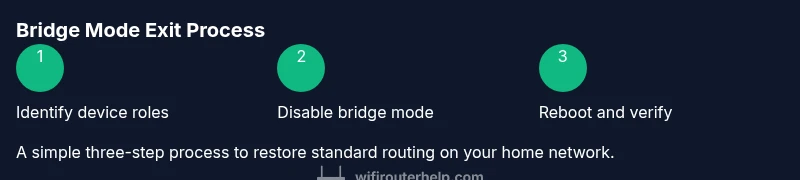
How to Get Your Router Out of Bridge Mode
Learn how to get your router out of bridge mode with a practical, step-by-step guide. Disable bridge mode, re-enable NAT and DHCP, and verify your home network is back to normal.


By the end of this guide, you will disable bridge mode on your primary router and restore standard NAT, DHCP, and wireless routing. You’ll need access to the router’s admin interface, an Ethernet cable or stable Wi‑Fi, and the login credentials. The steps cover common router brands and how to verify Internet connectivity after switching out of bridge mode.
What is bridge mode and why exit?
Bridge mode is a special configuration that turns off a device’s routing features, effectively passing your Internet connection straight to another router. Many homes use bridge mode when a separate, more capable router handles all routing duties, firewall rules, and Wi‑Fi. This setup prevents double NAT and can simplify management when a modem and router are separate devices. However, leaving bridge mode enabled on the wrong device can break features you rely on, such as parental controls, QoS, or guest networks. If you’re trying to add a second router to improve coverage, you may inadvertently keep bridge mode enabled and end up with limited functionality. According to WiFi Router Help, understanding how to get router out of bridge mode is essential for restoring full control over NAT, DHCP, and wireless networks. In most homes, exiting bridge mode returns you to a single, coherent routing setup with a unified firewall and easier device management.
When you exit bridge mode, your primary router becomes the authority for IP addressing and network management. This means the gateway or modem may hand out private IPs, and devices will receive routes from your router rather than from the gateway alone. The result is typically better control over port forwarding, VPN compatibility, and guest networks. But there is a caveat: depending on your hardware, exiting bridge mode can reintroduce NAT-related issues that require careful reconfiguration. The goal is to have a single router manage DHCP, NAT, and wireless services while ensuring all devices can reach the Internet reliably. The WiFi Router Help team emphasizes planning and pacing during this process to avoid downtime.
To plan effectively, map out which device is currently acting as the router, which functions are needed (DHCP, NAT, firewall, QoS), and whether your ISP’s gateway offers any management apps or dashboards. If you are unsure which device is in bridge mode, you can check the WAN status on both the gateway and your router. If you see two different private IP ranges or a blank Internet connection on one device, you may be in the wrong mode. The path to success often involves adjusting settings on the gateway first and then verifying that your router takes over routing duties without conflicts. WiFi Router Help’s guidance centers on clear steps, minimal downtime, and safe backups of existing configurations to recover quickly if something goes wrong.
What is bridge mode and why exit?
Bridge mode changes are often necessary when a secondary router is introduced for performance or coverage. This section lays the groundwork for understanding the end goal: a stable, single routing domain with NAT and DHCP managed by your primary router. If you’re dealing with a combination of an ISP gateway and a separate router, the bridge mode decision determines whether the gateway acts as a simple modem or as a true router. Exiting bridge mode is not always a one-click action; some devices require you to disable IP Passthrough, turn off DMZ, or reset the gateway to router mode. The underlying principle is ensuring your router (not the gateway) handles IP address assignment and routing rules so your devices obtain consistent network policies.
Brand mentions and expectations
According to WiFi Router Help, the best practice is to approach bridge-mode exits with a plan, a safety backup, and device-specific instructions. You’ll often find brand-specific steps in official support pages, but a general approach remains the same: locate bridge mode, disable it, reboot both devices, and re-test connectivity. When done correctly, you restore full access to your network controls and avoid the pitfalls of double NAT. This section provides the context needed to approach the actual steps with confidence.
Tools & Materials
- Computer or mobile device with a web browser(Needed to access the admin interfaces for both gateway and router.)
- Ethernet cable(Useful for stable login and avoiding wireless hiccups during configuration.)
- Login credentials for your gateway and your router(Have admin usernames and passwords ready; you may need default or previously customized credentials.)
- A backup of current settings(Optional but recommended in case you need to revert quickly.)
- Stable Internet power source(Ensure devices stay powered during changes; a power bank can help for mobile devices.)
Steps
Estimated time: 20-40 minutes
- 1
Connect to the gateway admin interface
Use a computer or mobile device wired or on the same network to access the gateway's admin page. This page is typically reachable at an IP like 192.168.0.1 or 192.168.1.1. Ensure you have the login credentials before attempting access.
Tip: If you’re unsure of the gateway IP, check the label on the device or the manual; you can also run a quick network scan from a connected device. - 2
Find the bridge mode or IP passthrough setting
Navigate to the section that controls bridge mode, IP Passthrough, or DHCP settings. The exact path varies by brand, but you’re looking for a toggle or radio button that disables bridge mode or re-enables routing.
Tip: If a feature is labeled like 'IP Passthrough' or 'DMZ', you may need to disable it to restore full routing on the gateway. - 3
Disable bridge mode and enable router mode
Turn off bridge mode and switch the gateway out of passthrough, then save changes. Some devices require you to select 'Router' or 'DHCP and NAT' mode explicitly.
Tip: Do not apply multiple conflicting settings at once; confirm you’re enabling NAT and DHCP where appropriate. - 4
Reboot gateway and connect your router
Power down the gateway and your primary router, then power them back on in sequence. This ensures the new routing configuration takes effect and devices can obtain new routes.
Tip: Allow 2–3 minutes for each device to fully boot; avoid unplugging during boot to prevent partial configuration. - 5
Verify WAN status on your router
Log into your router’s admin page and check the WAN/Internet status. You should see a public IP assigned by your ISP or a non-bridge NAT configuration.
Tip: If the WAN IP remains private or unchanged, you may still be in bridge mode on the gateway or there is a misconfiguration. - 6
Reconfigure Wi‑Fi and DHCP on your router
Ensure your router is distributing IPs via DHCP and that wireless networks are enabled with your preferred SSIDs and passwords. Update WPA3 settings if available.
Tip: For best coverage, consider setting distinct SSIDs for 2.4 GHz and 5 GHz bands and align channels to minimize overlap. - 7
Test multiple devices and services
Connect several devices and verify Internet access. Test essential services (DNS, streaming, video calls, gaming) to confirm routing stability and firewall rules.
Tip: Run a quick speed test and check for DNS resolution problems to catch misconfigurations early.
People Also Ask
What is bridge mode and why would I need to exit it?
Bridge mode disables a router’s NAT and firewall, passing the connection to another device. Exit bridge mode when you want a single router to manage DHCP, NAT, and Wi‑Fi for simpler control and better-feature support.
Bridge mode turns off routing on one device so another device handles the network. Exit it to let your main router manage NAT, DHCP, and firewall rules for a unified network.
What if I can’t access the gateway admin page?
Ensure you are connected to the gateway’s network with a valid login. If you’ve forgotten credentials, use the device’s reset procedure or contact your ISP’s support for a reset instruction set.
If you can’t reach the gateway admin, verify your connection and credentials. If needed, contact support to reset credentials safely.
Will exiting bridge mode affect my Internet service?
Exiting bridge mode typically restores standard routing, which should not affect service stability. If you rely on ISP features like voice or managed Wi‑Fi, verify compatibility after changes.
Usually it won’t affect service, but check compatibility with any ISP-managed features you rely on after you switch.
How can I tell if NAT is enabled after exiting bridge mode?
Check the WAN status on your router; a private IP range and a public WAN IP indicate NAT is active and routing is handled by your router.
Look at the WAN details in your router’s UI. A public IP means NAT is active on your router.
What if I still have double NAT after exit?
Double NAT happens when both devices perform NAT. If seen, consider configuring the gateway to pass through traffic properly, or place one device in access point mode.
If NAT is still doubled, adjust the gateway’s settings to pass traffic through or set one device to AP mode.
How long does it take for changes to apply?
Changes usually take a few minutes to propagate after a reboot. If a device seems unresponsive, give it 5–10 minutes and reboot again.
Give it a few minutes after reboot; if needed, reboot again to ensure changes take effect.
Watch Video
What to Remember
- Exit bridge mode to regain full router control over NAT and DHCP.
- Always reboot devices after a mode change to apply new settings.
- Test on multiple devices to confirm reliable Internet access.