How to connect wifi to router: Step-by-step guide
Learn how to connect wifi to your router with a clear, practical process: access the admin page, set a secure SSID, configure encryption, and verify devices are connected. A WiFi Router Help guide.


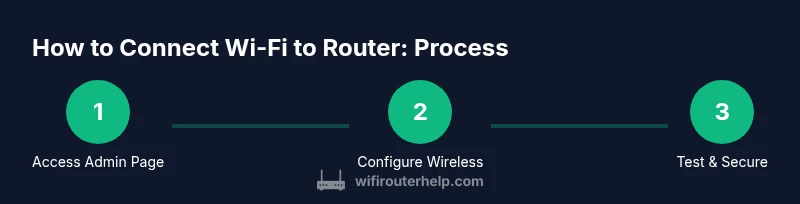
You will learn how to connect wifi to router and establish a reliable home network. This step-by-step guide covers accessing the router's admin page, configuring a secure SSID and password, and updating firmware for safety. According to WiFi Router Help, following a clear plan and applying best-practice security saves time and reduces connectivity issues.
Understanding how wireless networks work
A home Wi‑Fi network relies on a router to translate your internet signal into a wireless broadcast. The router creates a wireless local area network (WLAN) identified by an SSID, and devices connect using a password. Modern routers offer 2.4 GHz and 5 GHz bands, each with distinct coverage and speeds, and some devices support both with automatic band steering. Understanding these basics helps you answer the question of how to connect wifi to router: you align settings in the router with your devices for a consistent, secure connection. The setup can vary by whether your service is a simple cable modem, a gateway device, or a separate router behind a modem. According to WiFi Router Help, starting with a clear plan reduces backtracking and common mistakes, and documenting credentials makes future changes smoother.
Prerequisites and planning
Before you touch the router, list your goals: a fast and reliable 2.4 GHz and 5 GHz network, a strong password, and a plan for guests. Gather what you will need: a computer or phone with a web browser, the router’s login credentials, and a copy of your internet plan. If you’re replacing an old setup, consider backing up current settings. Decide whether you want one network name for both bands or separate SSIDs for 2.4 GHz and 5 GHz. Planning also means noting the current service provider credentials and whether you’re using bridge mode with a separate gateway. WiFi Router Help analysis shows that buyers who prepare a short checklist save time and avoid common misconfigurations, especially when multiple devices or streaming is involved.
Accessing the router admin page safely
To change wifi settings, you must access the router’s administrative interface. Start on a device connected to the router (either via Wi‑Fi or an Ethernet cable). Open a web browser and enter the gateway address. Common addresses are 192.168.0.1 or 192.168.1.1, but your device may use a different value, which you can confirm from the router label or manual. You may be prompted for a username and password; if you never changed them, the default credentials are often on the label or manual. If the login fails, try a reset or consult the manufacturer support. After logging in, navigate to the Wireless or Wi‑Fi section to begin configuring your network. Keeping your login credentials secure is essential to maintain control over your home network.
Configuring wireless settings: SSID, security, and password
In the wireless settings, choose your SSID (the network name) and decide how you want to label it for family and guests. For best results, enable WPA2 or WPA3 encryption; avoid older standards like WEP. If your router supports both 2.4 GHz and 5 GHz, consider configuring separate SSIDs for each band or enable a single name with smart steering if available. Create a strong password: use 12 or more characters with a mix of upper and lower case letters, numbers, and symbols. Write the password down in a secure place. Save or apply changes, then allow the router to update its wireless settings. If you enable a guest network, ensure it is isolated from your main network to protect devices and data.
Connect devices and verify connectivity
Reconnect your devices to the new network name and password. On each device, select the correct SSID and enter the password. If a device won’t connect, double-check that you are using the right band (2.4 GHz vs 5 GHz) and that the password is correct. Reboot the router if needed and retry the connection. After reconnecting, test a few tasks like loading a webpage, streaming a video, or running a speed test to confirm stability across devices.
Security, maintenance, and best practices
Ongoing security starts with firmware updates. Check for updates in the router interface and install them when available to address vulnerabilities and improve performance. Disable WPS, which is convenient but less secure, and consider enabling a guest network for visitors. Change your admin password regularly and don’t reuse passwords across services. For larger homes or challenging layouts, a mesh system or additional access points can improve coverage. WiFi Router Help analysis shows that using a single, strong password and keeping firmware current reduces the majority of common home network issues and improves stability.
AUTHORITY SOURCES
For further reading, explore authoritative resources on wireless security and best practices. These sources provide foundational guidance that complements hands-on setup guidance:
- https://www.cisa.gov
- https://www.nist.gov
- https://www.fcc.gov
Tools & Materials
- Computer or mobile device with a web browser(Used to access the router admin page)
- Active internet connection (cable/DSL/fiber)(Provides internet for setup and testing)
- Router admin credentials (username/password)(Found on the router label or manual; may require reset if forgotten)
- Ethernet cable(Optional but helpful for stable setup during configuration)
- Notebook or note-taking tool(Record SSIDs and passwords for future reference)
- Surge protector or backup power(Prevents power interruptions during updates)
Steps
Estimated time: 25-45 minutes
- 1
Verify prerequisites
Confirm you have access to the router admin page and that your internet connection is active. Gather credentials and note any existing network details. This preparation reduces rework as you follow the steps to connect wifi to router.
Tip: Double-check that you are on the correct network and have admin access. - 2
Open the router admin page
On a device connected to the router, open a browser and enter the gateway IP address. Log in using your admin credentials. If you can't access the page, try a reset or locate the correct IP via a label on the router.
Tip: If your login fails, check if you are using a VPN or proxy that could block access. - 3
Navigate to Wireless settings
In the admin page, locate the Wireless or Wi‑Fi section. Review current radios and identify 2.4 GHz and 5 GHz bands. Decide whether to use separate SSIDs or a single name with smart steering.
Tip: If your router has separate menus for 2.4 GHz and 5 GHz, note down each setting to avoid confusion. - 4
Set SSID and secure password
Enter a new SSID that is easy to recognize but not tied to personal details. Enable WPA2 or WPA3 encryption. Create a strong password with at least 12 characters.
Tip: Use a password generator or a mix of letters, numbers, and symbols. - 5
Apply changes and test connections
Save the settings and allow the router to apply updates. Reconnect your devices using the new SSID and password. Test streaming or browsing to confirm stability.
Tip: If the network is unstable, try changing the wireless channel or repositioning the router. - 6
Update firmware and finalize
Check for firmware updates and install them if available. After installation, reboot the router if required and re-test. Document the changes for future reference.
Tip: Back up current configuration before updating, in case you need to revert.
People Also Ask
Do I need to reset my router to change Wi-Fi settings?
Not usually. You can typically change SSID, password, and security without a reset. A reset is only necessary if you cannot access the admin page or the changes don’t apply.
Usually you don’t need to reset. If you can’t access the admin panel or changes don’t take effect, a reset may be required.
Why can't I access the router admin page?
Common causes are incorrect gateway IP, device not connected to the router, or a VPN/proxy interfering. Verify the connection and try a different browser or device, then re-enter the gateway address.
Make sure you’re connected to the router and use the right gateway IP. Try another browser if needed.
What security settings should I use for home Wi-Fi?
Use WPA2 or WPA3 encryption with a strong password. Disable WPS if possible and avoid shared admin accounts.
Choose WPA2 or WPA3 and a strong password, and turn off WPS for better security.
How do I find my SSID and password?
Open the Wireless section in the router’s admin page to view the current SSID(s) and password. If you forgot them, you can reset the password through the same section or reconfigure from scratch.
Look in the Wireless settings to see or reset your network name and password.
How often should I update router firmware?
Check for updates monthly or whenever the manufacturer notifies you. Install updates promptly to patch security vulnerabilities and improve performance.
Check for updates regularly and install them when available.
What if I forget my admin password?
Use the router’s physical reset button to restore factory settings, then reconfigure from scratch. Keep a record of credentials going forward.
If you forget it, reset and set up again, and save the new login details.
What to Remember
- Plan before changing settings and document changes
- Use WPA2/WPA3 with a strong password
- Separate SSIDs for 2.4 GHz and 5 GHz can improve performance
- Test connections after each change to verify results
- Keep firmware up to date and back up configurations