How to Connect to a Router: Step-by-Step Guide
Learn how to connect to a router with practical, beginner-friendly steps for wired and wireless setups. Get tips on security, troubleshooting, and optimizing your home network from WiFi Router Help.


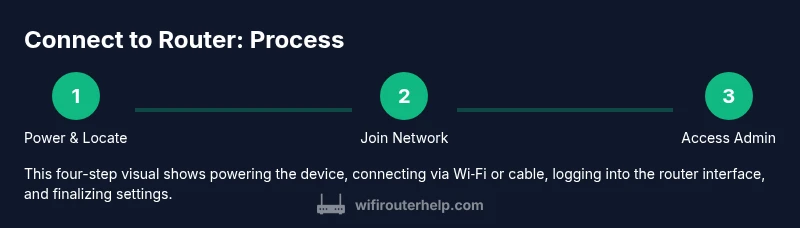
To connect to a router, choose a device and either join the network via Wi‑Fi or plug in with an Ethernet cable. Then enter the network password (or configure via the router’s admin page). Basic steps include locating the SSID, connecting, and confirming internet access. A few routers require initial setup through a browser app.
Why connecting to a router matters
Connecting to a router is the foundation of your home network. When you connect, you gain access to the internet and all devices on your network, from laptops to smart speakers and printers. According to WiFi Router Help, establishing a reliable router connection starts with clear network naming and secure credentials. If you’re learning how connect to router, the goal is to create a stable link that supports all your devices without constant reconfiguration. Wrong assumptions—like using an incorrect SSID or a weak password—lead to dropped signals and frustrated users. A methodical approach, starting with locating the router’s network name and verifying power and cables, reduces troubleshooting time. This guidance explains how to approach the problem, what to check first, and how to progress to wired or wireless connections. A solid connection also makes future upgrades easier, whether you add a mesh system or a guest network later.
Understanding how connect to router helps you tailor coverage, optimize performance, and keep your network secure as devices multiply in a modern home.
Wired vs wireless connections: choose the right method
Choosing between wired and wireless connections depends on your priorities. A wired Ethernet link tends to offer the most reliable speeds and lowest latency, which is ideal for gaming, streaming high-definition video, and work tasks that require stable connectivity. Wireless connections provide flexibility and convenience for laptops, tablets, and mobile devices without running cables. For many homes, a hybrid approach works best: keep essential devices on Ethernet for speed, while enabling Wi‑Fi for mobile devices. When you learn how to connect to router in the wireless mode, ensure you understand your router’s bands (2.4 GHz vs 5 GHz). The 5 GHz band offers faster speed at shorter range, while 2.4 GHz provides broader coverage with slower speeds. If you experience interference, consider changing channels or enabling band steering if your router supports it. By anticipating where devices will be used, you can design a layout that balances reach and performance.
Preparing your devices before connecting
Before attempting a connection, gather a few essentials to reduce back-and-forth. You’ll need the router’s network name (SSID) and the password, which are typically printed on a label on the router or in the setup booklet. Have a device ready with a browser or a dedicated app if your router supports app-based setup. If you’ll be wiring in, locate an available Ethernet port on the router and a compatible port on your computer or game console. It’s also helpful to note the router’s IP address (commonly 192.168.0.1 or 192.168.1.1) in case you need to access the admin interface. Finally, ensure the router is powered on and connected to any necessary modem or fiber gateway. With these details in hand, you’ll move smoothly into either a wired or wireless configuration and minimize frustration during setup.
Accessing the router admin interface safely
Many routers offer a settings panel that you access through a web browser or a mobile app. Start by connecting a device to the router via Wi‑Fi or Ethernet, then open a browser and enter the router’s IP address (often 192.168.x.1) or the provided URL. You’ll be asked for a username and password; if you haven’t changed defaults, use the credentials printed on the router. Once in, review basic settings: confirm the WAN/Internet status, set a strong admin password, rename the network (SSID) if needed, and choose a secure Wi‑Fi password with WPA3 or at least WPA2 encryption. If your router uses a cloud account or companion app, you can complete setup there. Always log out after changes, and save settings. If you forget credentials, look for a reset option or consult the manual. This access step is the foundation for a stable, controllable home network.
Testing your connection and troubleshooting common issues
After you’ve connected, run a quick test to confirm Internet access and identify potential problems. On a computer or mobile device, open a web page and check for loading times. If pages are slow or fail to load, try a quick network reboot: power cycle the router and modem, wait 60 seconds, and reconnect. If your device cannot see the network, verify the SSID is correct and the password is entered accurately, and ensure the device’s Wi‑Fi is turned on. For wired connections, check the Ethernet cable and port; try a different port if available. If DNS resolution fails, you can switch to a public DNS like 8.8.8.8 temporarily to rule out DNS issues. When problems persist, check for firmware updates and review any parental controls or MAC filtering rules that might block devices from connecting. WiFi Router Help analysis shows that many issues stem from simple misconfigurations rather than hardware faults.
Security basics after connecting
Security should be part of the initial connect-to-router process. Change all default credentials on your router, including the admin login and the Wi‑Fi password, to strong, unique values. Enable modern encryption (preferably WPA3; if not available, WPA2). Keep firmware up to date to protect against vulnerabilities. Consider enabling a guest network for visitors to keep your main network private, and disable features you don’t use, such as WPS, if not needed. Regularly review connected devices to spot unfamiliar entries. By making security a priority from the start, you prevent breaches and protect smart home devices. The WiFi Router Help team’s verdict: a secure, well-configured router reduces risk and improves long-term performance.
Tools & Materials
- WiFi router(Power adapter included, ensure firmware is up to date)
- Device to connect (laptop, smartphone, or tablet)(Must have a working browser or router app)
- Ethernet cable(Useful for wired setup or LAN testing)
- Power outlet near router(Stable power supply; avoid power strips with other heavy loads)
- ISP modem or gateway (if separate from router)(Check bridge mode if you’re using your own router)
- Paper with SSID and password(If you can’t locate the label on the router)
Steps
Estimated time: 20-30 minutes
- 1
Power up and locate
Plug in the router and let it boot fully. Locate the sticker with the default SSID and admin login, or prepare to use the app if your device supports it.
Tip: If the lights don’t stabilize within 2 minutes, unplug, wait 10 seconds, and power back on. - 2
Find the network name and password
Identify the SSID you’ll connect to and the corresponding password. This is often printed on a label on the router or in the quick-start guide.
Tip: If you don’t see a label, check the manufacturer’s support site or the setup app. - 3
Connect via Ethernet (optional)
If you prefer a wired connection, plug one end of the Ethernet cable into a LAN port on the router and the other end into your device.
Tip: Wired connections usually provide the most stable performance for initial setup. - 4
Join the Wi‑Fi network
On your device, select the router’s SSID from the list of available networks and enter the password.
Tip: If the network does not appear, verify the router is broadcasting and try rebooting the device’s Wi‑Fi radio. - 5
Access the admin interface
Open a browser and enter the router’s IP address (often 192.168.x.1). Log in with the default credentials or a cloud account, if required.
Tip: Change the default admin password as soon as you’re in the settings. - 6
Configure basic settings
Set a strong Wi‑Fi password, choose WPA3 (or WPA2), and consider renaming the network for clarity and security.
Tip: Enable automatic firmware updates if available. - 7
Test the connection
Visit several websites, run a speed test, and check multiple devices to ensure consistency.
Tip: If speed is poor, try changing the Wi‑Fi channel or enabling band steering if your router supports it. - 8
Save, reboot, and review
Save your changes, reboot the router if prompted, and review connected devices for any unknown entries.
Tip: Document the new SSID and password for future use.
People Also Ask
What is the difference between 2.4 GHz and 5 GHz?
The 2.4 GHz band travels farther and penetrates walls better, but offers slower speeds. The 5 GHz band delivers faster speeds with shorter range. Many routers support both, enabling a balance between reach and performance.
The 2.4 gigahertz band travels farther but is slower; the 5 gigahertz band is faster but shorter-range. Use both if your router supports it.
My device can’t see the router’s network.
Ensure the router is broadcasting, verify the SSID is correct, and confirm your device’s Wi‑Fi is enabled. If needed, reboot the router and the device.
If the network isn’t visible, check broadcast, SSID, and reboot devices to reset the connection.
How do I reset the router to factory settings?
Look for a small reset button on the back of the router. Press and hold it for about 10 seconds with a paperclip until lights flash. After reset, you’ll need to reconfigure from scratch.
To reset, press the reset button with a paperclip for about ten seconds, then reconfigure your router from scratch.
Should I enable WPS?
WPS can simplify setup but is less secure. If you don’t need it, disable WPS and use a strong password with WPA2 or WPA3 instead.
WPS is convenient but less secure, so disable it and rely on a strong password.
Why is my Wi‑Fi slow after connecting?
Slow Wi‑Fi can result from interference, channel crowding, or outdated firmware. Try changing the channel, moving the router, or updating firmware to improve performance.
If speed drops, switch channels, reposition the router, and update firmware to boost performance.
What to Remember
- Connect using the correct SSID and password.
- Secure the router by changing default credentials.
- Test across wired and wireless devices for consistency.
- Keep firmware updated for security and performance.