How to Connect a WiFi Router: A Clear Step-by-Step Guide
Learn how to connect your wifi router to the internet and devices with a clear, step-by-step guide. Includes setup, security tips, and troubleshooting.


Learn how to connect your wifi router to the internet and your devices with a clear, step-by-step approach. This guide covers choosing the right connection type, verifying modem compatibility, applying basic security, and troubleshooting common outages. You’ll have a stable home network in about 15 minutes with clear steps and safety tips.
Quick Start: Understanding wifi router connect
If you want to connect a wifi router to the internet and your devices, the goal is to establish a stable, secure home network quickly. The phrase wifi router connect captures both the hardware hookup and the configuration steps that follow. According to WiFi Router Help, the most reliable setups begin with a supported modem, a central router location, and a simple security plan. Before you start, confirm you have the right equipment: a modern router, a compatible modem from your ISP, and a device to configure the settings. In this guide, we’ll walk through practical steps, explain common pitfalls, and show you how to test connectivity across phones, laptops, and smart-home gadgets. You’ll learn the exact order of operations, how to choose between 2.4 GHz and 5 GHz bands, and how to avoid the most frequent mistakes that block wifi router connect. The goal is not just to get online but to create a resilient network that works well in every room. If you follow these steps, you’ll finish in about 15 minutes for a basic setup, with additional time for security tweaks and testing.
Choosing the Right Connection Type for Your Setup
Your home internet connection can come from a variety of sources—cable, DSL, or fiber—and your router will need to adapt to whichever path reaches your modem. The key decision for wifi router connect is how your router will obtain an IP address from the modem or the ISP gateway. In most cable or fiber setups, DHCP on the router is ideal, meaning the ISP assigns the address automatically. If you have DSL, PPPoE might be required, which needs a username and password supplied by your provider. If you’re unsure which path you have, contact your ISP or check the modem’s status page. A correct choice saves time and reduces troubleshooting later. After you finalize the connection type, you’ll be ready to move to physical setup and initial configuration.
Preparing Your Equipment: Modem, Router, and Cables
Before you begin wifi router connect, gather all required equipment and verify compatibility. You’ll typically need a modem (provided by the ISP or rented), a wireless router, and an Ethernet cable to connect the router and modem. Keep a spare long Ethernet cable handy in case your devices need to be placed far from a wall outlet. Power adapters should be in good condition with no frayed cords. If you own a newer modem with a built-in router, you can place it in bridge mode to avoid double NAT, but this is an advanced step you’ll perform after basic setup. Finally, have a device ready to configure the router (a laptop, tablet, or smartphone).
Step-By-Step Overview: How the Process Flows
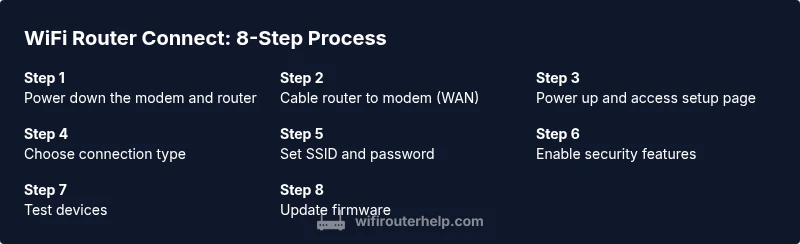
A structured approach to wifi router connect minimizes confusion. First, ensure both devices are powered off to avoid electrical surges during cabling. Next, connect the router to the modem with an Ethernet cable; then power both devices back on and wait for boot. Once the lights stabilize, access the router’s setup page from a browser using the default IP address. From here you’ll choose your internet connection type, set a new network name (SSID), and create a strong password. Finish by saving settings and testing with a phone or computer. If anything seems off, recheck cable connections, ensure the modem is online, and verify LAN LEDs indicate activity. This sequence reduces frustration and accelerates successful wifi router connect.
Security Foundations: Locking Down Your Network
Security is a core part of wifi router connect. Create a unique SSID and disable default credentials. Enforce WPA2 or WPA3 encryption and use a long, random password. Enable a guest network to isolate visitors’ devices from your main network, and turn on the router’s firewall. Regularly check for firmware updates, and consider disabling WPS to avoid a potential vulnerability. Finally, document credentials in a safe place so you don’t lose access after a reset. These steps help protect your home network from common threats.
Troubleshooting Common Issues When Connecting
Encountering issues after wifi router connect is common but solvable. If you can’t access the internet, verify the modem is online and the router is receiving an IP address. If the signal seems weak in some rooms, try relocating the router to a more central position, away from thick walls or metal appliances. If devices can’t connect, re-enter the Wi‑Fi password and ensure the correct SSID is selected. When in doubt, reboot both devices, then test again. If problems persist, check for a firmware update or reset the router to factory settings before reconfiguring from scratch.
Advanced Tips for Stable Connectivity
For consistently reliable wifi router connect, consider optimizing channels and bands. Use 2.4 GHz for longer range and better penetration through walls, and 5 GHz for higher speeds on nearby devices. If your home has many devices, enable QoS to prioritize important traffic like video calls or gaming. Place routers away from electronics that emit interference and ensure ventilation to prevent overheating. Periodic firmware updates are essential because they fix bugs and enhance security. If you still experience dead zones, a mesh system or range extenders can provide broader coverage without sacrificing speed.
Maintenance and Long-Term Care for Your Home Network
A durable home network rests on routine maintenance. Regularly check for firmware updates and apply them after reviewing release notes. Change admin passwords periodically and back up your configuration if the router supports export. Clean the router’s vents and keep the device in a stable, cool location. Periodically test network performance across rooms to identify new dead zones, and recalibrate antenna placement if your model allows it. By treating wifi router connect as an ongoing practice, you’ll preserve performance and security over time.
Authority Sources
- FCC: Wireless Network Security Basics and privacy considerations for home networks. https://www.fcc.gov
- CISA: Cybersecurity basics for home and small networks, emphasizing best practices and safe configurations. https://www.cisa.gov
- NIST: Guidelines and standards for wireless network security and configuration. https://www.nist.gov
Tools & Materials
- WiFi router(Ensure it supports at least WPA2/WPA3 and dual-band 2.4 GHz + 5 GHz.)
- Modem(Compatible with your ISP; check if it’s provided or rented.)
- Ethernet cable (Cat5e/Cat6)(Used to connect modem to router; length adequate for your setup.)
- Computer, smartphone, or tablet(Required to access the router’s setup page.)
- Power outlets(Ensure outlets are convenient for both devices.)
- Optional: Cable organizer(Keeps cables tidy and reduces clutter.)
Steps
Estimated time: 30-45 minutes
- 1
Power down and prep
Power off the modem first, then the router. Unplug both devices to avoid surges. This reset ensures a clean start for wifi router connect.
Tip: Wait 10 seconds after unplugging before reconnecting for a full reboot. - 2
Connect the hardware
Connect one end of the Ethernet cable to the modem and the other to the router’s WAN/Internet port. Double-check the ports to prevent miswiring.
Tip: Use a labeled port if your router has multiple LAN ports. - 3
Power up and access setup
Plug in the modem first, wait for online status, then power on the router. Open a browser and navigate to the router’s IP address (often 192.168.1.1).
Tip: If you don’t know the address, check the router label or user manual. - 4
Choose the connection type
In the setup wizard, select DHCP (most cable/fiber setups) or PPPoE if your ISP requires it. Enter credentials if needed.
Tip: Use a guest account if you have multiple users to keep main network secure. - 5
Set a strong SSID and password
Name your network and create a robust password. Enable WPA2 or WPA3 encryption for best security.
Tip: Avoid common names like 'linksys' and don’t reuse old passwords. - 6
Configure security features
Turn on the firewall, consider a guest network, and disable WPS. Check for firmware updates.
Tip: Firmware updates can fix vulnerabilities and improve performance. - 7
Test devices and finalize
Connect a phone, tablet, and laptop to verify internet access. Run a quick speed test to confirm expected performance.
Tip: Note any dead zones to plan future coverage improvements.
People Also Ask
Do I need a modem to connect a router?
Yes. A router connects to a modem to access the internet. In most homes, the modem provided by the ISP attaches to the router via Ethernet, and the router then distributes Wi‑Fi to devices.
Yes. A modem is typically required so the router can access the internet, after which the router creates your Wi-Fi network.
What if I can’t access the router’s setup page?
First, check that the router and modem are powered on and that you’re using the correct IP address. If needed, perform a factory reset on the router, then try again with the default credentials.
If you can’t access the setup page, verify power, use the right IP address, and reset if necessary.
Can I use an old router?
An old router can work but may not support current security standards (WPA3) or faster wireless speeds. If possible, upgrade to a newer model for better performance and protection.
You can use an older router, but upgrading often yields faster, safer Wi-Fi.
How can I improve Wi-Fi range in a large home?
Place the router centrally, elevate it, and reduce interference. For extensive homes, consider mesh networking or range extenders to eliminate dead zones.
To improve range, put the router in a central spot and consider mesh or extenders if your home is large.
How often should I update router firmware?
Check for updates monthly or enable automatic updates if supported. Updates fix bugs, close security gaps, and may improve performance.
Check for updates regularly or enable automatic updates to stay protected and fast.
What to Remember
- Connect the router to the modem before configuring network settings
- Use a strong, unique password and up-to-date encryption
- Test connectivity on multiple devices after setup
- Keep firmware updated for security and performance
- Document network credentials for quick future access