Where Does a Router Connect To? A Step-by-Step Guide
Learn where a router connects in a typical home network, how to wire it to a modem, and how to verify a stable internet connection with practical, step-by-step instructions.


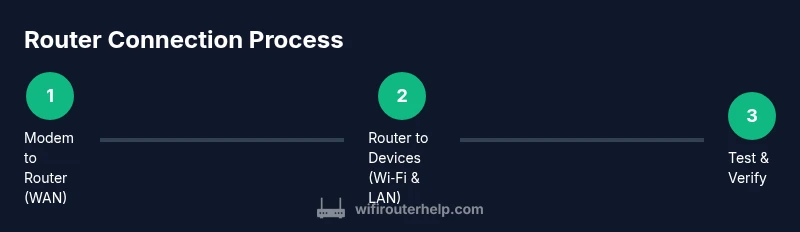
According to WiFi Router Help, a home router connects to the internet by plugging its WAN/Internet port into your modem. Then you connect client devices to the router’s Wi‑Fi or LAN ports. If you’re using a modem-router combo, enable bridge mode or place the devices in a dedicated router setup for best performance.
What the router does in your home network
A router is the traffic director of your home network. It sits between your modem (which connects to your internet service) and your devices, and it does more than just pass data along. The router assigns local IP addresses to devices, routes traffic to the right destinations, and provides essential protections like a basic firewall. It also manages wireless connections, so phones, laptops, smart TVs, and IoT gear can access the internet without each device needing its own direct line to the modem. According to WiFi Router Help analysis, understanding these roles helps homeowners troubleshoot problems when the network slows down or disconnects. The device endeavors to keep data flowing smoothly, even if you have multiple devices streaming, gaming, or video conferencing. The key takeaway is that the router is the central hub that translates outside internet access into usable, internal connections. This is why the physical connection and proper configuration matter for reliability and speed.
Physical connections: WAN port, modem, and the internet path
The physical setup starts with three players: the ISP’s modem, the router, and your devices. The modem connects to the internet service through its coax, fiber, or phone-line input, depending on your plan. The router’s WAN or Internet port is then linked to the modem via an Ethernet cable. This creates the pathway for your public IP address to be shared across your home network. In most layouts, the router then distributes connectivity to devices overWi‑Fi and via LAN ports. You’ll often see the WAN port highlighted in a distinct color on the router to prevent confusion. If you are using a gateway device that combines modem and router functions, you can still connect a separate router, but you may need to adjust settings (for example, bridge mode) to avoid double NAT and ensure optimal throughput.
Separate modem and router vs gateway devices
There are two common configurations: a separate modem and router, or a gateway device that combines both. With separate hardware, the WAN connection is straightforward: ISP modem -> router WAN -> devices. This setup offers the most control and flexibility, enabling features such as advanced QoS, guest networks, and easier firmware updates on each device. In contrast, a gateway can simplify installation but sometimes limits customization. If you encounter double NAT or limited port forwarding, enabling bridge mode on the gateway or using the modem in passthrough/bridge mode can restore full router control. WiFi Router Help recommends testing performance after any topology change to ensure you’re getting the desired speeds and coverage.
Step-by-step verification: how to test connectivity
Verification begins at the hardware level and moves into the software realm. First, confirm that the modem has a healthy connection to the internet by observing its status lights. Next, verify that the router is receiving a valid WAN IP by logging into the router’s admin interface and checking the WAN status. Then, connect a device via Wi‑Fi or Ethernet and browse to a few sites; run a quick speed test to compare results with your service plan. If the page loads slowly or the test shows abnormally low speeds, recheck the cabling: ensure the Ethernet cable is firmly seated in both the modem and the WAN port on the router. Rebooting both devices in the correct sequence (modem first, then router) is a common and effective fix. WiFi Router Help emphasizes patience during the first boot of new setups, as some ISPs take a moment to assign an IP.
Common mistakes and fixes
A frequent pitfall is wiring the devices in a way that creates a loop or double NAT. This reduces performance and complicates port forwarding. Ensure you’re not bridging the wrong device or using the LAN port on the modem for the router input. Another mistake is leaving default credentials in place; always change admin passwords and enable basic security features like a strong Wi‑Fi password and a guest network. If you’re migrating from a single-device gateway to a separate router, disable the built‑in routing features once the new router is up and running. Finally, firmware updates should not be skipped; regular updates improve security and reliability. WiFi Router Help’s ongoing guidance stresses updating firmware as part of routine maintenance.
Speed, reliability, and security basics for long-term health
Beyond the initial connection, ongoing care matters. Place the router in a central, elevated location to maximize coverage. Use the 2.4 GHz and 5 GHz bands strategically to balance range and speed for different devices. Enable QoS settings to prioritize video calls or gaming when needed. Regularly check for firmware updates and monitor connected devices for unfamiliar activity. With careful setup and maintenance, your home network will be more resilient, delivering consistent speeds to all rooms and devices. The WiFi Router Help team notes that a well-implemented router connection leads to fewer disconnects and improved average network performance over time, especially as new devices join your home ecosystem.
Tools & Materials
- Ethernet cable (Cat5e/Cat6 or better)(Used to connect the router’s WAN/Internet port to the modem; use a short cable to minimize signal loss)
- Modem(Your ISP-provided device; ensure it’s functioning before you add the router)
- Router(Your chosen router for distributing internet via Wi‑Fi and LAN)
- Computer or smartphone(To access the router admin page and verify WAN status)
- Bridge-mode guide (optional)(Use if you want the modem to act as a simple modem only and pass-through to your router)
Steps
Estimated time: 15-25 minutes
- 1
Power down and unplug
Turn off the modem and router, then unplug them from power. This prevents electrical surges and resets existing network states before you reconnect.
Tip: Wait 30 seconds after unplugging to ensure all capacitors discharge. - 2
Identify the ports
Locate the modem’s Ethernet port and the router’s WAN/Internet port (often colored). This ensures you connect to the right sockets without guessing.
Tip: Double-check labels to avoid connecting the router to the wrong port. - 3
Connect the WAN link
Plug one end of the Ethernet cable into the modem and the other into the router’s WAN/Internet port.
Tip: Use a short, straight-through Ethernet cable for reliable performance. - 4
Power up the modem
Plug the modem back in and wait for its lights to stabilize, typically 1–2 minutes.
Tip: If lights don’t settle after several minutes, perform a clean reboot of the modem. - 5
Power up the router and check status
Plug in the router and wait for its power and WAN lights to indicate a live connection.
Tip: If WAN is red or flashing, recheck cable seating and port usage. - 6
Verify WAN access
Log into the router admin page (default gateway typically 192.168.0.1 or 192.168.1.1) and confirm the WAN status shows an IP assigned by the ISP.
Tip: If you’re assigned a public IP, the internet should be reachable immediately. - 7
Test connectivity on devices
Connect a phone or computer to the router’s Wi‑Fi or LAN and load several sites; run a speed test to confirm performance matches your plan.
Tip: Test from multiple rooms to confirm coverage throughout the home.
People Also Ask
What is the WAN port on a router and why is it important?
The WAN port is the router’s internet input. It receives the public IP from your modem so the router can share internet to devices via Wi‑Fi or Ethernet.
The WAN port is your router's internet input; it's where your modem connects so your devices can access the internet.
Can I skip the modem and connect the router directly to the fiber ONT?
If you have fiber service with an optical network terminal (ONT), you still connect to it with a router via Ethernet; the ONT acts as the modem. Check with your ISP for any required settings.
With fiber, you still use an ONT; connect the router to its Ethernet port. Your ISP may require specific settings.
What if my modem-router combo doesn't have a separate WAN port?
In many combo devices, you can place the unit into bridge or passthrough mode so your own router handles the network.
If there’s no standalone WAN port, enable bridge or passthrough mode on the combo device so your router handles traffic.
How do I know if my router is in bridge mode?
Bridge mode disables the router functionality on the gateway device and passes the internet to your own router. Check the admin interface or contact support.
Bridge mode turns off the gateway features; your router then handles routing.
What speeds should I expect after connecting?
Speeds depend on your plan and hardware; run a speed test to compare with the advertised rates.
Your speeds depend on the plan and hardware, test to confirm you’re getting what you pay for.
Do I need to restart after changing router settings?
Some changes require a reboot to apply; always save settings and reboot if prompted.
Yes, some changes need a reboot to take effect.
Watch Video
What to Remember
- Connect the router’s WAN port to the modem to establish internet access.
- Use bridge mode when using a separate modem-router setup to avoid double NAT.
- Verify WAN status in the router UI and test devices for real-world connectivity.
- Regularly update firmware for reliability and security.