How is Router Connected: A Step-by-Step Guide
Learn how is router connected in a typical home setup, from modem to WAN to LAN, with practical steps, tips, and troubleshooting.


In a typical home network, a router connects your devices by linking a modem to a local network via the WAN port and distributing IPs to your devices. This model covers how the modem, router, and optional mesh systems link together, plus how to verify connectivity and troubleshoot issues. According to WiFi Router Help, understanding these basics helps you plan for reliability and speed.
What does 'how is router connected' mean?
The phrase how is router connected describes the web of hardware and settings that let devices talk on a home network. At its core, a router sits between your internet service provider and your local devices, managing traffic, assigning IP addresses, and applying security rules. In practical terms this means a modem receives the internet signal from your ISP, the router creates a local network, and devices connect to that network either over Wi‑Fi or with Ethernet cables. Understanding these roles helps homeowners plan where to place devices for best coverage and reliability. According to WiFi Router Help, starting with a clear diagram of your setup makes troubleshooting much faster and reduces guesswork. A typical setup divides responsibilities: the modem handles the external signal, while the router manages internal routing, security, and guest access.
If you’re exploring how is router connected, you’ll also encounter terms like WAN, LAN, NAT, and DHCP. WAN is the router’s internet-facing interface, while LAN ports serve the internal network. DHCP assigns IPs to clients automatically, and NAT translates private IPs to a public address when traffic exits your network. By keeping these roles straight, you can diagnose where a problem originates, whether it’s the ISP, the modem, or the router itself. For many users, this mental model is enough to know where to look first when a device won’t connect.
How home networks connect: a simple model
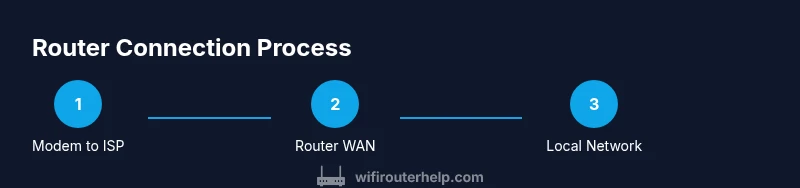
A home network typically follows a straightforward chain: Internet Service Provider → Modem → Router → Local Network (wired and wireless) → End devices. In most residences the modem and router are either a single gateway device or two separate units. In either case, the router’s WAN port (sometimes labeled Internet) connects to the modem, while the router’s LAN ports connect to switches, computers, or printers. Wireless devices join the network via Wi‑Fi and receive addresses through DHCP. The result is a private IP space (for example 192.168.x.x) that keeps devices organized and reachable. WiFi Router Help analysis shows that placing the router centrally improves coverage and minimizes dead zones, especially in multi-story homes. The cornerstone is a stable bridge between your ISP’s network and your home devices.
When planning, consider whether your ISP provides a gateway with built-in router functions or if you’ll pair a separate modem with a dedicated router. If you opt for a gateway, you’ll still want to manage wireless settings, guest access, and security. If you choose separate devices, you gain flexibility to upgrade one component without replacing the other. Either path works, as long as the WAN-LAN boundary is correctly configured and the devices are compatible with your internet plan.
Physical connections explained: cables and ports
Understanding the physical side of connectivity is essential to answer how is router connected. From wall to web you’ll typically encounter three core cables: a coaxial (for cable Internet) or a fiber line from the wall to the modem/ONT, an Ethernet cable from the modem to the router’s WAN port, and Ethernet cables from the router’s LAN ports to a computer, switch, or network-attached storage. Some homes use a phone line with DSL; in that case you’ll connect the DSL modem accordingly, then feed the router with Ethernet. Power adapters supply both devices. Cable quality matters: Cat5e or Cat6 Ethernet supports gigabit speeds over short runs. If you’re using a mesh system, each node communicates wirelessly and sometimes via a dedicated backhaul cable. In all cases ensure cables are seated firmly and not bent sharply to prevent intermittent drops.
Positioning is crucial: avoid metal obstacles, keep the router elevated, and aim for a central location to maximize coverage. The WAN port on the router will be your primary outlet to the internet; all other devices connect to LAN or via Wi‑Fi.
Tools & Materials
- Modem(ISP-provided device or rental modem; check compatibility with your service)
- Router(Any consumer-grade router with WAN port; supports current wireless standards (802.11ac/ax) and security features)
- Ethernet cables (Cat5e/Cat6)(At least one 1–2 meter for close devices; longer runs for multi-room setups)
- Power adapters(One for modem and one for router; ensure they match device requirements)
- Coaxial or fiber line(Present if your ISP uses coaxial or fiber to reach the modem/ONT)
- DSL line or fiber ONT (if applicable)(Only if your service uses DSL or fiber ONT; otherwise not needed)
- Laptop or smartphone(To configure the router settings via web interface or app)
Steps
Estimated time: 20-40 minutes
- 1
Identify connection type and gather hardware
Determine whether you have a single gateway device or separate modem and router. Gather the modem, router, Ethernet cables, and a device to configure the settings. This step establishes the baseline before you begin wiring.
Tip: If your ISP offered a gateway, you can still explore using a separate router later for more control. - 2
Connect the modem to the internet line
Connect the modem to the wall outlet using the appropriate line (coaxial or DSL/fiber, as provided). Ensure the modem has power and detect a stable link to the ISP network. Wait for the modem to register a downstream signal and show online status.
Tip: Avoid powering devices on in a sequence that wastes time; let the modem fully initialize first. - 3
Attach the router’s WAN port to the modem
Use an Ethernet cable to connect the modem’s Ethernet output to the router’s WAN port. This creates the boundary between your ISP and your home network. Confirm the router powers up and recognizes the WAN connection.
Tip: Use a short, high-quality cable to ensure reliable communication between devices. - 4
Power cycle and verify connectivity
Power off both devices, wait 10–20 seconds, then power them back on in order: modem first, then router. After boot, check the router’s status lights and access the admin page to verify WAN IP is assigned and DHCP is enabled.
Tip: If you don’t see an IP, reconnect the cable securely or try a different port on the router. - 5
Connect a client device and test
Join the network with a laptop or phone or via Ethernet and run speed tests or browse to confirm internet access. This validates that the local network and internet reach are functioning correctly.
Tip: Use both wired and wireless tests to ensure full coverage. - 6
Configure basic security and SSID
Set a unique network name (SSID) and strong password. Enable WPA3 where possible, update default admin credentials, and review basic firewall settings.
Tip: Document the new admin password and save settings before testing further. - 7
Optional: enable bridge mode or mesh integration
If you’re replacing an existing router or creating a dedicated modem, consider bridge mode or adding a mesh network for larger homes. Each option changes how devices obtain IPs and routes traffic.
Tip: Bridge mode disables the router functions on the gateway to avoid double NAT.
People Also Ask
What is the difference between a gateway and a router?
A gateway device combines modem, router, and often Wi‑Fi in one unit, while a router is a dedicated device that manages local networks. The gateway handles the internet connection and internal routing, whereas a separate router provides more control, features, and flexibility.
A gateway is an all-in-one device. A separate router gives you more customization and often better performance.
Do I need a modem to connect a router?
Yes. In most setups, the modem connects to the internet signal from your ISP and provides an IP connection to the router, which then distributes network access to devices.
Usually, a modem is required to translate the ISP signal into something your router can use.
Can I use a separate modem and router with my ISP?
Many ISPs support a separate modem and router configuration. You’ll connect the modem to the network and run an Ethernet cable to the router’s WAN port. This setup often offers greater flexibility and performance.
Yes, you can usually use a separate modem and router for more control.
What is bridge mode and when should I use it?
Bridge mode disables the router functions on the gateway, effectively turning it into a simple modem. Use it when you want your own router to handle all routing and Wi‑Fi features.
Bridge mode lets your own router manage the network.
Why can’t I access the router’s admin page?
Common reasons include incorrect IP address, wrong login credentials, or the router being in bridge mode. Make sure you’re connected to the network and use the correct default gateway address.
Check your connection and gateway address, then try the default login details.
Why is my internet slow after connecting?
Speed can drop due to crowded channels, old firmware, or a faulty cable. Check for interference, run a speed test over Wi‑Fi and Ethernet, and ensure firmware is up to date.
Slow speed could be due to interference or outdated firmware, so update and test.
Watch Video
What to Remember
- Understand the WAN-LAN model and where the modem, router, and devices connect
- Know when to use bridge mode or a separate modem-router setup
- Secure your network with a strong password and updated firmware
- Test both wired and wireless connections to verify coverage
- WiFi Router Help recommends clear diagrams to troubleshoot quickly