How to Connect a Router to the Internet: A Practical Guide
Step-by-step guide to connect a router to the internet, with security tips and troubleshooting for a reliable home network.


You will connect your router to the internet by linking the modem to the router and enabling the Wi‑Fi network. Key requirements include a router, a functioning modem, an Ethernet cable, and access to the router’s admin page. This guide covers safe setup, security best practices, and quick troubleshooting steps.
Understanding the setup: router, modem, and ISP
According to WiFi Router Help, most homes use a simple chain: internet service provided by the ISP arrives at a modem, the modem connects to a router, and the router creates a private network for all your devices. The router handles NAT, DHCP, and traffic management, while the modem provides the bridge to the ISP. In a typical home network, the WAN/Internet port on the router connects to the modem, while the LAN ports feed wired devices and the Wi-Fi radios serve wireless devices. Understanding these roles helps you diagnose issues, plan upgrades, and choose features such as guest networks or parental controls.
Key concepts to know include NAT (network address translation), DHCP (IP address assignment), bridge mode (bypassing router features), and the difference between a separate modem and a modem-router combo. When you’re ready to set up, you’ll confirm your ISP’s connection type (DHCP, PPPoE, or static IP) and then configure the router accordingly. This knowledge also prepares you to troubleshoot problems quickly and decide whether a simple home solution suffices or you should consider a mesh system for larger homes.
Before you start: Gather your gear and confirm your service
Before you begin, make sure you have all required gear and the service details from your ISP. You’ll need a working modem (or a modem-router combo provided by the ISP) and a compatible router. Have an Ethernet cable (Cat5e or better), the power adapters for both devices, and a computer, tablet, or smartphone ready to configure the router. If your ISP uses PPPoE, locate your PPPoE username and password. It’s also helpful to know your ISP’s expected connection type (DHCP, PPPoE, or static IP) and any DNS settings they recommend. Finally, enable a quiet workspace and set aside 20–40 minutes for setup and testing.
Having the right gear on hand reduces back-and-forth steps and helps you complete the configuration in one session. If you’re replacing an old router, note down any custom settings you plan to transfer, such as a preferred SSID or a guest network, to avoid re-creating them later. Also check that the modem’s firmware is up to date; some ISPs require a reboot after firmware updates to establish a stable connection. With everything ready, you can proceed to physically connect devices and begin the configuration.
Planning for stability and security: placement, channels, and encryption
Placement matters for signal quality. Position the router near the center of your home, elevated off the floor, away from thick walls, and away from other electronics that can cause interference. For many homes, placing the router on a high shelf in a central room yields the best coverage; if you have a multi-story home, consider a mesh system or a wired backhaul to keep speeds high on upper floors.
Choose the right wireless bands. Use 2.4 GHz for long-range coverage and compatibility with older devices, and 5 GHz for higher speeds on nearby devices. If your router supports both bands, enable a separate SSID for each band so you can direct bandwidth where it’s needed. Security matters: enable WPA2‑AES or WPA3 if available, disable WPS, and choose a strong, unique administrator password for the router’s login. Create a dedicated guest network for visitors to avoid exposing devices on your main network. Finally, plan a password policy and change defaults as part of a regular maintenance routine.
Step-by-step: plan to configure hardware, security, and access
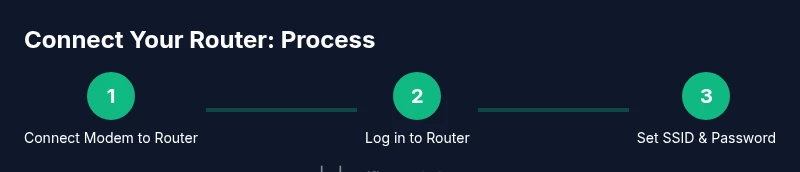
This section provides a practical, task-oriented flow to set up your system. Connect the modem to the router’s WAN/Internet port with a stable Ethernet cable, power both devices, and wait for them to boot. Open a web browser and enter the router’s default IP address shown on the device label to access the admin interface. Follow the on-screen wizard or manual settings to select your Internet connection type (DHCP, PPPoE, or static IP). Set a strong admin password and enable WPA2/WPA3 with a unique SSID. Record the network name and password in a safe place and enable guest networking if you frequently have visitors. If you need fixed IP, input the given IP, subnet mask, gateway, and DNS servers from your ISP. Finally, save the configuration and reboot if prompted. On first login, disable remote management unless you need it, and update firmware if prompted for updates.
Verifying connectivity and optimizing wireless performance
With the hardware configured, test wired and wireless connectivity. On a connected computer, open a browser and load a page to confirm internet access; check that the modem, router, and all lights indicate a healthy link. Then test wireless devices: walk around your home and note any dead zones or slow spots. If you notice weak coverage, try changing channels, enabling beamforming if supported, and adjusting antenna orientation. Run a quick speed test to verify you’re getting service as promised by your plan and provider. If speeds are inconsistent, check for connected devices that may be consuming bandwidth and consider QoS settings to prioritize important traffic. Finally, rename your guest network, set a password, and ensure device isolation is enabled for guest devices.
Troubleshooting: common issues and fixes
If you don’t get internet after setup, verify that the modem is online and that the WAN settings on your router match your ISP’s requirements. A common fix is power cycling: unplug both devices, wait 30 seconds, plug the modem back in, wait for it to boot, then plug the router back in. If you can access the router admin page but cannot browse, check DNS settings and try an automatic DNS option or a reputable public DNS. If you’ve forgotten the login to the router, use the reset button on the back to restore factory defaults and reconfigure from scratch. Remember: frequent firmware updates improve security and stability, so check for updates regularly. If you’re in a large home, consider extending coverage with a mesh system or a wired backhaul to prevent bottlenecks.
Next steps: maintenance and security hygiene
After the initial setup, commit to regular maintenance to keep your network fast and secure. Schedule firmware updates, periodically change management passwords, and review guest network settings. Maintain a clean network map by recording your SSIDs, passwords, and device lists. Reassess your coverage every six to twelve months, especially if you add new devices or experience slowdowns. If you’re planning changes, such as upgrading to a higher-speed plan or adding a mesh system, plan the upgrade during a low-usage period to minimize downtime and ensure a smooth transition.
Tools & Materials
- Router(Ensure it supports your ISP's connection type and has current firmware)
- Modem(If your service uses a separate modem; a combo unit is common in many homes)
- Ethernet cable (Cat5e or better)(Used to connect modem to router and to test wired connections)
- Power adapters for router and modem(Keep them handy in case of power outages or resets)
- Computer, tablet, or smartphone(For accessing the admin page and testing connectivity)
- ISP login/PPPoE credentials (if required)(Some providers require a PPPoE username/password)
Steps
Estimated time: 25-40 minutes
- 1
Power down and prep equipment
Power off both devices, unplug them, and wait 30 seconds to discharge residual charge. This ensures a clean reset state before you connect cables.
Tip: Label which device is which and keep cords neatly organized. - 2
Connect modem to router WAN port
Plug the Ethernet cable from the modem into the router’s WAN/Internet port. This is the standard path for the ISP connection to reach your private network.
Tip: Use a solid, undamaged Ethernet cable for best stability. - 3
Power up the modem, then the router
Plug the modem in first and wait for it to boot fully (usually a couple of minutes). Then plug in the router and allow it to boot. This helps ensure the router can obtain an IP from the modem.
Tip: If you see unusual blinking lights, wait longer and retry. - 4
Log in and configure WAN settings
Open a browser and enter the router’s default IP address from the label. Follow the setup wizard or manual to select the correct Internet connection type (DHCP, PPPoE, or static IP).
Tip: Change the default admin password before applying any settings. - 5
Set up Wi-Fi and security
Create a strong SSID and password, enable WPA2/WPA3, and disable WPS if possible. Create a separate guest network for visitors.
Tip: Use different passwords for admin access and Wi-Fi. - 6
Test connectivity and save configuration
Test both wired and wireless devices by loading web pages and running a speed test. Save the configuration and reboot if prompted.
Tip: Document your SSID, password, and admin login for future changes. - 7
Monitor and adjust as needed
After setup, monitor performance for a few days and adjust channels or QoS if needed.
Tip: Keep firmware up to date to maintain security and performance.
People Also Ask
What is the difference between a modem and a router?
A modem connects you to the internet service, while a router creates your local network and shares that connection with devices. The router also handles IP assignment and traffic routing within your home.
A modem gets you online; a router distributes that online connection to your devices.
Why can't I connect to the internet after setup?
Check that the modem and router are powered and connected correctly, verify the WAN/Internet settings match your ISP, and run a quick reboot cycle if needed.
Double-check the cables and WAN settings, then reboot both devices.
Do I need to update my router's firmware?
Yes. Firmware updates fix security issues and improve performance. Check the router’s admin page for updates and apply them when available.
Firmware updates are important for security and reliability.
What should I do if I forget my router login?
Use the reset button to restore factory defaults, then reconfigure from scratch using the admin page. Keep a record of the new credentials.
If you forget your login, reset the router and set up a new admin password.
How can I improve Wi‑Fi range in a large home?
Place the router centrally and elevated, minimize interference, and consider upgrading to a mesh system or adding a wired backhaul for better coverage.
Central placement helps a lot; for large homes, a mesh system can fill gaps.
Is it safe to enable a guest network?
Yes. A guest network isolates visitors from your main devices. Use a separate password and limit access to local resources.
Guest networks offer safe, isolated access for visitors.
What to Remember
- Identify the correct hardware ports.
- Connect modem to router via WAN/Internet.
- Change default login and enable encryption.
- Test wired and wireless connectivity.
- Document network settings for future changes.