Install a Router for Wireless Internet: Step-by-Step Guide
Learn how to install a router for wireless internet with a clear, step-by-step plan. Get practical setup tips, security best practices, and troubleshooting strategies for a reliable home network.


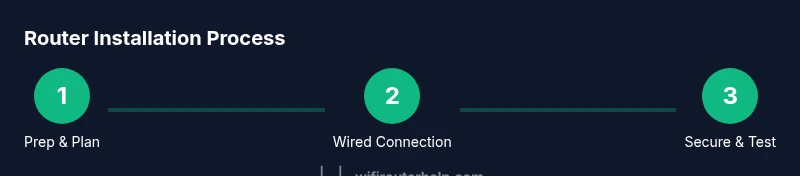
To install a router for wireless internet, connect your modem to the router, access the admin interface, and configure security settings. You’ll need a router, a modem, an Ethernet cable, power supply, and a computer or phone to complete setup. This guide emphasizes reliability, safety, and easy troubleshooting for beginners.
Preparing to install a router for wireless internet
Installing a router for wireless internet is a practical, foundational step for a reliable home network. The process becomes straightforward when you prepare correctly and understand the roles of each device. A router creates the local network and manages traffic between connected devices and the internet, while the modem provides the actual internet connection from your ISP. As you prepare to begin, gather your equipment, confirm your internet plan details, and ensure you have a comfortable workspace with a browser-ready device. According to WiFi Router Help, starting with a clean slate—clear desk, updated browser, and known device passwords—reduces setup friction and speeds progress. In most homes, the goal is to achieve stable coverage, predictable speeds, and secure access for all household members. You’ll also want to map out your space to minimize dead zones and to plan for future upgrades without starting over. This approach keeps the setup approachable, even if you’re less tech-savvy, and sets the stage for ongoing performance improvements.
Understand your current setup and plan your network
Before buying or configuring anything, sketch a quick diagram of your home network. Identify where the modem sits, where you can place a router for best coverage, and which devices most rely on a stable connection. Plan for a primary 2.4 GHz and a secondary 5 GHz SSID, or a single unified network if you prefer simplicity. Write down the desired name (SSID) and a strong password now; you’ll likely reuse them for years, so choose something memorable yet unique. If you have smart home devices, decide whether you’ll place them on the same network or create a guest/IoT-only network for extra security. The WiFi Router Help team recommends keeping network changes minimal during the initial hours to avoid confusion when testing performance. This step reduces backtracking and makes troubleshooting easier if issues arise later.
Selecting the right router for wireless internet
Choosing the right router is the single most impactful decision for your home network. Look for at least dual-band support, modern security (WPA3 if available), and a router that matches your internet speed. If you subscribe to gigabit internet, prioritize routers with a reliable 1 Gbps WAN/LAN interface and good CPU performance to handle multiple devices. Consider features like MU-MI, WPA3, guest networks, and easy firmware updates. If you expect to expand with mesh devices later, plan for a mesh-ready system. Remember to verify compatibility with your modem and ISP; some providers require specific gateway devices, while others permit separate routers. WiFi Router Help analysis shows that aligning hardware with your home's layout—open spaces, walls, and appliance placement—consistently yields stronger coverage and fewer dead zones. Make a short-list of candidates and compare real-world speed tests from households similar to yours.
Unboxing and verifying hardware
Carefully open the box and confirm you have all listed components: router, power adapter, Ethernet cable, and quick-start guide. Visually inspect the router for any dents or loose parts. If you’re upgrading from an older device, note whether the new unit supports existing features like USB sharing or guest networks. Keep the router’s manuals handy, especially for factory-default credentials and the default IP address used to access the admin interface. If the packaging lacks any item, contact the seller before proceeding. Having the correct hardware on hand prevents mid-setup delays and ensures you can follow the steps confidently.
Connect the router to your modem and power
Unplug both devices to avoid electrical surges. Connect the modem’s Ethernet WAN port to the router’s WAN/Internet port with an Ethernet cable. Then plug in the router and the modem, allowing them to boot fully. If your modem uses a coax line, ensure the connection is tight and that the modem shows a stable online indicator before continuing. Once powered, use a laptop or phone to verify you can reach the router’s admin page, typically via an address like 192.168.0.1 or 192.168.1.1. A basic connection at this stage confirms physical links are correct and ready for configuration.
Configure initial settings: access the admin interface
Open a browser and enter the router’s default IP address to reach the admin panel. Log in with the default username and password provided in the manual, then immediately change these credentials to prevent unauthorized access. Configure your internet connection type (DHCP, PPPoE, or static IP) based on your ISP’s guidance. Set up your primary SSID, or keep a simple, descriptive name for the network, and decide whether to enable guest access. Disable WPS if possible, as it can introduce a security risk. Save settings and reboot if necessary. After reboot, reconnect with the new credentials and verify you can access the internet from a test device.
Secure your network: SSID, password, and encryption
Security should be a primary concern in any home network. Use WPA2 or WPA3 encryption; avoid WEP or insecure options. Create a strong, unique passphrase—ideally 16 characters or more, mixing uppercase letters, numbers, and symbols. Consider disabling remote management unless you need it, and enable automatic firmware updates to keep defenses current. If you have guests or IoT devices, enable a separate guest network or a dedicated IoT network to isolate risk. Document the security settings in a simple note for future reference, including password hints that aren’t easily guessable. WiFi Router Help emphasizes that consistently updated firmware closes vulnerabilities and extends device life while preserving performance.
Optimize for coverage: placement, channels, and QoS
Router placement dramatically affects performance. Place the router in a central, elevated location away from thick walls, microwaves, and cordless phones. A higher line of sight improves signal distribution. For interference-prone environments, choose the 5 GHz band for high-speed devices close to the router and reuse 2.4 GHz for farther corners. Manually set channels to avoid crowded frequencies in your area, or enable auto-channel selection if you prefer. If you have latency-sensitive devices like gaming consoles or work laptops, enable Quality of Service (QoS) rules to prioritize traffic. Consider upgrading to a mesh system if you still encounter dead zones after optimal placement. These steps often yield noticeable gains in speed and reliability without hardware changes.
Testing your wireless network and troubleshooting common issues
Test speeds from multiple locations across your home using a reliable speed test app. Compare measured results with your ISP’s advertised speeds and account for network overhead. If speeds degrade, check for firmware updates, reset routing settings to factory defaults, or reboot devices in a staged order. Verify device firmware, and check for IP address conflicts or duplicate DHCP scopes. For connectivity issues, confirm the router’s LAN IP matches your device’s gateway; if not, adjust DHCP settings or reset to defaults. If devices randomly disconnect, test with a wired connection to isolate whether the problem is Wi-Fi or ISP-related. With careful testing, you’ll identify whether adjustments to placement, channels, or security were effective.
Maintenance and future-proofing
A router setup isn’t a one-and-done task. Schedule a quarterly review to apply firmware updates, review connected devices, and audit security settings. Back up your configuration as a file you can restore quickly after a reset. If you add new devices or expand to a larger home, plan for scalable upgrades like a mesh network or a higher-capacity router. Keep an eye on common failure points, such as power supply or overheating, and keep the router on a well-ventilated shelf. By treating your router as a long-term asset, you’ll enjoy stable wireless internet and fewer headaches over time. The WiFi Router Help team recommends documenting your network layout and settings for future reference, so you can reproduce a successful configuration after a hardware upgrade.
Tools & Materials
- Router(Ensure it supports your internet speed and at least 2.4/5 GHz bands.)
- Modem(Your ISP-provided device or standalone modem; confirm compatibility.)
- Ethernet cable(Cat5e or Cat6, at least 1 meter.)
- Power adapter(From the router package; ensure proper voltage.)
- Device to access admin(Laptop/phone/tablet with a browser.)
- Optional: USB/print sharing hardware(If you plan local network sharing.)
- User manual or digital guide(For reference during setup.)
Steps
Estimated time: 60-90 minutes
- 1
Confirm prerequisites and plan
Gather the modem, router, power, and a computing device. Check ISP requirements and determine whether you’ll use separate SSIDs for 2.4 GHz and 5 GHz or a single unified network. This planning reduces back-and-forth during configuration.
Tip: Have your ISP login credentials handy if PPPoE is required. - 2
Power down and connect hardware
Unplug both devices. Connect the modem’s Ethernet outlet to the router’s WAN port using an Ethernet cable. Reconnect power and allow both devices to boot fully before proceeding.
Tip: Use a well-lit area to avoid misplacing cables. - 3
Access the admin interface
Open a browser and enter the router’s default IP (commonly 192.168.0.1 or 192.168.1.1). Log in with the default credentials, then immediately change them. Confirm you can reach the internet from a connected device.
Tip: Write down the new login credentials in a secure place. - 4
Set up your internet connection
Configure the Internet/WAN settings according to your ISP (DHCP, PPPoE, or static IP). Save changes and reboot if required. Verify WAN status shows online.
Tip: If in doubt, call your ISP’s support line for precise settings. - 5
Create your Wi‑Fi network(s)
Set an SSID, choose security (WPA2/WPA3), and create a strong password. Decide whether to enable a guest network and separate IoT network if desired.
Tip: Avoid common names and reuse a password across networks. - 6
Secure the router and firmware
Disable remote management if not needed, enable automatic firmware updates, and confirm that the router’s firewall settings are active.
Tip: Set a reminder to check for updates monthly. - 7
Optimize placement and channels
Place the router centrally, elevated, away from interference. If needed, manually choose cleaner channels or enable auto-channel selection.
Tip: Keep the router away from metal objects and microwaves. - 8
Test and verify performance
Run speed tests from multiple rooms and devices. Note any dead zones and adjust placement or add a mesh system if necessary.
Tip: Document results to compare after future changes.
People Also Ask
Do I need a wired connection to install a router?
A wired connection during setup makes configuration easier and more reliable, but you can complete most steps over Wi‑Fi once the router is reachable. If you run into trouble, switch to a wired link to verify settings.
You can start over Wi‑Fi, but using a wired link simplifies the first setup and helps avoid wireless issues during configuration.
Can I install a router without a modem?
No. A router alone cannot access the internet without a modem or gateway device. If you only have a router, you’ll still need to connect to the internet via your ISP through a modem.
A router needs a modem or gateway to connect to the internet.
What security settings should I enable after setup?
Enable WPA2 or WPA3, use a long, unique password, and keep firmware up to date. Consider enabling a guest network for visitors and IoT devices to keep your main network secure.
Turn on WPA2 or WPA3 and pick a strong password, then keep the firmware updated.
How can I extend coverage beyond a single router?
If you still experience dead zones, consider a mesh system or additional access points placed strategically. Mesh networks provide seamless roaming and easier management for larger homes.
A mesh system helps spread the signal more evenly across bigger spaces.
Watch Video
What to Remember
- Install a router for wireless internet with careful planning.
- Choose a router that matches internet speed and devices.
- Secure the network with WPA3 and strong passwords.
- Test coverage and adjust placement for reliable wireless access.
- Keep firmware updated for ongoing performance and security.