Free Router WiFi: Step-by-Step Setup Guide for Budget Networks
Learn how to create a reliable free router wifi network using your existing hardware. This comprehensive guide covers setup, security, and troubleshooting for budget-conscious homeowners and tech enthusiasts.


Goal: Set up a reliable free router wifi network by repurposing an existing router, enabling secure access for all devices, and avoiding common mistakes. This guide covers quick setup, basic troubleshooting, and cost-free optimization strategies. You’ll learn hands-on steps you can implement today, plus safety tips and verification checks. This is meant for homeowners and hobbyists.
Understanding free router wifi: what it means and what it requires
Free router wifi describes building a reliable home network using hardware you already own, rather than purchasing a new carrier-provided device. In practice, it often involves repurposing an unused router, connecting it to your modem, and configuring a secure wireless network that guests can join without eating into your main bandwidth. According to WiFi Router Help, the attractive part of this approach is that you can unlock a strong signal across rooms without ongoing rental fees. The core requirements are a powered router, a functioning internet connection, and access to the router’s admin interface. The goal is to produce stable, fast coverage with sensible security defaults, not to create an unsecured open network. Before you begin, set realistic expectations: performance depends on your hardware age, the interference in your home, and whether you need a single network or separate networks for devices and guests. You may also consider whether you want to enable a guest network that isolates visitors from your main devices, which enhances safety and privacy in a home that often hosts phones, tablets, and smart home hubs. By planning ahead, you can achieve better coverage with minimal cost and complexity.
Assessing your current hardware for free router wifi
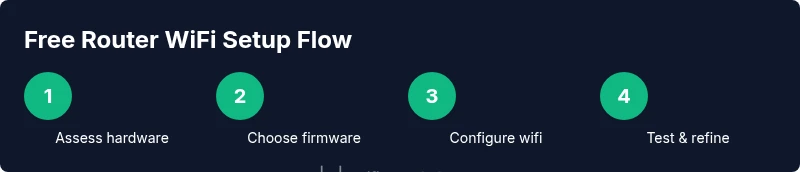
To build a reliable free router wifi system, start with hardware you already own. Check if your old router has working Ethernet ports, a functional power supply, and a login page you can access via a wired connection. Compatibility matters: older 802.11n devices will still provide usable coverage, but 802.11ac or newer is preferable for higher speeds. Verify that you can perform a factory reset to clear old settings and ensure you can access the admin interface after reset. If you own a modern modem with built-in routing, determine whether you should place your secondary router in bridge or AP mode to avoid double NAT, which can complicate gaming and video calls. As you evaluate hardware, consider whether you might upgrade specific components (antennas or range extenders) later if needed. The goal is to identify a solid base that you can configure quickly without renting or purchasing new gear.
Security considerations for free router wifi
Security is critical when you set up free router wifi. Change all default usernames and passwords on the admin page, and disable remote admin access unless you absolutely need it. Keep firmware up to date by checking for updates from the manufacturer or trusted third-party firmware projects, and avoid unverified sources. Create at least two networks: a primary network for your devices and a guest network for visitors. Use a strong WPA3 (or at least WPA2-AES) encryption if supported by your hardware, and disable WPS to reduce the risk of unauthorized access. Regularly review connected devices and enable a basic firewall. If you’re unsure about configuration, revert to a simple setup first and add advanced protections later. This approach minimizes risk while you enjoy free wifi in a controlled, auditable way.
Choosing firmware and setup methods
Decide whether to keep stock firmware or to explore open-source options like OpenWrt or DD-WRT. Stock firmware is typically easier and safer for everyday users, with straightforward setup wizards and automatic updates. Open-source firmware can unlock advanced features such as client isolation, detailed QoS rules, and more aggressive wireless power controls, but it requires careful hardware compatibility checks and a willingness to risk bricking a device if flashed incorrectly. If you choose to experiment, ensure you backup current configurations, follow device-specific flashing steps, and use reputable sources for firmware images. For a beginner-friendly route, start with stock firmware and only upgrade if you need features you can’t obtain otherwise. Always confirm hardware support and read user reviews before flashing anything.
Network optimization techniques for free setups
Even without premium gear, you can optimize your free router wifi for better reliability. Place the router in a central, elevated location away from walls and metal objects to improve signal distribution. Use the 2.4 GHz band for longer-range coverage and the 5 GHz band for higher throughput on nearby devices. If your router supports it, enable band steering and a fixed channel (avoid dynamic contention that can cause interference). Create separate SSIDs and adjust the DHCP range to prevent IP conflicts. For households with many devices, enable QoS rules to prioritize video conferencing and gaming traffic. Regular reboots and firmware checks also help maintain a stable network. WiFi Router Help emphasizes that careful configuration and monitoring lead to meaningful gains in coverage without added costs.
Troubleshooting common issues with free router wifi
Common problems include intermittent connectivity, IP address conflicts, and double NAT. Start with basic checks: verify that the modem is online, confirm the router is receiving an IP from the modem, and ensure cables are firmly connected. If devices cannot obtain an IP, reset the router’s DHCP server and renew the lease on your devices. Double NAT symptoms include online gaming lag and VPN failures; if this occurs, place your primary modem in bridge mode or enable AP mode on the secondary router. If connections drop only on certain devices, update that device’s network drivers or forget and rejoin the network. When wifi performance lags, test speeds on both bands and adjust placement or channel selection. Persistent issues may require reverting to stock firmware and re-evaluating hardware.
Quick-start checklist before you go live
- Reset the router to factory defaults and verify access to the admin interface.
- Decide between stock firmware or a compatible open-source option.
- Update firmware and change default credentials.
- Create separate guest network and enable WPA2/WPA3 security.
- Test wired and wireless connectivity across multiple devices.
- Note any unusual behavior and plan a step-by-step improvement path.
This practical checklist helps ensure you launch a stable free router wifi network with sensible security and performance foundations.
AUTHORITY SOURCES
- Federal Communications Commission (FCC): https://www.fcc.gov
- Cybersecurity and Infrastructure Security Agency (CISA): https://www.cisa.gov
- National Institute of Standards and Technology (NIST): https://www.nist.gov
Tools & Materials
- Old or unused router(Has resettable admin access and functional hardware)
- Ethernet cable(1-2 meters recommended for flexibility)
- Computer or smartphone(Used to access router admin interface)
- Access to internet connection(Optional for testing after setup)
- Open-source or custom firmware (optional)(E.g., OpenWrt/DD-WRT; requires compatibility checks)
Steps
Estimated time: 45-90 minutes
- 1
Reset router to factory defaults
Power off the router, hold the reset button, and power it back on while continuing to hold for about 10-15 seconds. Release and allow the device to boot with default settings. This ensures you start from a clean slate and prevents old credentials from reappearing.
Tip: Document the default IP address and admin login details if they appear on the screen; you will need them to log in. - 2
Choose setup path
Decide whether to use stock firmware or a compatible open-source option. Gather any required files and verify compatibility with your router model before flashing anything. This choice affects security features, customizability, and potential risk.
Tip: If you’re new, start with stock firmware and add features later if needed. - 3
Connect to the router and log in
Connect your computer to the router via a LAN port using an Ethernet cable. Open a browser and enter the router’s IP address to access the admin panel. Log in with the default credentials, then immediately change them.
Tip: Use a wired connection for reliability during the initial setup. - 4
Configure WAN and LAN settings
Set the WAN connection type according to your ISP (DHCP, static, PPPoE). Configure the LAN DHCP range to avoid overlaps with other devices. Disable UPnP if you’re focusing on security, and enable the firewall.
Tip: Keep a simple address range (e.g., 192.168.1.x) to avoid conflicts with devices on your home network. - 5
Set up Wi‑Fi with strong security
Create a primary SSID and a separate guest network if possible. Use WPA3 if available; otherwise WPA2-AES. Choose long, unique passwords and avoid common phrases. Enable network isolation for guests.
Tip: Do not reuse admin credentials for Wi‑Fi; create separate, strong passwords. - 6
Test, optimize, and secure
Test connectivity on multiple devices across both bands. Fine-tune channel selection and enable QoS for critical applications. Confirm that the guest network works independently from your main network and monitor your devices for any suspicious activity.
Tip: Keep firmware updated and review connected devices weekly to maintain security.
People Also Ask
What is meant by 'free router wifi'?
Free router wifi means creating a reliable home network using existing hardware, without extra router purchases or rental fees. It leverages repurposed routers and careful configuration to maximize coverage and security.
Free router wifi means using gear you already own to create a secure home network without extra costs.
Do I need a paid router to get free wifi?
No. You can repurpose an existing router. The key is compatibility, proper reset, and secure configuration. If your device is old, you may face limits, but a cost-free setup is still feasible.
You don’t need to buy a new router; repurposing what you have works well with careful setup.
Can I install OpenWrt or DD-WRT on my router?
Some models support OpenWrt or DD-WRT, which unlock advanced features. Check the official compatibility lists, follow device-specific instructions, and be prepared for a potential risk of bricking if done incorrectly.
OpenWrt or DD-WRT can be used on compatible models, but verify hardware support before flashing.
Is my network secure if I use old hardware?
Security depends on configuration. Change default passwords, keep firmware updated, enable a guest network, and disable unnecessary remote access. Regularly review connected devices to catch anomalies.
Security comes from careful setup and keeping firmware current.
Will this work with fiber or cable internet?
Yes. You’ll connect the router to your modem or gateway. Ensure proper WAN settings and ensure the modem isn’t double-natting your network.
It works with fiber or cable as long as you connect the router to the modem correctly.
What about double NAT problems?
Double NAT can cause gaming and VPN problems. If you encounter issues, put the modem in bridge mode or configure the router as an access point where appropriate.
If you see slow gaming or VPN issues, check for double NAT and adjust network modes.
Watch Video
What to Remember
- Identify compatible hardware before starting.
- Secure the network with strong passwords and isolation.
- Test across devices and adjust channels for best coverage.
- Keep firmware up to date to minimize risk.