Factory Reset on Netgear Router: A Complete How-To Guide
Learn how to safely perform a factory reset on Netgear routers, what to expect, and how to reconfigure your network after reset. This guide covers hardware and software resets, post-reset setup, and best practices to protect security.


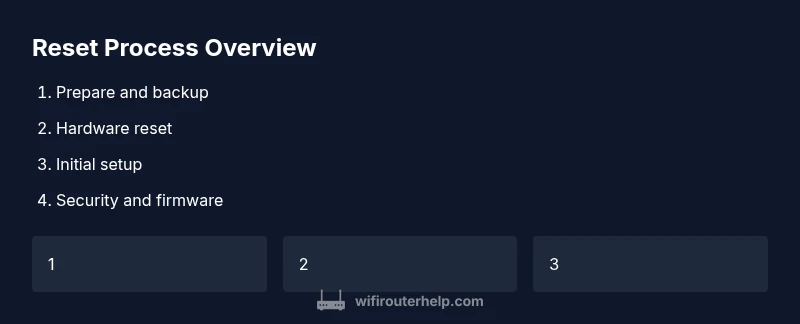
By the end of this guide, you will perform a factory reset on a Netgear router to restore it to factory defaults, wipe custom settings, and start fresh. Before you begin, gather a computer or phone, an Ethernet cable for stable setup, and your router model's manual. Expect the process to take about 15–25 minutes.
Why a factory reset on Netgear router matters
A factory reset returns your device to its original, out-of-the-box configuration. For many homeowners, performing a reset is the simplest way to recover from stubborn issues after firmware updates, misconfigurations, or questionable settings left by previous owners. According to WiFi Router Help, a reset can clear corrupted DNS entries, reestablish a clean security baseline, and help you regain access to the admin interface when credentials are forgotten. The WiFi Router Help team found that most problems described by users—from unresponsive admin pages to inexplicably dropping Wi‑Fi signals—clear up after a reset, followed by careful reconfiguration. However, a reset also erases all custom settings, including your network name (SSID), Wi‑Fi password, port forwarding rules, and parental controls. That means you should only perform a reset when you are ready to re-create your network from scratch. If you rely on specific features, such as VLANs, advanced QoS rules, or a guest network, plan to document those settings before you reset so you can reapply them afterward.
Before you reset: backup and prepare
Before you plunge into a factory reset on a Netgear router, take a moment to prepare. First, locate your model’s manual or the label on the router that lists default login details. If your model supports it, try to export or backup the current configuration from the admin UI; some Netgear models offer a backup/restore option, while others do not. Write down critical details you’ll need after the reset, such as your current SSID, Wi‑Fi password, and any port forwarding or parental controls you plan to re-create. Have a method ready to reconnect devices: an Ethernet cable helps during the initial setup, and a device you can use to access the router’s admin page is essential. Finally, ensure you’ve noted or prepared the firmware version you want to apply after setup; a fresh reset is an opportunity to upgrade securely.
Hardware reset: using the recessed button on Netgear routers
The hardware reset method is the quickest way to restore Netgear devices to factory defaults. Find the recessed Reset button on the back or bottom of the unit. Use a paperclip or similar object to press and hold the button for 7–15 seconds, until the status lights begin to blink or the power cycles. Release and wait for the router to reboot fully, typically 2–3 minutes. After the reset completes, your router will broadcast its default network name, and you’ll be prompted to begin the initial setup. This method is reliable when the admin UI is inaccessible due to forgotten credentials or a corrupted configuration. Note that a hardware reset wipes all customized settings and security configurations.
Software reset: factory reset from the admin UI
If you can access the router’s admin interface, you can perform a factory reset from there as well. First, connect a device to the router via Ethernet or Wi‑Fi and log in at the standard address (common options include http://routerlogin.net or http://192.168.1.1). Navigate to the Advanced Settings or Administration section and locate the Factory Reset option. Confirm your choice; the router will reboot and restore itself to original factory defaults. This method preserves the ability to reconfigure step-by-step while avoiding potential issues that might arise from the hardware button hanging or not registering a long press. Be prepared to re-enter all network details and security preferences after the reset.
After the reset: reconfiguring your network
Once the router has rebooted to factory defaults, you’ll need to reconfigure your network from scratch. Start by creating a strong admin password and then set up your Wi‑Fi name (SSID) and passphrase. Enable current security standards (WPA2‑PSK or WPA3‑Personal where available) and update the router’s firmware to the latest version from the admin interface. Reapply essential settings such as guest networks, QoS rules, parent control configurations, and port forwarding if needed. If you previously used wired devices for management, connect them directly via Ethernet during setup to minimize connectivity hiccups. Finally, test connectivity across multiple devices and perform a speed check to confirm the network is stable and performing as expected. This is also a good time to document your new credentials for future resets.
Troubleshooting after reset: common issues and fixes
After a factory reset, some issues can crop up, but they’re usually straightforward to resolve. If you can’t access the admin page, verify that you’re connected to the router’s default network and try again using a wired connection. If the router won’t complete the reset, power cycle it, then repeat the reset process, ensuring you press the recessed button for a full 7–15 seconds. If the Wi‑Fi signal is weak or unstable, relocate the router to a central location, minimize interference from other electronics, and verify that 2.4 GHz and 5 GHz networks are both enabled. If devices can’t obtain an IP address, re-check DHCP settings in the admin UI and ensure the router is the primary gateway for your network.
Safety, security, and best practices after a reset
Treat a factory reset as a security reset as well. Change the admin password immediately and pick a long, unique password. Rename the SSID to something distinctive (avoiding personal information) and disable remote management unless you explicitly need it. Regularly check for firmware updates and enable automatic updates if available. For households with multiple devices, document your new Wi‑Fi credentials and saved networks, and consider enabling guest networking to isolate IoT devices. By following these steps, you reduce exposure to common threats and maintain a robust, dependable home network. The WiFi Router Help team emphasizes keeping firmware current and practicing good password hygiene as core components of long‑term router health.
Tools & Materials
- Ethernet cable(Direct router-to-device connection for stable setup)
- Computer or smartphone(Access the router admin page (routerlogin.net or IP) after reset)
- Paperclip or pin(Press the recessed Reset button for hardware reset (7–15 seconds))
- Router manual or model label(Locate default credentials and model-specific steps)
- Recent firmware version info(Optional reference to update after setup)
Steps
Estimated time: 25-40 minutes
- 1
Verify reset necessity and gather materials
Confirm you are comfortable recreating network settings after a reset. Collect the router, admin device, paperclip, Ethernet cable, and the manual or label with default login details.
Tip: Having a written list of your prior SSID/password and port forwards saves time later. - 2
Power up and connect a management device
Power on the router and connect a computer or phone either via Ethernet or over the current Wi‑Fi to access the admin page.
Tip: A wired connection reduces setup glitches during the reset process. - 3
Perform hardware reset using the recessed button
Press and hold the Reset button for 7–15 seconds until the lights indicate a reset is underway, then release and allow the router to reboot.
Tip: Do not press briefly; a partial press may have no effect. - 4
Allow the device to reboot completely
Wait roughly 2–3 minutes for the router to finish restoring to factory defaults and coming back online.
Tip: Use a timer to avoid interrupting the boot process. - 5
Connect to the default network
After reboot, connect a device to the router’s default SSID to begin setup.
Tip: If the default network isn’t visible, reboot once more and ensure the device is in range. - 6
Open the admin UI and start the setup wizard
Open http://routerlogin.net or 192.168.1.1 and follow the on-screen setup wizard to reconfigure your network.
Tip: If you encounter login prompts, try again with the model’s default credentials from the label/manual. - 7
Secure the network and update firmware
Create a strong admin password, configure Wi‑Fi security (WPA2/WPA3), and check for firmware updates.
Tip: Enable automatic firmware updates if available for ongoing protection. - 8
Test connectivity and document settings
Test all devices, verify internet access, and record new SSID/password and admin credentials for future use.
Tip: Keep a secure copy of credentials in a password manager.
People Also Ask
What happens when I perform a factory reset on my Netgear router?
A factory reset restores the router to its default state, erasing custom settings like SSID, Wi‑Fi password, and port forwards. You will need to reconfigure the network and security settings afterward.
A factory reset returns the router to its default configuration and removes your custom settings, so you’ll need to set up Wi‑Fi name and password again.
Will I lose internet after a factory reset?
You won’t lose internet permanently. The router will return to a default state, and you’ll reconfigure the network to regain access. The internet connection resumes once the new settings are saved and devices reconnect.
Internet resumes after you reconfigure the router and reconnect devices.
Can I reset my Netgear router remotely or in the app?
Yes, many Netgear models support a reset via the web UI or mobile app, but the exact steps vary by model. If the app is available, you can locate the Factory Reset option within the settings.
In many models you can reset from the app or web UI, but check your model’s manual.
Should I update firmware after a reset?
Yes. Reset is a good time to update to the latest firmware to improve security and stability. Follow the UI prompts to check for and install updates.
You should update firmware after resetting to keep the router secure and stable.
How long does a factory reset take?
A factory reset typically takes a few minutes, plus additional time for reconfiguration. Plan for about 20–40 minutes total depending on your familiarity.
Expect about twenty to forty minutes from start to finish.
What if the reset button doesn’t respond?
If the hardware reset fails, power cycle the device and retry the reset press firmly for the full 7–15 seconds. If issues persist, consult the model’s support resources.
If the button doesn’t respond, power cycle and try again; contact support if needed.
Watch Video
What to Remember
- Reset wipes custom settings; reconfiguration is required.
- Hardware and UI resets both restore factory defaults reliably.
- Firmware updates after reset enhance security and stability.
- Document credentials and settings to simplify future recoveries.