Cox Router Login: Step-by-Step Access Guide
Learn how to securely access the Cox router login page, find the gateway IP, and configure settings to protect your home network. A practical, step-by-step guide from WiFi Router Help.


You will learn how to log in to your Cox router, locate the admin page, and change essential settings to secure your home network. This guide covers finding the gateway IP, using safe credentials, and what to do if login fails.
Why Cox Router Login Matters
Accessing the Cox router login page is more than a maintenance task—it's the foundation of a secure, reliable home network. The admin interface lets you change your Wi‑Fi name and password, set the security protocol, enable firewalls, and manage connected devices. A strong, well‑structured login reduces the risk of unauthorized access and makes future configurations easier. According to WiFi Router Help, starting with a secure login is the first step toward a safer home network. In this guide, we’ll walk through locating the login page, signing in with trusted credentials, and applying practical security measures so your devices stay protected while you enjoy fast, stable internet.
Whether you’re setting up a Cox gateway for the first time or revisiting old settings, a careful login routine saves time later and helps prevent common issues such as forgotten passwords, weak encryption, or rogue devices. This article is crafted for homeowners and tech enthusiasts who want clear, actionable steps without jargon. You’ll see how to confirm you’re on the correct admin page, what to do if you can’t log in, and how to lock down your network after access. The guidance also aligns with general home-network security best practices from trusted sources, so you can maintain a resilient setup as your family’s connectivity needs grow.
Default Credentials and Safe Practices
Many Cox devices ship with default admin credentials that grant access to the router’s configuration. While convenient, leaving these defaults in place creates a serious risk of unauthorized changes and limited network protection. A best practice is to log in at least once after setup and replace both the username and the password with strong, unique values. Use a password manager to store the login details securely, and never reuse passwords across accounts. If you can, enable two-factor authentication where the router supports it, and write down the new credentials in a secure location. WiFi Router Help emphasizes that routine credential updates improve ongoing security and reduce vulnerability windows.
Before you begin, confirm you’re working on the intended Cox gateway rather than a neighbor’s device. If you rented or borrowed equipment, verify you have permission to modify settings. When you’re ready to customize, document the new admin password and keep that record separate from your Wi‑Fi password. If you ever suspect an unauthorized login attempt, reset credentials promptly to restore control over your network.
How to Find Your Cox Gateway IP Address
To reach the Cox router login page, you must first know the gateway IP address. The most common private IPs for home routers are 192.168.0.1 and 192.168.1.1, but your Cox device could use a different address. Start by checking the device label on the router itself for a gateway IP, username, and password. If the label is unclear or missing, you can locate the address from a connected device:
- Windows: Open Command Prompt and run ipconfig. Look for the Default Gateway entry under your active network connection.
- macOS: Open System Preferences > Network > Advanced > TCP/IP to see the Router value.
- iOS/Android: Go to Settings > Wi‑Fi, tap your current network, and note the Router or Gateway value.
If you still can’t identify the gateway, log in to the Cox account app or contact Cox support. Once you have the IP, you’re ready to access the admin interface and start configuring settings.
Accessing the Cox Router Admin Interface
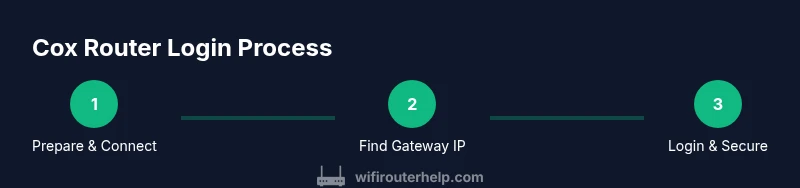
With the gateway IP in hand, follow these steps to access the login page:
- Connect your computer, tablet, or phone to the Cox router’s Wi‑Fi network or via Ethernet. A direct connection minimizes connection drops during login.
- Open a modern web browser and type the gateway IP address into the address bar, then press Enter. Ensure you use the router’s IP, not a public DNS or a search term.
- When prompted, enter the admin username and password printed on the device label or provided by Cox. If you’ve previously customized credentials, use those instead of the defaults.
- After successful login, explore the security and Wireless sections to adjust settings, but avoid changing critical configurations unless you’re sure of the impact. Save changes and log out when finished.
If you encounter errors, verify you’re connected to the router, try a different browser, and clear your browser cache. Sometimes, a simple reboot of the router and the device solves login hiccups. If you still can’t log in, reach out to Cox support for directed assistance and consider updating firmware after securing access.
Troubleshooting Common Login Problems
Login problems are common but solvable with a methodical approach. First, ensure your device is connected to the router’s network and that you’re using the correct gateway IP. If the login page won’t load, try another browser or clear your cache. If you’ve forgotten the credentials, check the device label for defaults and attempt them once. If the defaults were changed and you now forget them, a factory reset may be necessary, though this will reset Wi‑Fi name and password as well as all custom settings.
Should a reset be required, locate the recessed reset button, press and hold it for about 10 seconds until you see the lights flash. After the reset, you’ll need to reconfigure the network, including SSID, password, and any security features. Remember that a reset can disrupt your home network temporarily, so plan accordingly. For persistent issues, Cox support can guide you through a safe recovery path without erasing all settings.
Securing Your Cox Router After Login
Once you’ve logged in, the real work begins: securing your network. Start by changing the admin password to a strong, unique value and consider altering the default username if your device allows it. Enable WPA2‑PSK or WPA3 if available, and choose a long passphrase that combines letters, numbers, and symbols. Disable remote management unless you need it for monitoring while away from home, as it can expose your router to the internet if not properly configured. Keep firmware up to date by checking for updates in the admin interface; these updates often address security vulnerabilities and improve performance. Finally, enable a guest network for visitors to protect your main network and devices.
Document settings such as the new SSID and password in a secure location, and consider segmenting the network with different access levels for devices like work laptops, smart home gear, and guest devices. Regularly review connected devices and remove anything unfamiliar. Consistent maintenance reduces the chance of unauthorized access and helps maintain reliable Wi‑Fi performance as your home grows.
What to Do If You Can't Login
If you still cannot access the Cox router login page after trying the steps above, start with a quick reboot of the gateway and your client device. Confirm you’re using the correct IP and that the device is connected to the router’s network. If you’re certain the credentials should work but don’t, contact Cox support for verification and potential credential reset assistance. Do not share admin credentials with others and avoid using guest networks when performing sensitive changes. If all else fails, a factory reset is a last resort, after backing up any essential settings, and then re‑configuring the device from scratch. In the long run, keeping the router firmware current protects against known vulnerabilities and improves login reliability.
Throughout the process, remember that consistent, careful configuration is the best safeguard. A well-maintained Cox gateway reduces downtime, improves performance, and minimizes exposure to cyber threats. For ongoing guidance, refer to trusted sources on home-network security and Wi‑Fi best practices.
Quick Setup Checklist
- Confirm you’re connected to the Cox router network (Wi‑Fi or Ethernet).
- Determine the gateway IP address from the device label or your device settings.
- Open the router admin page using the correct IP in a modern browser.
- Enter the current admin credentials; if unknown, locate defaults on the device label.
- Change the admin password to a strong, unique value; enable WPA2/3 and disable remote management.
- Update router firmware if an update is available.
- Create a guest network and document all credentials securely.
- Regularly review connected devices and security settings for continued safety.
Tools & Materials
- Cox router or modem-router device(The gateway you’ll log into; keep it powered on during setup)
- A connected device (phone, tablet, or computer)(Must be on the same network as the router for access)
- Active Cox account or service status(Relevant for support and feature access; ensure service is active)
- Web browser (Chrome, Edge, Safari, or Firefox)(No special plugins needed; avoid insecure browsers)
- Password manager or secure notebook(Store admin credentials securely)
- Ethernet cable (optional but recommended)(Provides a stable connection during login and configuration)
Steps
Estimated time: 25-45 minutes
- 1
Prepare your connection
Connect your device to the Cox router network using a stable connection (Ethernet preferred). This reduces the risk of login interruptions during the process.
Tip: Wired connections are less prone to dropouts than wireless, especially during login. - 2
Identify the gateway IP
Find the router’s IP address from the device label or by checking your network settings on a connected device.
Tip: Common gateways are 192.168.0.1 or 192.168.1.1, but always verify on the device label. - 3
Open the admin login page
Enter the gateway IP into a browser’s address bar and press Enter to load the Cox login page.
Tip: Use a modern browser and avoid bookmarking the login page to reduce security risks. - 4
Enter admin credentials
Use the credentials printed on the router label or those you set previously. If you’ve never changed them, try the defaults first.
Tip: If defaults don’t work, do not guess endlessly—proceed to reset only if you’re comfortable with reconfiguring the network. - 5
Change the admin password
Navigate to the security or administration section and replace the old password with a strong, unique one.
Tip: Use a password manager to create and store a long, unpredictable password. - 6
Hone security settings
Enable appropriate encryption (WPA2/3), disable unnecessary remote management, and set up or adjust the guest network as needed.
Tip: Document the new settings somewhere secure for future reference. - 7
Save and verify
Save changes, log out, then log back in to verify the new credentials and settings work as intended.
Tip: Take a screenshot of the final configuration for your records. - 8
Maintain the setup
Regularly check for firmware updates and review connected devices to prevent creeping security risks.
Tip: Set a quarterly reminder to review and refresh credentials.
People Also Ask
What is the default Cox router login IP address?
Most Cox gateways use a private IP like 192.168.0.1 or 192.168.1.1. Check the device label or your network settings to confirm the exact address.
Check the router label or your device's network settings to find the gateway IP.
I forgot my Cox router admin password—what now?
If you never changed it, try the default printed on the device label. If you changed it and can’t remember, you may need to reset the router to factory defaults, which will erase custom settings and Wi‑Fi details.
If you forgot it, you may need to reset to factory defaults after trying the defaults.
Can I login remotely to my Cox router?
Remote management is typically disabled by default and is not recommended for home users due to security risks. Leave it disabled unless you have a specific need and understand the implications.
Remote login is usually off; keep it off unless you have a clear, secure use case.
What should I do if the login page won't load?
Ensure you’re connected to the router’s network, try a different browser, and clear your cache. If it still won’t load, reboot the router and device, then try again.
First, confirm you’re connected to the router and try another browser.
Is Cox login the same as the Wi‑Fi password?
No. The router admin login controls device settings, while the Wi‑Fi password secures wireless access. Change both as needed and keep them separate.
Admin login is not the same as your Wi‑Fi password.
Do I need to update firmware to login?
Firmware updates don’t usually change the login process, but they improve security and stability. Keep firmware current as part of regular maintenance.
Firmware updates matter for security, but they don’t usually change how you log in.
Watch Video
What to Remember
- Know your gateway IP before login.
- Change default credentials to secure the admin interface.
- Enable strong encryption and disable unnecessary remote access.
- Keep firmware updated for security and stability.
- Document credentials and settings for easy future access.