Log in to Comcast Router: A Practical How-To
Learn how to log in to Comcast router, access the admin panel, secure your network, and optimize settings with a clear, step-by-step guide from WiFi Router Help.


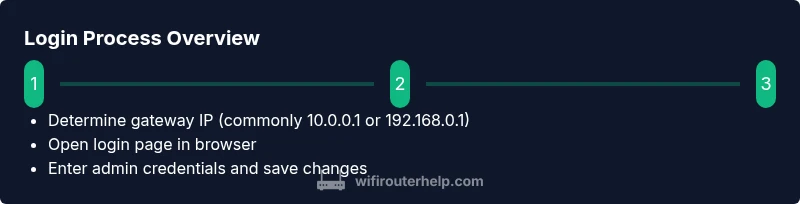
This guide shows you how to log in to Comcast router and access the admin panel to manage Wi‑Fi, security, and guest networks. Start by connecting a device to the router, open a browser, and enter the gateway IP (commonly 10.0.0.1 or 192.168.0.1). Use the admin credentials found on the router label or your Comcast account, then navigate to the settings you need.
Why you should log in to Comcast router
Gaining access to your router’s admin panel gives you control over essential network settings like SSID names, passwords, encryption type, and parental controls. Without logging in, you’re stuck with factory defaults that may be slower, less secure, and harder to troubleshoot. According to WiFi Router Help, taking a few minutes to verify login credentials and adjust key settings can improve reliability and security for your home network. The login process can vary slightly between Comcast gateways and third‑party routers working behind the modem, but the core steps stay the same: connect a device, reach the gateway page, enter credentials, and save changes. A well‑tuned router reduces buffering, protects devices, and makes it easier to tailor guest access. Keep track of your admin password in a safe place and rotate it periodically. This prep work pays off with smoother streaming, gaming, and smart‑home performance.
Access methods: web portal vs mobile app
Comcast routers (Xfinity gateways) typically offer two primary ways to manage settings: a web portal accessed from a computer or mobile device, and a mobile app for on‑the‑go configuration. The web portal is often the fastest route for detailed changes like advanced firewall rules, port forwarding, and LAN settings. The mobile app is convenient for quick tweaks, monitoring connected devices, and enabling guest networks. Whichever path you choose, ensure you are connected to your home network and use a secure device. If you’re troubleshooting, you may start in the web portal to see all options, then switch to the app for quick checks on device status and parental controls.
How to locate login credentials: where to look and what to do if you’re missing them
Start with the router label or sticker—manufacturers print the default admin username and password there. If you’ve changed credentials in the past, use the updated credentials you saved. If you cannot recall or locate the credentials, sign in to your Comcast account to verify or reset them. When you’re unsure, stay within the official login workflow provided by Comcast and avoid sharing credentials online. If you’ve enabled device‑specific login, ensure you’re using an account with the necessary permissions. Keeping credentials safe helps protect all connected devices and prevents unauthorized changes to Wi‑Fi settings.
Common login problems and fixes: quick checks that resolve most issues
The most frequent login problems are incorrect IP address, wrong username or password, and a browser connectivity block caused by security extensions. First, double‑check the gateway IP address in your device’s network settings and ensure you’re connecting to the router, not the modem’s network. Clear your browser cache or try a different browser if pages fail to load. Disable VPNs temporarily if they interfere with local network access, and ensure you’re not connected to a guest network that restricts admin pages. If you still can’t reach the login page, reboot the gateway and test again. These steps resolve most routine issues without needing support.
Security and optimization after login: essential steps to protect and speed up your network
After you log in to Comcast router, update the firmware if an update is available, enable WPA3 or the strongest available encryption, and set a strong admin password. Create a unique, long password and consider enabling two‑factor authentication if offered. Review guest network settings to ensure visitors don’t gain access to your main network, and adjust parental controls if needed. Regular maintenance—checking firmware, reviewing connected devices, and auditing firewall rules—keeps your home network resilient against new threats. For performance, separate 2.4 GHz and 5 GHz networks with distinct names and optimize channel selection to minimize interference.
Special cases: using your own router behind the Comcast gateway (bridge mode and IP passthrough)
Some homes benefit from using a third‑party router behind the Comcast gateway. In such cases, you may enable bridge mode or IP passthrough to hand control of the public IP to your own router, which can improve performance and allow advanced features like QoS. Do note that enabling bridge mode disables some features on the Comcast unit, such as its firewall for wireless devices. Before making changes, document your current settings, disable double NAT, and ensure you know how to restore defaults if needed. If you’re unsure, consult your ISP’s guidance or a trusted WiFi expert.
Tools & Materials
- Device with browser or mobile app access(Laptop, tablet, or smartphone connected to your home network)
- Comcast gateway or Xfinity router(The device you’ll log into; keep it powered on during setup)
- Admin credentials label(Found on the router or in your account confirmation email)
- Secure password storage(A password manager is recommended)
- Stable internet connection(Not strictly necessary for the login itself, but helpful for updates)
Steps
Estimated time: 15-25 minutes
- 1
Prepare your device and network
Ensure your computer or mobile device is connected to the Comcast gateway, either via Ethernet or Wi‑Fi, and has a modern browser or the Xfinity app installed.
Tip: Use a wired connection if possible to prevent interruptions during login. - 2
Find the gateway IP address
Check the device’s network settings to identify the gateway address (commonly 10.0.0.1 or 192.168.0.1). If unsure, open a command prompt and ping the default gateway shown in your network details.
Tip: If the IP is different, use that address to access the login page. - 3
Open the login page
Enter the gateway IP into your web browser’s address bar. If prompted, trust the certificate warning and continue to the login screen.
Tip: Avoid using public or shared devices for login to protect credentials. - 4
Enter credentials
Use the admin username and password from the router label or your Comcast account. If you have changed them, enter your updated credentials.
Tip: If you forget, use the account recovery options provided by Comcast. - 5
Change the admin password
Navigate to the security or admin section and replace the default password with a strong, unique passphrase.
Tip: Never reuse passwords across important accounts, and store it securely. - 6
Save changes and test connectivity
Apply changes, reboot if required, and verify you can access Wi‑Fi settings and an internet connection.
Tip: Log out after finishing to reduce exposure of credentials.
People Also Ask
What is the default login for Comcast router?
Most Comcast gateways ship with a default admin username and password printed on the device label. If you haven’t changed them, use those values. If you can’t locate the credentials, contact Comcast support for guidance.
The default login is printed on the router label; if you’ve changed it, use the updated credentials or contact support to recover access.
I can’t find the login page; what should I do?
Double‑check the gateway IP in your device’s network settings and ensure you’re connected to the router, not the modem. Try a different browser and disable any VPNs that may block local addresses.
Make sure you’re connected to the correct network and try another browser if the page won’t load.
Can I log in with the Xfinity app instead of a web browser?
Yes. The Xfinity app allows you to view basic settings and connected devices. For full admin access, use the web portal via a browser on a computer.
You can use the app for quick checks, but the full admin panel is usually in the web portal.
What if I forgot the login password?
Use the account recovery options provided by Comcast or reset the gateway to its factory defaults if you’re unable to recover credentials. Note that a reset will erase custom settings.
Use account recovery or reset the gateway if you truly can’t recover the password.
Is it safe to login from a public Wi‑Fi network?
Logging in over public Wi‑Fi can expose credentials. If you must, use a VPN and avoid saving credentials in the browser on public devices.
Public networks are risky; use a VPN and avoid saving credentials on public devices.
Should I enable bridge mode or IP passthrough?
Bridge mode or IP passthrough is for advanced setups. It helps avoid double NAT when using your own router, but it disables some features on the Comcast gateway.
Bridge mode lets your own router take over; use it only if you need advanced features and you know how it affects the gateway.
Watch Video
What to Remember
- Log in to Comcast router using the gateway IP and admin credentials.
- Change default credentials to improve security.
- Keep firmware updated and enable strong encryption.
- Consider router topology options (bridge mode/IP passthrough) for advanced setups.