Comcast Router Login Default: A Practical Step-by-Step Guide
Learn how to access your Comcast gateway using the default login, locate the login page, and securely configure your home network with best practices for 2026.


Learn how to access your Comcast gateway by using the default login, locate the correct IP address, and perform essential security checks. This guide covers typical default credentials, where to find them on the device, and how to handle login issues. By following these steps, homeowners can safely login, backup settings, and tighten protection on their home network.
Why understanding the Comcast router login default matters
Today, home networks rely on a secure gateway, and many users underestimate the risk of leaving the default credentials unchanged. According to WiFi Router Help, the router login default is intended for initial setup, not ongoing protection. If an attacker can access the login page, they could change settings, monitor traffic, or disable security features. For that reason, it's essential to verify the login page, update the password immediately after first login, and document any changes. In 2026, keeping your gateway secure remains a top priority for homeowners and tech enthusiasts who want reliable WiFi, stable speeds, and predictable coverage. This guide will help you recognize the signs of a default exposure and guide you through safe, practical steps to lock down your Comcast gateway. It also explains why some steps differ by model and firmware, so you avoid forcing a one-size-fits-all approach. While exploring, remember that the WiFi Router Help team emphasizes cautious, controlled changes to protect your home network.
Common defaults and how they vary by model
No single login credential fits every Comcast gateway, because different models and firmware revisions ship with different defaults. The gateway IP address is typically the access point for the login page, but it may vary between devices, so always check the device label or manual. WiFi Router Help analysis shows that many customers see addresses like 10.0.0.1 or 192.168.0.1, while others reach the login screen via a dedicated app. Regardless of the exact numbers, the same principles apply: locate the login URL, start a browser session, and prepare to authenticate. Remember that default usernames are often printed on the router label and could be 'admin' or a service-specific name; passwords may be printed as well or set to a simple word. If in doubt, consult the official Comcast support article for your model and firmware version. It’s common for different firmware updates to adjust these defaults, so always verify with your device.
How to safely locate the login page
Locating the login page starts with a trusted network address. First, power cycle the gateway if needed and connect a device via Wi‑Fi or, preferably, an Ethernet cable for stability. Check the sticker on the device for the exact IP address and admin password. You can also confirm your gateway address from a computer: on Windows, open Command Prompt and type ipconfig; on macOS, open Terminal and run ifconfig or netstat -nr. The default gateway line shows the address to paste into a browser. If you cannot find a label or the address, log in to the Xfinity app and navigate to the gateway settings to view the login URL. Once you have the correct URL, type it into a browser to reach the login screen. This approach minimizes the risk of landing on a phishing page, a key consideration highlighted by the WiFi Router Help team.
Preparing before you login
Before you enter credentials, prepare to secure your network. Use a wired connection to avoid dropped pages, and disable remote management if it's enabled—this reduces attack exposure. Have a pen and paper handy to record the exact IP, the login URL, and any password hints. Make a backup of existing settings if the gateway lets you export a configuration file, which makes recovery easier after any changes. Also note the firmware version shown in the gateway's status page; updating to the latest version after you log in can close security gaps. These preparations save time and reduce the risk of misconfiguration. If you’re unsure about a setting, consult your device’s manual or the WiFi Router Help guide for safe defaults.
Step-by-step login process overview
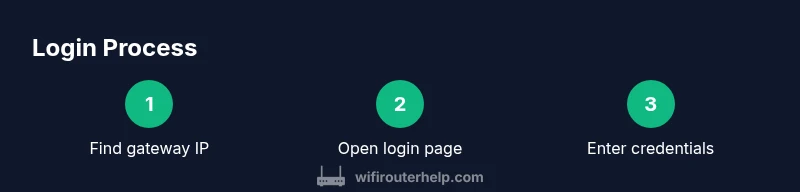
This section provides a concise, high-level walkthrough of logging in without duplicating the step-by-step section. Start by confirming you are on the official Comcast gateway URL and not a spoofed page. Enter the username and password found on the device label or provided by your service—avoid using third-party credentials. Save any changes you make to confirm they’re stored, then navigate to security settings to enable strong encryption and update the admin password. After a successful login, document the changes, log out, and re-check connected devices to ensure uninterrupted access. This overview mirrors best practices from WiFi Router Help and serves as a bridge to the more granular steps that follow.
Troubleshooting login issues
Several issues can block access to the Comcast gateway login. Incorrect credentials are the most common cause; recheck the exact characters, capitalization, and any required special symbols. If the password is unknown or forgotten, you may need to reset the gateway to factory defaults, which erases custom settings. A non-responsive login page may result from a browser extension, cookie problem, or blocked network request. Disable ad-blockers, clear cookies, or try a private/incognito window. If you still can't reach the login, inspect the network connection (is the device on the right Wi‑Fi band or wired?), temporarily disable VPNs, and verify there are no IP address conflicts within your LAN. In some cases, your ISP may have placed a lock on the device login; contacting Comcast support can help clarify. The WiFi Router Help team notes that keeping calm during troubleshooting saves time and reduces frustration.
Factory reset: when and how to reset safely
Factory resets should be reserved for situations where credentials are truly lost or the gateway behaves erratically after changes. Before resetting, document current settings, including the Wi‑Fi network name (SSID) and password, the security mode (WPA2/WPA3), and any port-forwarding rules. To reset, locate the small reset button on the back of the device and press it with a paper clip for 10-15 seconds until the lights flash. After the reset, you will need to reconfigure your SSID, password, and security settings from scratch. Expect that wired devices may lose connection temporarily and that guest networks may disappear. If you have an Xfinity service plan, some settings can be preserved by your account, but many user-defined configurations are reset. The WiFi Router Help team recommends performing a reset only when necessary and ensuring you have backup copies of critical configurations.
Securing your Comcast gateway after login
With the credentials secured, focus on hardening the gateway. Change the default admin password to a strong, unique passphrase, and avoid reusing other passwords. Enable WPA2- or WPA3-Personal security and disable WPS if the option exists. Create a separate guest network for visitors to avoid sharing your main network password. Review firewall and NAT settings to ensure port exposure is appropriate; disable UPnP if you don't need it, or set explicit rules if you do. Update firmware regularly; enable automatic updates if available, and check for new firmware notices on the device status page. Finally, document the new credentials and save a backup configuration if the interface supports it. WiFi Router Help's guidance emphasizes ongoing maintenance to keep your home network resilient.
Alternatives: using your own router behind the Comcast gateway
Many users opt to put a personal router behind the Comcast gateway to improve control, features, and performance. In such cases, you can place the gateway in bridge mode if your plan allows, or set it to operate in IP passthrough to hand off public IP addresses to your router. Be aware that bridge mode can disable the gateway's Wi‑Fi; in most cases, you will want to keep the Comcast device for the ISP connection and connect your own router behind it via a LAN port. If you choose this route, configure the second router with its own DHCP server, NAT, and firewall policies to avoid conflicts with the gateway. This setup lets you use advanced QoS, better guest networking, and more detailed monitoring. As always, consult your service provider's guidance and test connectivity with a few devices after changes. The WiFi Router Help team recommends a measured approach to avoid service interruptions.
Tools & Materials
- Computer or mobile device(With a modern web browser)
- Web browser(Chrome, Safari, Edge, or Firefox)
- Ethernet cable (optional but recommended)(For a stable connection during setup)
- Paper and pen(Record IP, credentials, and changes)
- Router label/manual(Check for default credentials)
Steps
Estimated time: 20-30 minutes
- 1
Identify the gateway IP address
Find the IP address that opens the login page. Check the device label, then verify with a quick network scan or command to confirm the exact address.
Tip: Look for 10.0.x.x or 192.168.x.x on the label and note any alternative addresses printed in the manual. - 2
Open the login page in a browser
Enter the discovered gateway IP into a browser’s address bar and press Enter. If the page does not load, try a different IP from the label or reset the device briefly and retry.
Tip: Use a wired connection for stability during this step. - 3
Enter credentials
Type the username and password found on the device label or the startup documentation. If you’re unsure, start with the most common defaults and adjust if the prompt indicates otherwise.
Tip: Double-check for spaces, capitalization, and any required symbols. - 4
Access security settings
Once logged in, navigate to Security or Wireless settings to verify encryption, update your password, and review connected devices.
Tip: Change the admin password first before making other changes. - 5
Change the default password
Replace the default admin password with a strong, unique passphrase. Avoid using easily guessable information.
Tip: Use a passphrase of at least 12 characters with a mix of letters, numbers, and symbols. - 6
Backup current configuration
If the gateway offers a config export, save a copy to your computer for quick recovery if needed.
Tip: Store backups in a secure location and label with the date. - 7
Test device connectivity
Disconnect and reconnect a few devices to ensure they gain access with the new credentials.
Tip: Test both wired and wireless devices to confirm reliability. - 8
Enable security enhancements
Turn on features like a guest network, firewall rules, and, if available, automatic firmware updates.
Tip: Disable WPS if you don’t need it for added security. - 9
Document and sign-off
Record the new login URL, IP address, and credentials; sign off your notes and log out from the gateway.
Tip: Only share credentials with trusted users on your network.
People Also Ask
What is the default login IP for Comcast gateways?
Many Comcast gateways use a gateway IP printed on the device label. It may be 10.0.x.x or 192.168.x.x; always verify the exact address on your model’s sticker or manual.
Use the IP address on the device label to reach the login page.
What is the default username and password for Comcast routers?
Default credentials vary by model and firmware. Common combinations include admin/admin or admin/password, but you should confirm the exact values on the label or the official support page for your device.
Check the label on your gateway for the exact default credentials.
I forgot the password. How do I reset it?
If you forget the credentials, use the gateway’s password reset options or perform a factory reset if necessary. Be aware that a reset erases custom settings, so back up first if possible.
If you forget, try the reset option or a factory reset as a last resort.
Can I access the login page from a smartphone?
Yes. You can access the login page from a smartphone on the same network using a mobile browser. A wired connection isn’t required, but it helps with stability during setup.
Yes, just connect to the network and open the gateway URL on your phone.
Should I enable remote management?
Disable remote management by default to reduce risk; enable it only if you truly need outside access to your gateway.
Keep remote access off unless you have a specific need.
What if the login page times out or shows error 500?
Clear your browser cache, try an incognito window, ensure you’re on the correct IP, and retry. If errors persist, reboot the gateway and test again, or contact support.
Clear cache, reboot, and retry; contact support if needed.
Watch Video
What to Remember
- Identify the login URL first.
- Change default credentials immediately.
- Secure the network with strong passwords and modern encryption.
- Back up settings after changes.
- Consider a separate router for advanced control.