Xfinity Router Login: Step-by-Step Access Guide
Learn how to access your Xfinity router, secure the admin interface, change credentials, and troubleshoot login issues with a clear, step-by-step guide and practical tips for a safer home network.


Quick answer: According to WiFi Router Help, perform an Xfinity router login by connecting a device to your home network, opening a browser, and going to the router login page (typical addresses 10.0.0.1 or 192.168.0.1). Use the credentials from the router label or your account details if you changed them. If prompted, enter your Wi‑Fi password. This guide walks you through a secure login and initial security checks.
What is the Xfinity router login and why it matters
The Xfinity router login is your gateway to the device that manages your home network. Through the admin interface you can rename your Wi‑Fi network, reset passwords, adjust security settings, enable guest networks, and configure firewall rules. Getting this login right matters because it directly impacts who can access your network and how securely devices connect to it. As you work through this guide, you’ll gain practical steps to sign in, verify your credentials are current, and apply best-practice security tweaks that reduce the risk of unauthorized access.
Prerequisites and safety before you begin
Before attempting the login, gather a few essentials to avoid surprises. You need a device with a web browser (phone, tablet, or laptop) connected to your Xfinity network, either over Wi‑Fi or via Ethernet. Have the router label handy because it typically lists the default admin username and password. If you have previously changed credentials, use those. Optional but recommended items include a password manager to store admin credentials securely and a note of your current network name (SSID) and password for reference after you log in. Safety tip: never expose admin login details in shared screens or untrusted devices.
Finding the login URL and the username
Most home Xfinity routers expose their admin interface at a local IP address like 10.0.0.1 or 192.168.0.1. You can also find the address by checking the gateway field in your device’s network settings. If the router uses an app or cloud portal, follow the in-app prompts to reach the local admin page. The commonly used username is admin, while the password is either printed on the label or the password you set during setup. If you still cannot locate the information, you may need to contact your service provider for guidance on the specific model in your home.
How to login with the default credentials (or your updated ones)
Open a browser and enter the login URL. When prompted, type the username (often admin) and the password from the router label or your own password if you changed it. If login is successful, you’ll reach the admin dashboard. If you’re immediately asked for a password and you don’t remember changing it, try the credentials from the label. If those don’t work, reset the credentials using the manufacturer’s guidance or your service provider’s support portal.
Troubleshooting login problems and quick fixes
If you can’t sign in, first verify you are connected to the correct network. Double-check the URL (local IP) and try a different browser or device. Clear the browser cache, disable VPNs, and ensure you’re not using a captive portal page from a guest network. If the password prompt keeps failing, consider temporarily disabling two-factor prompts (if offered) and rechecking the label for the latest default credentials. For stubborn cases, a factory reset may be required after backing up settings.
Secure your Xfinity router after login
Post-login, prioritize securing the admin interface. Change the default admin password to a strong, unique one using a minimum of 12 characters with a mix of letters, numbers, and symbols. Enable WPA3 or at least WPA2‑PSK for Wi‑Fi security, turn off remote management unless you need it, and keep firmware up to date. Create a separate guest network for visitors, monitor connected devices, and apply firewall rules to limit exposure. These steps help protect all connected devices and reduce risk.
Common pitfalls and quick fixes for Xfinity router login
A frequent pitfall is using the wrong login URL; always verify you’re entering the local IP address, not an external site. Some models require you to use the Xfinity app to access the router settings, while others rely on a browser. If the admin interface loads slowly or freezes, reboot the router and try again after a few minutes. Keep a record of the last successful login and any changes you’ve made to avoid getting locked out.
For power users: advanced options after login
The admin dashboard often includes settings for port forwarding, DMZ, firewall rules, and QoS. Use these cautiously: misconfiguring ports can expose devices, while overly aggressive QoS rules can throttle essential traffic. Consider enabling guest networks for visitors, setting up device parental controls, and reviewing enabled features like UPnP. If you’re managing multiple home devices, document each change to simplify future maintenance.
Hard reset and recovery: when login becomes impossible
If all else fails, a factory reset can restore the router to its original state, but this erases custom settings. Before resetting, back up any important configurations, and note your current SSID and password. After reset, follow the initial setup prompts to re-create your network and reapply preferred security measures. If you’re unsure about the model or steps, contact your provider’s support for model-specific guidance.
Authority sources and further reading
For security best practices and official guidance, consult reputable sources:
- Keep your home network secure — https://www.cisa.gov/keep-your-home-network-secure
- Keep your wireless network secure — https://www.fcc.gov/consumers/guides/keep-your-wireless-network-secure
These references complement the practical steps in this guide and provide broader context on safeguarding home networks.
Tools & Materials
- Computer, smartphone, or tablet(Device with a web browser to access the login page)
- Xfinity router (local network)(Ensure the device is connected to the router’s network)
- Router label(Contains default admin username and password if not previously changed)
- Password manager (optional)(Store credentials securely)
- Ethernet cable (optional)(Use a wired connection if Wi‑Fi is unstable during login)
Steps
Estimated time: 15-25 minutes
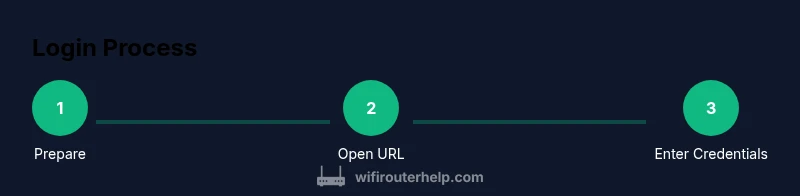
- 1
Prepare your device and network
Power on your router and ensure your login device is connected to the same network. Have the router label handy in case you need the default credentials. This step reduces connection issues during the login process.
Tip: A wired Ethernet connection can improve reliability during login and setup. - 2
Open the login URL in a browser
On your device, open a web browser and enter the local IP address (10.0.0.1 or 192.168.0.1) or the router’s login page. Do not type external URLs. This ensures you’re accessing the router’s admin interface directly.
Tip: If the page doesn’t load, try a different browser or clear your cache. - 3
Enter credentials
Log in using the username (often admin) and the password from the router label or the credentials you previously set. If you changed them, use those values; otherwise, the label typically has the defaults.
Tip: If you forgot the password, use the label or reset if allowed by the model. - 4
Sign in and review the dashboard
Once authenticated, browse to security settings and the Wi‑Fi configuration page. Verify your network name (SSID) and password, and ensure your firmware version is up to date.
Tip: Document the current settings before making changes. - 5
Update credentials and apply changes
Change the admin password to a strong, unique value. Enable recommended security options (WPA3 or WPA2‑PSK, guest network, and firewall). Save changes and log out.
Tip: Use a password manager to store the new admin password securely. - 6
Test the network and log out
Reconnect devices to ensure the new credentials work. Confirm you can reaccess the admin page with the new password. End the session for security.
Tip: If you experience issues, revert to a saved configuration or perform a fresh login after a reboot.
People Also Ask
What is the typical login URL for an Xfinity router?
Most models use a local IP like 10.0.0.1 or 192.168.0.1. You can also access the admin page through the Xfinity app if supported by your device. Always ensure you’re connected to your home network when attempting login.
Most Xfinity routers use a local IP such as 10.0.0.1 or 192.168.0.1. Access it from a connected device—either via browser or the official app if available.
What should I do if I forgot my admin password?
If you forgot the admin password, use the router label for the default credentials, or perform a factory reset if you cannot recover the password. Remember that a reset erases custom settings.
If you forgot the admin password, check the router label for defaults or reset the router to factory settings if needed.
Can I login from a phone without a computer?
Yes. The login page is accessible from any device on the network with a web browser. Ensure you’re connected to the correct network and use the correct login URL for the model.
You can login from a phone as long as you’re on the home network and use the right login URL.
Should I enable remote management?
Only enable remote management if you need off-site access to the router. If not, keep it disabled to reduce exposure to the internet.
Only enable remote management if you truly need it; otherwise keep it off to reduce risk.
How often should I update firmware?
Check for firmware updates monthly or whenever the router prompts you. Updates often include security fixes and performance improvements.
Check for updates monthly and install them when available.
What if the login page loads slowly or fails?
Try rebooting the router, clearing the browser cache, and using a wired connection. If it still fails, consult the provider’s support resources for device-specific guidance.
If it’s slow, reboot the router and try again; a wired connection can help.
Watch Video
What to Remember
- Know where to access the Xfinity router login page
- Always change default admin credentials
- Enable strong wireless security and guest networks
- Backup and document your configuration changes