Comcast Modem & Router Combo: Complete Setup Guide
Learn how to install and optimize a Comcast modem-router combo, including activation, Wi‑Fi setup, bridge mode, and troubleshooting. Practical, step-by-step guidance from WiFi Router Help.


You will install and optimize a Comcast modem-router combo, activate it with your Xfinity account, configure Wi‑Fi, and apply security and performance best practices. You’ll need a functioning coax line, a device to configure (phone or computer), and your Comcast credentials. The guide walks you through activation, network setup, bridge-mode considerations, and common troubleshooting.
What is a Comcast modem & router combo?
A Comcast modem-router combo is a single device that functions as both a cable modem and a wireless router. In many homes using Xfinity, this gateway handles internet signal conversion from the coax line and distributes Wi‑Fi to phones, laptops, and smart devices. The WiFi Router Help team notes that, when compatible with your service tier, a gateway can simplify setup and reduce cable clutter, but performance and flexibility depend on the device's hardware and how you configure it.
Why it matters
- Simpler activation reduces setup steps and avoids extra devices.
- Integrated management lets you adjust guest networks, firewall settings, and parental controls from one interface.
- Compatibility with your plan determines features like speed tiers and port access.
WiFi Router Help analysis shows that many households benefit from a single gateway when the service plan supports it, provided you don’t require advanced routing features.
Pros and cons of using a combo device
Using a Comcast modem-router combo can save space and streamline configuration. Benefits include fewer cables, a single management interface, and straightforward activation through the Xfinity app. However, there are trade-offs: you may be limited by the gateway’s performance ceiling, less control over advanced router features, and ongoing rental costs if you choose Comcast’s device instead of bringing your own. If you want maximum customization or top-tier range, a separate modem and router might be preferable, though it adds setup steps.
Quick take
- Pros: compact setup, centralized controls, easy firmware updates.
- Cons: potential performance limits, fewer high-end features, rental costs.
The WiFi Router Help team emphasizes evaluating your home size, device density, and the service package to decide whether a combo gateway fits your needs.
Key considerations before buying or using a Comcast combo
Before committing to a gateway, check compatibility with your service tier, whether you plan to rent or own, and whether you need bridge mode to use an external router. Ensure the device supports current Wi‑Fi standards (at least 802.11ac; 802.11ax is ideal) and that it offers essential features like UPnP, a firewall, and parental controls. Consider firmware update cadence and how you will manage guest networks, device prioritization, and port forwarding. WiFi Router Help analysis shows that buyers should map out their home layout and device count to avoid dead zones.
Practical checklist
- Verify service compatibility and plan amenity.
- Decide on rental vs ownership and associated costs.
- Confirm bridge mode and advanced features availability.
- Plan for central placement and future device additions.
Setup: activation and initial configuration
Activation typically starts in the Xfinity app or the web setup page. Connect the coax cable, plug in the gateway, and power it on. When the device boots, open the setup app or navigate to the gateway’s admin portal to activate using your Comcast account. Create a unique network name (SSID) and strong password, then configure basic security settings and guest networks if desired. This stage sets the baseline for reliable coverage throughout the home.
Step-by-step note
- Ensure you have your Comcast username and password ready.
- Use a device connected to the gateway’s default network to begin activation.
- Complete on-screen prompts and apply the recommended security settings.
Bridge mode and IP addressing: when to use bridge mode
Bridge mode disables the gateway’s router functions and allows a separate router to manage IP addressing and routing. Use bridge mode when you own a separate router that you want to handle all networking tasks, or when double NAT could cause issues with certain games or VPNs. If you enable bridge mode, ensure you still have basic firewall protection, and plan for DHCP on your external router.
Practical guidance
- Use bridge mode only if you truly need a separate router’s features.
- After enabling bridge mode, test wired and wireless devices to ensure connectivity.
- If you experience issues, temporarily disable bridge mode to compare results.
Optimizing performance: Wi-Fi settings, channel selection, QoS
Place the gateway in a central location away from walls and metal objects for even coverage. Use the 2.4 GHz band for longer range and the 5 GHz band for higher speeds in close proximity. Choose non-overlapping channels and enable WPA3 if available. Enable QoS (Quality of Service) to prioritize essential devices or applications like video conferencing or gaming. Regularly check for firmware updates and reboot the gateway when needed to maintain stability.
Practical tips
- Run speed tests in multiple rooms to identify weak spots.
- Separate SSIDs can help manage guest devices without compromising your main network.
Troubleshooting common issues
If devices can’t connect, verify the coax connection and power, then re-run activation. If the internet drops, check for service outages in your area and inspect the gateway’s status lights. For slow speeds, run a wired test to compare with wireless performance, then adjust channel settings or QoS rules. If you forgot your admin password, use the reset procedure and reconfigure.
Quick fixes
- Reboot the gateway after major changes.
- Confirm you’re using the correct credentials for activation.
Security and privacy best practices
Change default passwords immediately and disable unused features like WPS. Keep firmware up to date and enable automatic updates if available. Create a separate guest network to isolate smart devices, and review port forwarding rules to minimize exposure. Disable UPnP if you don’t need it and enable the firewall. Regularly audit connected devices and remove unknowns.
Guardian tips
- Use WPA3 when possible and a strong, unique admin password.
- Schedule periodic reviews of connected devices and network configuration.
Optional comparison: Modem-router combo vs separate devices
A combined gateway offers simplicity, fewer cables, and single-point management, which can be ideal for small to medium homes. However, separate modem and router setups often deliver higher performance, greater customization, and more robust feature sets for advanced users. If you expect heavy gaming, smart-home density, or future-proofing, a separate router with a dedicated modem may be worth the extra setup effort. WiFi Router Help recommends weighing your home layout, internet plan, and potential device upgrades before deciding.
Tools & Materials
- Coaxial cable(Quality RG6 cable recommended; ensure it’s undamaged)
- Ethernet cable (Cat5e or better)(Used for wired devices and router-to-router connections)
- Power adapter(Ensure compatible power supply with correct voltage)
- Computer or smartphone(For activation and initial setup in a web browser or app)
- Comcast account credentials(Username and password for activation and management)
- Optional own router (if bridging)(Used if you plan to run a separate router behind the gateway)
- Cable labeling/marker(Helpful to label networks and devices)
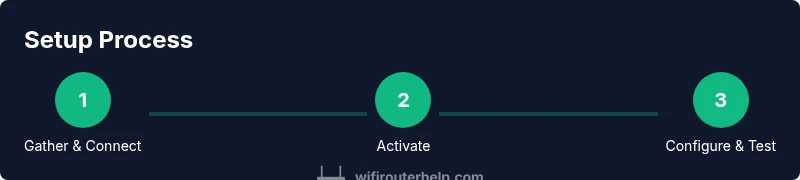
Steps
Estimated time: 60-90 minutes
- 1
Gather and inspect equipment
Collect all components: coax cable, gateway, Ethernet cable, power adaptor, and a device to configure. Check cables for wear or damage and clear a clean workspace to prevent tangling during setup.
Tip: Lay everything out on a non-slip surface to keep cables organized. - 2
Connect the coax and power
Firmly attach the coax to the wall outlet and to the gateway. Plug in the power adapter and ensure the device powers on. Wait 2–3 minutes for the gateway to boot and initialize indicators.
Tip: If lights don’t illuminate, recheck connections or try a different outlet. - 3
Activate the gateway in Xfinity app
Open the Xfinity app, sign in, and select Set up a new device. Follow prompts to activate the gateway using your account credentials.
Tip: Keep your login handy; activation can fail if credentials are incorrect. - 4
Configure Wi‑Fi name and security
Access the gateway’s admin page or app to set a unique SSID and a strong password. Prefer WPA3 where available and avoid using default network names or passwords.
Tip: Use a mix of letters, numbers, and symbols; consider separate guest and main networks. - 5
Decide on bridge mode (if using another router)
If you’re using a separate router, enable bridge mode or disable NAT on the gateway to prevent double NAT. This step is crucial for stable, predictable routing.
Tip: Bridge mode reduces conflicts and simplifies external router configuration. - 6
Update firmware and backup settings
Check for firmware updates through the admin interface and apply them. Backup current settings so you can restore quickly if needed.
Tip: Update during a time when Wi‑Fi isn’t critical to avoid interruptions. - 7
Test connectivity and performance
Run wired and wireless speed tests, verify device connectivity, and adjust settings if you notice latency or drops. Confirm port forwarding or gaming QoS if required.
Tip: Record baseline speeds for future troubleshooting. - 8
Secure and document your setup
Review security settings, enable automatic updates, create a guest network, and document your network layout for future changes.
Tip: Security hygiene reduces risk of unauthorized access.
People Also Ask
Can I use my own modem with Comcast instead of rental?
Yes, you can use your own compatible modem with Comcast, but you may still need a separate router if you want full control over wireless features. Confirm compatibility with Comcast and ensure your plan supports third‑party devices.
Yes, you can use your own modem with Comcast, but you may still need a router for wireless features. Check compatibility and plan support before buying.
Should I enable bridge mode if I’m using a separate router?
If you’re using an external router, enabling bridge mode on the gateway helps avoid double NAT and improves performance. Follow the device’s instructions to enable bridge mode and test connectivity after changes.
If you’re using a separate router, bridge mode helps prevent double NAT and improves performance.
Is a combo device faster than separate devices?
Faster performance depends on the hardware quality of the gateway and the external router. A high‑quality external router can outperform a gateway in crowded homes, but for many households a combo device provides sufficient speed and simple management.
It depends on the hardware; a good external router can beat a gateway in busy homes, but a solid combo can be enough for many setups.
What should I do if my Wi‑Fi keeps dropping?
First, check for interference, reboot the gateway, and verify firmware. If problems persist, confirm devices and firmware are up to date and consider separating high‑bandwidth devices on 5 GHz. If needed, run a factory reset as a last resort.
If Wi‑Fi keeps dropping, reboot, check for interference, and ensure firmware is current. Consider a reset if issues persist.
Do I need to reset the gateway frequently?
Only when there are persistent issues or after making major configuration changes. Regular resets are not required, and frequent resets can disrupt service during critical tasks.
Only reset if things aren’t working after updates or changes; frequent resets aren’t necessary.
How can I improve security on a Comcast modem-router combo?
Update firmware regularly, enable WPA3, use a strong admin password, disable UPnP if not used, and set up a guest network for IoT devices. Periodically review connected devices.
Keep firmware up to date, use WPA3, and create a guest network for extra protection.
Watch Video
What to Remember
- Set up a single gateway to simplify management
- Bridge mode is essential when using a separate router
- Keep firmware updated for security and performance
- Test and document network configuration after setup