Cellular Router Setup & Optimization Guide for Home
Learn how to set up, optimize, and troubleshoot a cellular router for reliable home internet. Step-by-step setup, APN basics, security tips, and common fixes for a stable wireless network.


By the end of this guide, you will install and use a cellular router for reliable home internet, even when fixed broadband is unavailable. You’ll learn how to select a data plan, insert a SIM, configure the device, secure the network, and troubleshoot common issues. This approach helps you stay online during outages and in coverage gaps.
Understanding cellular routers: Why they matter
Cellular routers are dedicated devices that connect to cellular data networks and broadcast WiFi to your home devices. Unlike a smartphone hotspot, they’re designed to handle sustained traffic, multiple devices, and security features. A cellular router can serve as a primary or backup internet connection, keeping essential services online during fixed-line outages or in areas with poor broadband availability. According to WiFi Router Help, the most practical use cases include rural homes with limited wired options, apartments with weak fiber coverage, and small offices that need a portable internet option during maintenance windows. Look for a device with multiple SIM slots, external antenna support, and reliable firmware updates. In addition to WAN options, many models offer built-in firewalls, parental controls, and VPN support, which helps protect your network when you’re connected to cellular networks. When you plan to deploy a cellular router, consider your household's peak usage, the number of connected devices, and whether you need features like guest networks or QoS to prioritize video calls and gaming.
Key features to look for in a cellular router
When evaluating cellular routers, prioritize compatibility with your carrier, support for multiple bands, and the ability to upgrade antennas. Look for features like dual-SIM or eSIM support for roaming or easier data-switching between plans. External antennas can dramatically improve signal in homes with thick walls or remote rooms. A solid router should offer an Ethernet WAN port, USB port for 4G/5G modems, and built-in security features such as a firewall and VPN support. Wi‑Fi 6 or 6E compatibility is a bonus for better performance with multiple devices. Finally, an intuitive web UI or mobile app makes ongoing configuration easier, especially for updates and parental controls.
How to choose a data plan and SIM
Choosing a data plan begins with understanding your household’s typical usage and coverage. Identify your peak hours, streaming quality needs, and the number of devices that will connect. Compare carrier offerings for data caps, throttling policies, roaming options, and any hidden fees. If you travel or live in an area with spotty service, consider a plan that supports roaming or eSIM to switch networks without swapping SIMs. Obtain the APN details from your carrier and verify they work with your router model before committing to a long-term plan. Remember that some data plans are optimized for mobile hotspots rather than routers, so confirm hotspot allowances and tethering policies with the provider.
Optimal placement and antenna considerations
Placement dramatically affects cellular router performance. Elevate the device off the floor, away from metal objects, and near a window if possible. If your router supports external antennas, experiment with antenna placements to find the strongest signal path—for example, pointing antennas toward the strongest tower direction. Avoid placing the router behind brick, concrete, or large metal appliances. If signal remains weak, you can add a small external antenna or a signal booster that is compatible with your router. For multi-story homes, consider a secondary access point or a mesh satellite to extend coverage where needed.
Security and privacy basics
Protecting a cellular router is critical because it often sits at the edge of your home network. Change the default admin password immediately and enable WPA3 if available; if not, use WPA2 with a strong passphrase. Disable remote administration unless you truly need it, and keep firmware up to date to mitigate vulnerabilities. Enable a firewall, and consider enabling a VPN if you access sensitive resources remotely. Regularly review connected devices and disable any unused features such as UPnP that can introduce risk. For families with kids, enable parental controls to limit access to inappropriate sites during certain times.
Step-by-step setup (overview)
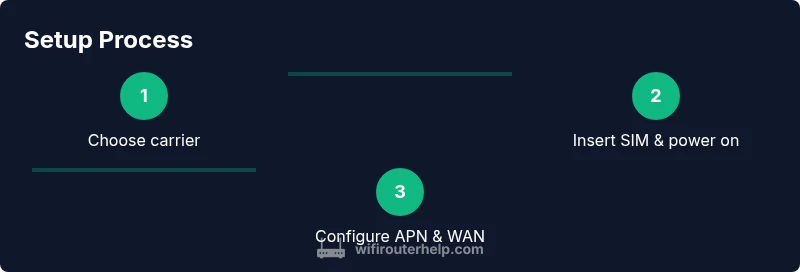
A high-level setup guide aligns with the detailed steps below: first prepare the SIM and location, then connect to the router’s admin interface, configure WAN/APN, set up your Wi‑Fi network, apply security settings, update firmware, and run a basic speed test. You’ll also customize features like QoS and guest networks to optimize performance for streaming and gaming. This overview helps you frame the process before you dive into each action in the step-by-step section.
Common issues and troubleshooting tips
If the router fails to boot, check power supply and LEDs to confirm power is reaching the device. If no internet is detected, verify APN settings, SIM status, and carrier coverage. A slow connection often means poor signal or suboptimal antenna placement; reangle external antennas and test speeds at different times of day. If devices cannot connect, recheck the Wi‑Fi password, SSID broadcast, and DHCP settings. Finally, consult the router’s logs or admin dashboard for error codes and consider performing a soft reset if you encounter persistent issues.
When cellular routers are the right fit and caveats
Cellular routers shine as a backup option during fixed-line outages, a flexible solution for remote locations, or a portable option for temporary setups. They are not a one-size-fits-all replacement for fiber or cable, particularly where data caps are strict or carrier coverage is inconsistent. Assess your typical usage, budget, and the reliability of surrounding cellular networks. If you value stability and predictable performance, pair a cellular router with a traditional broadband connection for automatic failover when the primary link drops.
Brand and service considerations
When choosing hardware and service, consider the ecosystem and support options. A well-supported model with clear firmware updates reduces downtime and improves security. If you want to compare options across brands, focus on feature parity, firmware quality, and customer support responsiveness. As you explore, remember that a cellular router is a tool for reliability and flexibility, not just speed. The WiFi Router Help team can guide you on best-practice setups and common pitfalls.
Tools & Materials
- Cellular router device(Choose a model with multi-band support and at least one Ethernet WAN port)
- Active SIM card with data plan(Ensure roaming or carrier compatibility if you travel)
- SIM eject tool(Helpful for swapping SIMs in some models)
- Power supply / AC adapter(Check voltage and current requirements per device spec)
- Ethernet cable (Cat5e or better)(For initial setup or wired devices)
- External antenna (optional)(Useful if you have weak indoor signal)
- Screwdriver or mounting hardware (optional)(If you plan to mount the router on a wall or rack)
Steps
Estimated time: 45-60 minutes
- 1
Choose a carrier and verify coverage
Start by selecting a data plan that matches your household needs and verify that your chosen carrier has reliable coverage in your area. Review both indoor and outdoor signal expectations, and note any roaming provisions if you frequently travel. This ensures you won’t be surprised by weak performance after setup.
Tip: Check carrier maps for your address and nearby towers; this helps set realistic expectations before buying. - 2
Insert SIM and power on the router
Power off the device, insert the SIM using the SIM tray or slot, then power the router on. Wait for the device to boot and display the status LEDs, which indicate network registration and device readiness. Proper seating of the SIM reduces connection issues later.
Tip: If you’re unsure of SIM orientation, consult the user manual to prevent damage to the SIM tray. - 3
Connect to the admin interface
Using a computer or phone, connect to the router’s default Wi‑Fi network or use a wired Ethernet connection. Open the router’s setup page via its default address provided by the manual and log in with the default credentials. This step is essential before changing any settings.
Tip: Change the default username and password immediately to prevent unauthorized access. - 4
Configure WAN and APN settings
Enter the WAN or Internet settings and input the APN details supplied by your mobile carrier. If your router supports multiple APN profiles, set a primary profile for daily use and a secondary profile for roaming. Save and apply changes, then reboot the device if prompted.
Tip: If APN fields are optional, leave them blank unless you encounter connectivity issues; incorrect APN data can block internet access. - 5
Set up Wi‑Fi network and security
Create a strong SSID and password, enable WPA3 if available, or WPA2 with a long passphrase. Consider enabling guest networks for visitors to keep your main network secure. Adjust channel and bandwidth settings to reduce interference with nearby networks.
Tip: Use a unique SSID that doesn’t reveal your router model or location. - 6
Update firmware and perform a test
Check for firmware updates in the admin UI and install any available patches. After updating, reboot the router and run a quick speed test to confirm the connection is stable. Note any abnormal performance changes and revisit APN or placement if needed.
Tip: Enable automatic updates if the router supports it to minimize future maintenance. - 7
Enable additional features
Configure features such as QoS for prioritizing video calls or gaming, firewall rules, and a guest network policy. If you frequently connect smart home devices, enable device isolation to protect your main network. Document the changes for future reference.
Tip: Only enable features you plan to use; unused features can introduce unnecessary complexity. - 8
Test reliability and monitor
Test the setup by streaming, conferencing, and gaming across multiple devices. Monitor tips include checking signal strength and reviewing system logs for errors. If performance fluctuates, try moving the router or adding a second access point to improve stability.
Tip: Keep a log of tests and results to identify patterns over time.
People Also Ask
Do I need a SIM card to use a cellular router?
Yes. A cellular router uses a SIM with a data plan to access the carrier network. Some models support eSIM as an alternative. Make sure the plan suits router use and any roaming needs.
Yes. A SIM with a data plan is required for cellular routers, and some models support eSIM as an alternative. Check roaming options if you travel.
Can I connect a cellular router to my existing cable or fiber modem?
A cellular router is typically a standalone device. It can provide Wi‑Fi in environments without fixed broadband or serve as a failover. You may connect a separate modem in a gateway setup if you want hybrid connectivity.
Usually, a cellular router works as its own device, but you can configure a hybrid setup if you have another broadband option.
What is APN and why does it matter?
APN, or Access Point Name, tells the router how to connect to the mobile data network. Incorrect APN settings can block data access, so obtain the correct APN from your carrier and enter it in the router’s WAN/APN settings.
APN is the gateway to the data network; get the right APN from your carrier and configure it in the router.
What should I do if the signal is weak indoors?
Try repositioning the router toward a window or higher location, use external antennas if available, or consider a signal booster designed for routers. If possible, place routers in rooms with fewer obstructions.
Move the router closer to a window or an elevated spot, use external antennas, or add a signal booster if supported.
How can I secure my cellular router?
Change the default login, enable WPA3 if possible, disable remote management, and enable a firewall. Keep firmware up-to-date and monitor connected devices regularly.
Change defaults, enable WPA3, disable remote management, and keep firmware updated for security.
Is a cellular router faster than fixed broadband?
Performance depends on carrier plan, signal quality, and network congestion. It can be competitive for many homes, especially as 5G expands, but fixed lines often deliver more consistent bandwidth.
Speed varies by plan and signal; it can be fast with 5G, but fixed broadband still offers very predictable performance.
Watch Video
What to Remember
- A cellular router can serve as primary or backup internet in homes with spotty fixed broadband.
- APN details and carrier compatibility are critical for reliable cellular Internet access.
- Prioritize security: change defaults, enable WPA3, and keep firmware updated.
- Test and optimize placement, antennas, and features like QoS for best performance.