Can You Run 2 Routers on the Same Network? A Practical Guide
Learn how to run two routers on a single network to expand coverage, improve reliability, and avoid double NAT. This step-by-step guide covers AP mode, LAN-to-LAN bridging, IP planning, and security for a smooth, single-subnet setup.


You can run two routers on the same network by configuring the second as an access point or bridge, ensuring a single DHCP scope, and avoiding double NAT. This setup can extend coverage and improve performance when done correctly. The WiFi Router Help team recommends using the primary router as the gateway and the second in AP/bridge mode.
Understanding the premise
In most homes, your internet connection comes from a single gateway device: the main router that creates the local network (LAN) and provides connectivity to WiFi and wired devices. You can, however, add a second router so devices in different rooms or floors connect more easily. The key concept is that two routers on the same network are sharing a single IP address space; they are either linked via Ethernet (wired backhaul) or connected wirelessly, and both feed traffic to and from the same internet gateway. For homeowners, the practical goal is not to create a separate network behind the second router, but to extend coverage and improve reliability without introducing double NAT, which can confuse devices and impair online gaming or VoIP. The independent router becomes part of the same managed network rather than a separate internet connection. When you set this up correctly, you can roam between rooms with fewer dead spots and enjoy more consistent speeds. According to WiFi Router Help, planning the layout and labeling devices is as important as configuring settings. The broader principle is to maintain a single subnet, a consistent security posture, and transparent routing so all devices share the same network trust and access permissions.
Two common approaches to a two-router setup
There are two widely used methods to pair two routers on one network: using the second router as an access point (AP) or using LAN-to-LAN bridging with a single NAT. AP mode keeps the second device on the same subnet and disables its own NAT, so traffic flows through the primary gateway. LAN-to-LAN bridging also maps the second router into the same subnet but requires careful IP planning to avoid conflicts and ensure routing remains seamless. WiFi Router Help emphasizes choosing the approach based on your goals: straightforward Wi‑Fi extension with AP mode, or a more controlled, single-subnet bridge for advanced configurations. Double NAT is a common pitfall that degrades online gaming, VoIP, and some streaming devices, so many homeowners choose AP or bridge configurations to preserve compatibility and performance.
When to use a second router in your home
A second router can be valuable when you have dead zones, thick walls, or multi-story layouts that a single device struggles to cover. It can also help with segmented networks for smart home devices or workstations, provide dedicated guest access, or improve performance for devices that demand lower latency. If you rely on Ethernet backhaul and want consistent roaming, a second router in AP or bridge mode offers predictable behavior. However, if you require separate networks for security or testing, a dual-NAT setup with two distinct subnets might be appropriate, though it adds complexity and potential issues with devices that expect to be on a single LAN. The WiFi Router Help team notes that most homes benefit from a single-subnet design to minimize path discrepancies and simplify device management.
Step-by-step: Prepare the main router and IP planning
Before touching hardware, map your layout and pick an IP scheme. Decide on a primary gateway address (for example, 192.168.1.1) and allocate a range for devices (192.168.1.2–192.168.1.254). This preparation prevents IP conflicts when you introduce a second router. Record the current SSIDs and passwords, plan where to place the second device for best coverage, and identify which ports you’ll use for wired backhaul. WiFi Router Help advises documenting your plan so you can revert changes if needed and keep a clean, auditable network map for future troubleshooting.
Step-by-step: Configure the main router's LAN and DHCP
Log into the primary router’s admin interface and confirm the LAN IP address (usually 192.168.1.1) and the DHCP server range (for example 192.168.1.100–192.168.1.254). If your main router uses a different subnet, adjust accordingly, but keep it consistent with your planned range. Ensure DNS forwarding is enabled and that firewall protections are active. This step creates a stable foundation so the second router can join the same network without conflicts. If you’re unsure, consult the user manual or WiFi Router Help’s routing guides for model-specific screens and terminology.
Step-by-step: Choose the second router’s role: AP or LAN-to-LAN
Decide whether the second router will operate as an access point (AP) or in LAN-to-LAN mode with the primary gateway. AP mode is the simplest path to extend Wi-Fi, because it uses the same subnet and bypasses double NAT. LAN-to-LAN can give you more granular control over routing when you need features like VLANs or guest networks across multiple devices. Remember: whichever path you choose, keep the NAT disabled on the second router to avoid NAT conflicts and ensure devices all share the same network space.
Step-by-step: Connect the second router to the first via Ethernet
Use a LAN-to-LAN connection: plug an Ethernet cable into a LAN port on the main router and the LAN port of the second router. Do not connect to the second router’s WAN port in AP mode, as that would reintroduce NAT. Verify link lights and confirm that both devices show active Ethernet connections. If you don’t have a wired backhaul, you can use a wireless bridge, but performance may suffer and reliability can vary; wired backhaul is the preferred approach for a robust network.
Step-by-step: Finalize Wi‑Fi settings and security
On the second router, set an IP address within your chosen subnet (for example, 192.168.1.2) and disable its DHCP server if using AP or bridge mode. Reconfigure the Wi‑Fi radios as needed: you can mirror the main router’s SSID and password for a seamless experience, or assign a distinct SSID for easier troubleshooting and device management. Update firmware on both devices to the latest version, enable WPA3 if supported, and set strong admin passwords. This step reduces security gaps and keeps your network resilient against threats.
Step-by-step: Verify performance and plan ongoing tweaks
Test coverage by walking through your home with multiple devices, checking for signal strength and speed. Use speed tests on several rooms and note any dead zones. If you still see gaps, consider adjusting antenna orientation, channel selection, or adding a third node if the layout demands it. Document results and schedule periodic firmware checks; regular maintenance prevents drift in performance over time and aligns with best practices from WiFi Router Help.
Tools & Materials
- Primary router(Ensure firmware is up to date)
- Second router(Same or compatible model if possible)
- Ethernet cable (Cat5e or better)(Use wired backhaul when possible)
- Computer or mobile device with web browser(For admin setup)
- Paper or digital network map(Helps plan IP ranges and positions)
- Optional: spare PoE switch or accessories(If you’re extending with multiple wired nodes)
Steps
Estimated time: 60-120 minutes
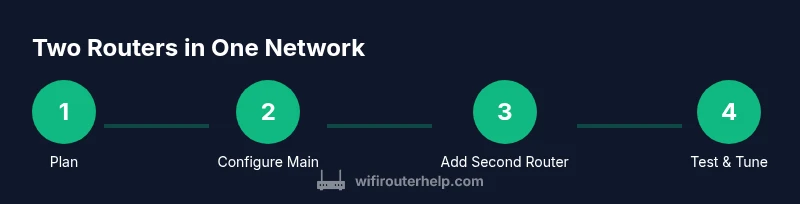
- 1
Plan network layout
Map your home layout, pick an IP scheme, and decide where the second router will live. This pre-planning prevents IP conflicts and ensures strong coverage in target areas. Document subnets and DHCP ranges so you can revert if needed.
Tip: Use a floor plan or a simple room map to visualize coverage gaps. - 2
Configure main router DHCP
Log into the main router and confirm its LAN IP and DHCP range. Make sure the main gateway is 192.168.1.1 (or your chosen address) and that the DHCP pool leaves room for devices you’ll connect from the second router.
Tip: Reserve static IPs for the second router to avoid conflicts. - 3
Choose second router role
Decide between AP mode for simplest extension or LAN-to-LAN for added routing control. AP mode prevents NAT on the second device, keeping all traffic in one subnet.
Tip: AP mode is typically best for most homes. - 4
Connect second router via LAN
Plug a LAN port on the main router to a LAN port on the second router to create a unified network. Do not use the WAN port on the second router when in AP or LAN-to-LAN mode.
Tip: Use a high-quality Ethernet cable for reliability. - 5
Adjust LAN IP and DHCP on second router
Assign the second router a fixed IP within the same subnet (e.g., 192.168.1.2). Disable its DHCP server if using AP or bridge mode to avoid duplicate scopes.
Tip: Keep a clear log of device IPs to prevent overlap. - 6
Configure Wi‑Fi on second router
Set the second router’s Wi‑Fi to broadcast; you can mirror the main SSID and password for convenience or choose a distinct SSID for troubleshooting. Ensure security (WPA3 if available) and consistent firmware versions.
Tip: If you mirror SSIDs, devices may roam automatically to a stronger signal. - 7
Test connectivity and adjust
Run speed tests and verify device reachability throughout the home. If performance is uneven, adjust antenna orientation, channel selection, or move the second router closer to problem areas.
Tip: Document test results to guide future tweaks.
People Also Ask
Can I use two routers on the same network without a switch?
Yes. You can connect two routers on the same network by placing the second in AP or LAN-to-LAN mode and keeping a single subnet. This eliminates double NAT and preserves uniform access to devices across the home.
Yes. You can use two routers on the same network by putting the second in AP or LAN-to-LAN mode and keeping one subnet.
What is double NAT, and why is it a problem?
Double NAT occurs when two routers perform network address translation. It can cause issues with port forwarding, online gaming, and VPNs. The cure is to disable NAT on the secondary router or use AP/bridge mode so only one device handles NAT.
Double NAT happens when two routers translate addresses, which can break gaming and VPN setups. Disable NAT on the second router or use AP mode.
Should the second router share the same SSID as the first?
Sharing the same SSID can make roaming feel seamless, but it can also complicate troubleshooting if devices stick to a weaker signal. If you value simple setup, use distinct SSIDs and label each network clearly.
Using the same SSID can help roaming, but distinct SSIDs make troubleshooting easier.
Do I need a switch for multiple wired devices?
If you have many wired devices, a small gigabit switch can expand wired ports beyond what a single router provides. Place it near the main router or second router where you need more wired connectivity.
A switch adds more wired ports if you have many devices needing Ethernet.
Can I place the second router on a different subnet?
Yes, but it creates a more complex network with separate routing rules and potential device reachability issues. For a simple, extendable network, keep a single subnet unless you have a specific segmentation need.
You can, but it makes management harder. A single subnet is usually simpler.
What should I do if I don’t have Ethernet in the right spots?
Wireless backhaul is an option, but performance may be inconsistent. If possible, run Ethernet to the second router or use a powerline adapter as a short-term bridge while you plan a wired backhaul.
If you lack Ethernet, wireless bridging works but may be flaky. Consider powerline adapters as a bridge.
Watch Video
What to Remember
- Plan IP ranges before wiring two routers.
- Choose AP or LAN-to-LAN to avoid double NAT.
- Use wired backhaul for best performance.
- Test coverage and keep firmware updated.
- Maintain a single subnet for a smooth experience.