Can You Connect a Router to Another Router? A Step-by-Step Guide
Learn how to connect a router to another router, with LAN-to-LAN and LAN-to-WAN setups, practical steps, and troubleshooting tips for reliable network extension.


Yes. You can extend a home network by connecting a second router to the main router using LAN-to-LAN or LAN-to-WAN configurations. The goal is to share internet access while avoiding double NAT and IP conflicts. This quick guide outlines two common setups, essential settings, and how to troubleshoot connection issues safely.
Why connecting a router to another router can help
When you ask, can you connect a router to a router, the simplest goal is to expand coverage and improve reliability. A second router can reach dead zones, support a dedicated network for guests, or provide wired access for desks and entertainment centers. According to WiFi Router Help, a well-planned two-router setup can deliver a single, seamless network or two distinct networks that share a common gateway. The key is choosing the right topology and sticking to consistent IP addressing and DHCP rules. If done poorly, you risk double NAT, IP conflicts, or a sluggish main network. By aligning device roles, you ensure predictable performance and easier troubleshooting. In practice, you’ll usually decide between a single-subnet LAN-to-LAN approach or a multiple-subnet LAN-to-WAN approach, depending on your goals and equipment.
Two common wiring scenarios: LAN-to-LAN and LAN-to-WAN
LAN-to-LAN is the simplest method for extending a single subnet. You connect a LAN port on the primary router to a LAN port on the secondary router, disable DHCP on the second router, and give it a static IP within the primary router’s subnet. This keeps all clients on one network and avoids separate routing tables. LAN-to-WAN, by contrast, creates a second subnet behind the second router. The second router uses its WAN port to connect to the primary router’s LAN, maintains its own DHCP range, and NAT translates traffic between subnets. This can be useful for isolating devices or testing configurations, but it introduces additional routing complexity and potential performance overhead. Always weigh your priorities: simplicity vs. isolation, and plan accordingly.
Key configuration concepts you need to know
Understanding IP addressing, DHCP, and NAT is essential before wiring two routers. Pick a private IP range for the primary router (for example, 192.168.1.1/24). If you’re doing LAN-to-LAN, set the second router’s LAN IP to a fixed address in that range (e.g., 192.168.1.2) and disable its DHCP server. If you’re doing LAN-to-WAN, keep the second router’s LAN IP in the same subnet but enable NAT and DHCP on the second router’s LAN interface. Bridge mode or AP mode on the second device can simplify things by eliminating double NAT, turning the second router into a wireless access point with wired uplink. In any case, document which devices control DHCP and which act as gateways to avoid conflicts. WiFi Router Help emphasizes validating each device’s role and testing with a basic client to confirm connectivity.
Safety, testing, and troubleshooting best practices
Before you start, back up current configurations and secure both routers with strong admin passwords. Label cables to prevent miswiring, and power devices off during initial connections. After wiring, test from multiple clients: ensure devices on the main network access the internet, and devices connected to the second router obtain a valid IP and ping the gateway. If devices on the secondary router don’t appear on the main network, recheck DHCP settings and IP addressing. If you encounter double NAT or cross-subnet issues, revisit LAN-to-LAN vs LAN-to-WAN choices and adjust accordingly. A calm, methodical approach helps you avoid common misconfigurations.
Tools & Materials
- Second router(To be configured as the secondary node for network extension)
- Ethernet cable (Cat5e or better)(6-10 feet recommended for flexibility)
- Computer or smartphone(To access admin interfaces and apply settings)
- Power adapters for both routers(Ensure uninterrupted operation during setup)
- Optional network switch(Helpful if you’re wiring multiple devices on the secondary side)
Steps
Estimated time: 45-60 minutes
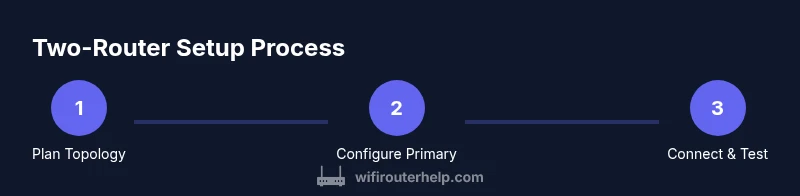
- 1
Plan the topology
Decide whether you want a single-subnet LAN-to-LAN extension or a separate-subnet LAN-to-WAN setup. Map which devices will connect to each router and how clients will obtain IP addresses.
Tip: Document the intended IP range and DHCP scope before touching settings. - 2
Reset the second router
Restore the secondary router to factory defaults to avoid legacy settings interfering with the new configuration.
Tip: Keep a photo of original settings in case you need to revert. - 3
Configure the primary router
Ensure the primary router’s LAN is set to a stable subnet (e.g., 192.168.1.1/24) and note the DHCP range. Leave WAN settings as provided by your ISP unless you’ve specific needs.
Tip: Choose a DHCP range that won’t overlap with the secondary router’s intended static IP. - 4
Configure the second router for the chosen topology
For LAN-to-LAN, assign a static LAN IP (e.g., 192.168.1.2) and disable DHCP. For LAN-to-WAN, keep NAT enabled and enable DHCP on the second router’s LAN side. Consider enabling AP/Bridge mode if your device supports it.
Tip: Avoid changing WAN settings on the second router during LAN-to-LAN setups. - 5
Connect the routers
Use an Ethernet cable to connect the primary router’s LAN port to the second router’s LAN port (LAN-to-LAN) or to the second router’s WAN port (LAN-to-WAN). Power both devices after wiring.
Tip: Double-check that a LAN port is used on both ends for LAN-to-LAN; the WAN port on the second router is used in LAN-to-WAN. - 6
Test and tune
Boot devices and test from multiple clients. Verify internet access, IP addresses, and the ability to access devices on both routers. Tweak DHCP ranges or bridge settings if needed.
Tip: Run a simple ping test to the gateway; if failures occur, review IP addressing and DHCP assignments.
People Also Ask
What is the difference between LAN-to-LAN and LAN-to-WAN when connecting two routers?
LAN-to-LAN links the two routers on a single subnet, disabling DHCP on the second and allowing devices to share one network. LAN-to-WAN puts the second router behind the first, creating two networks with NAT; this can improve isolation but adds routing complexity.
LAN-to-LAN keeps one network and is simpler to manage. LAN-to-WAN creates two networks with NAT, which can be useful for isolation but may complicate connectivity.
Do I need bridge mode to extend my WiFi effectively?
Bridge mode turns the second router into a transparent AP, reducing double NAT and simplifying management. If your goal is seamless coverage on one network, bridge/AP mode is often the best choice. Otherwise, LAN-to-LAN with DHCP off on the second router can work well too.
Bridge mode can simplify extension by turning the second router into an access point, reducing routing complexity.
Will chaining routers affect gaming or VoIP performance?
Chaining routers can affect latency and stability if misconfigured or if double NAT occurs. Using LAN-to-LAN with a single subnet minimizes issues. If you must use LAN-to-WAN, ensure QoS settings and appropriate routing are configured.
Most homes won’t notice if configured correctly, but double NAT can cause issues with some games or VoIP apps.
How do I ensure devices receive the correct IP addresses?
Choose a clear subnet, disable DHCP on the secondary router if using LAN-to-LAN, and set a static IP there within the primary subnet. Verify the primary router’s DHCP range covers the intended devices.
Set a static IP for the second router within the first router’s range and disable its DHCP if you’re using LAN-to-LAN.
Is it possible to use the second router as an access point?
Yes. If you enable AP/Bridge mode or set the second device to operate as a wireless access point, you’ll extend WiFi without introducing a separate router function or extra NAT.
Turning the second router into an access point is an effective way to extend coverage with minimal networking complexity.
What basic troubleshooting steps should I perform first?
Verify physical connections, restart both routers, confirm DHCP is correctly configured, and test from multiple client devices. If issues persist, check cable quality and confirm IP addresses match the chosen topology.
Restart both routers, check DHCP and IP settings, and test with several devices.
Watch Video
What to Remember
- Plan topology before configuring devices.
- LAN-to-LAN with DHCP off on the second router creates a single network.
- LAN-to-WAN provides isolation but requires careful routing and testing.
- Test with multiple clients and secure admin credentials.