Can You Use a Router to Extend WiFi? Step-by-Step Guide
Learn how to extend WiFi using a second router. This guide covers AP mode, repeater, and mesh setups, plus placement, security, and troubleshooting for reliable home coverage.


Yes—by configuring a second router as an access point or a wireless repeater. Key parts are a compatible router, wired backhaul if available, and secured settings. This guide covers AP mode, WDS/repeater options, and practical placement to extend coverage effectively.
Can you use a router to extend wifi? Why this matters
According to WiFi Router Help, you can extend your WiFi by adding a second router configured as a dedicated access point, repeater, or mesh relay. The core goal is to create a seamless network that eliminates dead spots while avoiding conflicts between networks. Before you start, understand that the second router needs to be compatible with your current gear and support a mode that suits your chosen layout. Can you use a router to extend wifi? The answer depends on your space, devices, and backhaul options. With careful planning, you can achieve stronger signal in living rooms, basements, and bedrooms that once lagged behind the main router. WiFi Router Help’s practical approach emphasizes real-world placement, secure settings, and testing. You’ll find that even modest rewiring or simple mode changes can produce noticeable gains in coverage, especially when you map coverage first and adjust as needed.
Core concepts: AP mode, repeater, and mesh
There are three primary ways to extend WiFi using a router: configuring the second unit as an access point (AP mode), using it as a wireless repeater (or WDS bridge), or incorporating a mesh-relay-style setup if both devices support mesh features. AP mode creates a single network with the same SSID and password, trimming handoffs and roaming across spaces. A repeater or WDS bridge duplicates the signal, which can introduce latency and reduce throughput if the backhaul is weak. Mesh is the most seamless in multi-room layouts but may require compatible hardware. Understanding these options helps you tailor a solution to your home’s size, floor plan, and material composition, reducing dead zones while preserving security and control. In practice, most homes benefit from an AP-mode deployment with a wired backhaul when possible, and a wireless solution only in spaces where wiring is impractical.
Wired backhaul vs. wireless backhaul: trade-offs
A wired backhaul (Ethernet) links the main router to the second router with a physical cable, delivering the most reliable performance and minimal latency. This minimizes speed loss and preserves bandwidth for devices far from the primary router. A wireless backhaul, by contrast, relies on radio signals for the link between routers. It’s easier to install and keeps cables out of sight but can suffer from interference, distance limitations, and competing networks. If your goal is to maximize throughput for gaming or 4K streaming, prioritize wired backhaul; for quick setup in a rented apartment or a multi-story home, a strong wireless bridge can still improve coverage when placed thoughtfully.
Choosing the right second router for your home
Start by checking whether the secondary router supports AP mode, WDS, or client/bridge mode. A compatible model makes setup straightforward and avoids mixed-brand compatibility issues. Consider the router’s processor speed, RAM, and wireless standards (prefer at least 802.11ac or 802.11ax). If you anticipate a mixed environment with smart devices, ensure it can handle multiple SSIDs, guest networks, and basic firewall settings. Finally, verify that the firmware is actively maintained so you receive security updates and performance improvements. WiFi Router Help recommends aligning device capabilities with your peak usage times and devices to ensure the most reliable experience across the home.
Step-by-step plan overview: how to structure your expansion
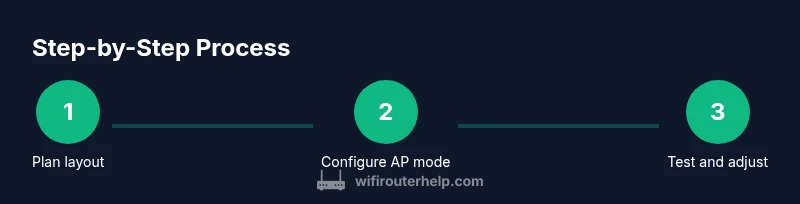
A well-structured plan reduces trial-and-error and speeds up setup. Start with a layout map of your home to identify dead zones and potential switch points for Ethernet piping. Decide whether you want a single SSID or multiple networks for guest access and IoT devices. Prepare your second router, cables, and access credentials. With a clear plan, you can implement AP mode for a clean, single-network experience or a mesh-like approach if your hardware supports it. After setup, run coverage tests in key rooms to verify improvements and adjust placement as needed.
Positioning and interference: practical tips
Placement is the practical art of WiFi extension. Elevate both routers off the floor, keep them away from walls with metal studs, and avoid placing devices behind furniture or inside cabinets. Aim for central, open spaces that balance distance and geometry, and test multiple locations before finalizing. Beware of interference from microwaves, cordless phones, and dense building materials like concrete and brick. If you’re seeing fluctuating speeds, consider changing channels to avoid congestion and ensure both routers operate on non-overlapping frequencies where possible. A well-positioned AP can transform weak corners into reliable living spaces for streaming and work-from-home tasks.
Security, reliability, and ongoing maintenance
Extending WiFi should not compromise security. Update firmware on both routers, choose strong admin passwords, and enable WPA3 or at least WPA2 encryption for all networks. Separate guest networks prevent IoT devices from accessing your main devices, reducing risk exposure. Regularly check for firmware updates and review connected devices to catch unfamiliar activity. Establish a simple maintenance routine: test coverage every few months, re-check channel usage after new neighbors come online, and document any changes you make so future tweaks are faster and safer.
Authority sources and further reading
For further guidance and verification, consult authoritative resources:
- FCC: Understanding Wi-Fi networks and security best practices (https://www.fcc.gov/consumers/guides/wireless-network-security)
- NIST: Wireless Network Security Guidance (https://www.nist.gov/publication-guide)
- University-based resources on home networking and security (e.g., edU domains that discuss wireless fundamentals) (https://www.example.edu/readings)
These sources provide foundational concepts for building reliable home networks and help validate best practices described here.
Summary and next steps
Expanding WiFi with a second router is a practical, achievable project for most homes. By choosing the right mode, planning backhaul, and focusing on placement and security, you can significantly improve coverage without replacing your current gear. Take the time to test layout, adjust as needed, and document your settings so future tweaks are quick and safe. If you run into stubborn dead zones or compatibility issues, consider investing in a dedicated mesh system or upgrading the main router for broader, more consistent coverage.
Tools & Materials
- Second router(A compatible router that supports AP mode, WDS, or client/bridge modes.)
- Ethernet cable (Cat5e/Cat6 or better)(Use for wired backhaul between the main router and the second router when possible.)
- Power outlet and surge protection(Keep devices protected; helpful if you’re placing routers on a shelf.)
- Access to admin interface (web browser)(You’ll log in to configure settings and update firmware.)
- Laptop or smartphone for testing(Use to test signal strength, speeds, and roaming between units.)
Steps
Estimated time: 60-90 minutes
- 1
Check compatibility and plan the backhaul
Review the second router’s documentation to confirm AP mode or WDS support. Decide whether you’ll use wired (preferred) or wireless backhaul and map out the best path between your main and second router.
Tip: If you can, run a wired Ethernet line along baseboards or behind furniture; this minimizes interference and preserves speed. - 2
Configure the second router for AP mode
Log in to the second router’s admin page and enable AP mode, disable DHCP on the second device, and set the same SSID and password as your main router (or a clearly distinct guest network if you prefer segmentation).
Tip: Use a unique channel to reduce interference with the main router, especially on crowded indoor bands. - 3
Set up wired backhaul (or verify wireless link)
Connect the two routers with Ethernet if you planned wired backhaul. Verify link status and confirm devices obtain IPs from the main router. If wired isn’t possible, test the wireless backhaul and note any latency changes.
Tip: Label patch cables and keep Ethernet runs neat to avoid accidental unplugging. - 4
Configure security and network separation
Enable WPA3 (or at least WPA2) encryption on both networks. Create strong admin passwords and enable a guest network if you have visitors. Ensure firewall settings are active.
Tip: Turn off WPS; it’s convenient but less secure and can be exploited. - 5
Test coverage and roam behavior
Walk around with a mobile device to test signal strength in key rooms. Check that devices switch seamlessly between routers and that there are no dead zones.
Tip: If roaming feels sticky, try a slightly different channel or adjust transmit power on the secondary unit. - 6
Document settings and plan maintenance
Save the exact SSIDs, passwords, and channel selections. Note firmware version and any quirks observed during testing for future updates.
Tip: Keep a simple one-page guide so another household member can manage it if needed.
People Also Ask
Can I use my old router to extend WiFi without buying new equipment?
Yes, an old router can extend WiFi if it supports AP mode or WDS/bridge. However, performance may be limited by older hardware. It’s best for basic coverage or guest networks, not high-throughput tasks.
Yes, you can use an old router for basic extension if it supports AP mode or bridge modes, though performance may be limited.
What is the difference between AP mode, repeater mode, and mesh?
AP mode creates a single network with seamless roaming. Repeater/WDS extends coverage but may halve throughput. Mesh systems offer the smoothest roaming but require compatible hardware.
AP mode gives a single network, repeaters extend coverage with potential slowdown, and mesh provides the smoothest roaming with compatible gear.
Will extending WiFi reduce my internet speed?
Some speed loss is possible, especially with wireless backhaul. Wired backhaul preserves the most speed, while wireless links are more susceptible to interference and distance.
Extending WiFi can reduce speed, especially with wireless backhaul; wired links lessen the loss.
How do I know if my router supports AP mode or WDS?
Check the router’s manual or admin interface for modes like AP, WDS, bridge, or client mode. If in doubt, consult the manufacturer’s support pages.
Look for AP or WDS modes in the admin settings or manual; contact support if unsure.
Is it safer to use wired backhaul rather than wireless?
Yes. A wired backhaul is typically more stable and faster, reducing latency and avoiding interference that plagues wireless links.
Wired backhaul is usually more reliable and faster than wireless.
How do I test coverage after setup?
Test with a smartphone or laptop in key rooms, checking signal strength and speed. Move devices to ensure seamless roaming and identify any remaining dead zones.
Test coverage with a device in key rooms and watch for roaming gaps.
Watch Video
What to Remember
- Plan coverage before wiring to avoid dead zones
- Prefer wired backhaul for best performance
- Configure AP mode and secure networks first
- Test and adjust placement after setup
- Document changes for future maintenance