Cable Modem and WiFi Router: Setup, Optimize, and Troubleshoot
Step-by-step guide to set up a cable modem and wifi router, optimize performance, and troubleshoot common issues for a reliable home network.


Whether you use a combined gateway or separate modem and router, this guide walks you through setup, activation, and optimization. You'll need a coaxial cable, a modem, a router, and at least one Ethernet cable; then follow steps to connect, configure, and secure your network while testing speeds. The goal is stable, fast coverage across your home.
Understanding the cable modem vs WiFi router relationship
Understanding the distinction between a cable modem and a WiFi router is foundational for a reliable home network. According to WiFi Router Help, the modem acts as the gateway to your internet service provider (ISP), translating the coaxial signal into a digital stream your network can use. The router, on the other hand, distributes that signal wirelessly and often wired to devices via Ethernet. In many homes, users choose between a single gateway device or separate modem and router to maximize flexibility, easier upgrades, and clearer troubleshooting paths. When you plan around the two roles—modem for connection, router for distribution—you’ll avoid common pitfalls like double NAT, weak wifi in far rooms, or confusing admin interfaces. This understanding also frames decisions about placement, security, and feature sets that matter for long-term reliability.
Planning your setup: gateway vs separate devices
Deciding between a gateway (modem+router in one unit) and separate devices depends on your needs and future plans. A gateway is compact, typically simpler to configure, and can work well in small spaces with modest speed requirements. Separate devices offer better performance headroom, more customization options (like QoS and advanced firewall rules), easier upgrades, and simpler troubleshooting when issues arise. For many households, starting with a high-quality modem and a capable router (even if not the latest model) gives the most flexibility, while allowing room to upgrade one component at a time. WiFi Router Help recommends weighing coverage goals, device density, and whether you expect to run demanding services (gaming, video conferencing) before choosing.
Environmental considerations: placement and interference
Placement dramatically affects performance. Centralize the modem and router in a high, open space away from thick walls, metal appliances, and sources of interference such as microwaves. Elevation helps; placing equipment on a bookshelf or wall shelf reduces signal absorption by furniture. Keep devices away from large metal surfaces or mirrors that can reflect signals. If you have multiple floors, consider a dedicated access point or a mesh system to extend coverage without sacrificing speed. A well-placed setup minimizes dead zones and reduces the need for channel switching or power cycling.
Step-by-step connection flow (overview)
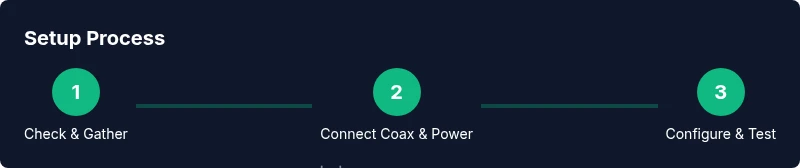
A logical connection flow helps avoid confusion during setup. First, connect the coaxial line from the wall to the modem, then power it on and confirm the internet light stabilizes. Next, connect the modem to the router using an Ethernet cable from the modem’s LAN/ETH port to the router’s WAN/Internet port. Finally, power on the router and verify you can access the admin page. This flow keeps activation clear and reduces the chance of misconfigurations.
Configuring the devices: admin pages, passwords, and security
Accessing the router’s admin interface is your main control point. Change the default admin password and set a strong, unique Wi‑Fi password. Enable WPA3 if available, or at least WPA2‑AES. Disable WPS if possible to reduce unauthorized access. Make a note of the admin URL, default credentials, and your network name (SSID) so you can recover quickly if you forget settings. Regular maintenance, including firmware checks, helps protect against evolving threats.
Optimizing wireless performance: channels, bands, and interference
Most modern routers operate on 2.4 GHz and 5 GHz bands. 2.4 GHz offers broader range but slower speeds, while 5 GHz provides higher throughput with shorter range. Set your router to auto-select or manually choose a channel with the least interference, particularly in dense apartment buildings or neighborhoods with many networks. If you have a mesh or multiple access points, ensure seamless roaming is enabled. Monitoring tools and speed tests after changes help you confirm improvements.
Security, updates, and maintenance
Keep firmware up to date by checking your device’s admin page or enabling automatic updates if available. Use a strong, unique password for the admin account and regular router password rotates. Enable firewall features and consider enabling guest networks for visitors to isolate main devices. Periodically reassess your settings after ISP upgrades or changes in your home network layout. Regular maintenance pays off in reliability and security.
Troubleshooting common issues and quick fixes
If you encounter slow speeds or dropouts, perform a quick power cycle: unplug both devices for 30 seconds and reconnect. Verify that the lights indicate normal operation and that the WAN/Internet link is active. If issues persist, re-activate the modem through your ISP’s portal and verify you’re under the service plan you expect. For stubborn problems, running a fresh configuration from scratch (without restoring old settings) can resolve persistent misconfigurations.
Tools & Materials
- Coaxial cable(Ensure it's rated for your service and in good condition)
- Cable modem(DocSYS/ISP compatible model)
- WiFi router(Prefer a model with modern WPA3 security)
- Ethernet cable (Cat5e/Cat6)(At least one 1-2 meter length)
- Power adapters for modem and router(Use supplied adapters)
- Laptop or smartphone for configuration(Wi-Fi or wired connection to access admin pages)
- Surge protector or power strip(Optional for equipment protection)
Steps
Estimated time: 60-90 minutes
- 1
Check service readiness and gather equipment
Confirm service activation with your ISP and collect all required devices. Verify you have a coaxial cable, a modem, a router, and an Ethernet cable ready for the setup. Having everything on hand minimizes interruptions and keeps you moving smoothly.
Tip: Prepare a small labeled checklist to verify each item before you start. - 2
Connect the coaxial cable and power to the modem
Attach the coaxial line to the modem’s coax input, then plug in the power. Wait for the modem to initialize; the online or data lights should stabilize. If activation requires a portal, have a computer ready to complete the process.
Tip: If you hear crackling or see a blinking light, reseat the coax connector to ensure a solid signal. - 3
Connect the modem to the router via Ethernet
Use an Ethernet cable to connect the modem’s LAN port to the router’s WAN/Internet port. This wired link is crucial for reliable initial configuration and faster setup. Avoid using a spare LAN port on the modem when connecting to the router.
Tip: Use a short, quality Ethernet cable to reduce signal loss and interference. - 4
Power on devices and complete activation
Power on the modem first, give it a minute to boot, then power on the router. Allow a few minutes for devices to negotiate the link and establish internet access. If activation asks for a service password, enter it as provided by your ISP.
Tip: A simple reboot sequence often resolves initial IP address assignment issues. - 5
Access the router admin page and set a strong admin password
From a connected computer, open the router's admin URL (often 192.168.0.1 or 192.168.1.1). Log in with the default credentials, then immediately change the admin password to a strong, unique value. Save settings before leaving the page.
Tip: Write down the admin URL and new password in a secure place. - 6
Configure Wi‑Fi details: SSID, password, and security
Create a unique SSID and a strong passphrase. Enable WPA3 if available; otherwise use WPA2‑AES. Consider turning off WPS and enabling guest network isolation for visitors’ devices. Apply settings and test connectivity from multiple devices.
Tip: Prefer a passphrase with a mix of letters, numbers, and symbols to maximize security. - 7
Test performance and tune channels
Run speed tests on a wired device and on wireless devices to gauge baseline performance. If speeds vary widely, adjust 2.4 GHz and 5 GHz channels to reduce interference. Consider enabling auto-channel selection or manual channel stepping to find the clearest path.
Tip: If you have many neighbors, a manual 1-2 channel step can noticeably improve stability.
People Also Ask
Do I need a separate modem and router, or is a gateway sufficient?
A separate modem and router provides flexibility for upgrades and easier troubleshooting. A gateway can be simpler but may limit future customization. Your decision should consider coverage needs and planned device upgrades.
Separate modem and router offer more flexibility and easier upgrades, though a gateway is simpler to set up.
What is bridge mode, and when should I use it?
Bridge mode disables the router functionality in a gateway so a separate router handles all Wi‑Fi. Use it when you want full control of your network features or when your gateway creates conflicts.
Bridge mode lets an external router take over routing duties for full control.
Why is my Wi‑Fi slow in some rooms but fast in others?
Wi‑Fi speed varies by distance, walls, and interference. To improve, place the router centrally, switch to the 5 GHz band where possible, and consider a mesh system or access points for dead zones.
Signal strength, distance, and obstacles cause variability; improve layout or add access points.
How often should I reboot or update firmware?
Regular reboots help resolve minor glitches. Check for firmware updates monthly or when security advisories are issued. Enable automatic updates if available for ongoing protection.
Reboot periodically and keep firmware up to date for performance and security.
What is the best security setting for a home wireless network?
Use WPA2‑AES or WPA3 if available. Disable WPS and ensure guest networks are isolated from your main devices to reduce risk.
Use WPA3 if possible and disable unnecessary features like WPS.
Can I use a cable modem with a mesh system?
Yes. A cable modem can connect to a mesh router system to extend coverage. Ensure the mesh units support the same standards and configure roaming settings for seamless handoffs.
A mesh system works with a cable modem to extend coverage; set up roaming for smooth transitions.
Watch Video
What to Remember
- Plan a dedicated setup space and ensure all gear stays organized.
- Separate modem and router for flexibility and easier upgrades.
- Secure your network with a strong password and current encryption.
- Test and optimize wireless channels after changes.
- Keep firmware up to date to protect against threats.