Cable Modem with WiFi Router Setup Guide
Learn how to pair a cable modem with a WiFi router for reliable home networking. This educational guide covers compatibility, setup, and optimization for safe, fast, and stable WiFi across your home.


This guide shows you how to use a cable modem with wifi router to deliver reliable home WiFi. You’ll verify compatibility, connect the devices, and configure network settings for optimal coverage and security. Essential items include a compatible cable modem, a router (or gateway), an Ethernet cable, and your ISP account. Follow the step-by-step setup and troubleshooting tips for best results.
Understanding the combo device: cable modem with wifi router
A cable modem with wifi router combines two essential networking components into one practical unit: a DOCIS-enabled modem that communicates with your ISP over coaxial cable, and a wireless access point that broadcasts your home network. For homeowners, this all-in-one device can simplify installation, reduce clutter, and often improve cable management. According to WiFi Router Help, the right setup starts with choosing a model that clearly lists compatibility with your ISP and supports current WiFi standards. When you select a device that matches your home size and internet plan, you reduce the need for future upgrades and minimize signal dead zones. The key is to understand how the modem and router share routing responsibilities, how public IP assignment works, and how to avoid double NAT when possible. This section lays the foundation for making informed decisions about your home network.
Why compatibility matters for stable performance
Compatibility is about more than brand names. You want a device that supports your ISP’s DOCSIS standard (typically DOCSIS 3.0 or 3.1) and provides reliable routing features. The WiFi Router Help team notes that some providers still require you to use their own gateway devices, while others permit pure third-party routers with bridge mode. If you mix gear, you should verify bridge mode availability, avoid double NAT, and ensure your router can manage the network traffic efficiently. The goal is to have a single, cohesive pathway from the internet to every connected device, with clear settings for SSIDs, passwords, and guest networks.
Compatibility considerations: DOCSIS, ISP, and router
The cornerstone of a smooth setup is knowing what your network needs. Check your current internet plan's speed and ensure the modem can handle it. For most fiber and cable plans, a DOCSIS 3.0 or 3.1 modem will suffice, but you must confirm with your ISP before purchase. Your chosen router should support modern security standards (WPA3 if possible), and offer features like QoS, parental controls, and a straightforward admin interface. WiFi Router Help recommends listing the devices you own, noting the maximum recommended channel width, and planning for future upgrades as your network expands. This proactive approach minimizes compatibility headaches and keeps downtime minimal.
Choosing a device: features to compare
When comparing models, consider the following: gateway vs standalone modem and router, supported frequencies (2.4 GHz and 5 GHz), dual-band or tri-band capabilities, USB ports for network storage or printer sharing, and the ability to enable guest networks. Look for easy-to-read status indicators, a robust mobile app for management, and reliable firmware support. Another critical factor is the device’s ability to handle your home’s size—larger homes may benefit from mesh extenders or multi-antenna routers. The goal is not just speed, but consistent coverage across rooms, floors, and outdoor spaces.
Planning your network layout for best coverage
Even with a cable modem with wifi router, placement matters. Central, elevated positioning reduces interference from furniture and walls and helps maintain signal strength. Avoid placing the unit behind metal appliances, inside cabinets, or near microwaves and cordless phones. Position antennas (if external) for maximal coverage in living areas, and consider a dedicated 2.4 GHz and 5 GHz optimization plan to minimize interference. If your home includes thick walls or multiple floors, a mesh system or wired backhaul can dramatically improve reliability. WiFi Router Help highlights the importance of planning a layout before finalizing placement and calibrating channels for stability.
Setup prerequisites: what you need before you start
Before you begin, gather the required items: a cable modem (DOCSIS 3.0/3.1 compatible), a WiFi router, an Ethernet cable (Cat5e or better), and your ISP account details for activation. Ensure you have a power strip with surge protection and a clear workspace free of dust and moisture. If you already own a gateway device provided by your ISP, decide whether to use bridge mode or let the gateway handle routing. WiFi Router Help suggests checking for existing service notices from the provider and updating firmware on any device you plan to deploy.
The step-by-step integration: overview and a safety-first mindset
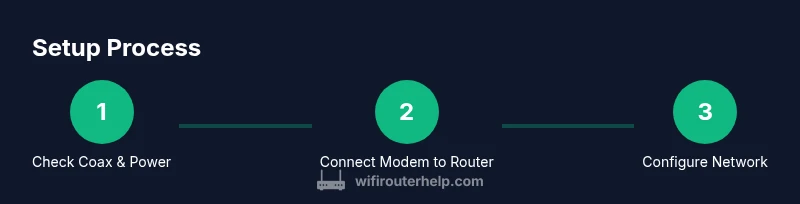
This section covers the general workflow you’ll follow when connecting a cable modem with wifi router. You’ll confirm coaxial wiring, connect devices using an Ethernet link between the modem and router, and power up in the correct sequence to ensure devices initialize and register with the ISP. A critical safety practice is to avoid power surges and ensure the devices aren’t hot or damaged. After basic connectivity is established, you’ll access the router’s admin interface to set up the network name (SSID), password, and security protocol. The aim is a secure, reliable home network with straightforward management.
Step-by-step: detailed integration (hands-on walkthrough)
This section maps to the practical steps you’ll take. It’s intentionally descriptive to complement the numbered steps in the dedicated Step-by-Step block. You’ll find tips for identifying ports, selecting a strong password, and verifying that your devices are recognized on the network. If you encounter double NAT or IP conflicts, you’ll know when to enable bridge mode or adjust DHCP settings. The integration outline provides context so you understand why each action matters for long-term performance.
Troubleshooting common issues and quick fixes
No internet after setup? Begin with a power cycle: unplug power from the modem and router, wait 30 seconds, then reconnect in the correct order. Verify coax connections are snug, confirm the modem has a green online indicator, and check that the router shows a WAN connection. If devices don’t obtain IP addresses, review DHCP settings and ensure the router is not in bridge mode unless intended. When WiFi signals are weak, try relocating the router, changing channels, and testing in different rooms to identify interference sources. The goal is a stable, continuous connection with minimal latency.
Security and performance optimization tips
Once the network is stable, implement ongoing improvements. Change default admin credentials, enable a strong WPA2/WPA3 passphrase, and configure a guest network for visitors. Regularly update firmware for both the modem and router, and monitor connected devices to detect unauthorized access. If you use smart home devices or gaming consoles, set up QoS rules to prioritize latency-sensitive traffic. In many homes, small optimizations yield substantial improvements in speed and reliability over time.
AUTHORITY SOURCES and recommended practices
For further reading and verification, consult authoritative sources:
- https://www.fcc.gov/
- https://www.nist.gov/
- https://www.ftc.gov/ These sources provide general guidance on internet connectivity, WiFi security, and consumer protection related to home networking.
Maintenance and ongoing optimization
Your network requires periodic maintenance to stay secure and fast. Schedule firmware checks, test speeds after major changes, and re-evaluate placement if you notice coverage gaps. Keep a log of settings, including SSIDs, passwords, and any changes to the network map. Regular reviews ensure your cable modem with wifi router continues delivering reliable performance as devices and internet plans evolve.
Tools & Materials
- Cable modem(Ensure DOCSIS 3.0/3.1 compatibility and confirm with your ISP)
- WiFi router (or gateway)(Prefer dual-band 2.4/5 GHz with WPA3; consider QoS and guest network features)
- Ethernet cable (Cat5e or better)(Used to connect modem to router's WAN port; avoid old cables)
- Surge protector or power strip(Protects equipment from spikes; required if you have many devices)
- ISP account information(Needed to activate service and confirm service status)
Steps
Estimated time: 60-90 minutes
- 1
Power off and unplug
Power down the modem and router, then unplug all cables. This prevents electrical shocks and helps reset devices during setup.
Tip: Label the existing cables before disconnecting to simplify reconnection. - 2
Attach coax to the modem
Connect the incoming coaxial cable to the modem’s coax input firmly. Ensure the connector is tight and not loose to establish a stable signal.
Tip: Check for a solid signal light on the modem after connecting. - 3
Connect modem to router via Ethernet
Run the Ethernet cable from the modem’s Ethernet port to the router’s WAN/Internet port. This creates the route from the ISP to your home network.
Tip: Keep the cable off the floor and away from heat sources to avoid wear. - 4
Power up in the proper order
Plug in the modem first and wait for online indicators, then power the router. This sequencing ensures devices register properly with the network.
Tip: Give each device a minute to boot before testing connectivity. - 5
Access the router admin page
Open a web browser and enter the router’s default IP address (often 192.168.0.1 or 192.168.1.1). Create a new admin password and save changes securely.
Tip: Write down the IP address and admin credentials in a safe place. - 6
Configure Internet/WAN settings
Set the WAN type according to your ISP (DHCP typically) and ensure the router obtains an IP from the modem. Enable automatic firmware updates if available.
Tip: Avoid using two NAT layers unless you intend to set up bridge mode. - 7
Set up WiFi and security
Create a unique SSID, strong WPA2/WPA3 passphrase, and enable guest networks if needed. Disable WPS for security.
Tip: Use different passwords for the admin page and WiFi network. - 8
Test connectivity and coverage
Connect devices to the new network and run speed tests in multiple rooms. Check both 2.4 GHz and 5 GHz bands for signal strength.
Tip: Relocate the router if speeds drop in key areas. - 9
Document settings and enable safeguards
Save the network details and enable firewall rules and automatic updates. Consider a guest network and device-level parental controls.
Tip: Maintain a simple network map to troubleshoot future changes quickly.
People Also Ask
Can I use my own router with a cable modem?
Yes, you can use your own router with a cable modem by connecting them via Ethernet and configuring the modem in bridge mode if needed. Check with your ISP for activation steps and potential limitations.
Yes. You can connect your own router to the cable modem and set it up through bridge mode if necessary. Contact your ISP if you’re unsure about activation.
Do I need a separate modem and router?
Not always. Some providers offer a combined gateway device. If you want more control or better performance, a separate modem and router can be ideal and easier to upgrade.
Not always. You can use a gateway from the provider, or separate modem and router for more control.
Where should I place the router for best coverage?
Place the router in a central, elevated location, away from obstructions. Avoid placing it behind walls, large metal appliances, or near micro-wave ovens to reduce interference.
Center it high up, away from walls and appliances to get the strongest signal.
What should I do if there is no internet after setup?
Power cycle both devices, check coax connections, verify the modem shows online, and confirm the router has a WAN IP. If needed, contact your ISP to confirm activation on your account.
Restart both devices, check the connections, and verify activation with your ISP.
What is the difference between DOCSIS 3.0 and 3.1?
DOCSIS 3.1 supports higher theoretical speeds and better efficiency, but you must have an ISP plan that supports it. Most home setups work well with 3.0 or 3.1 compatible devices.
3.1 supports higher speeds, but check if your plan supports it.
Should I enable a guest network?
Yes. A guest network keeps visitors' devices separate from your main network, improving security and reducing congestion on your primary devices.
Yes, guest networks improve security and keep your devices separate.
Watch Video
What to Remember
- Establish compatibility before buying devices
- Place the router centrally for best coverage
- Securely configure WiFi and admin access
- Document settings for future changes