Nighthawk Router Login: Secure Access Guide
Learn how to securely access your Nighthawk router's admin panel, change credentials, update firmware, and troubleshoot login issues with a step-by-step guide from WiFi Router Help.


Goal: You will securely access your Nighthawk router admin panel and verify essential settings. Before you begin, ensure your computer or mobile device is connected to the router’s network and you know the current admin password. This guide walks you through safe login steps, common prompts, and best practices to protect your home network.
Understanding the purpose and scope of nighthawk router login
The phrase nighthawk router login refers to reaching the router’s administrative interface so you can review and change network settings such as Wi‑Fi name (SSID), password, security mode, firewall options, and firmware. This login page is typically accessed through a local browser by entering the router’s IP address (commonly 192.168.1.1 or 192.168.0.1) or by using a Netgear account via cloud access. The login process exists to prevent unauthorized changes; strong credentials protect your network from intruders. According to WiFi Router Help, securing the nighthawk router login is essential for home network safety and ongoing control over who can modify settings. When you gain access, you’ll see sections for Wireless, Security, Advanced, and Administration that let you tailor protections, guest networks, QoS rules, and monitoring. Plan to allocate time for a careful review of settings to minimize future issues and maximize performance.
Pre-login security checklist
Before you try to log in, run a quick security and readiness check. Confirm you are connected to the router’s network via Wi‑Fi or Ethernet. Make sure you know or can reset the admin password, and consider disabling remote management if you don’t need it exposed to the internet. Check for any firmware updates and install them if available, since old firmware can create vulnerabilities. Create a plan for a strong admin password (combining letters, numbers, and symbols) and enable features like WPA3, if supported. Remember to keep a record of your login credentials in a password manager and never reuse the same password across different devices. These steps help prevent common entry points for attackers and simplify future access.
Locating the login URL: IP vs cloud access
Accessing the Nighthawk router login page usually happens via the local IP address on a connected device. If you can’t reach the local login, Netgear also offers cloud-based access through your Netgear account, which can be convenient when you’re away from home. In most cases, open a browser and enter 192.168.1.1 or 192.168.0.1; you may be prompted for a username and password. If neither works, verify your device is on the same network as the router, or check the router’s label for the default IP. For security, prefer local access when you’re at home and keep cloud login enabled only if you trust the network and have strong account protections. Persistent IP conflicts or browser extensions can interfere with login; try a different browser or private/incognito mode if needed.
Authenticating safely: credentials and password hygiene
Once the login prompt appears, enter the admin username and password. Default credentials vary by model, but many Netgear devices use admin for the username and either admin or password for the password; always check the device label or manual. Immediately change any default credentials to a strong, unique password. Use a password manager to store it securely and enable two-factor authentication if your model offers it. After logging in, review who is allowed to access the admin interface by auditing connected devices and ensuring only trusted users have credentials. Regularly updating passwords and firmware reduces risk from compromised accounts.
Troubleshooting common login errors
If you encounter a login error, start with the simplest fixes: refresh the page, try a different browser, or clear cache and cookies. Verify you’re not connected to a guest network that restricts admin access. If you still can’t log in, reset the admin password using the reset option (or press and hold the reset button for a few seconds if you must restore factory settings). Ensure you’re using a wired or stable wireless connection; intermittent connectivity can drop login requests. Ensure you’re not confusing the router’s login with a separate device’s admin panel (e.g., ISP modem). If cloud login is enabled, ensure your Netgear account is active and the device is linked to your account.
When login fails: hardware reset and model-specific steps
If login remains impossible after all checks, a hardware reset can restore default settings. Use the small reset pinhole on the back of the router and hold it for about 10 seconds, or until lights flash. Be aware: a reset erases all custom settings, including Wi‑Fi name, password, and forwarded ports; you’ll need to reconfigure from scratch. After reset, use the default IP and credentials printed on the device label to access the login page and start fresh. If your model supports it, consider upgrading to the latest firmware during the first setup to ensure you have the newest protections and features.
Accessing the router via the mobile app vs web interface
Many Nighthawk routers offer a mobile app (for iOS/Android) that makes login and management convenient, especially on small screens. The app often uses the same admin credentials as the web interface, but it may guide you through initial setup more intuitively. Web login typically provides deeper control over advanced settings like port forwarding, QoS, and firewall policies. Decide based on your needs: use the app for quick changes and overview, and the web interface for detailed configuration and troubleshooting. Always ensure the app is from the official Netgear/Nighthawk source to avoid phishing or spoofed interfaces.
Long-term security and maintenance after login
After you’ve logged in and configured essentials, set a routine for maintenance. Enable automatic firmware updates if available and monitor connected devices for unfamiliar activity. Change the admin password periodically and document it securely. Consider enabling WPA3 on the Wi‑Fi network, enabling a guest network for visitors, and turning off WPS to reduce risk. Regular backups of your router settings can save time if a reset becomes necessary. Finally, review your parental controls and firewall settings to maintain the right balance of accessibility and protection for all devices on the network.
Tools & Materials
- Device with a web browser (PC, laptop, or mobile)(Ensure the browser is up to date (Chrome, Firefox, Safari, Edge).)
- Active network connection to the Nighthawk router(Wi‑Fi or Ethernet connected to the router LAN.)
- Admin credentials or a way to reset(If you don’t know the password, be prepared for a factory reset.)
- Small paperclip or pin (for reset)(Used only if you need to perform a factory reset.)
- Password manager(Helpful for storing long, unique passwords securely.)
Steps
Estimated time: 15-25 minutes
- 1
Verify device connectivity
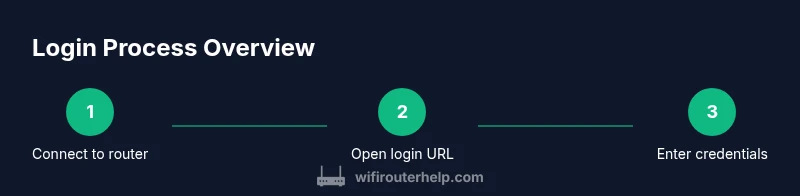
Ensure your computer or mobile device is connected to the router’s network via Wi‑Fi or Ethernet. A stable connection prevents login timeouts and helps you reach the login page reliably.
Tip: If you’re using a VPN, temporarily disable it to avoid interfering with local router access. - 2
Open the login URL
In a browser, enter the router’s IP address (commonly 192.168.1.1 or 192.168.0.1). If the page doesn’t load, check your device’s network settings or try a different browser. Some models also support cloud login via your Netgear account.
Tip: If you’re unsure of the IP, check the label on the router or your manual; you can also run a quick IP scan on your network. - 3
Enter admin credentials
On the login screen, type the admin username and password. If you see a default prompt, consider changing it immediately after logging in to prevent easy access by others.
Tip: If you forgot the password, use the reset option rather than guessing multiple attempts to avoid locking the account. - 4
Change default credentials
Once logged in, navigate to Administration or Maintenance to set a new, strong admin password. Avoid common words, use a mix of upper/lowercase, numbers, and symbols.
Tip: Store the new password in a trusted password manager for future access. - 5
Update firmware
Check for firmware updates within the Administration section and install them if available. Updates patch security flaws and improve stability.
Tip: If the router supports automatic updates, consider enabling them while staying aware of potential reboots. - 6
Review security settings
Review WPA3 status, disable WPS if present, and ensure firewall settings align with your security needs. Set up a guest network if you have guests to isolate devices.
Tip: Document changes you make so you can reproduce or revert them if needed. - 7
Enable remote management only if needed
If you require remote access, enable it and limit access to trusted IPs or a secure Netgear account. Disable it when not in use to reduce exposure.
Tip: Always use strong credentials and consider enabling two-factor authentication if the option exists. - 8
Log out and verify
Log out of the admin console and test by reopening the login page to confirm it requires credentials again. Verify that Wi‑Fi settings and security policies persist after a reboot.
Tip: Keep a documented recovery plan in case you forget credentials.
People Also Ask
How do I access the Nighthawk router login page?
Open a browser on a device connected to the router's network and enter the local IP address (commonly 192.168.1.1 or 192.168.0.1). If prompted, provide the admin username and password. If cloud login is enabled, you can also sign in with your Netgear account.
Open a browser on a device connected to the router and enter the admin page address, usually 192.168.1.1 or 192.168.0.1. Use your admin credentials to sign in; cloud login is optional if configured.
What is the default username and password for Nighthawk login?
Many Netgear devices use admin for the username and either admin or password for the password. Always check the router label or the manual for model-specific defaults before logging in.
Default usernames are often admin, and the password is commonly admin or password, but always verify on the device label.
What should I do if I forget my admin password?
Use the router’s reset procedure to regain access. This typically involves pressing and holding the reset button for several seconds to restore factory defaults, after which you’ll use the default credentials to log in and reconfigure.
If you forget your admin password, you may need to reset the router to factory defaults and set new credentials.
Can I login remotely to my Nighthawk router?
Remote login is possible if you enable cloud access or secure remote management, but it increases exposure to the internet. Use strong authentication and limit remote access to trusted networks.
Yes, but only enable it if you need remote access and keep protections strong.
How do I change the admin password securely?
Log in locally, go to Administration or Security settings, and set a new, long password. Save changes and store the password in a password manager.
Log in, change the password in the settings, and store it securely.
Why can't I access the login page after a firmware update?
Firmware updates can reset or alter settings. If login fails, refresh the page, reboot the router, and re-check credentials. If needed, re-flash the firmware with the latest stable version.
Sometimes after an update you may need to reboot or re-enter credentials; verify you’re using the correct login page and credentials.
Watch Video
What to Remember
- Know the exact login URL for your Nighthawk router.
- Change default admin credentials immediately after login.
- Use strong passwords and enable firmware updates.
- Disable remote management unless required for security.
- Regularly review security settings and backup configurations.