How to Reset a Nighthawk Router: A Step-by-Step Guide
Learn how to reset a Nighthawk router safely, with hardware and software methods, backup tips, and troubleshooting to restore reliable home Wi-Fi.


This guide explains how to reset nighthawk router, covering hardware reset and software reset methods. You’ll learn when to use each option, how to prepare, and what to expect after reset (recovery steps, reconfiguring your Wi‑Fi name, password, and security settings). The steps apply to most Nighthawk models and help fix common connectivity issues quickly.
Why Resetting Your Nighthawk Router Helps
Resetting a router is a powerful troubleshooting step that can fix stubborn connectivity problems caused by misconfigurations, software glitches, or conflicting settings. For many homeowners, a simple reset clears the path to a stable network and provides a clean slate for reconfiguration. According to WiFi Router Help, factory resets are a last-resort fix because they wipe custom settings. The WiFi Router Help team found that when a router behaves oddly—dropping connections, failing to broadcast both bands, or showing unusual LED patterns—a well-planned reset often restores baseline performance without needing hardware repairs. In this section, we’ll cover when a reset makes sense and how to approach it with confidence, so you can regain reliable Wi‑Fi without unnecessary frustration.
A reset should be considered after basic troubleshooting has been tried, such as rebooting devices, verifying cables, and checking for firmware updates. If your network remains unstable after you complete a clean reconfiguration, a reset can often re-establish a stable baseline. Remember that every model in the Nighthawk line has its own quirks, so adapt the steps to your specific device.
From the perspective of a typical home network, reset behavior often depends on the router’s current firmware and the presence of any bridging or mesh components in use. The WiFi Router Help team emphasizes planning and documentation as you reset to avoid losing important settings. If you keep a simple, organized checklist, you’ll minimize downtime and make re-entry into your network much smoother.
In short, resetting is a powerful tool when used wisely. It’s not a “solve-all” for every problem, but it can remove stubborn misconfigurations that hinder performance. By following a structured approach, you can get back to reliable Wi‑Fi faster and with less risk of data loss or misconfigured security settings.
Before You Reset: Backup and Prepare
Before performing a reset, take three practical steps to protect your network configuration and save time later. First, write down or capture screenshots of your current SSID names, Wi‑Fi passwords, and security settings (WPA2/WPA3, guest networks, parental controls). If you have port forwarding, static IP reservations, or custom DNS entries, record those as well. Second, decide which reset method to use: hardware reset via the physical button, or software reset from the admin interface. Third, plan to pause firmware updates or activities that could interrupt the reset process, and ensure you have a stable power source during the operation. By preparing in advance, you’ll avoid redoing steps and minimize downtime during setup.
A well-documented backup makes it easier to re-create your network after the reset. If you manage multiple devices or a guest network, preserving at least the essential settings will save time during the reconfiguration phase. For households that rely on specific firewall rules or port forwards, consider exporting your configuration if your router supports it. This preparation step is often overlooked but is the key to a smooth transition from factory defaults to a working network.
Hardware Reset: The Quick Reset Button Method
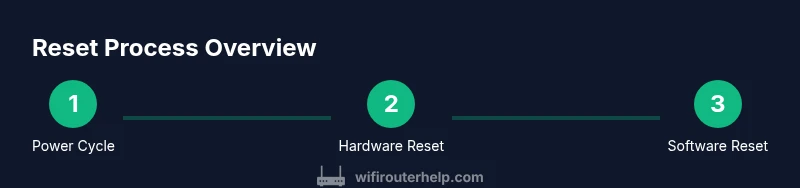
Hardware resets use the router’s physical reset button to restore factory settings. This method is quick and does not require you to access the admin interface, which can be helpful if you’ve locked yourself out or cannot reach the router’s login page. To perform a hardware reset, locate the recessed reset button on the back or underside of the router. Prepare a small, non-metallic object like a paperclip or pin, press and hold the button for about 10 seconds, and release when the LEDs flash or blink in a recognizable pattern. The device will reboot automatically and return to its default state.
After the reset completes, you’ll lose all custom settings, including Wi‑Fi names, passwords, and any forwarded ports or parental controls. Reconnecting to the router will require you to re-enter credentials and reconfigure security options. If the LED indicators show unusual behavior after the reset, give the router a few extra minutes to finish its startup sequence. If you suspect a hardware fault, consult the manufacturer’s guidance or contact support.
Software Reset: Accessing the Admin Console
A software reset restores factory defaults from within the router’s web-based administration page. This method is useful if you can still access the admin interface but prefer a controlled reset that preserves certain system-level options. First, ensure your computer or mobile device is connected to the router—either via Wi‑Fi or an Ethernet cable for reliability. Open a browser and enter the router’s IP address (commonly 192.168.1.1) or the default domain (such as routerlogin.net). Enter your admin credentials (the default is often admin and the password blank or admin; if you’ve changed them, use the new values).
Navigate to the Factory Reset option under the System or Administration section. Confirm the reset action, and allow the router to reboot. After reboot, the router will be restored to factory settings, and you’ll need to re-create the network from scratch. If you cannot access the admin page, return to the hardware reset method or consult the support documentation for model-specific instructions.
Reconfiguring After Reset: Wi‑Fi Name, Password, and Security
With the default settings restored, start the reconfiguration process. Create a clear, memorable SSID for each band (2.4 GHz and 5 GHz) and choose a strong, unique password. For security, enable WPA3 if available, or WPA2‑AES as a minimum. Change the admin password to something strong and unique, and consider disabling WPS to reduce vulnerability. If you have guest networks, configure them with separate credentials and limited access. Finally, verify that firewall settings are active and that the router’s firmware is up to date, as an up-to-date firmware minimizes exposure to known vulnerabilities.
During this phase, you’ll want to test device connectivity across multiple areas of your home and ensure that smart home devices rejoin the network without issues. For households using parental controls or QoS rules, re-create those policies in the new configuration. Taking time to document the new settings will simplify future resets and troubleshooting.
Common Pitfalls and When Not to Reset
Resetting is not a cure-all. If you reset too often, you may lose important features or disrupt connected devices without resolving the underlying problem. WiFi Router Help analysis shows that repeated resets without backing up config can be a waste. If you still experience instability after a reset, investigate potential hardware faults, ISP issues, modem compatibility, or a need for a firmware update. Also avoid performing resets during firmware upgrades, as interrupting an update can leave the device in an unstable state. If your setup includes a separate modem, ensure compatibility and bridge mode settings are correct before attempting a reset.
Another pitfall is incorrectly assuming all network issues stem from the router. Sometimes problems originate with the modem, the ISP, or external interference. In multi-device homes with mesh systems, resets should be coordinated to prevent network-wide downtime. If you’re unsure, start with a soft reboot and targeted settings checks before opting for a full factory reset.
Safety, Security, and Maintenance After Reset
After resetting, focus on safe and secure operation. Update the firmware to the latest version from the manufacturer’s site, and enable automatic updates if available. Change all default passwords and disable features that aren’t needed, such as WPS, to reduce exposure to attacks. Create a guest network for visitors and enable network isolation to protect your private devices. Regularly review connected devices and monitor for unfamiliar activity. Consider enabling a firewall and setting up basic parental controls if needed. Finally, store a backup of your configuration file in a safe location so you can reapply preferences quickly in the future.
Troubleshooting After Reset: If Things Go Wrong
If you run into trouble after resetting, start with the basics: verify power, ensure you’re connected to the router, and confirm you have the correct IP address and login credentials. If the admin page won’t load, try a wired connection and clear your browser cache. For connectivity issues, check that the WAN/Internet status is active and that the modem is online. If devices still won’t connect, re-enter the Wi‑Fi password and verify security settings. Sometimes a quick flash of firmware via a supported method resolves stubborn issues.
If problems persist, consult the manufacturer’s support resources for model-specific guidance. You can also perform another clean reset if you suspect a corrupted configuration, but only after backing up important settings. Finally, consider contacting your ISP or network professional if the issue involves hardware failures or service constraints.
Quick Checklists, Next Steps, and Backups
Before concluding, use this quick checklist to ensure you’re ready for future resets and maintenance:
- Back up current settings and document your network details.
- Choose hardware or software reset based on accessibility.
- Reconfigure SSID, password, and security immediately after reset.
- Verify internet connectivity and test across devices.
- Store a secure backup of the new configuration.
The WiFi Router Help team recommends keeping a clear record of changes and maintaining a local backup to simplify future troubleshooting and reconfiguration. By following these steps, you’ll maintain a robust home network and reduce downtime in case you need to reset again.
Tools & Materials
- Phone, tablet, or computer(For admin access and configuration)
- Web browser(Chrome/Edge/Safari recommended)
- Nighthawk router(The device you are resetting)
- Paperclip or pin(To press recessed hardware reset button)
- Ethernet cable(For wired admin access if Wi‑Fi is unreliable)
- Backup power source(Keep power connected during reset to prevent partial resets)
Steps
Estimated time: 35-60 minutes
- 1
Choose reset method (hardware or software)
Decide whether you will use the hardware reset button or the software reset from the admin console. Hardware reset is quick and does not require login, but software reset can be safer if you still have admin access to the page. Understanding the difference helps prevent unnecessary steps and potential data loss.
Tip: If you can access the admin page, start with the software reset to preserve as much control as possible. - 2
Back up current settings
Document current network names, passwords, security modes, port forwards, and any custom DNS or QoS rules. A camera or screenshots work well for visuals, and exporting a configuration file is ideal if your model supports it.
Tip: Saving a screenshot of the current admin dashboard speeds up reconfiguration. - 3
Prepare your workspace and power
Ensure a stable power source and a clean workspace. Avoid resetting during a firmware update, and disconnect nearby devices to reduce interference while you work.
Tip: A charged device and stable power prevent mid-reset interruptions. - 4
Perform hardware reset (if chosen)
Press and hold the recessed reset button for about 10 seconds until LEDs indicate a reset, then release. The router will reboot to factory defaults. Do not release early or repeatedly press the button.
Tip: Using the correct duration ensures a clean hardware reset. - 5
Wait for the router to reboot
Allow the router several minutes to complete the reboot process. Once the status lights indicate normal operation, you can proceed with reconfiguration.
Tip: Do not unplug the device during startup. - 6
Perform software reset (if chosen)
If you chose the software path, access the admin console, navigate to the factory reset option, and confirm. The device will restart and revert to defaults. This method preserves some settings only if the model supports them.
Tip: Use software reset when you’re still able to login and need a clean slate. - 7
Reconfigure the router (SSIDs, passwords, security)
Set new network names for 2.4 GHz and 5 GHz bands, create strong passwords, enable WPA3 or WPA2‑AES, and change the admin password. Disable features you don’t need (like WPS) and re-establish any guest networks with isolation.
Tip: Document the new credentials and network names for future reference. - 8
Test connectivity and complete backup
Connect a few devices and verify internet access. Confirm all required services (smart devices, printers, etc.) reconnect properly. Create a fresh backup of the new configuration for easy restoration later.
Tip: A post-reset backup saves time if you need to reset again in the future.
People Also Ask
When should I reset my Nighthawk router?
Resetting is best used after trying basic troubleshooting, when settings are misconfigured, or after firmware issues. It clears faults but also wipes custom configurations, so back up first.
Resetting should be attempted after other fixes fail, because it clears settings and can resolve deeper issues.
What is the difference between hardware and software reset?
A hardware reset uses the physical button to restore defaults, while a software reset uses the admin page to return to factory settings. Both can erase custom configurations, so back up first.
Hardware reset uses the button; software reset uses the web interface to reset.
Will a reset affect ISP settings or PPPoE credentials?
Resetting can revert to default credentials and may remove PPPoE or bridge settings. Be prepared to re-enter ISP credentials if required by your service. Backups help you restore these quickly.
Some ISP settings may be lost; you might need to re-enter PPPoE or bridge details.
How long does a reset take?
Hardware resets take about 1-2 minutes to complete, while software factory resets can take several minutes during reboot. Do not interrupt the process.
Usually just a few minutes, depending on the method you use.
I can’t access the admin page after a reset—what should I do?
Check the connection (use Ethernet if needed), try the default IP or domain, and re-enter credentials. If it still fails, perform another reset or consult model-specific guides.
Make sure you’re connected and try again; if it fails, a second reset or manufacturer support may be needed.
Can I automate backups after reset?
Many routers offer backup/export options after configuration. Once you finish setting up, enable automatic backups if available and save a local copy of the new settings.
Yes, back up after configuration to make future resets easier.
Watch Video
What to Remember
- Back up current settings before resetting.
- Choose hardware or software reset based on access and goal.
- Reconfigure SSID, password, and security immediately after reset.
- Test connectivity across devices and save a fresh backup.
- The WiFi Router Help team recommends backing up settings before resetting to preserve configurations.