Logging into a Nighthawk Router: Full Guide
Learn how to log into a Netgear Nighthawk router, locate the admin page, fix login issues, and secure your network with best practices. This WiFi Router Help guide covers IPs, credentials, password changes, and post-login security.


This guide covers logging into nighthawk router admin pages, securing access, and fixing common login issues. You’ll need a connected device, the router’s IP (often 192.168.1.1), and the admin username/password. If you forget credentials, we’ll show reset steps and safe practices. This quick answer gives you the scope and what to prepare before you dive in.
What logging into nighthawk router lets you do
Logging into the router's admin interface is the gateway to configuring your network, updating firmware, adjusting security, and managing connected devices. With access, you can rename your Wi‑Fi networks, set guest networks, configure parental controls, and monitor client activity. According to WiFi Router Help, logging into nighthawk router is the first step to securing your home network and optimizing performance. The WiFi Router Help team found that most users need only a handful of routine checks to keep their network safe and snappy. Before you begin, remember: the admin page lives on the router itself, not in the cloud. You’ll be editing settings that affect every connected device, so plan carefully and back up important configurations. Having a clear plan helps you avoid accidental changes that could temporarily disrupt service. The rest of this guide walks you through the standard login experience for contemporary Nighthawk models, while keeping you mindful of model variations. If you’re unsure which model you have, locate the model number on the device’s label and refer to the official manual. In practice, the login flow is consistent: a browser, the correct IP address or hostname, and valid admin credentials that grant access.
Default IP addresses and credentials you should know
The login page for most Netgear Nighthawk routers is hosted at a private IP address on your local network. Common options are 192.168.1.1 or 192.168.0.1; if one does not respond, try the other. The default username is typically admin, while the default password varies by model and may be printed on the router’s label or described in the manual. If you have never changed these credentials, you should locate the exact values before attempting to log in. For security, never rely on default credentials for long; plan to change them soon after you gain access. If the router is in bridge or access-point mode, the login page can differ; always check the model’s documentation for model-specific details. If you bought a second-hand device, perform a factory reset to remove the previous owner's settings, then use the default login until you customize it.
Preparing your device and connection
Before attempting login, ensure your device has a stable connection to the router—either via Wi‑Fi or Ethernet. Disable any VPNs or proxy settings that could interfere with local network access. Close other browser tabs that might trigger captive portals and sign out of cloud accounts that could auto-route you to their login screens. Use a modern browser (Chrome, Edge, Firefox) that is up to date. If you are using a guest network, connect directly to the main network for the login process. Note the importance of time-of-day variability; a busy network can slow page loads, which might cause you to think the login page isn’t loading when it is.
Security considerations before you log in
Make sure you understand what you are about to access: the router’s admin interface controls the entire network. Do not share your admin credentials with others, and enable two-factor authentication if your model supports it; not all Netgear Nighthawk models include 2FA, but some firmware versions do. Consider enabling HTTPS if available to encrypt the login session. Disable remote administration unless you specifically need it; this reduces exposure to the internet. Plan to update firmware after logging in to be protected against known vulnerabilities. Finally, create a plan to change the default password to a strong passphrase you can remember and store it securely.
A high-level view of the login process
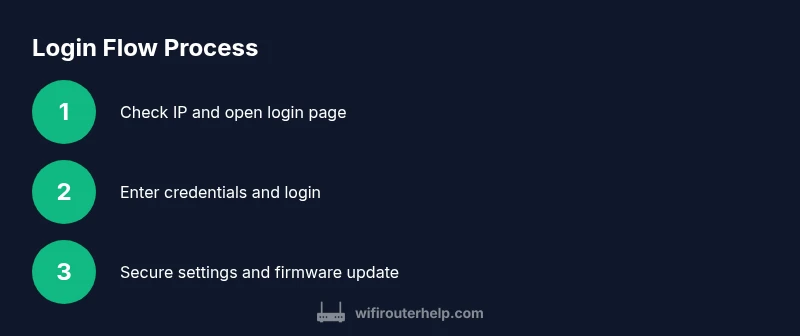
When you access the router login page, you will be prompted to enter an admin username and password. If credentials are accepted, you enter the admin console where you can modify settings for Wi‑Fi, security, and device management. The typical login menu includes sections such as Basic Settings, Wireless Settings, Security, and Administration. The exact layout varies by firmware version, but the core idea remains the same: authentication grants access to an interface that controls your network. If you do not see a login prompt, ensure you are using the router’s IP address (not the public IP) and that your device is connected directly to the router. If you see a blank page or a browser error, clear its cache and try again or use an incognito/private window to bypass stored session data.
After login: security and maintenance
Once logged in, start with a quick security sweep: change the admin password to a long, unique passphrase; enable encryption (WPA2/WPA3) and disable WPS if supported. Update the router firmware to the latest version, which fixes known bugs and security flaws. Review the connected devices list to spot unfamiliar clients; if you see something unknown, block the device or change your Wi‑Fi password. Set a robust guest network with limited access, and consider scheduling downtime or parental controls if needed. Finally, export or back up your current configuration so you can restore it if a future change goes wrong.
Troubleshooting common login problems
Cannot reach the login page: verify the IP address is correct and your device is on the same local network. Wrong credentials: try the most common defaults (admin/admin or admin/password) only if you have not changed them; otherwise use the reset option. Forgot password: use the reset button to restore factory defaults, then log in with the default credentials and reconfigure. Page loads slowly or times out: clear browser cache, disable VPNs, and try a wired connection. If you must reset: locate the reset button, hold it for 10 seconds, then release; this returns the router to factory settings, so you will need to set a new admin password and network name.
What to do if you forget the credentials or the router won't accept password changes
Consider a safe password recovery process: check physical labels for default credentials; use the reset procedure if necessary; once you regain access, immediately change the admin password and update the firmware. If the login continues to fail after a reset, contact Netgear support or consult the model-specific guide. Keep a record of the new credentials in a secured location to avoid future lockouts.
Tools & Materials
- Web browser (Chrome, Edge, Firefox, or Safari)(Ensure it is up to date for best compatibility with the router's admin page.)
- Device connected to the router(Use Ethernet for the most reliable connection when possible.)
- Admin credentials (username and password)(Often labeled on the router; if you changed them, use the new ones.)
- Router IP address (typical 192.168.1.1 or 192.168.0.1)(Check the label on the router or the manual if unsure.)
- Optional: backup credentials record(Store securely to avoid future lockouts.)
Steps
Estimated time: 15-25 minutes
- 1
Connect your device to the router
Ensure your computer, phone, or tablet is connected to the Nighthawk router via Ethernet or the correct Wi‑Fi network. This establishes a direct path to the router’s admin interface and reduces the chance of login interruptions.
Tip: If using Wi‑Fi, stay on the 2.4 GHz band for compatibility with older devices. - 2
Find the router's IP address
Open your device’s network settings and locate the gateway address; this is typically 192.168.1.1 or 192.168.0.1 for Netgear devices. If neither works, consult the label on the router or the manual for model-specific defaults.
Tip: On Windows, run ipconfig in Command Prompt; on macOS, run ifconfig in Terminal to identify the default gateway. - 3
Open the login page in a browser
Enter the router’s IP address into the browser’s address bar and press Enter. If a security warning appears, accept it to proceed to the login screen. Avoid using third-party apps to access the admin page.
Tip: Use an incognito/private window if you’ve logged into another router recently to prevent session conflicts. - 4
Enter admin credentials
Type the admin username and password. If you haven’t changed them, check the router label or manual for the defaults. If credentials are rejected, double-check for typos and ensure the keyboard layout matches.
Tip: Remember: credentials are case-sensitive. Don’t include extra spaces. - 5
Set or verify a strong admin password
If prompted or after your first successful login, change the admin password to a long, unique passphrase. This step is critical for protecting your network from unauthorized access.
Tip: Use a passphrase that’s hard to guess but memorable; consider a password manager to store it securely. - 6
Review security and remote access settings
Within the admin panel, verify that remote management is disabled unless you specifically need it. Enable WPA2/WPA3 encryption for Wi‑Fi and disable WPS if supported by your model.
Tip: If remote access is needed, require VPN or strong multi-factor authentication where available. - 7
Check for firmware updates
Navigate to the Firmware Update section and check for available updates. Install any that are listed to ensure security fixes and performance improvements.
Tip: Back up your current configuration before updating, in case you need to revert changes. - 8
Sign out and test access from another device
Log out of the admin page, then try logging in again from a second device to confirm you can reach the login screen and credentials work across devices.
Tip: If the second device cannot reach the login page, troubleshoot network connectivity or router reboot.
People Also Ask
What is the default IP address for logging into a Netgear Nighthawk router?
Most Netgear Nighthawk devices use 192.168.1.1 or 192.168.0.1; if one doesn’t load, try the other. Always check the router label for model-specific defaults.
The default IP is usually 192.168.1.1 or 192.168.0.1; check your router label if you’re unsure.
What should I do if I forget my admin password?
Use the reset button to restore factory defaults, then log in with the default credentials and reconfigure. If you have a recovery option, try that first.
If you forget your password, you may need to reset the router to factory defaults and set a new password.
Can I login from a device on the guest network?
In most cases, you should be on the main network to access the admin interface. Guest networks are typically isolated from admin access.
Usually you need to be on the main network to access the admin page.
Is remote management safe to enable?
Remote management can expose your router to the internet. Disable it unless you truly need remote access and you use strong credentials.
Remote access can be risky; disable it if you don’t need it.
How do I update the firmware after logging in?
Go to the Firmware Update or Administration section, check for updates, and apply them. Keep a backup of your settings first.
Update the firmware from the admin panel to stay protected.
What should I do if the login page still won’t load after trying IPs?
Ensure the device is on the same network, try a wired connection, and reboot the router if needed. Clear browser cache and try again.
If the login page won’t load, verify the IP, your connection, and reboot if necessary.
Watch Video
What to Remember
- Know your router’s IP and login credentials.
- Change default credentials and update firmware.
- Secure remote access and guest networks.
- Back up settings after changes.