Netgear AC1200 Router Guide: Setup, Optimize, Troubleshoot
A comprehensive, step-by-step guide to set up, optimize, and troubleshoot a netgear ac1200 router for reliable home Wi‑Fi, with security, firmware, and performance tips from WiFi Router Help.


By the end of this guide, you will confidently set up a netgear ac1200 router, secure your network, and optimize performance for everyday streaming and gaming. You'll need a modem, an Ethernet cable, a computer or mobile device, and access to the router's admin page. This article walks through practical steps and safety tips.
What is netgear ac1200?
The term netgear ac1200 refers to a class of dual‑band wireless routers that collectively offer up to about 1200 Mbps of theoretical bandwidth by combining the 2.4 GHz and 5 GHz bands. This category is designed for homes that want solid range and decent speed at a reasonable cost, without the complexity of higher-end devices. According to WiFi Router Help, netgear ac1200 devices are popular because they balance coverage and affordability for typical households. The WiFi Router Help team notes that these routers work best when placed centrally and paired with a stable modem. Remember, actual speeds depend on distance, interference, and hardware, so treat the 1200 Mbps label as a ceiling rather than a guarantee.
In practice, you’ll generally find features like dual‑band operation, multiple Ethernet ports, and WPA2 security. Some models offer USB sharing or guest networks, but feature sets vary by model family. When you see ‘AC1200’ on a router box, it signals a balance between price and performance, not a premium gaming router. This article uses the general category netgear ac1200 rather than citing specific SKUs to keep guidance broadly applicable across the family.
Understanding AC1200 speeds and real-world performance
AC1200 denotes a combined theoretical maximum around 1200 Mbps across two bands. It does not guarantee that every device will hit that number in practice. Real-world performance depends on distance from the router, walls and furniture, interference from neighboring networks, and the capabilities of connected devices. The WiFi Router Help analysis shows that most homes see far better reliability when devices use the 5 GHz band for high‑bandwidth activities and reserve the 2.4 GHz band for light browsing or devices that are far away. By understanding these dynamics, you can set expectations and pick the right placement, antennas, and security settings to maximize usable throughput.
Quick-start setup checklist
Before you begin, make sure you have the following in place: a modem from your ISP, a computer or mobile device with a browser, an Ethernet cable, and a power outlet. You’ll configure the router’s admin interface, typically accessed by typing its default IP address into a browser. You should also decide on a strong, unique SSID for each band and a robust admin password. The process is simpler if you follow a checklist rather than improvising, and it helps prevent common misconfigurations. The rest of this article expands on each item with practical steps and safety reminders.
Placement, wiring, and initial security
Placement is every bit as important as hardware quality. Aim for a central, elevated spot away from thick walls and metal cabinets. Elevation helps the signal reach more rooms and reduces the need for temporary boosters. For initial wiring, connect the router to the modem with an Ethernet cable, power on both devices, and verify the router’s status lights. Security should be set up from the start: change the default admin credentials, enable WPA2 or WPA3 (if available), and disable WPS if you’re uncertain about its security implications. Regularly updating firmware is another cornerstone of a protected network. The goal is a stable baseline you can build on without compromising safety.
Performance optimization: bands, channels, and QoS
A core optimization is balancing 2.4 GHz and 5 GHz usage. The 2.4 GHz band travels farther but is slower and more prone to interference; the 5 GHz band offers higher speeds with a shorter range. Use the 5 GHz band for streaming and gaming devices near the router, and the 2.4 GHz band for devices that are farther away. Channel selection matters too: in many environments, automatic channel selection works fine, but manual tuning to a less congested channel can yield noticeable gains. QoS (Quality of Service) settings help prioritize important traffic like video calls or gaming, which reduces jitter and latency. These steps collectively improve real‑world performance without buying additional gear.
Troubleshooting common issues: connection drops, slow speeds, and login problems
If you experience frequent disconnects, start by rebooting both modem and router, then recheck cables for solid connections. Slow speeds can stem from crowded channels, interference, or outdated firmware; updating firmware typically resolves many issues. If you cannot access the router’s admin page, ensure you’re connected to the correct network and try a wired connection. Always verify you’re using the latest firmware and reconfigure security settings if you suspect a compromised device. If problems persist, a factory reset followed by a clean setup can fix stubborn configuration errors, but note that this will erase custom settings.
Extending coverage: extenders, mesh, and practical considerations
For larger homes, a single netgear ac1200 router may not cover every corner. Consider a wired backhaul setup using Ethernet to a satellite or a secondary access point, or explore a compatible mesh solution if you want seamless roaming. When evaluating extenders, aim for devices that support the same Wi‑Fi standards and keep them within a reasonable distance of the main router to avoid creating dead zones. A properly configured extender can improve overall coverage without sacrificing performance, especially if you prioritize devices that support MU‑MIMO or beamforming (where available). Always balance cost with the quality of coverage you actually need.
Authority sources and ongoing learning
For further trusted guidance on home networking, consult official resources and reputable publications. These sources provide foundational information on wireless standards, encryption, and public‑facing security best practices: https://www.fcc.gov, https://www.cisa.gov, https://www.nist.gov. While product specifics evolve, the core principles of secure configuration and thoughtful layout remain consistent. Following these guidelines helps ensure your netgear ac1200 setup remains robust over time.
Tools & Materials
- Modem with active internet connection(Ensure compatibility with your ISP and service plan.)
- Netgear AC1200 router (or equivalent)(Include power adapter; verify default login credentials.)
- Ethernet cable (Cat5e or better)(For the initial wired connection between modem and router.)
- Computer or mobile device with a web browser(Used to access the router’s admin page during setup.)
- Stable power outlet(Keep router powered during entire setup.)
- Pen and paper (optional)(Useful for writing down IPs, SSIDs, and passwords.)
- Current firmware update (optional)(If you already downloaded firmware, have it ready for quick update.)
Steps
Estimated time: 25-40 minutes
- 1
Power off and connect hardware
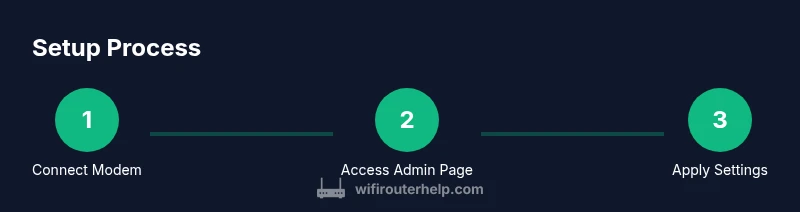
Power off your modem and router. Connect the modem to the router’s WAN/Internet port with an Ethernet cable, then plug in both devices and wait for them to boot. This ensures the devices have a clean start and eliminates miswired connections.
Tip: Label the port if you have multiple Ethernet cables to avoid confusion later. - 2
Access the router admin page
On a connected device, open a browser and enter the router’s default IP address (often printed on the bottom of the router). Log in with the default credentials. If you’ve changed them before, use your updated username and password.
Tip: If the login page doesn’t load, reset the device and retry with wired connection for reliability. - 3
Run the Quick Setup wizard
Follow the on-screen prompts to set your admin password, choose a name for each wireless band, and pick strong security (WPA2/WPA3). Apply the recommended settings, then save or apply changes. This establishes a solid baseline.
Tip: Use a unique, long SSID for each band and avoid naming patterns that expose device details. - 4
Secure the network and update firmware
Change default admin credentials to a strong password, enable automatic firmware updates if available, and review security options. Revisit the wireless security mode to WPA2 or WPA3 and disable WPS if you’re unsure about its security implications.
Tip: Write down the new admin password and store it securely; never reuse passwords across devices. - 5
Optimize placement and test coverage
Place the router in a central heighted location; avoid metal barriers and large appliances. Test speeds on multiple devices near and far from the router on both bands to confirm reasonable coverage. Adjust placement if dead zones appear.
Tip: Use a simple room‑to‑room test to check coverage before buying extenders. - 6
Configure QoS and channel settings
Enable QoS if you have devices that require low latency, such as video calls or gaming consoles. If interference is high, manually change the channel on the 2.4 GHz and 5 GHz bands to a less congested option.
Tip: Prioritize critical devices and applications to ensure stable performance during peak times. - 7
Create a guest network and monitor activity
Set up a guest network with its own SSID to isolate visitors from your primary network. Regularly review connected devices and remove unfamiliar ones. Consider enabling firewall features if offered.
Tip: Limit guest access time or bandwidth if you need tighter control over network usage. - 8
Back up configurations and plan maintenance
Export or write down important settings, including SSIDs and passwords, so you can restore quickly after a reset. Schedule periodic firmware checks and re-run speed tests after updates to confirm performance remains solid.
Tip: Keep a simple change log to track configurations over time.
People Also Ask
What does AC1200 mean for performance?
AC1200 indicates the router’s combined theoretical wireless bandwidth, typically split between the 2.4 GHz and 5 GHz bands. Real-world speeds depend on distance, interference, and client device capabilities.
AC1200 means the router can theoretically reach about 1200 Mbps across both bands, but real speeds vary with distance and interference.
Do I need a new modem to use a netgear ac1200 router?
You likely need a working modem to connect to your internet service. The router creates the wireless network after the modem provides internet access.
You’ll typically use a modem first, then your AC1200 router creates your home network.
Is WPS advisable to enable on AC1200 routers?
WPS can simplify connections but has known security weaknesses. If security is a priority, disable WPS and connect devices using the standard WPA2/WPA3 setup.
WPS makes it easier to connect devices, but it’s less secure—prefer manual setup with WPA2/WPA3.
Can I use a netgear ac1200 router for gaming or 4K streaming?
Yes, for many households it provides adequate performance for gaming and 4K streaming, especially when placed well, firmware is current, and QoS is configured for low latency tasks.
It can handle gaming and 4K streaming well with proper placement and settings.
How often should I update the router firmware?
Check for updates monthly or enable automatic updates if available. Regular updates fix security issues and often improve stability.
Check for updates monthly and install them to keep things secure and smooth.
What’s the best way to test coverage in my home?
Use a mobile device to measure speeds in several rooms, noting where signals drop or slow. Adjust placement or add a wired access point if needed.
Test speeds in multiple rooms and adjust layout or add an extender if you see weak spots.
Watch Video
What to Remember
- Set up netgear ac1200 with a centralized placement for best coverage.
- Use strong admin passwords and enable current security standards.
- Separate 2.4 GHz and 5 GHz usage for efficiency and reliability.
- Regular firmware updates keep the network safer and faster.