Netgear AC1750 Setup and Optimization Guide
Learn how to set up and optimize the Netgear AC1750 router for reliable home WiFi. Step-by-step setup, security best practices, firmware updates, and practical tips to maximize coverage and performance.


By the end, you will be able to set up and optimize a Netgear AC1750 router, troubleshoot common issues, and improve wireless coverage across your home. You’ll need the router and its power adapter, a modem (if separating duties), and a device with a browser to access the admin page. We’ll cover initial setup, SSID/password changes, firmware updates, and practical performance tweaks.
Why netgear ac1750 performance matters for home networks
Choosing a router with the right capabilities matters for streaming, gaming, and video calls. The netgear ac1750, like other mid-range dual-band models, helps balance speed and range, but only if placed properly and kept up to date. According to WiFi Router Help, a well-configured router reduces buffering, improves reliability, and minimizes dead zones in typical households. In many homes, the biggest gains come from understanding where to place the router, how to configure SSIDs, and how to use features like QoS and guest networks responsibly. Security basics—strong admin credentials, disabled remote management, and regular firmware checks—help protect all connected devices. In this section we’ll cover what makes the netgear ac1750 unique within its class, why these features matter to a homeowner, and how to think about coverage in real rooms, not just in theory. You’ll learn why consistent firmware updates, proper security settings, and a sensible placement strategy can make a noticeable difference in your daily online experience. The netgear ac1750 is designed to serve as a reliable backbone for a connected home, supporting multiple devices without sacrificing stability. However, achieving that performance requires deliberate steps and basic maintenance that any homeowner can handle with a little guidance.
Placement and wireless fundamentals for the netgear ac1750
The placement of your router is often the single biggest factor in how well it covers your home. The netgear ac1750 benefits from a central, elevated position away from thick walls and large metal appliances. Dual-band operation means you can route high-demand devices to the 5 GHz band while keeping the 2.4 GHz network available for longer-range devices. Start with a neutral SSID for each band and a strong, unique admin password. WiFi Router Help emphasizes avoiding interference from microwaves and Bluetooth devices by keeping the router away from kitchen counters and gaming consoles. By understanding these fundamentals, you can maximize range without extenders and calibrate your network to your household needs.
Understanding the basics: security, management, and firmware
Security and management are core to reliable home networking. Use strong admin credentials, disable remote administration unless needed, and create a separate guest network for visitors. The netgear ac1750 supports standard security practices such as WPA2 and strong encryption, plus convenient controls for parental settings and device access limits. Regular firmware updates are a crucial part of maintaining performance and safety. In practice, check the Netgear support site monthly or enable automatic updates if available. A well-maintained router reduces vulnerability, improves stability, and extends the life of your wireless home ecosystem.
Practical steps to optimize coverage without extra hardware
Coverage is improved by balancing placement, channel selection, and device demographics. Place the router high on a shelf or cabinet, ideally near the center of living spaces used most often. If you notice dead zones in certain rooms, try repositioning the router by just a few feet or rotating the antennas to direct signals toward those areas. Using 2.4 GHz for farther rooms and 5 GHz for closer, high-bandwidth use can significantly improve throughput. The netgear ac1750’s dual-band design makes these adjustments straightforward and effective for typical homes.
Common issues and quick fixes you can try today
If devices intermittently drop, start with a simple reboot of both modem and router. Verify the firmware version and apply updates if available. Resetting to factory defaults is a last resort but can resolve stubborn configuration problems; always back up settings first. If you’re still stuck, check if the device experiencing issues is too far from the router or if there is interference from neighboring networks. In many cases, a small repositioning or a quick firmware update restores performance quickly.
Is the netgear ac1750 the right fit for you? comparing to other options
The netgear ac1750 sits in a middle tier that suits many households with multiple devices but not extreme gaming or smart-home loads. If you have a large home, a larger mesh system might ultimately offer more reliable coverage. For many users, upgrading to a newer dual-band router or adding mesh nodes can provide improved stability and simpler management. Consider your number of connected devices, the size of your home, and your desired features when deciding whether to stay with the AC1750 or explore higher-performance options.
Quick-start recap: what you should do next
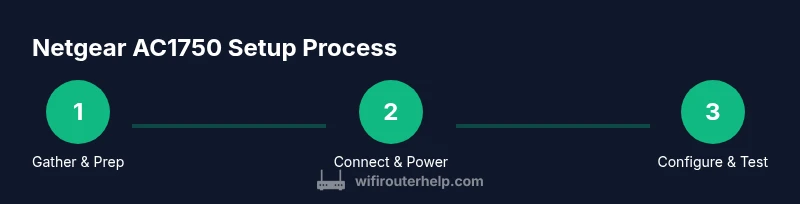
If you’re starting fresh, gather your router, power adapter, and a device with a browser. Connect the router to your modem, access the admin page, set unique SSIDs and strong passwords, enable WPA2, apply updates, and test coverage in each room. Use guest networks when needed and keep firmware current for ongoing security and performance. With a little planning, the netgear ac1750 can deliver stable, reliable WiFi for everyday tasks and moderate workloads.
Tools & Materials
- Netgear AC1750 router(Ensure you have the model and its power adapter.)
- Power adapter(Plug into a working outlet.)
- Ethernet cable(For the initial wired connection to your modem.)
- Computer, tablet, or smartphone(Used to access the router admin page.)
- Web browser(Chrome/Edge/Safari work; avoid outdated browsers.)
- Active internet connection (optional for updates)(Needed for firmware updates and cloud features.)
Steps
Estimated time: 30-45 minutes
- 1
Gather and verify equipment
Collect the router, power adapter, Ethernet cable, and a device with a browser. Confirm you have access to your modem if you’re combining tasks with a single gateway. This ensures you won’t pause mid-setup to hunt for a missing cable or power supply.
Tip: Lay everything out on a clean surface to avoid losing small parts. - 2
Power off modem and router before connecting
Power off the modem first, then the router. Unplug power to avoid electrical surges. This helps ensure a clean boot when you reconnect and prevents corrupted boot cycles.
Tip: Hold off on unplugging other devices to avoid disrupting your network. - 3
Connect the router to the modem via Ethernet
Use an Ethernet cable to connect the router’s WAN/Internet port to the modem. This creates the primary data path for your home network. After connecting, power on the modem, wait for its lights to stabilize, then power on the router.
Tip: Use a direct cable path to minimize interference and latency. - 4
Access the admin page and log in
Open a browser and go to the router login URL (commonly routerlogin.net or 192.168.1.1). Enter the default credentials if you haven’t changed them, then create a strong admin password. Do not share this password widely.
Tip: If the login page doesn’t load, clear the browser cache or try another device on the same network. - 5
Configure wireless basics and security
Set a unique SSID for each band and configure a strong, unique password. Enable WPA2 on both networks and disable WPS if available. Save changes and note down the new credentials for future use.
Tip: Avoid using easily guessable names; separate your guest network from your main network. - 6
Check for firmware updates and test coverage
In the admin page, check for firmware updates and install any available updates. Reboot if prompted. After updating, run a quick speed test in several rooms to verify coverage and adjust antennas if needed.
Tip: Back up current settings before updating in case you need to revert.
People Also Ask
What is Netgear AC1750?
Netgear AC1750 refers to a dual-band router that combines WiFi on the 2.4 GHz and 5 GHz bands to deliver balanced speed and coverage. It’s suitable for typical homes with multiple devices for everyday tasks like streaming and browsing.
Netgear AC1750 is a dual-band router that uses two WiFi bands to balance speed and coverage, good for households with several devices.
How do I access the Netgear AC1750 admin page?
Open a web browser and navigate to routerlogin.net or 192.168.1.1. Enter the default credentials if you haven’t changed them, then set a strong admin password and save your changes.
Open routerlogin.net, log in with the default or your updated credentials, and secure the admin password.
How do I reset the AC1750 to factory settings?
Locate the reset button on the back of the router, press and hold it for about 10–15 seconds until the lights flash. This restores the router to factory defaults; you’ll need to reconfigure from scratch afterward.
Press and hold the reset button for about 10 to 15 seconds until the lights flash to reset to factory settings.
How can I improve WiFi coverage with the AC1750?
Place the router centrally and elevated, use the 5 GHz band for nearby devices, and consider a wired backhaul for larger homes. If dead zones persist, adjust antenna angles and verify firmware is current.
Center and elevate the router, use 5 GHz for close devices, and update firmware to improve coverage.
Can I set up a guest network on the AC1750?
Yes. In the admin page, enable a separate guest network with its own password and access limitations. This keeps your main network secure while visitors stay connected.
Yes, enable a guest network in the router’s settings and secure it with its own password.
Is the AC1750 compatible with my ISP?
Most ISPs provide a modem or gateway that can be used with a separate router. The AC1750 will work with any service that uses a standard modem, but you may need to configure bridge mode if you use a separate gateway.
As long as you have a standard modem, the AC1750 can work with your ISP; you may need to adjust how you connect your modem and router.
Watch Video
What to Remember
- Implement dual-band setup for balance of speed and range
- Secure admin access and enable strong passwords
- Keep firmware up to date for stability and protection
- Position for optimal coverage and test in multiple rooms