Login Router: A Comprehensive Step-by-Step Guide for Home
Master router login procedures with this clear guide. Learn to access the admin page, secure credentials, update firmware, and troubleshoot common login issues for a safer home network.


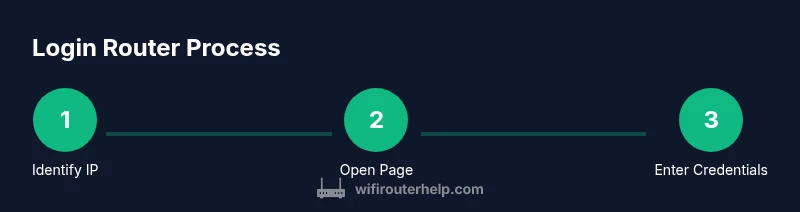
To login to your router, connect a device to the network, open a browser, and enter the router’s default IP address (commonly 192.168.0.1 or 192.168.1.1). Enter the admin username and password, then change credentials and review security settings. If you’re blocked, reset to factory defaults and reconnect. Ensure you perform this on a secure network and log out after finishing.
Why Accessing the Router Admin Page (login router) Matters
Accessing the router admin page is the gateway to controlling who can access your home network. By logging in to the router, you can set and enforce password policies, update firmware, configure guest networks, adjust firewall settings, and review connected devices. According to WiFi Router Help, these steps help prevent unauthorized access and protect personal data. The WiFi Router Help team emphasizes that the admin interface is the control center for all network security, so safeguarding it should be a weekday habit, not an afterthought. In many homes, the first line of defense is a strong administrator password and a plan to rotate credentials every 6-12 months. A secure login also reduces the risk of malware or intrusions that can spread to your devices. When you know how to access and manage the router, you gain leverage to improve performance and reliability, too. Start by locating the IP address, then proceed to the login screen you trust.
Identify the correct IP address and login URL
The login router process starts with locating the admin interface address. Most home routers use 192.168.0.1 or 192.168.1.1 as the default gateway, but some brands employ 10.0.0.1 or other variations. Check the router’s sticker on the bottom or back, the manual, or the manufacturer’s support site to confirm the exact URL. To verify quickly on a Windows PC, open Command Prompt and type ipconfig;
Prepare credentials and secure access
Before you log in, ensure you have the correct credentials and a secure path to the router. If you’ve never changed the default admin password, look it up in the manual or on the manufacturer’s support page; many brands publish a temporary or initial password. Do not attempt login from public or shared networks. Use a private Wi‑Fi network or a wired connection to minimize exposure. For extra security, enable a password manager to store the admin password and consider setting up two-factor authentication if your router supports it. Finally, take a moment to review the login URL and confirm you are on the official admin page by checking the URL and certificate status in your browser.
First-time login and changing credentials
On first login after setting a new router or performing a factory reset, you’ll be prompted to create a new admin password and often set a security question. Use a long, unique password that you don’t reuse elsewhere. Do not reuse common passwords or personal data; aim for a mix of letters, numbers, and symbols. If your router offers a separate guest network option, enable it to keep visitors off your main network. Document the new credentials securely, and consider disabling remote management unless you need it for support. A brief note on login: always verify you’re on the router’s login page by checking the URL and the site’s security indicators in the browser.
Security hardening after login
With access granted, apply protections that reduce risk across the whole network. Update firmware to the latest version, enable a strong encryption standard (prefer WPA3, or WPA2 if available), and turn off WPS if the option exists. Disable remote management from the WAN side unless you require it, and restrict administration to a secure local network. Review attached devices periodically and set up a guest network with a strong password to isolate guest traffic. Consider enabling a firewall feature or enabling a basic parental control mechanism if supported by your router. These steps create a safer baseline and slow down potential intruders.
Troubleshooting common login issues
Common problems include entering the wrong IP address, mistyping credentials, or a browser blocking the login page. If the page won’t load, verify you’re connected to the router's local network and try a wired connection. Clear browser cache, disable VPNs, and temporarily disable ad blockers that interfere with the login page. If you continue to see a login prompt but with an error, try the router manual's default credentials; if those don’t work, a factory reset may be required (prepare to reconfigure settings).
Ongoing router management best practices
Maintain security with steady habits. Schedule monthly checks for firmware updates, review connected devices weekly, and back up your configuration after major changes. Use a password manager for admin credentials, enable automatic updates if available, and avoid exposing your admin interface to the internet. For households with guests, keep a separate guest network and rotate credentials regularly. Document changes and test connectivity after configuration updates to ensure stability and performance. The WiFi Router Help team reinforces these practices to keep your home network safe.
Authority Sources
For additional guidance, consult the following credible resources:
- FCC: Secure Your Home Network (https://www.fcc.gov/consumers/guides/secure-your-home-network)
- CISA: Secure Your Home Network (https://www.cisa.gov/secure-your-home-network)
- NIST: Identity and Access Management (https://www.nist.gov/topics/identity-and-access-management)
Tools & Materials
- Device with a web browser(Smartphone, tablet, or computer; up-to-date browser.)
- Router IP address / login URL(Common defaults: 192.168.0.1 or 192.168.1.1; check the router label.)
- Admin credentials(Default credentials from the router manual or reset process.)
- Notepad or password manager(Record new credentials securely after login.)
- Stable power source(Keep the router powered during changes.)
- Ethernet cable (optional)(Wired connection offers reliability during login)
Steps
Estimated time: 15-25 minutes
- 1
Identify the router IP address
Check the router label for the default IP; if unavailable, use your computer to discover it. On Windows run ipconfig; on macOS/Linux run ifconfig or check the default gateway. Ensure you are connected to your home network before proceeding.
Tip: If several networks appear, pick the one labeled as your home network and note the IP. - 2
Open the login page securely
Open a modern browser and enter the router IP address in the address bar. Look for the HTTPS indicator if your router supports secure access. Avoid public computers or shared networks for this step.
Tip: Use a private network or wired connection to reduce exposure. - 3
Enter admin credentials
Type the router’s admin username and password. If you don’t know them, consult the manual or the manufacturer’s support site. Do not guess repeatedly to avoid locking the admin interface.
Tip: If the credentials are forgotten, plan a reset rather than guessing endlessly. - 4
Change default credentials
Immediately update the admin password to a strong, unique value. Do not reuse passwords from other sites and consider using a password manager.
Tip: Aim for at least 12 characters with a mix of letters, numbers, and symbols. - 5
Update firmware and adjust security
Check for firmware updates from the router’s UI and install them. Enable WPA3 or the highest available encryption and disable WPS if possible.
Tip: Firmware updates fix known vulnerabilities and improve stability. - 6
Configure security measures
Create a separate guest network, limit admin access to the local network, and enable firewall features. Review connected devices for unfamiliar hosts.
Tip: Regularly audit devices and block unknown connections. - 7
Test and log out
Reboot or reconnect devices to verify network access after changes. Log out from the admin page and store credentials securely.
Tip: Always log out after finishing to prevent unauthorized access. - 8
Handle login failures
If you can’t reach the login page, verify IP accuracy, try a wired connection, and consider a factory reset as a last resort.
Tip: Factory reset should be last due to reconfiguration effort.
People Also Ask
What is the default IP address for most routers?
Most routers use 192.168.0.1 or 192.168.1.1 as the default login URL. If these don’t work, check the router label or manual for the correct address.
Common defaults are 192.168.0.1 or 192.168.1.1; check the label or manual if those don’t work.
How do I reset my router to factory defaults?
Locate the reset button on the back of the router and press and hold it for 10-30 seconds with a pin. The router will restore factory settings and you’ll need to reconfigure.
Find the reset button, hold it a few seconds until the lights blink, and then reconfigure your router.
When should I change my router password?
Change the admin password whenever you suspect a breach or after sharing access. Regularly updating the password strengthens security.
Change passwords when you think a breach happened or on a set schedule.
What is a good password policy for router admin?
Use at least 12 characters with a mix of upper and lower case letters, numbers, and symbols. Do not reuse passwords across sites; store securely in a password manager.
Choose a long, unique password and store it securely.
Why can’t I access the login page after connecting to Wi‑Fi?
Possible causes include wrong IP, mistyped credentials, browser issues, or VPN interference. Verify you’re on the local network and try a different browser or device.
Make sure you’re on the router’s local network and try again with another browser.
Is remote management safe?
Remote management can expose the admin interface to the internet. Disable it unless you need it, and if enabled, use HTTPS and limit access to trusted IPs.
Remote management isn’t generally safe unless you must use it and protect it well.
Watch Video
What to Remember
- Identify your router's admin IP address before logging in.
- Change default credentials to a strong password.
- Enable WPA3/WPA2 and update firmware after login.
- Set up a guest network to isolate visitor traffic.
- Back up configuration after major changes.