Modem vs Router for WiFi: A Clear Side-by-Side Guide
An analytical, objective comparison of modem-only, router-only, and gateway setups for home WiFi. Learn setup, performance, costs, and future-proofing to decide the best path for your household.


Is a modem or a router the right choice for WiFi? The short answer: for most homes, a dedicated router behind a modem (or a gateway with separate modem) delivers better balance of speed, control, and future-proofing. This quick comparison explains device roles, common setups, and practical decision criteria based on ISP, budget, and long-term needs.
Why the modem vs router question matters
In the home networking world, people often ask: is modem or router for wifi the device that should handle your wireless signal? The short answer is no — they are different roles that fit together in a larger topology. According to WiFi Router Help, understanding the distinction helps determine how you connect to the internet service and how you allocate features across devices. The goal is to maximize reliability, speed, and control while keeping costs reasonable. This is especially important as households add devices, streaming, gaming, and smart-home ecosystems. A wrong pairing can bottleneck your internet, create unnecessary latency, or introduce more points of failure. By thinking through your internet plan, service technology (cable, fiber, or DSL), and future needs, you can design a setup that scales with your family’s usage. Whether you rent a gateway from an ISP or buy your own modem and router, the choice should reflect both current realities and anticipated upgrades.
For many households, the decision hinges on balancing convenience with performance. If you rely on the ISP’s gateway, you might gain simplicity but give up fine-tuning. If you build a two-device solution (modem + router), you gain control over WiFi bands, security features, and upgrade paths, at the cost of extra hardware and setup steps. This article stays objective, laying out the pros, cons, and practical paths so you can choose a topology that matches your internet plan and device ecosystem.
Core definitions: what each device does and where it sits in the network
A modem is the translator that converts signals from your internet service provider into a digital stream your home can use. It sits at the boundary between the ISP network and your local network. A router takes that single connection and creates a local network—assigning IP addresses, managing traffic with NAT, and providing features like DHCP, firewall, guest networks, and wireless access. A gateway device combines both roles in one box, acting as the bridge and the distribution point at once. Some gateways include advanced features such as parental controls, QoS, and built-in mesh nodes, but they often limit customization. In contrast, a dedicated modem and a separate, capable router typically offer greater control over WiFi naming, channel selection, security options, and firmware updates. For people who want the most reliable performance and fastest possible WiFi in busy homes, separating the duties generally yields the best outcome. If you have fiber, cable, or DSL, check whether your ISP supports bridging or two-device setups, and plan for future upgrades as speeds and device counts rise.
Use-case driven guidance: when to opt for separate devices
The decision to use separate devices often comes down to usage patterns and horizons. If your household streams 4K video, runs multiple smart devices, engages in online gaming, or supports home offices with video conferences, a dedicated router — paired with a modern modem — tends to deliver more stable coverage and lower latency. Separate devices also make it easier to upgrade individual components as new WiFi standards emerge (for example, upgrading the router without changing the modem). Conversely, a gateway or modem-router combo can be a practical choice for apartments, smaller homes, or households that value simplicity over peak performance. If you expect to move soon, or you want a minimal setup with ISP-provided management, a gateway can reduce decision fatigue and maintenance tasks. Always verify which option aligns with your internet plan, as some ISPs offer optimizations that favor their own gateway hardware.
How ISPs and gateway devices interact
ISPs often sell or lease gateway devices that combine modem and router functions. These devices simplify the setup: one box, one account, one web interface. However, such gateways can constrain advanced networking features and upgradability. If you opt for a two-device approach, your modem and router connect in a bridge-like topology at the edges of your network. This separation allows you to customize security settings, parental controls, firmware update cadence, and WiFi performance tuning (including band steering and channel optimization). For DOCSIS-based cable services, ensure your modem is compatible with your ISP’s network, and consider bridging if your router benefits from full control over NAT and firewall settings. Fiber users may have an Optical Network Terminal (ONT) from the provider, with the router handling internal networking. The key is to confirm compatibility, then set up a clean path from the internet to your devices.
Step-by-step setup scenarios
- Single-ISP gateway setup (modem-router combo): If you’re starting fresh or value simplicity, connect the gateway to your coaxial/fiber line and enable WiFi off the device. Use the ISP’s app or web interface to configure SSID and password, and enable basic security (WPA3 if available).
- Separate modem and router (recommended for flexibility): Connect the modem to the ISP line, then run an ethernet cable to a dedicated router. Disable the modem’s wireless radio if you want the router to handle WiFi exclusively. Configure SSID, password, guest network, and security settings on the router. Consider enabling bridge mode on the modem only if advised by the ISP and if you want to remove double NAT.
- Mesh expansion: If your home is large or has dead zones, add mesh satellite nodes. Keep the core router connected to the modem, and place nodes strategically to expand coverage. Test coverage with a mobile device and adjust placement for optimal signal.
- Performance tuning: Update firmware, adjust channel settings, enable QoS for gaming or streaming, and monitor network health. Schedule periodic reboots or automatic maintenance windows to keep firmware current.
Common myths and misconceptions
• If it has WiFi built-in, you don’t need a separate router. A router offers stronger performance controls and better future-proofing. • A gateway is always the simplest solution. It reduces setup steps but often sacrifices customization and upgrade paths. • You must rent from the ISP to get reliable service. In many cases, owning your own modem and router saves money and improves performance over time. • Bridge mode is only for advanced users. Bridge mode can eliminate double NAT and improve performance when you need precise control over internal networks. • Mesh systems always improve coverage. A mesh system helps when you have large homes or challenging layouts, but proper router placement and high-quality access points can often achieve similar results without full mesh deployment.
These myths can cloud the best decision for your home — always base the choice on your specific ISP, home size, and device ecosystem.
What to buy: a decision checklist
• ISP compatibility: Confirm modem compatibility and support for bridge mode if you’re considering two devices. • Internet plan alignment: Ensure hardware can handle current speeds and anticipated upgrades. • WiFi coverage needs: Consider home size, walls, and interference when sizing your router and optional mesh. • Features: Look for QoS, guest networks, parental controls, security updates, and VPN support. • Budget: Factor upfront costs and potential rental fees over time, plus ongoing maintenance. • Firmware updates: Prioritize devices with regular vendor updates and strong security practices. • Future-proofing: Choose newer WiFi standards (e.g., WiFi 6/6E) and scalable architectures that can grow with your network.
With these criteria in hand, you can compare specific models and ISP offerings with confidence.
Security and maintenance considerations
Security is a core reason to choose the right topology. Regular firmware updates, strong passwords, and enabled firewalls reduce exposure to threats. A dedicated router provides granular control over security settings, such as advanced NAT, IDS/IPS features, and frequent security patches. Replace aging hardware before it becomes a bottleneck or a vulnerability. If you propagate a guest network for visitors, isolate it from your main network to limit potential risks. Create a routine for backing up configurations and documenting topologies in your home network. Finally, consider a periodic audit of connected devices to remove unauthorized access and ensure firmware remains current.
Comparison
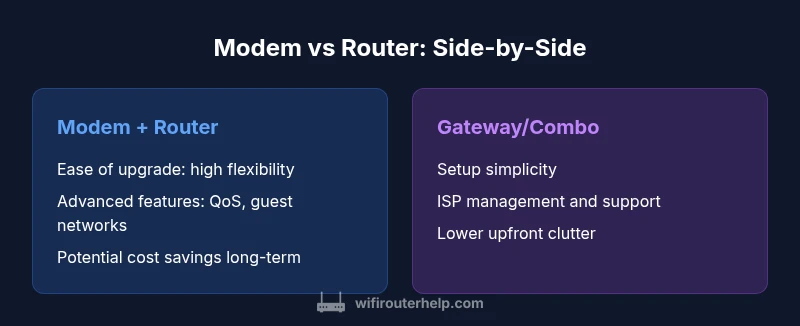
| Feature | Modem + Router (Separate devices) | Gateway/Modem-Router Combo |
|---|---|---|
| Ease of setup | Moderate to advanced configuration required; ethernet backhaul favored | Very simple; one device to configure |
| WiFi performance and customization | High customization, band steering, QoS, and strong security controls | Limited customization; performance varies by ISP firmware |
| Future-proofing and upgrades | Easy to upgrade router or add mesh; longer device life | Dependent on ISP device lifecycle; upgrades can be slower |
| ISP compatibility | Requires compatible modem and possible bridge mode; can optimize speed | Integrated by ISP; depends on their gateway firmware |
| Security and firmware control | Independent firmware updates; finer security control | Vendor-controlled updates; potential feature gaps |
| Total cost of ownership | Higher upfront cost, potential long-term savings if you own devices | Lower upfront cost but possible rental fees |
Benefits
- Better WiFi customization and performance with separate devices
- Greater upgrade flexibility as tech evolves
- Potential cost savings over time with own devices
- Easier troubleshooting by isolating issues
The Bad
- Requires more initial setup and knowledge
- More physical devices to manage
- Can be confusing for non-technical users
Separate modem + router generally offers best balance of performance, control, and future-proofing
Choose separate devices if you value performance and long-term flexibility; gateways are fine if simplicity and ISP compatibility are priorities.
People Also Ask
What is the difference between a modem and a router?
A modem connects your home to the internet and translates signals from your ISP. A router creates and manages your local network, assigns IP addresses, and distributes a WiFi signal to devices.
A modem brings you online; a router shares that connection with your home devices.
Do I need a separate router if my modem has built-in WiFi?
A modem with built-in WiFi can work for basics, but a dedicated router often delivers better range, features, and security. It’s common to upgrade for performance as needs grow.
Modem WiFi can work, but a separate router usually performs better over time.
Can a modem provide WiFi by itself?
Some modems include WiFi, but they may lack advanced features and strong coverage found in modern routers. For best control, many users pair a separate router with the modem.
Yes, some modems have WiFi, but a separate router often gives you more control.
What is bridge mode and when should I use it?
Bridge mode disables the gateway’s routing features, turning the modem into a simple modem and letting your router handle NAT and firewall. Use it when you want full control over your network without double NAT interference.
Bridge mode makes the router handle everything; use it when you want full control.
How do you test WiFi speed after setup?
Run speed tests from multiple devices at various times of day, near and far from the router, and with different channels. Check for consistent throughput and adjust placement or settings as needed.
Test speeds on several devices and locations to verify coverage.
Is a mesh system better than a traditional router for large homes?
Mesh systems can improve coverage in large or multi-story homes, but a high-quality router with good placement can achieve similar results. Mesh adds simplicity but at a higher ongoing cost.
Mesh helps cover large homes, but a good router with smart placement often suffices.
What to Remember
- Assess your household’s internet usage and future needs
- Check ISP compatibility before buying equipment
- Separate devices usually deliver better control and performance
- Bridge mode can simplify a two-device setup when needed
- Budget for upfront hardware and potential rentals