How to Connect Ethernet Cable Modem to Router: A Practical Guide
Learn how to connect the ethernet cable from your modem to your router, configure WAN settings, and verify internet connectivity with practical, safe guidance from WiFi Router Help.


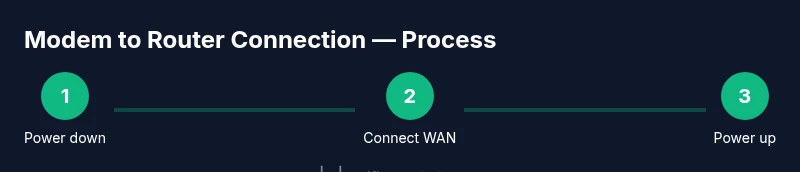
Goal: You will connect your modem to your router to provide Internet to all devices in your home. Requirements: an Ethernet cable, a modem and a router, and access to the router’s admin interface. According to WiFi Router Help, the recommended order is to power down both devices, connect the modem to the router's WAN port, then boot and verify connectivity. This setup helps avoid double NAT and simplifies troubleshooting.
Understanding the ethernet cable modem to router connection
In a typical home network, the path from the internet to your devices starts with your ISP's modem and ends with your router distributing connections to phones, laptops, and smart devices. The key is a clean, properly labeled link between devices. The phrase ethernet cable modem to router refers to the standard topology where a single Ethernet cable carries the Internet signal from the modem to the router's WAN/Internet port. According to WiFi Router Help, starting with a solid WAN connection reduces the likelihood of double NAT, IP conflicts, and subtle latency spikes. This section explains the physical layer, port roles (WAN vs. LAN), and how a well-ordered setup improves stability, security, and future expandability. Reading this carefully helps you avoid common miswirings and ensures your devices receive a reliable IP address and consistent network service.
WAN/Internet Port: What it does and why it matters
The WAN port on the router is the designated gateway to your local network from the modem. When you connect the modem to this port, your router can assign local IP addresses to devices and handle traffic routing, firewall rules, and network services like DNS. Not all ports labeled on a router are interchangeable; using the WAN port for the upstream connection is essential for proper NAT and DHCP operation. If you ever see your devices obtaining IP addresses in the 192.168.x.x range but losing external access, the WAN link or DHCP service is a likely culprit. A stable WAN connection sets the foundation for predictable Wi‑Fi performance and wired stability.
The role of NAT and DHCP in this setup
Network Address Translation (NAT) lets multiple devices share a single public IP, while DHCP assigns local IP addresses to devices on your network. When the modem is connected to the router's WAN port, the router typically performs NAT and DHCP for your LAN. If you already have a bridge or passthrough mode enabled on the modem, you may need to adjust the router's WAN settings to ensure proper IP addressing. Understanding these concepts helps you troubleshoot issues like devices that cannot access the internet or inconsistent IP assignment. In short, NAT and DHCP are the engines that keep your home network organized and reachable.
Cable quality and length considerations
Use a standard Cat5e or higher Ethernet cable for the connection between the modem and the router. While very long cables can introduce small delays, typical home lengths should not noticeably affect throughput for standard internet plans. Avoid damaged, tangled, or weathered cables, as these can degrade performance or cause intermittent drops. If you experience flaky connectivity, swap in a known-good CAT5e/CAT6 cable to rule out cable faults.
How to verify a healthy modem-to-router link
After wiring, power down both devices, wait a moment, then power on the modem first, followed by the router. Access the router’s admin interface to confirm the WAN/Internet status is active and that the router is obtaining an IP lease from the modem. On a wired device, try pinging an external site or loading a page to confirm connectivity. If you encounter issues, recheck the cable connections, verify the correct WAN port, and ensure no conflicting IP ranges exist on adjacent devices.
Tools & Materials
- Ethernet cable (Cat5e or higher)(Use a cable of sufficient length for your setup; avoid damaged cables)
- Modem(Powered off and ready for connection)
- Router(With a dedicated WAN/Internet port)
- Computer or mobile device with web browser(Used to access the router's admin interface)
- Router admin credentials(Admin username and password or default credentials from the manual)
- PPPoE/ISP details (if required)(Some ISPs require a username/password for authentication; have them on hand)
Steps
Estimated time: 20-40 minutes
- 1
Power down and prepare
Power off the modem and the router, then unplug their power cables. Wait a few moments to ensure capacitors discharge and the devices reset fully.
Tip: Label the power cords to avoid confusion during reassembly. - 2
Connect the upstream cable
Plug one end of the Ethernet cable into the modem's Ethernet port and the other end into the router's WAN/Internet port. This creates the upstream link that the router will use to distribute local IPs.
Tip: Ensure the cable clicks firmly into both ports to avoid intermittent connectivity. - 3
Power up the modem
Reconnect the modem's power and allow it to boot until its indicator lights indicate an online status. This can take a moment as the device negotiates with your ISP.
Tip: If the modem shows red or blinking lights for an extended period, contact your ISP before proceeding. - 4
Power up the router
Reconnect the router's power and wait for its status indicators to reach a ready state. The router will initialize its own network services and prepare the WAN connection.
Tip: Do not press any reset or restore options during boot. - 5
Check WAN settings
Access the router's admin page using a connected device. Confirm that the WAN status shows connected and that the router has obtained an IP address from the modem. If needed, set WAN to DHCP or PPPoE as required by your ISP.
Tip: If your ISP credentials are required, enter them exactly as provided. - 6
Test the network
Connect a computer or phone to the router (via Ethernet or Wi‑Fi) and load a webpage or run a speed test to confirm internet access. If problems persist, double-check cable orientation and restart both devices.
Tip: Always test on at least two devices to confirm stability.
People Also Ask
Do I always need to use the router's WAN port for the connection from the modem?
Yes. The WAN port is designed to receive the upstream signal from the modem and distribute it to the LAN. Using a different port can bypass essential routing and NAT functions.
Yes. Always use the WAN port to ensure proper routing and device visibility on your network.
What if I can't access the router's admin page after wiring?
Check that your device is connected, use the correct IP address for the router, and verify that your computer’s firewall isn’t blocking the connection. If needed, reset the router to factory defaults and reconfigure.
First verify connectivity, then check the correct IP, and if needed reset the router to defaults.
How do I know if I need bridge mode or passthrough on the modem?
Bridge mode disables the modem's routing features and leaves NAT to the router. Use it if you want the router to handle all network tasks or if you’re using a separate firewall/VPN appliance.
Bridge mode lets your router handle most network tasks directly; use it if you have a separate firewall or want full control.
Will a longer Ethernet cable slow down my network?
Cable length can affect signal quality if excessively long, but typical home setups won't see meaningful slowdowns if you use a quality CAT5e or higher.
In normal homes, a good CAT5e cable of reasonable length won't noticeably slow you down.
Do I need PPPoE credentials for a standard cable/DSL service?
Some ISPs require PPPoE authentication. If your service uses DHCP, you won’t need credentials. Check with your ISP to confirm the correct WAN settings.
Check with your ISP—if you use PPPoE you’ll need credentials, otherwise DHCP works fine.
Can I still use Wi‑Fi if I only have a modem and a router?
Yes. The router will typically broadcast Wi‑Fi networks from the LAN side. Ensure the wireless network is enabled and secured with a strong password.
Absolutely. Your router’s Wi-Fi will cover your home once set up and secured.
Watch Video
What to Remember
- Ensure the WAN port is wired correctly from modem to router.
- DHCP/NAT on the router typically manages local IPs after a clean WAN link.
- Use a quality Cat5e+ cable and avoid damaged connections.
- Power cycle in the right order: modem first, then router.
- Test with multiple devices to confirm reliable internet access.