Do Modem and Router Need to Be Connected: A Practical Guide
Explore whether a modem and router must be connected, how to set them up correctly, and tips for maintaining a reliable home network. This guide from WiFi Router Help covers setup steps, common scenarios, and best practices.


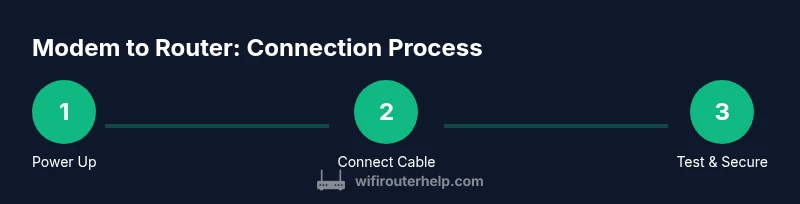
In most home networks, the modem and router must be connected via an Ethernet cable: the modem provides the internet signal, which the router distributes to devices. To set up, connect the modem’s Ethernet port to the router’s WAN/Internet port, power both on, and verify the LEDs indicate an active connection. This connection is essential for Wi-Fi coverage and stable local networking.
Do Modem and Router Need to Be Connected
For most households, a modem and a router form the backbone of internet access. The modem connects to your ISP’s network and converts the signal into a usable internet stream. The router takes that stream and creates a local network, allowing multiple devices to share the connection over Ethernet and Wi‑Fi. At a high level, yes, these devices usually need to be linked with an Ethernet cable to work together, especially when you want a robust Wi‑Fi signal and reliable wired connections. According to WiFi Router Help, understanding the basic relationship between devices helps you diagnose issues quickly and plan your network layout with confidence.
Beyond basic connectivity, this arrangement supports features like DHCP, NAT, port forwarding, and quality of service (QoS) that improve reliability and performance across all connected devices. If you’re using a modern ISP gateway device that combines modem and router functionality, you may still need to understand how to bridge or separate features to optimize performance. The goal is a clean, stable link from the internet to your internal network.
Roles of Modem and Router in a Home Network
A modem’s primary job is to translate signals from your ISP into data that your home network can understand. A router’s job is to manage that data, assign local IP addresses, and route traffic between devices. While some ISPs provide a combined gateway device (a modem/router combo), many homes benefit from using a separate router to improve coverage, control, and features. WiFi Router Help emphasizes that knowing which device handles which task helps you troubleshoot more efficiently. If your setup includes parental controls, guest networks, or advanced security settings, having a separate router often simplifies management while keeping the modem dedicated to internet access provisioning.
In setups with a separate gateway, bridging or pass-through modes may be used to hand off the internet to a dedicated router. Understanding this distinction helps you decide whether to keep a single gateway or segment duties for better performance and control.
Common Scenarios: When to Connect and How
- Typical home with separate modem and router: connect the two via Ethernet from the modem’s LAN port to the router’s WAN/Internet port. This is the most common and recommended configuration for maximizing Wi‑Fi range and device management.
- ISP gateway in bridge mode + separate router: this is common when you want to disable the gateway’s routing features and let your own router handle all DHCP and NAT functions. This setup can improve performance for gaming or streaming.
- Modem-only or gateway mode from the ISP: if your ISP provides an all-in-one device, you may still opt for a separate router to gain more robust features and better coverage. The decision often hinges on your home size, number of connected devices, and desired control features.
As WiFi Router Help notes, the goal is to ensure a stable link from the ISP to your internal network with sufficient coverage across living spaces. If you start seeing dead zones or inconsistent speeds, revisiting the connection topology is a good first step.
Verifying Physical and Logical Connections
A solid physical connection is the foundation, but you also need the network to be logically sound. Start by inspecting the Ethernet cable running from the modem to the router. Look for a firmly seated connection at both ends and a solid color, undamaged cable. Then check the status LEDs on both devices: the modem should indicate online or online/lam status, and the router should show a stable WAN/Internet indicator along with solid power and Wi‑Fi indicators.
On the software side, ensure the router has an active DHCP server unless you’re using a dedicated network controller. Confirm the router’s WAN interface is receiving an IP from the modem, and test a wired device by pinging a known IP (like 8.8.8.8) and a local device to confirm routing is functioning. If you’re using the gateway mode of your ISP device, verify bridge mode is not inadvertently enabled on both devices at once and that only one device claims NAT.
Optimizing Setup for Speed and Coverage
Positioning matters: place the router in a central, elevated location away from thick walls and metal appliances. Keep cables tidy and avoid routing through ceilings or floors with heavy interference. If you’re in a larger home, consider a mesh system or a high‑quality single router with stronger antennas, especially for multi‑story layouts. Also, enable features like QoS or gaming prioritization if your activities require stable bandwidth for streaming or competitive gaming. Regularly update firmware on both devices to benefit from security patches and performance improvements, and consider enabling automatic updates if available. The WiFi Router Help guidance emphasizes ongoing maintenance as a key part of keeping the network healthy.
Safety, Security, and Maintenance
Secure your network from the start by changing default admin usernames and passwords, using a strong Wi‑Fi password, and enabling WPA3 if supported. Turn off WPS if you don’t need it, and consider disabling UPnP if your devices do not require it for gaming or printer sharing. Schedule periodic reboots or enable a smart scheduler to refresh the network without manual intervention. Keep a simple inventory of connected devices and monitor new connections for unusual activity. These practices mitigate risks and keep your home network reliable over time.
Advanced Scenarios: Bridging, Guest Networks, and ISP Considerations
Bridging the gateway or using a dedicated router can unlock advanced features like VLANs, guest networks, and more granular parental controls. If your ISP has strict requirements or uses a dynamic IP assignment, your router should be configured to obtain an IP via DHCP from the modem. For households with smart devices that must remain reachable when guests visit, consider enabling a dedicated guest Wi‑Fi network to isolate traffic while keeping the main network secure. Regularly assess your setup to adapt to changing devices and usage patterns, and consult the provider’s guidance when enabling bridge mode or DPI features.
Quick Troubleshooting If Things Go Wrong
If the internet seems slow or drops unexpectedly, verify that the physical connection remains secure and test with a wired device to isolate Wi‑Fi issues from the core internet link. Reboot both devices in the correct order: modem first, then router. If the problem persists, check for firmware updates and review the router’s diagnostic pages for error codes or logs. Lastly, consider temporarily resetting to factory defaults as a last resort, then reconfiguring from scratch to avoid carryover issues. These steps reflect best practices highlighted by WiFi Router Help for reliable, sustainable connectivity.
What to Expect Next: A Roadmap for Ongoing Health
A well‑configured modem–router setup delivers stable speeds, reliable wireless coverage, and predictable device behavior. Expect gradual improvements from firmware updates, optimized channel selection, and well‑designed SSID and password schemes. Keep an eye on the network’s performance during peak usage periods and adjust QoS and channel settings as needed. By treating the setup as an ongoing project rather than a one‑time task, you can maintain a robust home network that scales with your devices and activities. This mindset aligns with the WiFi Router Help approach to practical, sustainable networking.
Tools & Materials
- Ethernet cable (Cat5e or better)(Length should reach from modem to router with a little slack)
- Power adapters for modem and router(Keep cords untangled to avoid accidental unplugging)
- Paperclip or needle (for reset)(Only if you need to reset devices)
- Device manual or quick-start guides(Helpful for model-specific steps)
- Cable organizer or velcro ties(Keeps cables tidy and accessible)
Steps
Estimated time: 15-20 minutes
- 1
Gather equipment and inspect cables
Collect the modem, router, power supplies, and an Ethernet cable. Inspect the cable for visible damage and replace if frayed. A clean, intact cable ensures a stable link between devices.
Tip: Label cables at both ends with masking tape to prevent mix-ups later. - 2
Power off the devices
Turn off both the modem and the router. Unplug the power cords to avoid any electrical issues during connection. Powered-down devices reduce the risk of shorting or LED confusion.
Tip: If you’re uncertain about the order, start with the modem first, then the router. - 3
Connect the modem to the router
Insert one end of the Ethernet cable into the modem’s LAN/Ethernet port and the other end into the router’s WAN/Internet port. This cable is the data highway for your home network.
Tip: Make sure the cable click-secures at both ends to confirm a solid connection. - 4
Power on the modem, then the router
Reconnect power to the modem and wait for it to boot fully. After the modem stabilizes, plug in the router and wait for its indicators to settle. A stable link is indicated by consistent LED patterns.
Tip: If you don’t see a stable connection after a minute, power cycle both devices starting with the modem. - 5
Test the network connection
Use a connected device to test internet access and local network discovery. Check both wired and wireless connections to confirm the router is distributing traffic correctly.
Tip: Run a quick speed test and verify IP addresses assigned by the router. - 6
Secure and fine‑tune the setup
Change default admin credentials, set a strong Wi‑Fi password, and enable WPA3 if available. Update firmware to benefit from security patches and feature enhancements.
Tip: Create a memorable, unique network name (SSID) and separate guest access if needed.
People Also Ask
Do I always need to connect a separate router to my modem?
Not always. If your ISP provides a capable gateway with Wi‑Fi coverage that meets your needs, you may connect directly to the gateway. However, many users prefer a separate router for better performance, security features, and flexible management.
You may not always need a separate router, but many people choose one for better performance and control.
What is bridge mode and when should I use it?
Bridge mode disables the router functions on a gateway device, letting your own router manage NAT and DHCP. Use bridge mode when you want a single routing point and advanced features on your own equipment.
Bridge mode hands control to your own router for advanced features.
Can I run multiple routers in one home network?
Yes, but it requires careful planning (one main router, possible access points or a mesh system). Two routers can cause IP conflicts if not configured correctly, so use bridge mode or a dedicated AP when needed.
Multiple routers can work with the right setup, but avoid conflicts.
Should I power cycle the modem and router to fix issues?
Power cycling—turning off, waiting, and turning back on—solves many connectivity issues. Always reboot the modem first, then the router, to reestablish the path from ISP to your network.
Try a simple reboot: modem first, then router, if issues appear.
What should I do if the WAN light won’t come on?
Check the Ethernet connection, verify the modem is online, and ensure the router’s WAN port is set to obtain an IP from the modem. If the light remains dark, consult your ISP for line status and consider restoring factory defaults as a last resort.
If the WAN light is off, check cables, reboot, and verify ISP status.
Is there a difference between modem‑router combos and separate devices for gaming?
For gaming, a separate high‑performance router often delivers lower latency and more consistent QoS. If you use a gateway, disable its router features or bridge it to avoid double NAT.
Dedicated gaming routers can improve latency and stability.
Watch Video
What to Remember
- Always connect modem to router via Ethernet for reliable internet sharing.
- Separate router management helps with control, features, and troubleshooting.
- Bridge mode or gateway settings can optimize performance depending on ISP.
- Secure your network with strong passwords and up-to-date firmware.
- Regular maintenance keeps Wi‑Fi fast and reliable.