2 Router 1 Modem: How to Set Up a Dual-Router Home Network
Learn how to run two routers behind one modem for extended coverage, guest networks, and reliable performance. This step-by-step guide from WiFi Router Help covers topology, bridging, NAT, IP planning, and security for a robust dual-router setup.


By following this 2 router 1 modem setup, you’ll extend Wi‑Fi coverage, create clearer network boundaries, and simplify management. The guide explains topology options, when to bridge, how to handle NAT and IP addressing, and essential security steps. With common consumer gear, you’ll finish a reliable dual-router network in about an hour to an hour and a half.
Why a 2 Router 1 Modem setup matters for home networks
In many homes, a single router struggles to blanket every corner with a strong signal. A 2 router 1 modem arrangement can dramatically improve coverage, reduce dead zones, and give you deliberate network boundaries for guests, IoT devices, and work devices. According to WiFi Router Help, planning is the key: you choose where to place the primary router, where to position the second unit, and how to interpolate traffic between the two. A dual-router topology can also help you isolate sensitive devices from guest traffic, improving both security and performance. This approach works with most standard consumer modems and routers, provided you understand the topology you want and the roles each device will play in your home network.
Topology options at a glance
There are two common ways to implement a 2 router 1 modem setup.
- Option A: Secondary router in AP/Bridge mode to extend the same network. This keeps a single DHCP server and avoids double NAT, but requires careful IP planning and bridging support on the second router.
- Option B: Secondary router as a separate NAT network behind the primary router. This can simplify management for beginners but introduces double NAT and potential port-forwarding complexities. You’ll need to test if your applications (gaming, streaming, videoconferencing) function smoothly.
Choosing between these options depends on your devices, software needs, and ISP constraints. If you run smart home ecosystems or gaming, bridging (AP mode) is usually the smoother path for consistent performance.
IP planning and DHCP considerations
A clear IP plan prevents conflicts when running two routers. One common approach is to keep the primary router on a base network like 192.168.1.0/24 and assign the secondary router a fixed, non-overlapping subnet such as 192.168.2.0/24 if using AP mode. If you must keep both routers on the same subnet, ensure the second router’s DHCP is disabled and its LAN IP is set to a fixed address outside the primary router’s DHCP range. Document all ranges, gateway addresses, and reserved IPs for printers, NAS devices, and critical gear. This planning reduces chasing down connectivity issues later and supports better parental controls, QoS, and device management.
Bridging vs. double NAT: what you need to know
Bridge mode (AP) avoids the complexities of having two routers assign IPs and routing between subnets. It’s typically the best choice for an uninterrupted, single network and simpler troubleshooting. Double NAT, while workable in some households, can cause issues with online gaming, VPNs, and port-forwarding. If your second router cannot bridge, plan around a dedicated guest network or a separate IoT network instead of mixing traffic on the same NAT domain. In many cases, enabling bridge/AP mode on the second router is the simplest route for most users.
Security basics for a dual-router setup
Security matters more when you introduce a second router. Use strong, unique admin passwords for both devices, disable remote management, keep firmware up-to-date, and enable WPA3 (or at least WPA2) on both networks. Consider separate SSIDs for main, guest, and IoT networks to limit lateral movement if a device is compromised. Regularly review connected devices and wipe access for unknown clients. WiFi Router Help emphasizes the importance of firmware integrity and consistent password hygiene to minimize attack surfaces.
Troubleshooting common issues and quick fixes
IP conflicts, misconfigured WAN/LAN ports, and mis-set DHCP ranges are the leading culprits in dual-router setups. If devices can’t get an IP, re-check DHCP scopes, ensure the second router isn’t duplicating a gateway, and verify that both networks share a sane DNS server. If you experience intermittent dropouts, test distribution by temporarily hard-cabling devices and using a single 2.4 GHz/5 GHz band before reintroducing the second router. Reboot order matters: modem, primary router, then secondary router. Keeping logs handy helps diagnose issues quickly.
Maintenance and ongoing optimization
After you establish the network, periodically update firmware, re-evaluate your placement for signal optimization, and review device lists for new smart devices. Run speed tests from multiple rooms to verify consistent coverage, not just the router location. If coverage gaps persist, consider tuning channel widths, enabling beamforming where available, and adjusting QoS rules for latency-sensitive traffic. A well-maintained 2 router 1 modem network remains robust for families with multiple devices.
Authoritative sources and ongoing learning
For official guidance on home networking, consult sources like the FCC and university-backed resources. Key references include FCC consumer guides on home networks, NIST cyber security guidelines, and university IT pages that explain bridge modes and network design. Integrating these insights with practical, brand-agnostic steps from WiFi Router Help ensures you have a safe and reliable dual-router setup.
Summary and next steps
A 2 router 1 modem configuration can dramatically improve coverage while preserving control over segments of your network. Start with a clear topology choice (AP/Bridge vs. separate NAT network), set a non-overlapping IP plan, enable strong security, and test thoroughly. As you gain experience, you can refine your topology, implement more advanced QoS, and consider mesh systems for even broader coverage in larger homes.
Tools & Materials
- Modem (provided by ISP or own modem)(Ensure it supports bridge mode or be prepared for NAT-based setup.)
- Primary router (Wi‑Fi 6/6E recommended)(Must have configurable LAN/WAN and DHCP settings.)
- Secondary router (same or newer model)(Should support bridge/AP mode or be configurable as router behind NAT.)
- Ethernet cables (Cat5e or better)(At least two, one for each device connection.)
- One computer or laptop for configuration(Use a wired connection when possible for stability.)
- Paper and pen or digital note app(Document IP schemes, SSIDs, and passwords.)
- Optional network switch(If you need multiple wired connections near the secondary router.)
- Firmware update files or access to vendor support(Check for latest versions prior to setup.)
Steps
Estimated time: 60-90 minutes
- 1
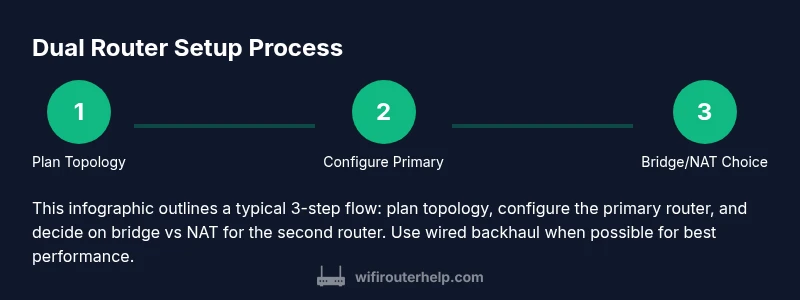
Inventory and plan topology
List all devices, determine whether to use bridge/AP mode or a separate NAT network, and decide SSIDs for main, guest, and IoT. This reduces back-and-forth reconfiguration later.
Tip: Document your intended network plan before touching devices. - 2
Configure the primary router
Connect to the primary router's admin interface. Set a stable LAN IP (e.g., 192.168.1.1), enable WPA3, set a strong admin password, and configure the DHCP range (e.g., 192.168.1.100-192.168.1.199).
Tip: Keep the primary router on a fixed IP outside any DHCP range. - 3
Decide on bridge mode or NAT layout for the second router
If bridging, enable AP/Bridge mode on the second router and disable its DHCP server. If not bridging, plan a separate subnet and ensure DHCP on the second router is enabled with a distinct range.
Tip: Bridge mode reduces IP conflicts and improves roaming behavior. - 4
Configure the secondary router for AP or NAT
Connect the second router via Ethernet to the primary. If AP mode, set its LAN IP outside the primary DHCP range and disable DHCP. If NAT, set a different subnet (e.g., 192.168.2.1) and enable DHCP there.
Tip: Use a wired backhaul when possible for best performance. - 5
Set up IP addressing and DHCP rules
Ensure non-overlapping ranges and correct gateway settings. For AP mode, the gateway remains the primary router. For NAT mode, the second router handles its own DHCP but avoid conflicts.
Tip: Reserve static IPs for critical devices like printers. - 6
Enable security features and update firmware
Apply latest firmware on both devices. Use strong passwords, disable remote management, and enable WPA3. Configure firewall rules and review port forwarding where needed.
Tip: Turn on automatic firmware updates where available. - 7
Test and verify connectivity
Run speed tests from multiple rooms, check device access to internet, and verify guest IoT isolation if you configured separate networks. Adjust QoS if required to protect latency-sensitive apps.
Tip: Test both 2.4 GHz and 5 GHz bands separately for coverage.
People Also Ask
Do I need bridge mode on the second router when using two routers behind one modem?
Bridge or AP mode on the second router is often the simplest path to a single network with fewer IP conflicts. If you require separate networks, NAT on the second router can work, but expect more configuration and potential issues with certain applications.
Bridge mode on the second router is usually best for a single, seamless network. If you need separation, NAT can work but may complicate apps.
Can both routers handle DHCP simultaneously?
Only if you intend two separate subnets. For a single network, disable DHCP on the secondary router and let the primary assign IPs. If you run a separate NAT network, keep DHCP on the secondary router for its subnet.
Only enable DHCP on one router for a single network; otherwise, you’ll risk IP conflicts.
What is the best way to test performance after setup?
Run speed tests in multiple rooms, check both bands, and verify stable device connections across all networks. Also test gaming and video calls to confirm low latency. Document results to track changes.
Test in multiple rooms across bands and devices to confirm stable performance.
What should I do if devices aren’t getting IP addresses?
Double-check DHCP scopes, ensure the second router isn’t duplicating a gateway, and verify WAN/LAN port configurations. Reboot devices in the right order: modem, primary router, then secondary router.
Check DHCP ranges and reboot in the correct order to restore IPs.
Is it necessary to disable Wi‑Fi on the modem?
Disabling the modem’s Wi‑Fi reduces interference and avoids conflicts with the two routers. Use the primary router as your main Wi‑Fi and only enable the others if you’re testing network layouts.
Disable the modem’s Wi‑Fi to avoid interference with the two routers.
Should I upgrade firmware before starting the setup?
Yes. Install the latest firmware on both routers before you begin. Updated firmware fixes security gaps and improves compatibility with new features.
Update firmware on both devices before starting for best results.
Watch Video
What to Remember
- Plan topology before wiring devices.
- Bridge/AP mode minimizes NAT complexities.
- Keep non-overlapping IP schemes and strong security defaults.
- Test thoroughly across rooms and devices for coverage.