Two Modems, One Router: A Practical Setup Guide
Learn how to safely configure two modems with one router for improved reliability and bandwidth. This educational guide covers dual-WAN concepts, hardware choices, topology, configuration, testing, and troubleshooting.


Two modems can share one router by using a dual-WAN-capable router or enabling bridge mode on a secondary modem. This enables load balancing or failover, depending on the hardware. Follow the step-by-step setup to plan, connect, and test the two-modem, one-router configuration.
Why two modems with one router makes sense
In modern homes, internet reliability and bandwidth are top priorities. A setup with two modems feeding a single router can help you avoid a total service outage when one provider experiences downtime, and it can improve overall throughput by balancing traffic across connections. According to WiFi Router Help, users who deploy dual paths often report smoother streaming, faster downloads for multiple devices, and more predictable upload performance during peak hours. The WiFi Router Help team found that a well-planned two-modems-one-router configuration can be a practical hedge against single-provider issues without requiring a separate business-grade circuit. This approach is especially valuable for homes with multiple heavy users, smart-home devices that demand consistent connectivity, or work-from-home scenarios where uptime is critical.
Before you begin, recognize that this setup hinges on compatible hardware, thoughtful network design, and careful firmware configuration. It’s not magic; it’s a disciplined method to combine two independent internet sources into a single, coherent home network. You’ll typically pursue one of two paths: a dual-WAN router that can manage multiple WAN inputs, or a standard router plus bridge-mode on one modem so the router treats the second connection as a secondary network. The goal is to have seamless failover or load balancing so devices can switch paths without manual intervention. Throughout this guide, you’ll learn how to plan, connect, and test a two-modems-one-router network while keeping security, latency, and usability in mind.
Core concepts: dual-WAN, load balancing, and failover
At a high level, a two-modems-one-router setup hinges on three ideas: dual-WAN routing, load balancing, and failover. Dual-WAN means the router can see two independent internet connections (WAN1 and WAN2). Load balancing distributes traffic across both connections to maximize throughput, especially when several devices are active simultaneously. Failover provides a safety net so if one connection drops, traffic automatically shifts to the other without user intervention. The exact behavior depends on your router’s features and firmware. Some consumer routers offer basic load balancing or simple failover, while more advanced devices support policy-based routing, QoS, and smarter health checks. When planning, consider expected usage patterns (video conferencing, gaming, large file transfers) and set the routing rules to align with those activities.
Key terms you’ll hear in this space include NAT, DHCP, and WAN/LAN segmentation. NAT allows devices on the private home network to communicate with the wider internet, while DHCP assigns IP addresses to devices. In dual-WAN setups, you’ll typically have WAN1 and WAN2 representing the two internet sources, plus a LAN side for internal devices. Understanding these terms helps you pinpoint configuration steps and avoid conflicts between the two connections. A thoughtful approach reduces potential issues with IP addressing, DNS, and firewall rules that could otherwise interrupt traffic when switching between modems.
Choosing hardware: dual-WAN routers vs bridge-mode setups
Choosing the right hardware is the most critical decision in a two-modems-one-router project. A true dual-WAN router can accept two separate internet inputs and manage them natively, providing built-in load balancing, failover, and often more granular QoS controls. This path yields smoother user experiences when multiple devices are active and you want precise control over how traffic uses each connection. On the other hand, a bridge-mode configuration involves turning one modem into a simple pass-through, letting a standard router handle all routing tasks. This can be a cost-effective approach if you already own a capable router but might impose limits on features or fine-grained traffic management.
When selecting hardware, verify the following: 1) the device supports multiple WAN interfaces (some consumer models label them WAN1/WAN2 or offer a dedicated USB or ethernet-based path); 2) it supports bridge mode or dual-WAN operation with stable firmware and regular updates; 3) it provides clear documentation for IGMP, QoS, NAT, and firewall settings; 4) it has a reliable admin interface for monitoring link status and traffic. If you anticipate complex needs (for example, prioritizing work calls while gaming), prioritize devices with robust QoS, clear failover behavior, and easy diagnostics. For households with ISP-specific features like voice services, consider compatibility notes and potential caveats before committing to one solution.
Network topology: how the two modems connect to a single router
The network layout for two modems feeding one router varies by hardware, but the core layout remains consistent. In a dual-WAN router setup, you connect Modem A to WAN1 and Modem B to WAN2, then connect the router to your local network via its LAN port(s). If you’re bridging one modem, you still connect the primary modem to the router’s WAN or a dedicated port, and place the secondary modem on the LAN side, linking it to the router via a separate bridge interface or a managed switch if needed. A common best practice is to place the router in a central, elevated location to optimize Wi-Fi coverage and reduce interference. Use quality Ethernet cables (Cat 5e or higher) to minimize latency. Label ports clearly and maintain a simple, consistent topology to simplify troubleshooting.
Consider using a network switch if you need more wired connections than the router provides. Segregating wired devices from wireless devices can help with stability. If you’re aiming for resilience, plan a redudant path for critical devices (e.g., work computers, security systems).
This section maps out the physical layout you’ll implement, but the real power comes from the router’s routing rules and the health checks that decide when to switch traffic from WAN1 to WAN2. Keep a simple diagram on hand as you configure, so you can visually confirm that every device has a clean, known path to the internet.
Design considerations for different internet types
Different ISPs and connection types (cable, fiber, DSL, fixed wireless) influence how you implement two modems with one router. If both connections offer similar bandwidths and latency, you gain steadier throughput through load balancing. If one connection is significantly slower or exhibits higher jitter, you may prefer prioritizing the faster link for latency-sensitive tasks (like video calls) while still allowing failover to a backup path. Be mindful of IPv4 vs IPv6 support, DNS behavior, and MTU settings, which can vary between providers and modems. Some setups require adjusting the MTU to optimize performance for certain services or streaming platforms. In many cases, enabling Happy Eyeballs (a technique used to prefer IPv6 when available and degrade gracefully to IPv4) helps with dual-stack environments by reducing connection delays during WAN failover.
Security should not be overlooked. Ensure both WAN interfaces are protected by consistent firewall rules, intrusion detection if available, and a unified guest network policy for visitors to prevent cross-network access. If you manage multiple WANs with different service agreements, consider separate monitoring and alerting to promptly detect outages or degradation in either link.
Having two modems expands what’s possible, but it also increases the complexity of DNS, VPN, and access control. Plan ahead and document each connection and rule so future changes don’t break your setup.
Configuration overview: planning settings
A successful two-modems-one-router setup starts with a careful plan. Decide whether you want load balancing, failover, or a hybrid approach with policy-based routing. Create a basic inventory: WAN1 provider, WAN2 provider, modem models, and the router model. Next, map out your IP scheme and DHCP rules. In many home networks, you’ll use a private IP range for the LAN and assign fixed IPs to critical devices to keep management predictable. Prepare to adjust VPN, DNS, and firewall settings once both WANs are online.
Before you touch the hardware, ensure firmware is up to date on both modems (if you own them) and the router. Update firmware to the latest stable release to minimize compatibility issues with dual-WAN features. If your router supports detailed logging or diagnostics, enable these features to capture WAN status, uptime, and traffic patterns during testing. Finally, plan a test plan with specific scenarios: normal usage, a simulated WAN outage, and a scenario that stresses bandwidth. A deliberate plan reduces the risk of misconfiguration and makes troubleshooting faster.
Testing and validation: ensuring reliability
Testing is where theory becomes practical. Start with basic connectivity: verify each WAN interface can reach the internet by performing a simple ping or traceroute test from the router’s diagnostics page. Confirm that devices on the LAN can access common services and that local network resources (printers, NAS, file shares) remain reachable. Next, test failover by simulating a WAN outage on one link and observing whether traffic gradually or instantly switches to the remaining active link. Validate load balancing by initiating concurrent tasks across devices (streaming, large file uploads) and watching how traffic is distributed. If your router supports QoS, run tests with different priority profiles to see how latency-sensitive applications behave under load. Finally, review logs and metrics to identify any flapping or prolonged outages and refine rules accordingly. Maintain documentation of observed behavior and adjust settings to align with your actual usage patterns.
Authority sources
For further reading and validation, consider consulting authoritative sources. These references provide context on routing concepts, network topology, and best practices for multi-WAN configurations. 1) FCC – Federal Communications Commission; router and home networking guidance. https://www.fcc.gov/ 2) NIST – National Institute of Standards and Technology; security and network best practices. https://www.nist.gov 3) Cisco – Networking hardware and dual-WAN concepts. https://www.cisco.com
Tools & Materials
- Two modems (cable, fiber, or DSL as available)(Ensure both modems are active and provisioned by their respective ISPs.)
- One router with dual-WAN support or bridge-mode capability(Check for WAN1/WAN2 ports or equivalent multi-WAN features in firmware.)
- Ethernet cables (Cat5e or better)(Use for reliable, wired connections between modems and router.)
- A computer or smart device for router admin access(Needed to configure settings and monitor status.)
- Managed switch (optional)(Useful if additional wired ports are needed for devices.)
- Firmware updates for both modems and the router(Apply latest stable releases before configuring features.)
Steps
Estimated time: 60-120 minutes
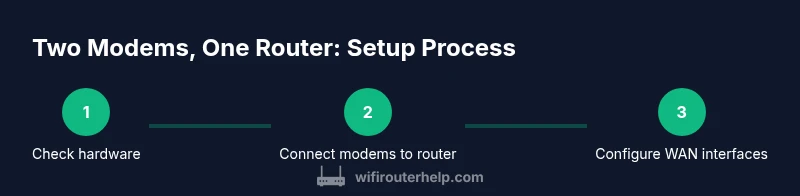
- 1
Assess compatibility and plan topology
Survey both modems and the router to confirm dual-WAN support or bridge-mode capability. Decide whether you will implement load balancing, failover, or a hybrid approach, and sketch a simple topology diagram showing WAN1, WAN2, and LAN paths.
Tip: Document device capabilities and keep a copy of the planned topology for reference. - 2
Update firmware and prepare admin access
Update firmware on both modems and the router to the latest stable versions. Connect a computer to the router’s admin interface and backup current configurations before making changes.
Tip: Avoid interrupting during firmware updates; plan for a restart window. - 3
Physically connect modems to the router
Connect Modem A to WAN1 and Modem B to WAN2 (or the equivalent ports on your device). If using bridge mode, connect Modem B as a bridge to the router according to the manufacturer’s instructions.
Tip: Label ports to prevent miswiring during future changes. - 4
Configure WAN interfaces and NAT
In the router admin, enable both WAN interfaces, assign correct IP settings or DHCP behavior, and ensure NAT is configured to share a single LAN subnet. Verify that the router can reach the Internet through both links.
Tip: Check for any default firewall rules that might block inter-VLAN traffic. - 5
Set up load balancing or failover rules
Choose the desired policy: simple failover, simple load balancing, or advanced routing. Configure health checks so the router can detect a down link and automatically switch traffic.
Tip: Test each rule with real traffic patterns to ensure expected behavior. - 6
Test failover and QoS
Simulate outages and verify seamless failover. Enable QoS rules if needed to prioritize latency-sensitive tasks like video calls or gaming during peak times.
Tip: Keep a log of test results and adjust thresholds as needed. - 7
Finalize security and monitoring
Review firewall rules, enable logging, and configure alerts for WAN changes. Document the final topology and settings for future reference.
Tip: Regularly review logs to detect anomalies and maintain security.
People Also Ask
Do I need a special router to run two modems with one router?
Yes, a router with dual-WAN support or clear bridge-mode support is typically required. Some consumer routers offer dual WAN, while others can be paired with a second router in a bridge-based setup. Check your device documentation for WAN interfaces and compatibility.
You usually need a router that supports two internet inputs or a bridge option to use two modems.
Will two modems double my internet speed for every device?
Not necessarily. While dual connections can improve aggregate bandwidth or provide failover, actual gains depend on how traffic is balanced, your ISP speeds, and network usage. Expect better reliability and potential throughput, not a guaranteed twofold increase for every activity.
You may see better reliability and possible throughput gains, but it won’t guarantee a perfect, double-speed experience for all devices.
What if my modem uses different technologies (cable vs fiber) from the other?
Most dual-WAN routers can handle different types of WAN inputs, but you may need separate configuration per interface and ensure both have compatible IP/DNS settings. Some providers require specific bridge configurations or authentication methods.
It’s usually doable, but expect some extra setup and potential provider-specific requirements.
How do I monitor which WAN is active?
Use the router’s status or dashboard page to view WAN1 and WAN2 health, uptime, and traffic. Enable alerts if supported, so you know when a failover occurs and how often a link fluctuates.
Check the router’s status panel for real-time WAN health and enable alerts if available.
Can I add a guest network with two modems?
Yes. Most dual-WAN setups support creating a separate guest network on the LAN side. Keep guest traffic isolated from your main network to protect devices and maintain performance.
You can create a guest network while keeping your main network secure.
Watch Video
What to Remember
- Plan topology before touching hardware
- Choose true dual-WAN or bridging method based on needs
- Test failover and load balancing with real traffic
- Secure and document your configuration