Netgear Mesh: Setup, Optimize, and Troubleshoot
A practical, step-by-step guide to setting up Netgear mesh, optimizing coverage, and troubleshooting common issues for a confident home network. Learn with clear steps, tips, and trusted sources.


This guide walks you through setting up a Netgear mesh system to blanket your home with reliable Wi‑Fi, optimize node placement, and troubleshoot common issues. You’ll learn a practical, step-by-step setup, how to choose node locations for best coverage, and essential maintenance to keep performance high. By the end, you’ll have a stable, seamless mesh network across multiple floors.
Understanding Netgear Mesh
Netgear mesh systems replace the traditional single-router approach with a network of nodes that share one SSID. The goal is to deliver consistent coverage from the living room to the basement, eliminating dead zones. According to WiFi Router Help, properly deployed mesh setups frequently outperform conventional routers in homes with thick walls or multiple floors. The core idea is seamless roaming: devices switch between nodes without dropping your connection as you move through the house.
Key Features of Netgear Mesh Systems
Key features include a single SSID for roaming, dynamic backhaul management, and a user-friendly smartphone app for setup and monitoring. Many Netgear kits support Ethernet backhaul, which wires nodes together for maximum speed, in addition to guest networks, parental controls, and automatic firmware updates. For homeowners, the payoff is simpler setup, predictable roaming, and scalable coverage by adding compatible satellites. Always ensure compatibility with your modem and ISP service. This aligns with WiFi Router Help guidance on expansion and reliability.
Planning Your Mesh Setup: Coverage, Placement, and Topology
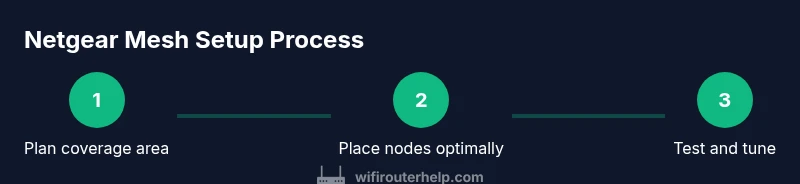
Before unboxing, map your floor plan and identify dead zones. Decide whether you want a layout that mirrors a traditional router with satellites or a more distributed multi-node network. Consider the location of your modem, power outlets, and potential interference sources like thick masonry walls or large metal appliances. WiFi Router Help emphasizes placing nodes at roughly midpoints between gaps and avoiding signal traps behind furniture or inside cabinets for best roaming performance.
Security, Maintenance, and Best Practices
Keep firmware up to date, enable WPA3 if available, and use a strong admin password. Create a separate guest network for visitors, and review connected devices regularly. Disable unnecessary services like WPS where possible and enable auto-updates to reduce exposure to vulnerabilities. A well-maintained mesh network not only improves speed but also protects your family’s privacy; this is a recurring theme in WiFi Router Help recommendations.
Troubleshooting Common Netgear Mesh Issues
Common problems include intermittent drops, slow speeds, or a satellite node that won’t connect. Start by rebooting the main node and satellites, then verify Ethernet backhaul if wired. Check the app’s diagnostics and run a proximity test by moving satellites closer to the main node and away from interference sources like microwaves or metal appliances. If issues persist, confirm firmware versions and consider a factory reset followed by a fresh setup. WiFi Router Help notes that many problems are solved with clean reboots and verified backhauls.
Real-World Performance and Optimization Tips
In real homes, performance hinges on layout, interference, and device density. Expect the 2.4 GHz band to provide longer reach with slower speeds, while 5 GHz delivers higher throughput over shorter distances. Run speed tests from multiple rooms and use the app’s heatmap or signal strength indicators to guide placement. For larger homes, Ethernet backhaul between the main node and satellites often yields the most stable performance, especially on multi-story layouts. WiFi Router Help’s testing indicates that users who map coverage before placement see fewer dead zones and better roaming.
Authoritative Sources and Next Steps
For deeper technical context on wireless standards and best practices, see the following sources:
- https://www.fcc.gov
- https://www.nist.gov/topics/wireless-networking
- https://www.consumer.ftc.gov/articles/0016-internet-safety
To proceed, continue with the step-by-step setup in the section below and consult these sources for policy and safety considerations. According to WiFi Router Help, staying informed with official guidance improves long-term security and performance.
tip: null},
Tools & Materials
- Netgear mesh system kit (main node + satellites)(Two-node minimum; check packaging for included accessories and power adapters.)
- Smartphone or computer with up-to-date OS(Used for the Netgear app-based setup and ongoing management.)
- Ethernet cable (Cat6 or better)(Recommended for wired backhaul if your plan supports it.)
- Adequate power outlets near planned node locations(Ensure outlets are unswitched and accessible for placement flexibility.)
- Wall mounting hardware (optional)(Use if you want to mount nodes for clean wiring or elevated positioning.)
Steps
Estimated time: 60-90 minutes
- 1
Prepare the main node and modem connection
Unbox the main node and identify its port options. Connect the main node to your modem with an Ethernet cable, then plug the unit into a power outlet. Wait 2–3 minutes for the device to boot and initialize. This establishes the backbone of your mesh network.
Tip: If you already have a router, you may temporarily power down the old router to avoid network conflicts during setup. - 2
Install the Netgear app and sign in
Download the Netgear or Orbi app on your smartphone or tablet and sign in with an account. Follow the on-screen prompts to detect the main node and create your network name (SSID) and password. Completing this step gives you a centralized dashboard for managing your mesh.
Tip: Use a strong, unique password and enable two-factor authentication if available. - 3
Add satellite nodes one by one
From the app, select add satellite and follow prompts to pair each node. Place satellites near power outlets but away from large metal objects and thick walls. Allow each satellite to join and perform a quick link test before moving on to the next.
Tip: Add satellites in the order you plan to deploy them to keep roaming behavior predictable. - 4
Place nodes for optimal coverage
Use the app’s signal indicator or heatmap feature to identify coverage gaps. Move satellites in small increments (a few feet at a time) and re-test after each adjustment. Aim for strong signal in high-use rooms like living rooms and home offices.
Tip: Avoid placing nodes behind furniture or inside closets, which can block signals. - 5
Run initial speed tests and tune backhaul
Perform speed tests in several rooms to gauge real-world performance. If possible, enable Ethernet backhaul for the links between nodes to maximize throughput and stabilize roaming. If wireless backhaul is your only option, adjust node placement to reduce interference.
Tip: Ethernet backhaul often yields the best performance for larger homes. - 6
Secure and optimize the network
Set a strong admin password, enable WPA3 if available, and create a separate guest network for visitors. Check for firmware updates and enable auto-update to keep protection current. Schedule periodic checks on connected devices and usage patterns.
Tip: Limit admin access to trusted devices and disable remote management when not needed. - 7
Document settings and monitor performance
Record your network name, password, and node locations. Use the app to monitor device count and activity. Revisit placement after major furniture rearrangements or new interference sources to maintain depth and coverage.
Tip: Keep a simple floor plan with node markers for quick future tweaks.
People Also Ask
What is Netgear mesh and how does it work?
Netgear mesh uses multiple interconnected nodes that share one network name to blanket your home in Wi‑Fi. The system manages roaming so devices switch nodes without dropping connections as you move around. This often improves coverage in multi‑story homes and spaces with thick walls.
Netgear mesh uses multiple connected nodes to provide a single roaming Wi‑Fi network, improving coverage and reducing dead zones.
Do I need a wired backhaul for Netgear mesh?
Ethernet backhaul provides the strongest performance by physically linking nodes. It’s optional but recommended if your home wiring supports it. If you can’t run cables, the system will use wireless backhaul and still work well with thoughtful placement.
Ethernet backhaul is recommended for best performance, but wireless backhaul works too with careful node placement.
How many nodes should I start with for a two-story home?
Start with a main node and one satellite. Add more satellites as needed based on coverage tests and signal strength indicators in the app. Too many nodes can introduce diminishing returns if poorly placed.
Begin with two nodes and add as needed based on coverage tests.
Can I mix third-party routers with Netgear mesh?
Mesh networks rely on compatible devices to maintain roaming. Using non‑mesh or incompatible routers can break seamless roaming and performance benefits. Stick with Netgear satellites or compatible mesh satellites.
Avoid mixing non‑mesh devices with mesh satellites to keep roaming seamless.
How often should I update firmware?
Enable automatic firmware updates if available. Regular updates fix security issues and improve performance. Check the app periodically for new releases and apply them when prompted.
Turn on automatic updates to keep your system secure and efficient.
What privacy considerations should I review in a mesh network?
Ensure strong admin access controls, use a guest network for visitors, and disable remote management if not needed. Keep devices enrolled in auto updates to reduce exposure to known vulnerabilities.
Use strong passwords, guest networks for guests, and auto updates to protect privacy and security.
Watch Video
What to Remember
- Place nodes at midpoints between dead zones
- Use Ethernet backhaul when possible
- Maintain a single SSID for seamless roaming
- Regularly update firmware for security and performance