How to update router netgear: A practical guide
Learn how to update router netgear safely with a step-by-step approach: identify model, backup settings, download official firmware, perform the upgrade, and verify connectivity for a secure, faster network.


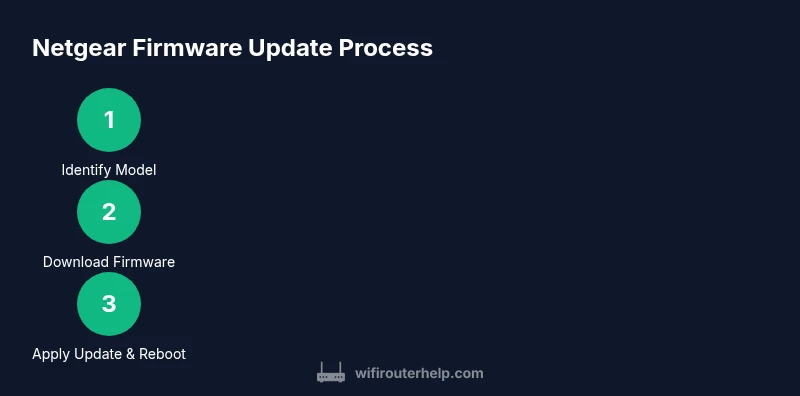
This guide shows you how to update router netgear safely and effectively: identify your exact model, backup current settings, download the official firmware from Netgear, and apply the upgrade through the admin interface. You will verify the new version, reboot if needed, and test your Internet connection to ensure stability after the update.
What updating firmware on a Netgear router does
Firmware updates are not cosmetic; they fix vulnerabilities, improve performance, and add features that keep your home network safe. When you update router netgear, you reduce exposure to newly discovered threats and improve compatibility with devices and services. According to WiFi Router Help, keeping firmware current is one of the simplest ways to protect a home network without changing your daily habits. In practice, a typical Netgear update can close security holes, enhance stability during peak usage, and improve Wi-Fi throughput on crowded channels. Before you begin, make sure you understand what the update changes, and be prepared to reboot your router during the process. This upfront clarity saves troubleshooting time later and reduces the risk of mid-update power loss causing corruption.
Identify your Netgear router model and firmware version
To ensure a successful update, start by confirming the exact model and hardware revision of your Netgear router. Look for the model name on a label on the bottom or back of the device, then note the hardware version if present. Log in to the router's admin interface (usually at http://192.168.0.1 or http://192.168.1.1) and go to Status or About to view the current firmware version. If you use the Netgear mobile app, it can also display the model and firmware details for quick reference. Matching the firmware to the precise model/version is critical to avoid bricking the device or applying an incompatible file.
Prepare for the update: backup and power
Preparation reduces risk. Start by backing up your current router settings if the option exists. Write down your network name (SSID) and password, or export a settings file if supported by your model. Ensure your router is plugged into a reliable power source and, if possible, use a wired Ethernet connection to your computer during the upgrade to minimize disconnects. Consider enabling a temporary guest network if you need to test devices later, so your main network remains stable during the process.
Downloading the official firmware from Netgear
Always obtain firmware from Netgear’s official site or app. Navigate to Netgear Support, then locate your exact model and hardware revision. Download the latest approved firmware file; never use third-party or modified files. Confirm the file name matches your model and hardware version, and keep the file in a known location on your computer or mobile device so you can access it during the update. This careful step reduces the chance of wrong file selection and failed updates.
Update methods: online vs manual (file-based) updates
Most Netgear routers support two primary update methods. Online updates pull the latest firmware directly from Netgear servers and often require minimal user interaction. Manual updates involve uploading a firmware file you downloaded earlier. Online updates are convenient for supported models, but if the route to Netgear servers is blocked by firewall rules or you have multiple devices, the manual method provides a controlled alternative. In either case, ensure you are logged in with an account that has administrative rights.
Performing the firmware update: what to expect
Whether using online updating or manual upload, begin from the router's admin interface and locate the Firmware Update section. If choosing Online Update, click Check Online and follow prompts to install. If using Manual Update, click Browse, select the firmware file you downloaded, and start the upgrade. You may be asked to confirm your choice or to accept license terms. Do not turn off the router during the process; a brief reboot is normal after installation, and the entire upgrade can take several minutes depending on file size and hardware.
Verify the update and reboot
After the upgrade completes, verify that the router reports the new firmware version in the Status page of the admin UI. Reboot the router if prompted, or perform a manual restart to ensure all new components initialize properly. Once back online, reconnect your devices and check that you can access the Internet as expected. It helps to run a quick speed test and verify that both 2.4 GHz and 5 GHz bands are functioning as intended.
Post-update checks: test devices, adjust settings, and security
Confirm that all previously configured settings survive the update, including your SSID, password, and any custom DNS or QoS rules. If certain devices fail to reconnect, forget and rejoin the network, and re-enter credentials. Consider enabling automatic updates if your model supports it, and review security settings such as the admin password, UPnP status, and firewall rules to maintain a secure environment after updating.
Security best practices after updating
Firmware updates close known security gaps and reduce the risk of exploitation. After updating, ensure your router password is strong, rename the default SSID if needed, and enable automatic updates if available. Regularly check for new firmware releases and maintain an update cadence aligned with your security needs and device usage patterns. By planning updates, you protect your network without sacrificing daily performance.
Troubleshooting: what to do if things go wrong
If the update stalls or the router becomes unresponsive, power cycle the device by unplugging it, waiting 10 seconds, and plugging it back in. If the admin UI is inaccessible, try a wired connection or reset the router to factory defaults (note that a reset will erase custom settings; you will need to reconfigure). If the problem persists, check Netgear's support resources or contact their help desk for model-specific guidance.
Tools & Materials
- Netgear router (exact model)(Have model number handy (e.g., R7000, R9000), located on the device label)
- Device to access the router admin interface(Laptop, tablet, or smartphone)
- Stable internet connection(Wired Ethernet is preferred during update)
- Official firmware file or URL(Only use official Netgear firmware for your exact model)
- Backup method(Export or note down custom settings if possible)
- Power stability(Uninterruptible power supply (UPS) recommended but optional)
Steps
Estimated time: 30-45 minutes
- 1
Identify your router model
Locate the model name on the router label and note the hardware revision. This ensures you download the correct firmware. If you cannot read the label, check the admin UI for model information under Status or About.
Tip: Cross-check the model on the label with the one in the UI to avoid mismatches. - 2
Check current firmware version
In the router admin interface, open the Status or Firmware page to view the existing version. This helps you decide whether an update is needed and prevents unnecessary installs.
Tip: Note the version number for comparison after the upgrade. - 3
Back up your settings
Export the router configuration if the option exists, or manually record key settings like SSID, password, and QoS rules. A backup makes recovery fast if something goes wrong.
Tip: Store backups on a different device or cloud storage as a precaution. - 4
Download the official firmware
Visit Netgear support and locate your exact model. Download the latest firmware file, ensuring it matches your hardware version and region.
Tip: Avoid using third-party or modified firmware files. - 5
Choose update method
Decide between Online Update (auto from Netgear servers) or Manual Update (upload the downloaded file). The online method is easiest if your model supports it.
Tip: If your network has strict firewall rules, the manual method provides a controlled option. - 6
Apply the firmware update
In the admin UI, navigate to Firmware Update, then start the upgrade. If uploading a file, select Browse and choose the firmware file. Do not disconnect the device during this process.
Tip: Make sure the device remains powered throughout the upgrade. - 7
Verify and reboot
After the update completes, verify the firmware version in Status. Reboot the router if prompted, then confirm you can access the Internet.
Tip: Perform a quick network test on multiple devices to confirm consistency. - 8
Test connectivity and restore settings
Reconnect devices, test speed and reliability, and reapply any backed-up settings if necessary. If problems arise, consult Netgear support resources.
Tip: Keep a record of changes for future reference.
People Also Ask
Do I need to reset my Netgear router after updating firmware?
Most updates do not require a factory reset. A reboot is typically enough to finalize the upgrade. If issues persist, refer to Netgear guidance or try a reset as a last resort.
Usually you just reboot after the update. A factory reset is only for persistent problems.
Can I update Netgear router firmware via the mobile app?
Yes, many Netgear models support firmware updates through the official Netgear app. The steps vary by model, but you typically access Firmware Update from the app's settings.
You can often update from the Netgear app; check your model's options.
What if the update fails or the router becomes unresponsive?
If an update fails, confirm power stability, retry the process, and consider using the manual update method with the downloaded file. If problems continue, contact Netgear support.
If it fails, check power, retry, and use manual update if needed.
Is it safe to update firmware on a router with VPNs configured?
Firmware updates typically do not erase VPN configuration, but back up settings first. After updating, recheck VPN connections and rules.
VPN settings usually stay, but back them up first.
Should I enable automatic updates after updating?
Enabling automatic updates can improve security, but plan for automatic reboots and brief downtime.
Automatic updates boost security; expect occasional reboots.
How do I ensure I download the right firmware file?
Always verify the exact model name and hardware revision from the router label, then download the matching firmware from Netgear support.
Check the exact model and hardware version before downloading.
Watch Video
What to Remember
- Identify model precisely before updating
- Back up settings and note credentials
- Use official Netgear firmware for your exact model
- Choose online or manual method based on your environment
- Verify version and test connectivity after upgrade