Router Firmware Update: Safe, Step-by-Step Guide
A practical guide to updating your router firmware, with safety tips, backups, and troubleshooting to keep your home network secure and fast. Learn how to check versions, choose auto vs manual updates, and verify success for a reliable connection.


You will learn how to safely update your router firmware, check for compatibility, and verify the update's success. You will need your router model, a stable internet connection, and admin access to the router's management interface. This guide also explains how to avoid bricking the device and how to restore settings if something goes wrong.
Why Firmware Updates Matter
According to WiFi Router Help, firmware updates strengthen security and improve stability. The WiFi Router Help team found that many home networks suffer from outdated firmware, leaving devices exposed to vulnerabilities and performance issues. Keeping firmware current helps close security gaps and ensures compatibility with new devices and standards. Benefits include:
- Security patches close known vulnerabilities and reduce risk of intrusions.
- Stability and performance improvements help avoid crashes and improve responsiveness of features like QoS, guest networks, and UPnP.
- Better compatibility with new devices and standards, reducing connection errors.
Best practices include scheduling updates during low-usage times and verifying the update after installation.
Firmware Update vs Device Health: Key Differences
Firmware is the embedded software that controls the router’s hardware functions, interfaces, and security mechanisms. Regular updates fix bugs, plug security holes, and improve performance. Think of firmware as the nervous system of your router; when it’s up-to-date, it communicates reliably with your devices and the modem. Outdated firmware can lead to slower speeds, dropped connections, and increased vulnerability. Keeping firmware current is a core aspect of overall network health and long-term reliability.
Prerequisites and Safety Precautions
Before you begin, make sure you have a clear plan and the right tools. Confirm the exact router model and hardware revision, ensure you have admin access, and back up current settings. Use a reliable power source or a UPS to prevent power loss during the update. Only download firmware from the official vendor site or recognized channels. Disable VPN services temporarily if they might interfere with the update process, and close unnecessary browser tabs to prevent interruptions.
How to Find Your Current Firmware Version
To avoid installing an incorrect build, first check your current version. Log in to the router’s admin interface (usually at 192.168.0.1 or 192.168.1.1). Navigate to the Status or About page and note the firmware version and hardware revision. Some routers show the version on a cover label or in the mobile app. Document these details so you can verify compatibility with the new firmware package.
Auto-Update vs Manual Update: Pros and Cons
Auto-update is convenient and reduces the risk of human error, but it can install firmware that changes defaults and requires post-update reconfiguration. Manual updates give you full control, letting you review release notes and pick the exact build. WiFi Router Help analysis shows that choosing the right update method depends on your comfort with configuration changes and the criticality of your network’s uptime. Consider your environment and backup readiness when deciding.
Downloading the Correct Firmware File
If you choose manual updates, locate the exact firmware file for your router model and hardware revision from the vendor’s official support page. Avoid third-party sources, as mismatched firmware can brick the device. Save the file to a known location on your computer, and verify the filename and version match the router documentation. Keep a copy of the file until you’ve confirmed the update was successful.
Step-By-Step Implementation Overview
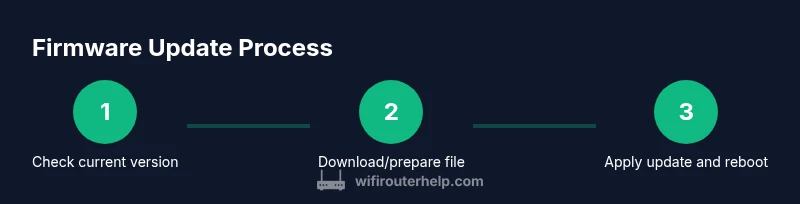
This section provides the structured, hands-on steps you’ll perform. The steps cover preparation, firmware selection, applying the update, and post-update verification. You’ll learn how to handle automatic vs manual upgrades, how to monitor the update process for any warnings, and what to do if things don’t go as planned. Follow the exact order to minimize risk and downtime.
Troubleshooting Common Update Issues
Power interruptions, interrupted downloads, and incompatible builds are the usual culprits. If the update stalls, try refreshing the page or restarting the router in a controlled way. If the device becomes unresponsive, disconnect power briefly and attempt the recovery procedure outlined by the manufacturer. Always have a backup of configurations to restore after recovery.
Post-Update Verification and Best Practices
After the update completes, verify the new firmware version and reconfigure any custom settings as needed. Test both wired and wireless performance to ensure stability. Run basic security checks—confirm that the admin password is strong and that remote management isn’t exposed unintentionally. Maintain a short changelog of updates for future reference.
Security Benefits and Maintenance Plan
Regular firmware updates reduce exposure to known vulnerabilities and help your network stay resilient against evolving threats. Pair updates with a routine maintenance plan that includes password hygiene, disabling unused features (like WPS), and monitoring connected devices. This proactive approach minimizes risk and improves overall network reliability.
Backup and Rollback Options in Case of Failure
Always keep a backup of your current settings before applying updates. Some routers offer a built-in rollback feature or a factory reset option if the new firmware behaves unexpectedly. If you encounter issues, revert to the previous firmware version using the same interface, then reattempt update with a fresh download and verified compatibility.
Compatibility, Regional Considerations, and Warranty
Firmware updates may differ by region due to regulatory restrictions, and some builds are tailored to specific hardware revisions. Check the release notes for any region-specific behavior or feature changes. Remember that performing unofficial modifications can void warranties; always prefer official firmware and documented procedures.
Authoritative Sources and Further Reading
For broader guidance on firmware security practices, consult trusted sources such as government and standards organizations. As part of your learning journey, you can reference resources from CISA and NIST, along with official vendor documentation to stay aligned with best practices. The WiFi Router Help team emphasizes using official channels and documented steps to protect your home network.
Tools & Materials
- Router admin access (username and password)(You must be logged into the router's admin interface.)
- Router model and hardware version(Needed to verify the correct firmware build.)
- Stable internet connection(Required to download updates or verify online versions.)
- A computer or mobile device with a web browser(To access the router management page.)
- Ethernet cable (optional but recommended)(Wired connection reduces update interruptions.)
- Official firmware file from vendor (for manual update)(Needed only if performing manual update.)
- Uninterruptible power supply (UPS) or reliable power source(Prevents bricking during power outages.)
Steps
Estimated time: 60-90 minutes
- 1
Identify update method
Determine whether your router supports auto-updates or requires a manual download. Review the release notes to assess impact on features and settings.
Tip: When in doubt, start with auto-update to minimize manual errors. - 2
Back up current settings
Export or copy your current configuration so you can restore it if needed. Save the backup to a safe location.
Tip: Backups save time if you must reconfigure after the update. - 3
Check energy and network stability
Ensure your power source is stable and your internet connection can sustain the download without interruptions.
Tip: Use a wired connection if possible for the download. - 4
Find firmware version and hardware revision
Locate the exact model number and hardware revision on the device or its admin page. Confirm requirements against the firmware you will install.
Tip: A mismatched revision is a common cause of failed updates. - 5
Download the correct firmware file
If manual, download the exact firmware file from the official vendor page. Verify the file name and hash if provided.
Tip: Do not use firmware from third-party sites. - 6
Prepare the router for update
Disconnect VPNs, close other apps, and ensure the router remains powered throughout the process.
Tip: Disable cloud backups during the update to prevent conflicts. - 7
Apply the update via web interface
Choose the update method (auto or manual), upload the file if required, and start the installation. Do not navigate away during the process.
Tip: If using auto-update, monitor progress and confirm success. - 8
Wait for installation and reboot
Let the router complete the install and reboot. Do not unplug or reset during this phase.
Tip: A forced reboot can corrupt firmware; wait for completion. - 9
Verify new firmware version
Log back in and check the status page to confirm the new version is active.
Tip: Compare with release notes to ensure the update applied correctly. - 10
Restore backup and reconfigure
If you backed up settings, reimport them and adjust any new features. Verify SSIDs and password access.
Tip: Note any changes in default settings after update. - 11
Test connectivity
Test wired and wireless devices, streaming performance, and smart-home devices for reliability.
Tip: Run speed tests and check for dropped connections. - 12
Document the update
Record the date, firmware version, and any notable changes for future reference.
Tip: Keep a short changelog for maintenance clarity.
People Also Ask
Why should I update my router firmware?
Firmware updates fix security vulnerabilities, improve stability, and often add features. Regular updates help protect your network and devices from emerging threats.
Firmware updates fix security holes and improve stability, helping protect your network.
Can I update firmware automatically?
Many routers support automatic updates that install the latest official build. This reduces manual steps but may change defaults or reboot your network unexpectedly.
Yes, many routers can auto-update; just be aware of possible reboots and setting changes.
Do I need to back up before updating?
Backing up saves your current settings so you can restore them if the update alters configurations. It's a recommended practice for most updates.
Yes, back up your settings before updating to safeguard your configuration.
What if the update fails or bricks the router?
If an update fails, check power and connection, attempt a rollback if supported, and re-download the correct firmware. Contact the vendor if issues persist.
If it fails, power and retry with the correct file, and revert if possible.
Will updating reset my settings?
Some updates preserve settings, others reset to defaults. Always verify after update and reconfigure as needed.
Updates may reset some settings; verify and reconfigure if needed.
How often should I update firmware?
Update when a security patch or feature benefit is available. Avoid delaying if a known vulnerability is addressed in a firmware release.
Update when security patches are released or features improve.
Watch Video
What to Remember
- Verify model and version before updating.
- Back up settings and use a stable power source.
- Choose auto-update for simplicity or manual update for control.
- Always verify the update and test network performance afterward.