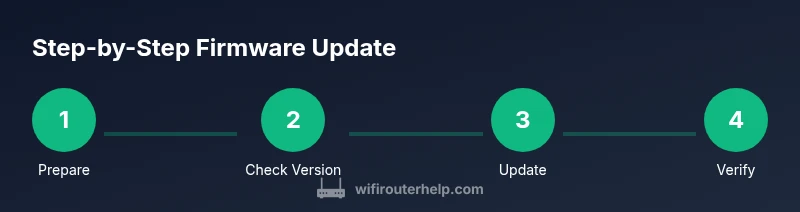
How to Update FiOS Router Firmware: A Comprehensive Step-by-Step Guide
Learn how to update your FiOS router firmware safely with WiFi Router Help. This step-by-step guide covers prerequisites, methods, troubleshooting, and best practices for a stable home network.


This guide shows you how to update your FiOS router firmware safely, from verifying prerequisites to completing a successful update via the router UI or Verizon’s online portal. You’ll learn best practices, what to do before updating, and how to troubleshoot if something goes wrong. By following these steps, you’ll keep your home network secure and performant with the latest firmware.
Why Updating FiOS Router Firmware Matters
Keeping your FiOS router firmware up to date is a foundational step in maintaining a secure and reliable home network. Firmware updates patch security vulnerabilities, fix bugs that can cause dropouts, and often improve performance with refined QoS, stability, and compatibility with newer devices. For homeowners and tech enthusiasts, staying current reduces the risk of slowdowns, dropped connections, and intrusions. According to WiFi Router Help, regular firmware updates are a practical part of ongoing router maintenance and can yield noticeable improvements in responsiveness and security when your devices connect to the FiOS network. In practice, you should view firmware updates as part of a proactive maintenance routine rather than a one-off task. When you update, you typically gain better device compatibility, improved wireless stability, and updated security features that help guard against emerging threats.
For many FiOS users, updates are not just about the router itself. They can also affect how your network interacts with Verizon’s services, third-party devices, and smart home gadgets. In this section, you’ll learn the why behind the process and what you can expect after a successful update. You’ll also gain an understanding of the difference between updating firmware versus changing configuration settings, so you can avoid common missteps.
- Impact on security: firmware patches address known flaws and reduce exposure to exploits.
- Stability gains: updated firmware can reduce disconnects, improve client handoffs, and keep streaming smooth.
- Compatibility: new features may require updated drivers on connected devices.
If you’re ready to begin, move on to the prerequisites below to ensure you’re prepared for a safe update.
Before You Start: Prerequisites and Safety
Before updating the FiOS router firmware, gather essential information and create a safe update environment. Preparation reduces the risk of bricking the device or losing connectivity during the process. This section outlines the prerequisites, best practices, and safety cautions you should follow. As you’ll see, most FiOS router firmware updates are straightforward, but you’ll benefit from a little planning.
Key prerequisites include: a stable power source (ideally a UPS where possible), an internet-connected device to access the router interface, and your admin credentials. You should also know your exact FiOS router model so you can locate the correct firmware and release notes. Make a quick backup of your current settings if your model supports export, and consider noting the current network name (SSID) and password so you can restore them easily if needed. This preparation helps you avoid surprises and makes troubleshooting simpler if something goes wrong during the update process.
From a safety perspective, do not interrupt a firmware update once it has started. Interruptions can leave the router in an unstable state. If you’re using a power strip or surge protector, ensure it won’t shut off mid-update. If you have concerns about power stability, opting for an uninterruptible power supply (UPS) during updates is a smart precaution. Finally, verify that you’re using official firmware sources from Verizon or the router admin page, avoiding third-party files that could compromise security.
Check Current Firmware and Release Notes
Knowing the current firmware version and what the latest release brings helps you determine whether an update is needed and what to expect. This step focuses on accuracy and planning: you’ll confirm the version running on your FiOS router and review the release notes for the newest firmware to understand what changes or fixes you’re about to apply. Start by logging into the router’s admin interface via a web browser or the FiOS app, depending on your model. From there, locate the About or Status page to capture the current firmware version. Next, visit Verizon’s official support site or the FiOS router product page to find the latest firmware version and the associated release notes, including bug fixes, security patches, and any known issues.
Take screenshots or copy the version number for your records. If the current version matches the latest available, you may not need to update immediately, but keep an eye on future release notes for any critical patches. If you notice a recent critical vulnerability described in the notes, prioritize updating sooner rather than later. On some models, you can enable automatic updates; if so, consider turning this feature on after you’ve completed a manual check and update.
- Record your current version and date of check.
- Compare with the latest release notes for security fixes and features.
- Decide on the update path based on your device and preference (manual vs automatic).
Update Methods: Router UI vs Verizon Online Portal
There are typically two main pathways to update FiOS router firmware: directly through the router’s built-in web-based interface (router UI) or via Verizon’s online portal or app. The router UI method is common and straightforward: you log in, navigate to the firmware update section, and apply the update if a newer version is available. The Verizon online portal approach is handy for users who prefer cloud-based management and may provide additional options such as automatic updates or monitoring.
Each method has its own advantages. Using the router UI gives you immediate control and visibility into the update process, and you’ll often see progress in real time. The online portal can reduce on-device administration and may offer warranty-backed guarantees for updates, but you’ll rely on Verizon’s cloud for the process. Regardless of the method, never update firmware from unofficial sources. Use the official firmware provided by Verizon or your router’s manufacturer and verify the authenticity of the update file before applying it.
If you plan to use the online portal, ensure you have your Verizon account credentials and a backup plan in place, such as export options for configuration settings where available. For many FiOS routers, the most reliable and fastest update path remains the built-in router UI, but your mileage may vary depending on your hardware and service tier.
Step-By-Step: How to Update via Router Interface
This section provides a clear, action-by-action walkthrough for updating FiOS router firmware from the router’s own interface. You’ll login to the admin panel, locate the firmware update option, and perform the update with minimal downtime. The instructions assume you’re updating from the router’s UI and that you’ve confirmed a newer firmware version is available.
- Connect a device to your FiOS router using Wi‑Fi or an Ethernet cable. 2) Open a web browser and enter the router’s IP address (commonly 192.168.1.1) or the URL shown on the device label. 3) Log in with your admin credentials. If you’ve never changed them, use the default values and immediately update credentials for security. 4) Navigate to the Firmware Update or Maintenance section. 5) If a newer version is listed, select Update and follow the prompts to install. 6) Wait for the router to reboot automatically and reconnect to confirm the new version is active.
If the update fails, do not retry blindly. Instead, note the error code, consult the release notes, and attempt the update again after a short wait. In many cases, simply retrying after a power cycle resolves temporary hiccups. Pro tip: keep a copy of your SSID and password handy in case you need to reconnect after the update.
Step-By-Step: Update Via Verizon Online Portal (if supported)
For FiOS routers that support cloud-based management, updates can sometimes be initiated through the online portal or FiOS app. This path can be convenient if you prefer not to interact with the router directly. Start by logging into your Verizon account associated with your FiOS service. Access the router management area and look for Firmware or Updates. If an update is available, initiate the process and let Verizon perform the update in the background. You’ll typically receive a confirmation once the update completes and the router reboots.
Important considerations: ensure you have a stable internet connection during the process and avoid making other changes to the network while the update is in progress. If a feature was disabled prior to updating, you may need to reconfigure it afterward, such as guest networks or parental controls. After the update, verify the firmware version in the router UI to confirm the change has taken effect.
Step-By-Step: Post-Update Verification and Reboot
After any firmware update, verification ensures you’ve landed on the intended version and that all services remain functional. Begin by rebooting the router if it did not automatically restart, then re-check the firmware version in the admin interface. Test key network functions: connect at least one wired device and one wireless client, then run a quick speed test to confirm performance. Check that your SSID remains the same unless you chose to change it for security or configuration reasons.
If devices cannot connect after updating, restart the modem and router in the correct sequence for your setup (modem first, then router). Confirm your Wi‑Fi password, SSID, and any configured QoS rules or port forwarding settings are intact. If issues persist, consult the release notes for known post-update caveats and consider resetting to factory defaults as a last resort if problems continue beyond basic troubleshooting.
Troubleshooting Post-Update: Common Issues and Fixes
Despite careful preparation, firmware updates can occasionally introduce hiccups. This section covers common post-update issues and practical fixes. If you encounter slow speeds, verify that channel and band allocation are appropriate for your environment; you may need to adjust Wi‑Fi channels or enable 5 GHz performance optimizations. If devices fail to obtain an IP address, check the DHCP settings and ensure there are no conflicts with static IP reservations.
Connectivity dropouts during peak hours often relate to crowded channels; use a site survey tool or your router’s built-in analytics to pick a less congested channel. If your smart devices cannot reconnect, re-pair them to the network or reset their network settings. For security concerns, re‑enable firewall rules and parental controls as needed after the update.
If problems persist, you can perform a factory reset and reconfigure from scratch using your saved settings. Always back up configuration before a reset and restore after the process to minimize downtime. Finally, if a bug is reported in the latest firmware, monitor Verizon’s support channels for a forthcoming fix or rollback option.
Best Practices for Ongoing FiOS Router Maintenance
Ongoing maintenance is the best defense against future issues. In this section, you’ll learn routines that keep your FiOS router operating at peak performance. Schedule periodic checks for firmware updates, ideally monthly or when a critical security advisory is released. Consider enabling automatic updates if you trust Verizon’s release cadence, but monitor update activity to avoid unintended changes during important home events.
Next, maintain a clean network topology: label devices, use strong, unique passwords, and enable QoS rules for bandwidth-sensitive activities like gaming or video conferencing. Regularly review connected devices to remove unknown or outdated clients. Finally, keep backup configurations updated: export settings after major changes or before performing significant updates so you can restore quickly if needed. Consistency in this routine leads to a more stable, secure, and reliable home network.
Brand and Best Practices Spotlight
For readers seeking reliable, practical guidance, WiFi Router Help emphasizes a consistent maintenance habit. By following a structured update routine and keeping your firmware current, you reduce the risk of vulnerabilities and connectivity gaps. Regular checks, safe update habits, and thoughtful configuration backups all contribute to a robust home network that can handle growing device demands. In short, proactive maintenance beats reactive fixes every time.
Tools & Materials
- Internet-connected device (phone/computer/tablet)(Used to access router admin page and verify settings)
- Router login credentials (admin username and password)(Needed to access the firmware update section)
- Stable power source (UPS preferred)(Prevents power loss during update)
- FiOS router model information(Model helps locate exact firmware and notes)
- Backup method for configuration(Export or manually note current settings when available)
- Verizon FiOS app or My Verizon account(Optional for updates via cloud/portal)
Steps
Estimated time: 35-60 minutes
- 1
Verify prerequisites and backup
Confirm you have admin access, note current network details, and back up settings if possible. Prepare a stable power source and gather your device for access. This minimizes downtime and makes recovery easier if something goes wrong.
Tip: Pro tip: take photos of important screens in case you need to restore settings later. - 2
Check current firmware version
Log into the FiOS router interface and record the current firmware version. Compare with the latest release notes to decide if updating is necessary.
Tip: Pro tip: write down the exact version numbers and dates for reference. - 3
Choose update method
Decide whether to update via the router UI or Verizon’s online portal. The router UI offers direct control and visibility; the portal can simplify some steps for cloud-managed devices.
Tip: Pro tip: automatic updates can be convenient but monitor for unexpected changes. - 4
Perform the update via router UI
Log in to the router, locate Firmware Update, and initiate the update if a newer version is listed. Allow the process to complete and the router to reboot.
Tip: Pro tip: use Ethernet for the update to ensure a stable connection. - 5
If using Verizon portal, start update there
If your model supports cloud updates, initiate via the online portal and wait for completion. Follow prompts and avoid making other changes during the process.
Tip: Pro tip: verify the updated firmware version after reboot. - 6
Verify, reboot, and test
After update, verify the firmware version, reboot if needed, and test multiple devices for connectivity and speed. Reconfirm SSID/password and settings like QoS or port forwards.
Tip: Pro tip: perform a quick speed test to confirm performance is improved or stable.
People Also Ask
Do I need to update my FiOS router firmware?
Firmware updates are recommended to fix security issues, improve stability, and add features. Check current vs latest notes and update when a newer version is available.
Firmware updates are recommended to fix security issues and improve stability. Check current vs latest notes, then update when available.
Can I update firmware using the My Verizon app?
Some FiOS router models support updates through the My Verizon app or Verizon portal. If your model supports it, you can initiate the update from the app and monitor progress.
You may be able to update from the My Verizon app if your model supports cloud updates. Check the app's router management section.
What should I do if the update fails or the router won’t boot?
If an update fails, note the error, wait a short time, and retry. If the router won’t boot after an update, a factory reset may be required as a last resort, but only after backing up settings.
If updates fail, retry after a short delay. If it won’t boot, a factory reset might be necessary after backing up settings.
How often should I check for FiOS router updates?
Check for updates monthly or when you see a critical security advisory. Enabling automatic updates can help, but monitor for changes.
Check monthly or when advisories are issued. Automatic updates are convenient but watch for changes.
Will updating firmware reset my network settings?
Most updates preserve settings, but some new firmware may require reconfiguring advanced features. Always back up and verify after updating.
Usually settings stay, but some features may reset. Back up and verify after update.
Is it safe to update FiOS firmware on all devices at once?
Yes, but avoid updating during critical activities. Update the router first, then check connected devices for stability.
Yes, but don’t update during important work. Update the router, then verify devices.
Watch Video
What to Remember
- Back up settings before updating
- Verify current version against latest release notes
- Choose a reliable update path (UI or portal)
- Avoid interruptions during the update
- Verify post-update connectivity and configuration