Router for FiOS: Setup, Optimization, and Troubleshooting
A practical guide to choosing a router for FiOS, wiring it up, optimizing performance, and solving common issues—with step-by-step instructions from WiFi Router Help.


In this guide you will learn how to choose a router for FiOS, set it up with FiOS service, optimize wireless performance, and troubleshoot common issues. You'll need a compatible router, Ethernet cable, and access to your FiOS account. Follow the step-by-step process below to achieve stable, fast Wi-Fi across your home.
Why a router for fios matters
A reliable router for fios is the backbone of a fast, stable home network. When you replace the ISP’s gateway with a capable third‑party router, you gain more control over security settings, better Wi‑Fi coverage, and advanced features like QoS and guest networks. According to WiFi Router Help, selecting a router that supports Gigabit WAN, modern wireless standards, and robust security is essential for homes with multiple devices or 4K streaming. This guide emphasizes practical, real‑world steps you can follow, not marketing promises, to improve reliability and speed while keeping your network safer. If you’re dealing with dead zones or buffering, a dedicated router can make a noticeable difference by consolidating your home’s network under a single, well‑tuned device.
Top features to look for in a router for fios
When evaluating routers to pair with FiOS, prioritize features that directly influence performance, coverage, and security. Look for dual‑band or tri‑band radios, support for the latest WPA3 security, and a solid CPU with ample RAM for handling multiple streams. MU‑MIMO and beamforming help devices in different rooms connect more consistently, while a gigabit WAN port ensures you can take full advantage of FiOS speeds. Stable firmware with automatic updates reduces the chance of security holes. WiFi Router Help analysis shows modern routers generally offer smoother performance and better range, especially in larger homes or multi‑story layouts. Keep an eye on watchdog features like automatic restarts and simple parental controls for families.
Bridging vs passthrough vs bridge mode with FiOS gateways
FiOS gateways can operate in several configurations, each with tradeoffs. Bridge or passthrough mode effectively hands the internet connection to your own router, removing extra routing duties from the ISP device and often improving performance and control. If your gateway supports passthrough, enable it to let your router handle DHCP, NAT, and Wi‑Fi. If passthrough isn’t available, you can use the gateway in “IP passthrough” or set it to passthrough for the device to obtain a public IP, though some features like QoS may be limited. Regardless of mode, document the settings you change and revert if you encounter issues, as incorrect bridge settings can cut off internet entirely. The WiFi Router Help team emphasizes verifying compatibility and following the carrier’s guidance for safe changes.
Setup: connecting your own router to FiOS
Physical setup starts with a solid connection: use a high‑quality Ethernet cable from the FiOS ONT or gateway’s LAN port to the WAN port of your third‑party router. Power both devices and ensure the FiOS gateway’s Wi‑Fi is disabled or set to bridge mode to prevent interference. On the router, select the correct WAN type (DHCP for most setups, or PPPoE if your service requires it) and apply changes. If you’re using a gateway that supports IP passthrough, enable it and reboot both devices. After the connection, check the router’s status page to confirm a valid WAN IP and monitor for stability as you test from multiple devices.
Performance optimization: placement, channels, and security
Placement is critical: position the router high, central, and away from dense walls or metal objects. Use the 2.4 GHz band for long‑range devices and 5 GHz for higher speeds on close devices; in busy homes, enabling a separate SSID per band helps manage devices. Auto channel selection usually works, but manual channel selection can reduce interference in crowded neighborhoods. Ensure WPA3 security, update firmware, enable a firewall, and disable unused features like WPS if not needed. For homes with smart devices, consider enabling QoS rules for latency‑sensitive gear (gaming consoles, UC devices, etc.). Regularly reboot on a scheduled basis to keep firmware fresh and performance consistent, and document changes for future troubleshooting.
Troubleshooting common fios router issues
If you notice slow speeds or dropouts, verify the WAN connection status and confirm the bridge/passthrough configuration is intact. Check for IP address conflicts by ensuring only one device acts as the main router’s DHCP server. DNS issues can cause slow page loading; switching to a trusted DNS (such as a public DNS option) in your router can help. If devices fail to connect, reboot the ONT/gateway and your router, then rejoin the network. Finally, review port forwarding or UPnP settings if you’re hosting services from your home network, since misconfigurations can trigger connectivity problems. The goal is steady, predictable performance across all devices.
Security and privacy best practices for a FiOS‑based setup
Protecting your home network starts with a strong password, up‑to‑date firmware, and guest network isolation for visitors. Enable WPA3 where possible and disable WPS to mitigate brute‑force attempts. Regularly audit connected devices and regenerate passwords if you suspect a compromise. Consider enabling a firewall, router‑level VPN, and UPnP toggling to reduce attack surfaces. By keeping security first, you guard your personal data and ensure that your FiOS experience remains private and resilient.
Final thoughts and next steps
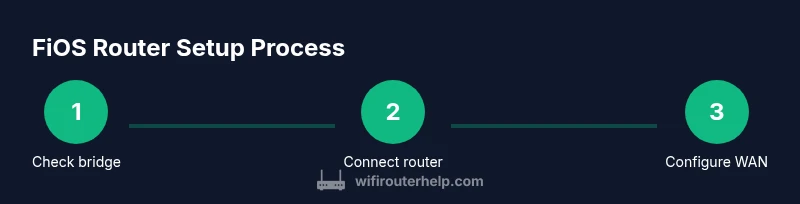
The WiFi Router Help team recommends taking a methodical approach: verify bridge/ passthrough options, correctly connect hardware, configure WAN and Wi‑Fi properly, and keep firmware current. With a well‑chosen router and careful setup, router for fios deployments can deliver reliable coverage for most homes, with safer defaults and easier management. As you gain experience, you’ll be able to tailor settings to your unique space, devices, and usage patterns for lasting performance.
Tools & Materials
- Compatible router (Gigabit WAN + WPA3)(Choose a model with at least dual-band radios and robust firmware support.)
- Ethernet cable (Cat6 or better)(Use a shielded cable for best performance in high‑interference environments.)
- Power adapter for both devices(Keep power options accessible; avoid power strips with surges.)
- FiOS account credentials(Needed to access the gateway settings and verify service features.)
- Computer or mobile device for configuration(Used to access the router’s admin interface and test performance.)
Steps
Estimated time: 30-60 minutes
- 1
Check bridge/passthrough availability
Identify whether your FiOS gateway supports bridge or IP passthrough mode. If supported, plan to enable it to pass control to your own router. This step avoids double NAT and improves performance.
Tip: Consult Verizon documentation or support to confirm compatibility before changing settings. - 2
Connect your router to the FiOS ONT
Connect an Ethernet cable from the ONT or gateway LAN port to your router's WAN port. Power both devices and wait for the link to establish. A stable link is essential before configuring WAN settings.
Tip: Use a short, high‑quality cable to reduce the chance of packet loss at startup. - 3
Configure WAN settings
In the router’s admin interface, set WAN type to DHCP for most setups; if your service requires PPPoE, apply that instead. Save changes and reboot the router to ensure the new configuration takes effect.
Tip: Document the current WAN settings in case you need to revert later. - 4
Disable FiOS Wi‑Fi (or set bridge mode)
Turn off the FiOS gateway’s wireless radios to avoid interference with your own network. If available, enable bridge mode so the FiOS device acts purely as a modem.
Tip: Keep a backup plan to restore FiOS Wi‑Fi if something goes wrong during testing. - 5
Configure your router’s wireless network
Set up SSID and strong passwords for 2.4 GHz and 5 GHz bands; enable WPA3; consider separate networks for guests. Adjust channel width and channels to reduce interference in your area.
Tip: Use unique, memorable names and enable guest access for visitors. - 6
Test, optimize, and secure
Run speed tests at multiple locations, enable QoS for priority devices, and apply firmware updates. Review firewall settings and disable unused features like UPnP if security is a concern.
Tip: Schedule periodic rechecks after firmware updates or device changes.
People Also Ask
Can I use my own router with FiOS instead of the ISP gateway?
Yes. You can use a third‑party router by enabling bridge or passthrough on the FiOS gateway, or by using IP passthrough to give your router full control of networking features. Check your gateway model and Verizon guidance before making changes.
Yes. You can use a third‑party router by enabling bridge or passthrough on the FiOS gateway, or using IP passthrough to hand control to your own router. Confirm your model first.
Do I need to enable bridge mode on the FiOS router?
Bridge mode or passthrough is often recommended to avoid double NAT and to let your router manage DHCP, NAT, and Wi‑Fi. If your gateway doesn’t support it, use IP passthrough or consult Verizon for the best approach.
Bridge mode is usually recommended to avoid double NAT. If your gateway lacks it, check for IP passthrough or Verizon guidance.
What differences in speed or reliability should I expect when using my own router?
A quality third‑party router can improve coverage, signal stability, and control over QoS. Actual gains depend on your home layout, device load, and firmware updates. Expect more consistent performance with regular maintenance.
A good router can improve coverage and stability, with better control over speeds and QoS. Results depend on your home setup and updates.
Is it safe to enable UPnP or open ports for home services?
UPnP can simplify device setup but increases attack risk. Only open ports that you truly need and monitor those services. If security is a priority, use manual port forwarding with strict rules.
UPnP makes setup easier but can raise risk. Open only necessary ports and prefer manual forwarding with clear rules.
How do I keep firmware up to date on a third‑party router?
Check the router’s admin page or the manufacturer’s app for updates, enable auto‑update if available, and schedule periodic checks. Keeping firmware current improves security and performance.
Check for updates in the router admin, enable auto‑update if possible, and review firmware regularly.
Watch Video
What to Remember
- Choose a FiOS-friendly router with modern security features.
- Bridge or passthrough can improve performance and simplify management.
- Disable FiOS Wi‑Fi to avoid interference and reduce channel crowding.
- Test thoroughly and keep firmware updated for stability and security.