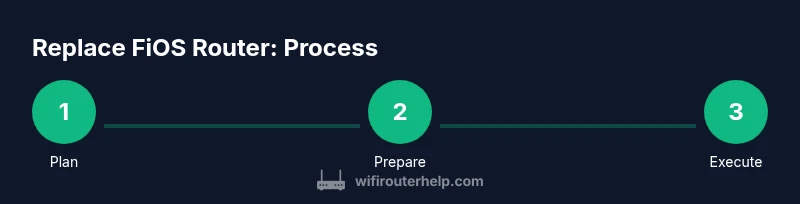
Replace fios router: A complete step-by-step guide
Learn how to replace fios router with a compatible third-party device. This step-by-step guide covers compatibility, setup, bridge mode, and secure optimization for a faster home network.


By the end, you'll be able to safely replace a FiOS router with your own device, preserving network settings while avoiding service interruptions. This guide covers compatibility checks, choosing a replacement, wiring and power considerations, basic configuration, and how to enable bridge mode if needed. Follow step-by-step actions to minimize downtime and maintain security.
Why replace fios router with a third-party device?
If you’re deciding whether to replace fios router, you’re weighing control, performance, and future-proofing against the convenience of rental equipment. According to WiFi Router Help, many homeowners discover that swapping the stock FiOS unit for a dedicated router can improve coverage, stability, and control. A third-party router often supports newer Wi‑Fi standards, offers more advanced security settings, and provides finer QoS controls for gaming and streaming. The motivation to replace fios router commonly comes from a desire to customize your home network, extend range to hard-to-reach rooms, or simply gain a more straightforward path to firmware updates and guest networks. As you plan, consider your devices, home size, and the importance of features like MU‑MIMO, Wi‑Fi 6/6E, and robust parental controls to decide if this upgrade aligns with your goals.
Compatibility and planning: what you need to know
Before you start, confirm that your FiOS service can be used with a third-party router. The ONT (or Network Interface Device) remains the gateway, and you’ll connect your new router to the ONT via Ethernet. Verify that the replacement supports a WAN port and, ideally, bridge or IP passthrough modes. Record your current network details: SSID, password, static IPs, port-forwarding rules, and any custom DNS settings. This preparation minimizes downtime and avoids double‑NAT or IP conflicts. If you rely on FiOS voice services, note how those settings are routed and prepare a plan to preserve them during the transition. Keep a checklist handy so you don’t miss a critical step when you swap hardware.
Choosing a replacement router: features to look for
When evaluating options, prioritize compatibility with your ISP’s modem/ONT, strong security settings, and practical features like USB sharing, guest networks, and reliable coverage for your home’s floor plan. Look for tri-band or at least dual-band performance with Wi‑Fi 6/6E support for future-proofing. Ensure the router offers a stable bridge mode or IP passthrough to avoid double NAT, and check for firmware update support. Consider the size of the device, its heat output, and the ability to manage multiple networks or VLANs if you have smart home devices. Finally, read user reviews to gauge real-world performance in homes similar to yours.
Step-by-step: prepare your network and accounts
Before swapping hardware, back up current settings and gather credentials. Have your FiOS account information ready and confirm whether you’ll enable bridge mode or IP passthrough. Sketch a simple floor plan showing where you’ll place the new router to maximize coverage and minimize interference. If you have a linked smart home hub, verify compatibility with the new router. Prepare a plan for a potential temporary downtime and communicate it to household members. This prep work reduces surprises during the actual replacement.
Step-by-step: remove old router and connect new one
Power down all devices, then unplug the FiOS router from the ONT and power sources. Remove the cable from the WAN port of the old router and connect it to the WAN/Internet port of the new device. If you rely on the FiOS phone service, ensure the ONT remains connected as needed and that the new router is properly powered. Connect a computer or tablet via Ethernet to begin configuration. Keep everything organized with labeled cables to prevent confusion during reassembly.
Step-by-step: configure the new router (basic setup)
Access the new router’s admin interface via its default IP address listed in the manual. Change the admin password to a strong, unique one and update the firmware if prompted. Recreate your preferred SSID and password, or opt for a new name for clarity. Enable WPA3 on supported devices, or WPA2‑WPA3 mixed mode if needed for legacy gear. Set up essential security features such as a guest network, firewall, and automatic firmware updates. If you’re using a camera system or smart bulbs, reconfigure port‑forwarding as required.
Bridge mode vs IP passthrough: keep your service running smoothly
For many FiOS users, turning on bridge mode or IP passthrough on the replacement router is crucial to avoid double NAT. Bridge mode makes the FiOS ONT the primary router, while your new device handles wireless duties. IP passthrough assigns the public IP to the new router, but it can complicate firewall rules. The exact terminology varies by device; consult the manufacturer’s instructions and Verizon guidance if you’re unsure. Testing your Internet connection after enabling bridge or passthrough confirms service stability.
Security and optimization after replacement
After replacement, run a quick security audit: ensure the firewall is active, disable WPS, enable automatic firmware updates, and use strong, unique passwords for all networks. Place the router in a central, open area away from thick walls to optimize signal spread. Consider enabling QoS rules for latency-sensitive devices like consoles and work PCs. Periodically review connected devices, update firmware, and back up configuration settings to recover quickly if you need to reset. Regular maintenance keeps your home network fast and secure.
Common pitfalls and how to avoid them
Double NAT, misconfigured bridge settings, and neglecting firmware updates are common issues when replacing fios router. Avoid these by validating your bridge/passthrough configuration with a quick online speed test and a device that supports VPNs or smart home routines. Don’t abandon your old network credentials; document or export them to recreate later. If you experience instability, re-check cabling, verify the ONT connection, and confirm that the new router’s WAN settings align with your ISP’s requirements.
Tools & Materials
- Replacement router (gigabit Ethernet WAN)(Ensure Wi‑Fi 6/6E support and at least one 1 Gbps WAN port; check for bridge mode or IP passthrough capability)
- Ethernet cable (Cat5e or better)(At least 1 meter; use CAT6 for future-proofing in crowded environments)
- Power adapter for the router(Check the connector type and voltage; use the original adapter if possible)
- Pen and paper or digital notes(Record your SSID, password, and any custom settings for quick replication)
Steps
Estimated time: 60-90 minutes
- 1
Assess compatibility
Verify that your chosen router supports a WAN port and offers bridge mode or IP passthrough. Confirm ONT compatibility and plan for potential service changes with your provider. This upfront check reduces downtime and prevents wasted hardware.
Tip: Double-check firmware support timelines; newer devices often run longer before needing an upgrade. - 2
Prepare your plan
Document current network settings, including SSID, passwords, static routes, and port forwards. Draft a floor plan for optimal placement to minimize dead zones. Prepare for a brief service interruption during the swap.
Tip: Keep a backup of your FiOS settings in case you need to revert quickly. - 3
Power down and disconnect
Turn off all devices and unplug the FiOS router. Disconnect the Ethernet cable from the ONT to the old router. Prepare the new router and a stable workspace for configuration.
Tip: Unplug devices one at a time to avoid surges in the power strip. - 4
Connect the new router
Connect the ONT to the new router using a fresh Ethernet cable. Power up the new router and wait for it to boot fully. Connect a computer to the router via Ethernet for initial setup.
Tip: If your ONT has a matching port, ensure a snug connection to prevent flaky link lights. - 5
Access the admin interface
Open a browser and enter the router’s default IP to access the admin page. Change the default admin password and apply firmware updates if prompted. Create your primary Wi‑Fi name and a strong password.
Tip: Write down the new login details and store them securely. - 6
Configure security basics
Enable WPA3 (or at least WPA2) encryption, disable WPS, and set up a guest network if needed. Apply a basic firewall profile and enable automatic updates where possible.
Tip: Disable UPnP if you don’t rely on it for gaming or port-forwarded services. - 7
Set up bridge or IP passthrough
Enable bridge mode or IP passthrough as required by your service. This routes public IPs to the new router and minimizes double-NAT. Test the Internet connection after enabling the mode.
Tip: If you’re unsure of the exact setting name, consult the router’s help section or manufacturer site. - 8
Test your network
Run a speed test, check wired and wireless devices, and confirm that smart devices reconnect automatically. Verify that port-forwarding and dynamic DNS services work as expected.
Tip: Test with both a mobile device and a desktop computer to catch device-specific issues. - 9
Finalize and document
Document the final network layout, SSID/password, and any custom rules. Keep your old FiOS equipment safely stored for a brief period in case you need to revert. Schedule a firmware check every few months.
Tip: Back up your configuration to a file for quick recovery.
People Also Ask
Can I replace fios router with any router?
Yes, you can replace fios router with a compatible third‑party router, but you may need bridge mode or IP passthrough to avoid double NAT. Confirm WAN support and review your service provider's guidance before swapping.
Yes, you can replace fios router with a compatible third‑party router, but you may need bridge mode or IP passthrough to avoid double NAT. Check WAN support before swapping.
Do I need to contact Verizon to enable bridge mode?
In many cases, you can enable bridge mode or IP passthrough yourself via the router settings. Some providers may require a quick confirmation call, so check your service agreement or the FIOS ONT guidance before proceeding.
Often you can enable bridge mode yourself, but some providers require a quick confirmation call.
Will replacing the FiOS router affect phone service?
Replacing the router usually does not affect FiOS voice service if the ONT remains connected and you preserve the provider’s essential configuration. Verify any port requirements and keep the ONT physically in place as needed.
In most cases, FiOS voice remains unaffected if the ONT stays connected and you preserve required settings.
How do I recover Wi‑Fi credentials after replacement?
If you chose to reuse the old SSID, simply re-enter the password on the new router’s setup page. If you changed the network name, update all devices or share the new credentials with household members.
Re-enter the password on the new router, or update devices with the new SSID and password.
What’s the best practice for choosing a replacement router?
Choose a router with a clear bridge mode or IP passthrough option, solid security features, and at least Wi‑Fi 6 support. Consider home size, device count, and future needs like mesh expansion.
Pick a router with bridge mode, solid security, and modern Wi‑Fi; plan for your home size and future needs.
Watch Video
What to Remember
- Verify compatibility before purchasing hardware
- Choose bridge mode or IP passthrough to avoid double NAT
- Securely configure and regularly update firmware
- Document settings and back up configurations