Router for Fiber Optic Internet: Setup, Optimize, and Troubleshoot
Learn how to pick, connect, and optimize a router for fiber optic internet. This step-by-step guide covers ONT compatibility, speed considerations, and security for reliable home Wi-Fi.


Goal: learn how to pick and set up a router for fiber optic internet, ensuring ONT compatibility, fast WAN throughput, and robust Wi‑Fi coverage. Requirements include a gigabit WAN port, Wi‑Fi 6/6E support, and current firmware. This guide provides a step‑by‑step approach, practical tips, and security best practices to maximize fiber performance.
Understanding fiber optic internet and router roles
Fiber internet typically terminates at an Optical Network Terminal (ONT) or a fiber modem. Your home router then creates the local network and distributes internet access to devices via wired Ethernet and wireless Wi‑Fi. The WiFi Router Help team notes that fiber speed alone does not guarantee strong Wi‑Fi performance; the router's capabilities often determine the real user experience. According to WiFi Router Help, households that pair high‑quality routers with their fiber service frequently see more reliable connections, better coverage, and fewer dropouts. This is especially true in multi‑story homes or spaces with thick walls where signals can weaken. When selecting a router for fiber optic internet, prioritize devices with modern WAN performance, robust Wi‑Fi standards, and ongoing firmware support. A solid router becomes an essential part of delivering the promised gigabit plan to laptops, smartphones, streaming devices, and smart home gadgets. WiFi Router Help analysis shows that upgrading to a Wi‑Fi 6/6E router with a gigabit WAN port and current firmware yields noticeable improvements in coverage and reliability. This guide explains how to choose, connect, and optimize a router for fiber optic internet to maximize your gigabit plan.
Choosing the right router for fiber
Choosing the right router for fiber starts with matching your plan’s speed and features. Look for a model with a true Gigabit Ethernet WAN port, support for Wi‑Fi 6 or 6E, and enough processing power (CPU/RAM) to handle multiple devices and high‑bandwidth activities. MU‑MIMO, beamforming, and advanced QoS features help distribute bandwidth where it's needed most, whether you’re gaming, streaming, or working from home. Security features matter too: WPA3, automatic security updates, and guest networks add layers of protection for family devices. The WiFi Router Help team recommends verifying compatibility with your provider’s ONT or gateway, and checking for any required bridge or PPPoE settings before purchase. In short, a capable router that can exploit your fiber link will deliver the best value and most reliable home Wi‑Fi experience. WiFi Router Help analysis shows that households investing in Wi‑Fi 6/6E routers typically see better performance on high‑speed fiber plans and fewer congestion issues during peak hours.
How to connect a router to your fiber ONT
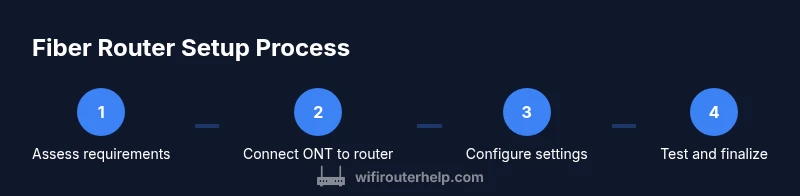
Connecting a router to a fiber ONT is straightforward but benefits from careful prep. Start by turning off both devices to prevent any electrical surges or configuration conflicts. Connect the ONT’s Ethernet output to the router’s WAN/Internet port using a Cat6 or better Ethernet cable. Power on the ONT first, wait for its indicators to stabilize, then power on the router. Allow a minute or two for the router to boot and assign an IP address. Once connected, access the router’s WebUI or mobile app to run the initial setup wizard. You may need to configure WAN settings (DHCP or PPPoE) as dictated by your ISP. During setup, create a strong admin password and configure your primary SSID with WPA3 if available. If you encounter no connection, reseat cables and perform a quick power cycle. The key is to establish a reliable path from the fiber network to your home network without bottlenecks.
Achieving optimal speeds and coverage in a fiber setup
To maximize fiber performance, optimize both hardware and placement. Place the router in a central, elevated location away from thick walls, metal furniture, and microwaves. Use 5 GHz for high‑speed devices and 2.4 GHz for longer reach or older gear, balancing coverage and interference. Adjust channel settings to avoid crowded bands (auto‑select can work, but manual tuning often yields better results in dense neighborhoods). Ensure you enable quality‑of‑service (QoS) rules to prioritize video calls, gaming, or streaming. For backhaul consistency in larger homes, consider wired backhaul options or a mesh system that supports wired backhauls. Regular firmware updates are essential to unlock performance improvements and security fixes. WiFi Router Help emphasizes testing speeds from multiple rooms with a wired test near the router and wireless tests at distances where signal is weakest to validate improvements. This ensures your fiber connection delivers its promised speed across the home.
Security basics for fiber networks
Security should be part of every fiber router setup. Change default admin credentials immediately and enable auto‑update for firmware. Use a strong, unique Wi‑Fi password and enable WPA3 if available. Disable WPS to reduce risk of unauthorized access. Enable the built‑in firewall and review port forwarding rules if you use applications that require external access. Create a separate guest network to keep IoT devices isolated from your primary network. Keep an eye on connected devices and periodically rotate passwords. Regularly checking for firmware updates helps maintain security and performance over the long term. A proactive security posture reduces the chance of unauthorized access and data breaches in a connected home.
Troubleshooting common fiber router issues
Most fiber router issues fall into connectivity, configuration, or interference categories. If you have no internet after setup, verify ONT status, cable integrity, and WAN settings. PPPoE credentials may be required for some providers—enter these in the router’s WAN section if your plan uses PPPoE. If speeds seem slow, test both wired and wireless performance, check for background devices consuming bandwidth, and consider switching channels or enabling DFS channels on 5 GHz. Interference from neighboring networks can degrade performance, so manual channel adjustment often helps. If you experience frequent dropouts, reboot the ONT and router, then run the setup wizard again. For stubborn issues, reset the router to factory defaults and reconfigure from scratch, ensuring you follow ISP guidance. The WiFi Router Help team recommends documenting network settings and keeping firmware updated to maintain stability and security.
Tools & Materials
- Ethernet cable (Cat6 or better)(From ONT to router WAN port)
- Router with gigabit WAN port and WiFi 6/6E(Supports high speeds and modern features)
- Power adapter(For router power)
- Computer or mobile device for setup(Web UI or app access during setup)
- Surge-protected power strip(Optional safety for surge protection)
Steps
Estimated time: 45-60 minutes
- 1
Verify service requirements
Check your provider’s delivery method (DHCP vs PPPoE), confirm whether an ONT is used, and note your speed tier. This ensures you select a router with compatible WAN settings and features needed for your fiber plan.
Tip: Document your plan details and login credentials before starting - 2
Choose the right router
Select a model with a true Gigabit WAN port, Wi‑Fi 6/6E, and sufficient CPU/RAM to handle multiple devices. Verify compatibility with your ONT and look for built‑in security features like WPA3 and automatic updates.
Tip: Look for at least dual‑band support and QoS features - 3
Connect the ONT to the router
Power off both devices. Use a Cat6 cable to connect the ONT’s Ethernet output to the router’s WAN port. Power on the ONT first, wait for a stable indicator, then power on the router and let it boot fully.
Tip: If no link appears, reseat the cable and cycle power - 4
Run the initial setup
Access the router’s WebUI or mobile app. Set a strong admin password, configure WAN settings (DHCP or PPPoE as required), and create your primary SSID with WPA3/WPA2‑PSK security.
Tip: Avoid default credentials and enable automatic firmware updates - 5
Test and optimize
Measure wired and wireless speeds from multiple locations, adjust channel settings, and enable a guest network if needed. Position the router centrally and elevated for best coverage, and consider wired backhaul for large homes.
Tip: Use wired tests to verify LAN performance and consistency
People Also Ask
Do I need a special router for fiber?
Yes. A router with a gigabit WAN port and Wi‑Fi 6/6E is recommended to handle high‑speed fiber plans. The ONT or gateway handles signal conversion, while the router distributes it domestically.
Yes. You should use a router with gigabit WAN and Wi‑Fi 6/6E to handle fast fiber speeds.
Can I use a mesh system with fiber?
Absolutely. A mesh system can extend coverage in larger homes. Ensure nodes support the required Wi‑Fi standard and offer wired backhaul options for reliability.
Yes, mesh works well with fiber if you choose the right backhaul option.
Is PPPoE required on fiber connections?
Some fiber providers require PPPoE credentials on the router. If your plan uses DHCP, standard settings usually work. Check your provider’s setup guide.
Some providers require PPPoE; check your service docs and configure accordingly.
Where should I place my router for best signal?
Place the router centrally and elevated, away from walls and metal objects to improve signal in all rooms.
Place the router in a central, elevated spot for strongest coverage.
How do I know if my router supports WiFi 6?
Check the product specs for Wi‑Fi 6 or 802.11ax. If unclear, verify the model number on the manufacturer site or packaging.
Look for Wi‑Fi 6 or 802.11ax in specs.
What is bridge mode, and when should I use it?
Bridge mode disables the ISP router’s routing features, letting an external router handle tasks. Use it if you want a separate router with advanced features.
Bridge mode disables the ISP router; use it when a separate router is preferred.
What to Remember
- Choose a router with a gigabit WAN port and Wi‑Fi 6/6E.
- Place the router centrally and elevated for best coverage.
- Secure the network with strong passwords and updated firmware.
- Test speeds to verify fiber performance and adjust settings as needed.
- The WiFi Router Help team recommends documenting setup and keeping firmware current.