ONT Router Setup, Optimization, and Troubleshooting
A complete, step-by-step guide to setting up, securing, and optimizing your ont router for fiber internet. Learn best practices, troubleshooting, and advanced features from WiFi Router Help.


With this guide, you'll master configuring an ont router for fiber service: connect the ONT to the router, set up SSIDs, enable WPA3, create separate guest networks, and secure your network against common threats. We'll cover hardware basics, firmware updates, port forwarding basics, and practical troubleshooting tips for a stable home network.
What is an ont router and why it matters in fiber networks
According to WiFi Router Help, an ont router sits at the gateway between the optical network terminal (ONT) and your home network. The ont router translates the fiber signal into a standard IP network and provides wireless access, network address management, and security features. In many fiber setups, the ONT termination connects to a dedicated router either built-in or via a separate device. Understanding this role helps you troubleshoot, optimize, and future-proof your home network.
How fiber service directs traffic: ONT vs modem vs router
Fiber service terminates at the ONT, which converts light signals into electrical signals and hands off IP traffic. The ONT can function purely as a bridge, or it can include routing features. A separate router then manages your internal network, assigns IP addresses, and runs your Wi‑Fi. Some providers supply a gateway that combines ONT functionality with a router, while others offer a standalone ONT with your own router. Knowing where roles end helps you decide if you should bridge or replace.
Choosing an ont router: built-in vs separate device
When selecting an ont router, you have two broad paths: use a provider-supplied gateway (ONT + router) or deploy your own third‑party router behind the ONT. A dedicated, high‑quality router often delivers better wireless performance, more features, and finer control over security. If you opt for a separate device, verify compatibility with your ISP, understand whether bridging is required, and plan for potential configuration changes in case of firmware updates.
Initial setup prerequisites and planning
Before touching cables, gather essential details: your ISP account credentials, the exact model numbers of the ONT and router, and access to a computer or mobile device for configuration. Have a stable power source and a clean, organized workspace to minimize misplacements of cables. Document default login information and keep a backup of network settings in a secure place so you can revert quickly if needed.
Step-by-step connection model: ONT to router to devices
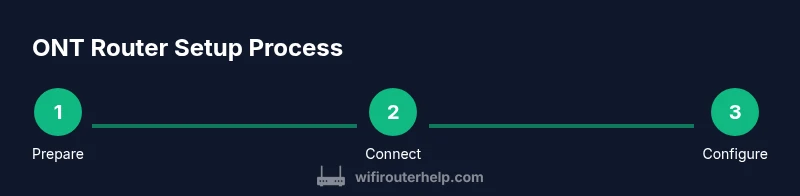
A reliable connection sequence starts with powering down equipment, then connecting the ONT to the router's WAN/Internet port using a straight‑through Ethernet cable. Power on the ONT first, wait for it to initialize, then boot the router. Access the router’s admin page to configure Wi‑Fi, security, and any needed features like port forwarding or a guest network. Test from multiple devices to confirm connectivity and coverage.
Securing your ont router: passwords, WPA3, guest networks
Security should be a primary concern. Change default admin credentials immediately and disable remote management if not required. Enable WPA3‑Personal on your Wi‑Fi networks, or WPA2‑WPA3 mixed mode if WPA3 isn’t available. Create strong, unique passwords for both the main and guest networks, and enable a guest network to isolate IoT devices from your primary network.
Optimizing wireless performance on your ont router
To maximize coverage, ensure both 2.4 GHz and 5 GHz bands are enabled, with distinct SSIDs and passwords. If your router supports QoS, configure it to prioritize video conferencing and gaming traffic. Consider channel optimization by selecting the least congested channels, especially in dense apartment buildings. Place the router in a central, elevated location away from metal objects and microwaves for best results.
Port forwarding, VPN, and remote access
Advanced users may need port forwarding to access home services from outside the network. Open the relevant ports on the router’s firewall and use a static internal IP for the targeted device. If you require remote access, enable secure VPN capabilities or use a trusted remote management option provided by the router. Always test remote access from outside your network to ensure proper functionality.
Common problems and troubleshooting steps
If devices intermittently drop off or slow down, start by rebooting the ONT and router, then verify firmware is up to date. Check cables for damage, confirm you are on the correct Wi‑Fi band, and verify router logs for error messages. If you encounter IPv6 issues or DNS resolution failures, review your DNS settings and consider enabling/adjusting IPv6 options as your ISP supports them.
Firmware updates and maintenance
Regular firmware updates fix security vulnerabilities, improve stability, and add features. Check for updates at least quarterly, and enable auto‑update if available. After updating, re‑verify all essential services and Wi‑Fi settings to ensure compatibility. Document the firmware version and update date for future reference.
Advanced topics: bridging, mesh compatibility, and alternatives
If you crave seamless coverage, bridging the ONT to a modern mesh system or a high‑end router can deliver stronger repeaters and smarter band steering. Always confirm bridge mode capability with your ISP to avoid double NAT issues. When evaluating alternatives, compare features like QoS, guest networks, and security options, along with ongoing support and firmware update cadence.
When to replace or upgrade your ONT router
If your current ont router fails to deliver reliable speeds, lacks essential features, or becomes a bottleneck for newer devices, upgrading is worth considering. Look for devices with strong processor speed, sufficient RAM, dual‑band or tri‑band support, and recent security certifications. In fiber networks, you’ll often get the best results from a router designed to handle higher throughput and modern wireless standards.
Tools & Materials
- Computer or mobile device for configuration(Laptop or smartphone with network access, browser, and admin rights.)
- Ethernet cable (Cat5e or better)(Used for reliable, wired connection during setup.)
- Power supply for ONT/router(Ensure stable power during configuration.)
- ISP account credentials(Needed if authentication or bridge mode is required.)
- Current network information(SSID names, passwords, and admin login details (store securely).)
- Second router or mesh node (optional)(Use for bridging or expanding coverage if needed.)
Steps
Estimated time: 30-60 minutes
- 1
Identify your ONT and router
Locate the optical network terminal (ONT) and any separate router. Note model numbers, IP addresses, and port labels. This helps you plan the connection path and potential bridge-mode steps.
Tip: Use device labels to confirm port types and keep a quick reference sheet. - 2
Power down and unplug
Turn off the ONT, router, and connected devices before toggling cables. This reduces the risk of shorts and IP conflicts during setup.
Tip: Wait 30 seconds after powering down to ensure all components reset. - 3
Connect ONT to the router WAN
Plug the ONT's Ethernet port into the router's WAN/Internet port using a straight‑through Ethernet cable. If your ONT requires bridge mode, prepare to configure it later.
Tip: Avoid using crossover cables; most devices auto‑detect the correct mode. - 4
Power on and wait for initialization
Power on the ONT first, then the router. Allow 60–120 seconds for the router to complete its boot sequence and establish initial routing.
Tip: Look for steady link lights before proceeding to the admin page. - 5
Access the router admin page
Open a browser and enter the router’s IP (commonly 192.168.0.1 or 192.168.1.1). Log in with the default credentials and immediately change them to secure ones.
Tip: If the page doesn’t load, confirm your device is on the same network or reset the router. - 6
Configure Wi‑Fi settings
Set distinct SSIDs for 2.4 GHz and 5 GHz, enable WPA3 if available, and choose strong passwords. Disable WPS if possible to reduce remote risk.
Tip: Keep your primary network password different from the guest network password. - 7
Update firmware
Check for and apply the latest firmware. Updates fix vulnerabilities, improve stability, and enhance performance.
Tip: If an update fails, retry after reboot and ensure a stable internet connection. - 8
Set up security features
Enable firewall, enable guest network with client isolation, and review UPnP settings. Consider disabling remote administration if it isn’t needed.
Tip: Document the changes you make for future reference. - 9
Test connectivity and save
Test internet access on multiple devices, verify both 2.4 GHz and 5 GHz coverage, and save the configuration to prevent loss after a reboot.
Tip: Run a quick speed test from multiple rooms to verify coverage.
People Also Ask
What is an ONT router and how does it differ from a traditional home router?
An ONT router sits between the fiber termination (ONT) and your home network, handling IP addressing, routing, and Wi‑Fi. A traditional home router may be a separate device or part of a gateway provided by your ISP. Understanding this helps you decide when to bridge or replace hardware.
An ONT router is the link between fiber termination and your home network. It handles routing and Wi‑Fi, and you may replace it with a dedicated router if you want more control and features.
Do I need a separate router if my ISP provides a gateway?
Not always. Some gateways meet basic needs, but many users upgrade for better performance, advanced features, and greater control over settings.
You don’t always need a separate router, but many homeowners prefer one for speed, features, and control.
How do I secure my ont router?
Change default admin credentials, enable WPA3 where possible, disable remote management, and create separate guest networks. Regularly update firmware to patch vulnerabilities.
Change the admin password, enable WPA3, and keep firmware updated for security.
Can I use my own router with fiber ONT?
Yes, many providers allow it. You may need to set the ONT to bridge mode or disable its router features to avoid double NAT.
Yes, you can use your own router; check if bridge mode is required with your ISP.
Why is my internet slow after setup?
Possible causes include channel congestion, weak Wi‑Fi signal, firmware issues, or misconfigured QoS. Run basic checks, update firmware, optimize channels, and test speeds in multiple rooms.
If performance drops after setup, check channels and firmware, and verify device placement.
How often should I update firmware on my router?
Check for updates monthly or quarterly, and enable auto‑updates if available. Updates improve security and performance.
Check for updates regularly and enable auto-updates when possible.
What is bridge mode and when should I use it?
Bridge mode disables the router functions in the gateway, letting your own router handle all routing tasks. Use it when you prefer full control and advanced features on a third‑party router.
Bridge mode turns off routing in the ISP gateway so your own router does all the work.
Should I enable UPnP on my ont router?
UPnP can ease port forwarding for some apps, but it can introduce security risks. If you don’t need it, disable UPnP and configure ports manually for maximum security.
Only enable UPnP if you need it for apps, otherwise keep it off for security.
Watch Video
What to Remember
- Identify ONT and router roles clearly
- Secure Wi‑Fi with strong passwords and WPA3
- Update firmware regularly for security and stability
- Test connectivity across devices and bands
- Bridge or upgrade if performance lags