Optical Fiber Router Setup: Quick Home Network Guide
Learn how to install, configure, and optimize an optical fiber router for a fast, reliable home network. Step-by-step setup, security tips, and troubleshooting for fiber connections, with practical guidance from WiFi Router Help.


In this guide you will learn how to set up and optimize an optical fiber router for a fast, reliable home network. You’ll connect the fiber ONT, configure the WAN, enable Wi‑Fi, and lock down security with strong passwords and updated firmware. Essential tools are a cable, login credentials, and a browser.
What is an optical fiber router and how it differs from traditional routers
An optical fiber router is a network device designed to work with fiber optic Internet service. It combines a high-speed WAN interface with a built-in router, firewall, and Wi‑Fi access point. Unlike traditional copper-based routers that connect to a cable or DSL modem, an optical fiber router relies on a fiber connection to the Internet via an ONT (optical network terminal). This shift to fiber reduces electrical interference and enables much higher real-world speeds with lower latency. According to WiFi Router Help, fiber deployments are increasingly common in homes that demand consistent streaming, gaming, and smart‑home performance. In practice, the core difference is where the conversion from light to electrical signals happens: the fiber line is terminated at the ONT, and the router handles local networking from there. For many users, an optical fiber router means fewer devices to manage and a cleaner, faster path from ISP to devices. The term “optical fiber router” emphasizes both the fiber-fed WAN and the integrated routing features that support modern home networks. As fiber technology expands, understanding how this device fits into your topology helps you plan capacity and future upgrades.
Key components and how it works
An optical fiber router depends on several key components: an optical network terminal (ONT) or fiber modem provided by the ISP, a router with a dedicated WAN port, LAN ports for wired devices, and a built‑in wireless access point. The fiber line brings data to the ONT, which then passes it to the router via Ethernet. The router handles NAT, firewall, DHCP, and wireless distribution. Modern optical fiber routers also include QoS (quality of service) controls to prioritize latency‑sensitive tasks like gaming or video calls. When Wi‑Fi is enabled, the router broadcasts one or more SSIDs across 2.4 GHz and 5 GHz bands. In practice, the ONT sits at the edge of your network, the router creates the internal network, and your devices connect to either the wired or wireless side. WiFi Router Help emphasizes that fiber’s stability and speed hinge on a clean handoff from the ONT to the router, and on choosing compatible equipment.
Why choose an optical fiber router for your home network
Choosing an optical fiber router can unlock higher sustained speeds and greater reliability, especially in homes with many connected devices. Fiber provides consistent throughput with lower jitter, which improves streaming quality, video conferencing, and online gaming. An optical fiber router centralizes control of your home network: you manage guest networks, parental controls, QoS, and firewall rules from a single device. The WiFi Router Help approach is practical: prioritize wired backhaul for desktops and set up strong Wi‑Fi for mobile devices to maximize coverage while maintaining network security and performance. If you’re upgrading from a copper connection, expect noticeable improvements in latency and multi‑device performance, particularly in households with multiple simultaneous users.
Setup considerations and prerequisites
Before you begin, confirm your fiber service is active and that you have the correct authentication method (PPPoE username/password or DHCP) from your ISP. Gather the ONT or ISP modem, an Ethernet cable, a laptop or smartphone for configuration, and the router’s login credentials. If you need to bridge the WAN to a separate modem, verify your ISP’s instructions and plan for NAT changes. Reducing cable clutter during setup helps prevent accidental disconnections. WiFi Router Help notes that consistency in power supply and a stable mounting location (not exposed to heat or moisture) can prevent intermittent outages. Finally, decide on an initial Wi‑Fi name (SSID) and a strong password to secure the initial setup.
Performance features to expect
An optical fiber router typically supports gigabit or multi‑gigabit speeds, with concurrent 2.4 GHz and 5 GHz bands to optimize coverage and reliability. Expect low latency, which benefits online games, video conferencing, and real‑time collaboration. Features like QoS, beamforming, and MU‑MIMO (where available) help allocate bandwidth to devices and applications that need it most. Firmware updates from the manufacturer often include security patches and feature enhancements, improving stability over time. If you enable bridge mode or a second router in your network, you can create a larger mesh or a targeted wired backbone with minimal latency. Keep in mind that actual speeds depend on your fiber plan, distance from the router, and interference from other networks.
Common pitfalls and compatibility tips
A common pitfall is using a separate router behind a double NAT configuration, which can complicate port forwarding and gaming latency. If your ISP provides an ONT with built‑in routing, you may need to place the optical fiber router in IP Passthrough/Bridge mode to avoid NAT conflicts. Verify that you’re using the correct WAN authentication method (PPPoE vs DHCP) and input the correct credentials. Some fiber services require specific VLAN tagging or PPPoE settings; if your setup doesn’t connect, contact the ISP to confirm required parameters. Ensure the router’s firmware is up to date, and avoid using old hardware that can’t handle newer encryption standards or security features. For best performance, separate a dedicated 2.4 GHz network for IoT devices and keep high‑bandwidth devices on the 5 GHz network when feasible.
Security, updates, and maintenance
Regular software updates are essential for protecting home networks. Enable automatic firmware updates if the option exists, and change default admin passwords immediately after setup. Use WPA3 (or WPA2‑AES if WPA3 isn’t available) for Wi‑Fi security, and disable WPS to reduce vulnerability. Create a guest network to isolate visitors’ devices from your main network and set strong, unique passwords for every device. Periodically review connected devices and adjust parental controls or access schedules as needed. Maintain documentation of your network configuration and keep a backup of the router’s current settings in case you need to restore after a reset. WiFi Router Help suggests scheduling annual reviews of your router settings to align with new devices and services.
Troubleshooting common fiber router issues
If you see no Internet or a degraded connection, verify the fiber line is active and the ONT is powered. Check LED indicators on the ONT and router; a red or amber light may signal an issue at the source or with authentication. Ensure the Ethernet cable is firmly connected to the ONT and the WAN port on the router. Reboot the ONT and router in sequence: power off, wait 30 seconds, power on the ONT, wait for its online indicator, then power on the router. If the problem persists, test with a wired device to rule out Wi‑Fi issues, then review WAN settings (PPPoE vs DHCP). If you need to reset, perform a factory reset only after backing up your configuration, then reconfigure from scratch. For persistent problems, contact your ISP and reference your network topology and recent changes.
Authority sources
- FCC: https://www.fcc.gov
- NTIA: https://www.ntia.gov
- Cisco: https://www.cisco.com
Tools & Materials
- Optical network terminal (ONT) or ISP modem(Your fiber ISP may provide this device; ensure it is powered and connected to the fiber line.)
- Ethernet cable (Cat5e/Cat6)(Connect ONT to router WAN port.)
- Laptop or smartphone with a web browser(Used to access the router admin interface.)
- Router login credentials(Have the admin username and password, and any ISP-specific credentials for WAN authentication.)
- Power supply for ONT and router(Keep devices powered during setup. Use a surge protector if possible.)
- ISP WAN configuration details(PPPoE username/password or DHCP settings as provided by your ISP.)
Steps
Estimated time: 30-60 minutes
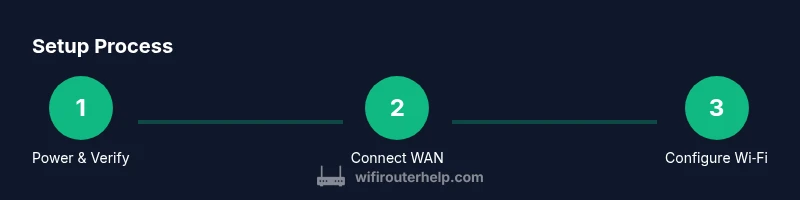
- 1
Power down and verify equipment
Power off the ONT, router, and any connected devices. Inspect cables for wear and ensure the fiber line is clean and properly seated. This initial check reduces the chance of damage during setup.
Tip: Wait 30 seconds after unplugging before reconnecting to reset inactive circuitry. - 2
Connect the ONT to the router
Connect the ONT to the router’s WAN port using a standard Ethernet cable. Confirm a solid link by checking the router’s WAN LED and the ONT indicators.
Tip: Use a wired computer for this step to avoid wireless interference during configuration. - 3
Power up in sequence
Power on the ONT first, wait for its online indicator, then power on the router. Allow 1–2 minutes for the devices to negotiate the link and reach full functionality.
Tip: If you don’t see an online light on the ONT after several minutes, contact your ISP. - 4
Log into the router admin page
Open a web browser and navigate to the router’s default IP address (typical options include 192.168.1.1 or 192.168.0.1). Enter the default credentials and begin the initial wizard or manual setup.
Tip: Change the admin password immediately after login to prevent unauthorized access. - 5
Configure WAN settings
Set the WAN method to match your ISP (PPPoE or DHCP). If PPPoE is required, enter the provided username and password. Save changes and reboot if prompted.
Tip: Double-check VLAN tagging or ISP‑specific requirements if your connection doesn’t come up immediately. - 6
Set up Wi‑Fi and security
Create a unique SSID for 2.4 GHz and another for 5 GHz, enable WPA3 (or WPA2‑AES if unavailable), and choose a strong, unique password. Enable guest network if you have visitors.
Tip: Disable WPS and hide the SSID if you need an extra layer of security.
People Also Ask
Do I need an ONT if I already have a fiber router?
Most fiber services require an ONT to convert light signals to electrical signals. Some fiber routers include ONT functionality, but many setups still rely on a separate ONT provided by the ISP. Check with your provider for device compatibility.
Most fiber services need an ONT to convert the fiber signal. If your router has built‑in ONT capabilities, you may skip a separate device; otherwise you’ll need the ISP ONT.
Can I use my own router with fiber service?
Yes, in many cases you can use your own router behind the ISP’s ONT, but you may need to enable bridge mode and adjust WAN settings. Some fiber plans require use of the ISP‑supplied equipment for authentication.
You can often use your own router behind the ONT, but you may need bridge mode and correct WAN settings; some ISPs require their equipment for authentication.
What is bridging mode and when should I use it?
Bridge mode disables the router's NAT, turning the device into a pure modem. Use it when you want full control of your network with a separate router or mesh system. Note that enabling bridge mode may disable some ISP features like firewall helpers.
Bridge mode makes the device act as a modem only, letting you manage your own router or mesh system. This simplifies advanced setups but may disable some ISP features.
Why is my Wi‑Fi slow on fiber?
Fiber provides high potential speeds, but real performance depends on distance, interference, and device capabilities. Check channel congestion, enable 5 GHz for higher throughput, ensure firmware is current, and consider a mesh or additional access points if coverage is poor.
Fiber can be very fast, but Wi‑Fi speed depends on distance, interference, and device capabilities. Try 5 GHz for higher throughput and update firmware.
How often should I update router firmware?
Check for updates monthly or when the manufacturer announces security patches. Enable automatic updates if available to ensure you receive critical fixes promptly.
Check for updates monthly or enable automatic updates to get security fixes quickly.
Watch Video
What to Remember
- Power up in the correct order for a clean start.
- Configure WAN settings to match your ISP's requirements.
- Secure Wi‑Fi with strong passwords and current encryption.
- Keep firmware up to date and document credentials for recovery.