Firmware Update Asus Router: A Practical Step-by-Step Guide
Learn how to safely update your Asus router firmware with a clear, step-by-step process. Troubleshoot issues, verify integrity, and optimize WiFi performance for reliability.


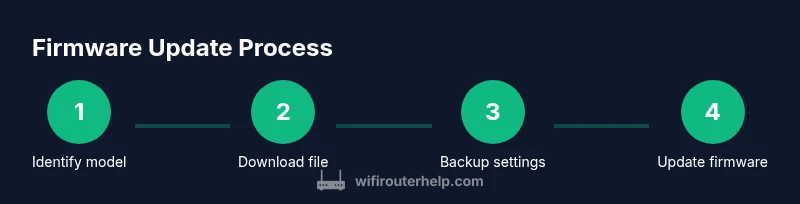
You will update your Asus router's firmware to improve security, fix bugs, and unlock new features. Before you begin, verify your model and hardware version, download the correct firmware file from the official Asus support site, and back up current configurations to avoid loss. Ensure your power supply is stable during the process and plan a brief downtime.
Why firmware updates matter for Asus routers
Firmware updates are essential for maintaining security, stability, and feature readiness. According to WiFi Router Help, timely firmware updates reduce exposure to known vulnerabilities and improve overall network performance. The WiFi Router Help team found that many home networks experience fewer disconnects and smoother operation after applying updates. When you see references to firmware update asus router, you’re addressing the core maintenance task that keeps your home network resilient against evolving threats. Regular updates also ensure compatibility with newer devices and standards, helping your network stay future-proof. By understanding the why, you’ll be more confident about the how and when to perform updates.
How to locate the exact firmware version you need
Identifying the correct firmware version is the first critical step. Start by checking the router label on the bottom or back to confirm the model and hardware revision (for example, RT-AX88U v2). Then visit the Asus support site and search for that model; compare the available firmware versions with your current one listed in the router’s administration page. Read the release notes to see what issues are addressed and whether the update is a minor patch or a major revision. Do not download a file that matches a different model or hardware version, as this can brick the device. The aim is to obtain a firmware update asus router file that precisely matches both model and hardware version.
Preparing for the update: backups, power, and safety
Preparation reduces the risk of update failure. Begin by exporting a backup of your current settings (e.g., port forwards, DHCP reservations, SSIDs, and QoS rules) so you can restore if needed. Ensure the router has a reliable power connection; use a UPS or connect to a stable power outlet to prevent interruptions. Schedule the update during a period of low network activity to minimize impact on other devices. If you have custom DNS or VPN configurations, document them or export a configuration file when supported. A well-documented state saves time if you must revert or troubleshoot after the update.
Update methods: web interface vs Asus Router app
Asus provides two primary paths for firmware updates. The web interface (accessed via http://router.local or 192.168.1.1) lets you upload a firmware file manually or perform an over-the-air update if available. The Asus Router app on mobile devices can check for updates and install them remotely, which is convenient for single-camera or family networks. In both methods, always choose the correct firmware file, as selecting the wrong one can render the device unresponsive. If a file is unavailable through OTA, you must use the web interface to perform a manual update. The key is to follow the model-specific instructions published by Asus.
Verifying the update and post-update steps
After the update completes, verify the firmware version in the admin page to confirm the new build is active. Reboot the router if required and re-connect your devices. Test core services such as internet connectivity, local file sharing, and any VPN or firewall rules. Reapply or adjust your settings if the update reset them to defaults. Finally, observe network performance for a few hours and note any anomalies that might indicate compatibility issues with connected devices.
Common issues and troubleshooting after update
Update-related issues can include temporary drops in Wi‑Fi performance, inability to access the admin portal, or VPN connections dropping. If you encounter problems, start with a power cycle and check the firmware version again. If the problem persists, restore settings from your backup and consider rolling back to the previous stable version if downgrade is supported by Asus for your model. For brick-like behavior, contact Asus support or consult the community forums for model-specific recovery steps.
Rollback options and best practices for firmware history
Downgrading firmware is not always straightforward and may be unsupported for some models. If a downgrade is possible, review release notes to ensure the older version fixes the issues observed with the newer build. Maintain a changelog of firmware versions you’ve used and keep backups of configuration exports. As a best practice, only update when there is a compelling security, stability, or compatibility reason, and keep a maintenance schedule that aligns with your home network’s uses.
Security considerations and ongoing maintenance after update
Post-update security is about more than the firmware version. Review admin credentials, disable remote management if you don’t need it, enable a strong password, and consider enabling firewall features and dynamic DNS if needed. Regularly audit connected devices and keep an eye on firmware advisories from Asus. If your router supports auto-update scheduling, set it to a reasonable window and ensure you have backups ready in case a future update introduces regressions.
Tools & Materials
- Computer or mobile device with internet access(Used to download firmware and access the router admin UI)
- Stable power source / UPS(Prevents bricking from power loss during the update)
- Ethernet cable (optional but recommended)(Wired connection during update reduces risk of drops)
- Firmware file from Asus official site(Ensure file matches model and hardware revision)
- Backup of current router settings(Export configuration if available; note down critical custom rules)
Steps
Estimated time: 15-25 minutes
- 1
Identify model and hardware version
Check the router label for exact model and revision (e.g., RT-AX88U v2). Record these details for accurate firmware selection. This step prevents loading an incompatible file that could brick the router.
Tip: If the label is unclear, log into the admin page and check the System Information section. - 2
Download the correct firmware
Visit Asus's official support site, search for your model, and download the latest firmware file that matches your hardware version. Save the file to a known location on your computer.
Tip: Always read the release notes before downloading to understand fixes and potential issues. - 3
Back up current settings
Export your router configuration and note key settings (SSIDs, DHCP ranges, port forwards, and QoS). A backup simplifies recovery if something goes wrong during the update.
Tip: Store the backup in a safe place and consider keeping one local and one cloud copy. - 4
Prepare the router and connection
Connect via Ethernet if possible and ensure the router has a stable power source. Disable bandwidth-heavy activities to minimize interference during the update.
Tip: If you use the Asus Router app, ensure the device running the app has a strong network connection to the router. - 5
Initiate the firmware update
Open the router's admin UI or Asus Router app and locate the firmware upgrade option. Upload the downloaded firmware file and begin the installation. Do not unplug the router during the process.
Tip: If the UI shows a check for compatibility, confirm the device is supported and proceed. - 6
Verify and finalize
After reboot, verify the firmware version, recheck settings, and test connectivity across devices. If issues appear, restore from the backup and consider a downgrade if supported.
Tip: Run a quick speed test and confirm VPN or smart-home devices reconnect properly.
People Also Ask
How can I tell if my Asus router firmware is up to date?
Open the router admin page or the Asus Router app and look for the firmware version in the status or system information section. Compare this with the version listed on Asus's support site for your model.
Check the firmware version in your router’s admin page and compare it to the latest listed on Asus’s site to determine if an update is needed.
Will updating firmware keep my settings?
In many cases settings are preserved, but some upgrades reset certain options. Always export a backup before updating so you can restore or reconfigure if needed.
Usually your settings survive updates, but exporting a backup is a safety net in case something changes.
What should I do if the update fails or the router bricks?
Power cycle the router and try the update again. If it remains unresponsive, consult Asus support for recovery steps or consider a factory reset as a last resort after backing up settings.
If the update fails, power cycle and retry. If that doesn’t help, contact support or use recovery steps from Asus.
Is auto-update safe to enable on Asus routers?
Auto-update can simplify maintenance but may introduce changes unexpectedly. Enable auto-update only if you’re comfortable with occasional reconfiguration after updates.
Auto-update keeps firmware current, but be ready for occasional changes after updates.
Should I update if there are no security advisories?
Even without explicit advisories, firmware updates often include stability and performance improvements. It’s reasonable to update during a planned maintenance window if you’re aiming for better reliability.
Updates can improve stability even when there aren’t published advisories, schedule during a calm window.
How long does a typical Asus firmware update take?
Most updates complete within 5 to 15 minutes, but longer updates can occur if additional configuration is required. Do not interrupt the process while it’s running.
Usually five to fifteen minutes; don’t interrupt the update.
Watch Video
What to Remember
- Back up before updating to safeguard settings
- Verify model and hardware compatibility
- Use the correct firmware file from Asus
- Test connectivity after update and monitor for issues