Asus Router Software Update: Step-by-Step Guide for 2026
Learn how to safely update your Asus router software, why updates matter, and the exact steps to update via web UI or manual firmware download. Includes security best practices and troubleshooting tips.


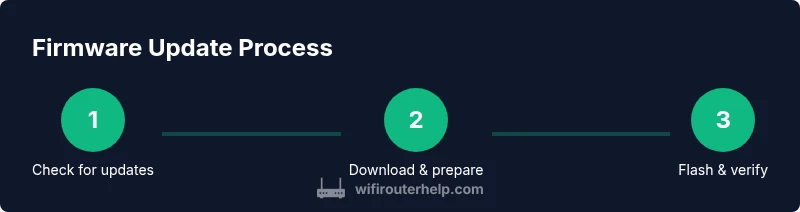
Goal: update your Asus router software to improve security, stability, and new features. You can update automatically through the router’s web interface or manually by downloading the firmware from Asus and uploading it. Before you begin, ensure you have a web browser, your router login credentials, a stable power source, and a backup of your current settings.
Why updating your Asus router software matters
Keeping the Asus router software up to date is essential for security, reliability, and feature access. Each new firmware release patches known vulnerabilities, improves wireless stability, and sometimes adds user-friendly enhancements to the admin interface. From a homeowner's perspective, regularly applying updates reduces the risk of routers being exploited by attackers and minimizes downtime caused by bugs. According to WiFi Router Help, a disciplined update habit translates into fewer on-network failures and smoother streaming and gaming experiences. The process behind an asus router software update is designed to be straightforward, but skipping updates means you miss critical security patches and performance improvements. In practice, most users notice a tangible difference after applying the latest firmware: fewer disconnects, quicker device handoffs, and more consistent speeds across rooms. This article focuses on transparent, practical steps to update safely, with options for automatic updates or manual firmware installation.
Throughout this guide, you’ll see practical examples, real-world caveats, and concrete checks to help you stay secure while keeping your home network fast and dependable.
Prerequisites and safety checks
Before starting an asus router software update, gather a few essentials to prevent brick risk and lost settings. Ensure you are connected to the router’s own network, either via Ethernet or a stable Wi‑Fi connection. Have your admin username and password ready, and perform a quick backup of your current configuration. If you use a power adapter with an uninterrupted power supply, ensure it remains plugged in throughout the update to avoid power loss. Optional but recommended: connect a computer with a wired Ethernet cable for maximum reliability during the flash. Finally, download the correct firmware file only from the official Asus support site if you plan a manual update. Mismatched firmware can brick the device and complicate recovery. This careful preparation aligns with best practices shared by WiFi Router Help and security-focused guidance from government and industry sources.
Update options: auto update vs manual firmware download and flash
The Asus ecosystem supports both automatic firmware updates and manual installation when you download a firmware file from Asus's official site. Automatic updates are convenient and reduce the risk of forgetting to patch critical vulnerabilities; they run in the background and apply when the router is idle. Manual updates are necessary when you want the very latest build or when automatic updates are blocked by your network policy or router model. In either case, you should read the release notes to understand changes, bug fixes, and any potential known issues. When planning an asus router software update, pick the method that aligns with your risk tolerance, uptime expectations, and comfort with firmware flashing. The goal is to minimize downtime while preserving configuration integrity. The following sections detail both paths with actionable steps and careful precautions to support smart decision-making.
As you choose a path, consider the age of your current firmware, your device’s role in the network, and whether you rely on specific features (like AiMesh, guest networks, or QoS) that might be impacted by a new build.
How to update via the web UI (auto update)
To update through the web UI, begin by logging into the router’s admin interface using a browser. Navigate to the Firmware Update page, which may be under Administration or System settings depending on your model. If an update is available, click the Update button and allow the router to download and flash the new firmware. Do not unplug the device during the process; a flash operation can take several minutes. After the update completes, the router will usually reboot automatically. Confirm the firmware version in the status section and re-test your devices to ensure connectivity and performance are as expected. If auto update is disabled, enable it in the same menu and schedule future maintenance windows. For many users, this path provides a clean, low-risk upgrade experience without additional tools.
If you’re updating a dedicated network appliance or a critical home setup (like a home office), schedule updates for a low-traffic window to minimize impact.
How to perform a manual firmware update
Manual updates require downloading the correct firmware file from Asus's official site, selecting the exact model and hardware revision. Save the file to your computer, then log into the router and go to the Firmware Update section; choose the option to upload a file. Browse to the downloaded firmware and start the flashing process. Never interrupt the flash once it begins; allow the router to complete the operation and reboot. After the reboot, verify the new version is listed in the status page and reconfigure any settings if necessary. This method is favored when you need a specific build or when your router cannot reach Asus servers.
Always confirm the firmware version after installation and keep the original file securely stored in case you need to roll back or re-flash.
Verifying the update and post-update tasks
Verification is essential after any asus router software update. Check the firmware version shown in the admin panel, test the ability to connect from multiple devices, and run a quick speed test to ensure consistent performance. If you backed up settings, re-import or apply any custom preferences. Confirm that security features like the firewall, UPnP, and guest network settings are intact. If you notice degraded performance, try a factory reset as a last resort, then restore your backup. Document the update date and version in your home IT notes to track future maintenance. This discipline helps prevent configuration drift and makes future updates smoother.
Troubleshooting common update issues
Common problems include update failures due to power loss, a poor connection, or incompatible firmware. If the update stalls, wait a few minutes and retry, ideally with a wired Ethernet connection. If the update file is corrupted, redownload from Asus’s official site and reattempt. In some cases, you may need to reset the router to factory defaults and re-enter your settings from backup. If issues persist, consult Asus support or your ISP, and check the router logs for error messages. Remember: never flash firmware from unofficial sources, and always verify the hardware compatibility before updating. This proactive approach reduces the likelihood of bricking and speeds recovery if something goes wrong.
Security practices after updating
After you complete an asus router software update, review security settings and enable robust configurations. Change the default admin password if you haven’t already, enable automatic security updates, and ensure the router’s firewall is active. Disable remote administration unless you truly need it, and set up a strong, unique Wi‑Fi password with WPA3 if supported. Keep an eye on the update notes for any new security features, like enhanced DNS protection, and adjust guest networks to limit lateral movement. Regularly export configuration backups to recover quickly from any future issues. Ongoing maintenance, including monitor for new advisories, is essential for long-term network safety.
Authority sources and additional resources
To support safe updating practices, consult trusted sources for guidance on router security and firmware handling. The following references provide government and major publication perspectives on network security and safe device management. Use these as a baseline for best practices as you perform an asus router software update and maintain your home network.
Final notes and best-practice recap
A deliberate, well-documented approach to the asus router software update process minimizes downtime, preserves important settings, and strengthens overall network security. By choosing the auto-update path when possible, keeping backups, and verifying post-update performance, homeowners and tech enthusiasts can enjoy a faster, safer home network. The combination of careful preparation, verified sources, and structured steps makes updates predictable and low-risk, even for those newer to router maintenance. The WiFi Router Help team emphasizes consistency and caution—your router is a central piece of home infrastructure, and a routine you can trust will yield long-term benefits.
Tools & Materials
- Web browser on a computer(Chrome, Edge, or Firefox; ensure you can access the router's login page.)
- Router admin credentials(Username and password; consider exporting a backup of settings before updating.)
- Stable power source for the router(Keep the router powered during flashing; use a UPS if available.)
- Firmware file downloaded from Asus official site(Only needed for manual update; verify model and hardware revision.)
- Ethernet cable (optional but recommended)(Wired connection reduces risk of interruption during flashing.)
- Backup of current router settings(Export configuration before updates; helps restore if needed.)
Steps
Estimated time: 25-40 minutes
- 1
Access the router admin page
Open a web browser and enter the router’s IP address (commonly 192.168.1.1 or 192.168.50.1). Sign in with your admin credentials. If login fails, verify the username, password, and that you’re connected to the router’s network. This step establishes the control point for the update.
Tip: Ensure you are connected to the router directly (prefer wired) to avoid login errors during the update. - 2
Check current firmware status
In the Firmware Update section, review the current firmware version and available updates. Compare with Asus's official release notes to decide whether to use auto-update or manual flashing. If your device shows the latest version, you may still review release notes for security advisories.
Tip: If the model supports auto-update, enable it after confirming the available version. - 3
Initiate automatic update (if available)
If an update is shown, click Update and allow the router to download and flash automatically. Do not interrupt power or disconnect the device during flashing. The router may reboot on its own after installation.
Tip: Prefer auto-update for most users to minimize human error during flashing. - 4
Prepare for a manual firmware update (optional)
If you’re using a manual update, download the correct firmware file from Asus’s official site, matching your model and hardware revision. Save the file in a known location on your computer to facilitate uploading in the next step.
Tip: Only download firmware from the official Asus site to avoid tampered files. - 5
Upload and flash manual firmware
Within the same Firmware Update section, select the option to upload a file. Browse to the firmware you downloaded, start the flashing process, and wait for completion. Do not unplug or reset the router during this operation; the device will reboot automatically.
Tip: If the UI stalls, give it several minutes and avoid power interruptions. - 6
Verify and finalize
After reboot, recheck the firmware version and test connectivity across multiple devices. Restore any saved settings if needed, and reoccupy a secure password and network settings. Document the update date and version for future reference.
Tip: Keep a written note of changes and potential impacts on your specific features (AiMesh, QoS, or guest networks).
People Also Ask
Do I need to reset after updating?
Most Asus firmware updates do not require a full reset, but you should reconfigure any custom settings if they are reset. Check release notes for reset recommendations.
Most updates don’t require a full reset, but review settings after updating.
Can I update firmware over wireless or must I use a wired connection?
Updates can be performed over Wi-Fi if you have a stable connection, but a wired Ethernet link reduces the risk of interruption during flashing.
A wired connection is more reliable for updates.
What if the update fails to install?
If the update fails, recheck the power supply, retry the update, or perform a manual update using the firmware file. If issues persist, contact Asus support.
If it fails, try again, then use manual update if needed.
Will an update erase my saved settings?
Firmware updates can reset certain settings; always back up before updating and re-import after the process.
Back up before updates to restore settings easily.
How often should I check for updates?
Check for updates monthly or when security advisories are released; enable automatic updates if you prefer hands-off maintenance.
Check monthly or enable auto-update.
Where can I read the release notes?
Release notes are published on Asus support pages for each firmware version; review them before updating to know changes and known issues.
Read the release notes on Asus support.
Watch Video
What to Remember
- Back up settings before updating
- Use official firmware from Asus
- Verify update success after flashing
- Prefer auto-update when available