When to Replace Spectrum Router: A Practical Guide
This guide helps you decide when to replace spectrum router, compare rental vs ownership, and optimize home Wi‑Fi with expert guidance from WiFi Router Help.


By the end of this guide, you’ll know exactly when to replace your Spectrum router and how to choose between upgrading, renting, or using a third‑party unit. You’ll identify key symptoms like slow speeds, dead zones, and frequent disconnects, and follow a simple, action‑oriented decision process that fits most home setups. The goal is reliable, secure Wi‑Fi with minimal downtime.
Why replacing your Spectrum router matters
According to WiFi Router Help, many home networks rely on a single gateway device that can become the bottleneck in a busy household. If you’re asking when to replace spectrum router, you’re likely noticing slower speeds, more dead zones, or devices that can’t keep up with streaming and gaming. The right replacement—whether a newer Spectrum gateway, a high‑end standalone router, or a mesh system—can unlock stronger coverage, better security, and a more reliable guest network. In this section we’ll establish the core reasons people choose to upgrade and how smart decisions reduce downtime and frustration. A newer piece of equipment often delivers quality improvements you can feel in everyday tasks, from video calls to 4K streaming. The WiFi Router Help team has found that even modest upgrades can meaningfully increase reliability and simplify network management for families with multiple devices.
Signs it’s time to replace your Spectrum router
There are concrete signals that your current setup is no longer meeting your needs. First, if you notice persistent slowdowns during peak hours, especially on multiple devices, it’s a sign to evaluate your gateway. Second, frequent disconnects, reboots, or devices that won’t connect reliably point to worn hardware or outdated firmware. Third, large coverage gaps—rooms with weak signal or buffering at distance—often mean you need better antennas or a newer standard. Fourth, if you’re running many smart home devices or work-from-home setups, the lack of modern features like WPA3 security or QoS can become a bottleneck. Finally, if your Spectrum rental rate feels high or you want more control over settings, replacing the router is worth considering. In short, if performance lags, coverage is spotty, or security feels outdated, it’s time to rethink your gateway.
Spectrum gateway vs third‑party options: what to consider
Choosing between sticking with Spectrum’s gateway and moving to a third‑party router depends on your goals. Spectrum’s gateway is convenient, but a modern standalone router or a mesh system can offer superior speed, broader coverage, and advanced features such as better QoS controls and deeper parental‑controls settings. A key difference is how you manage routing: with a dedicated router you can enable bridge mode on the Spectrum device, letting your own router handle internal routing while still receiving the internet feed from Spectrum. If you have a large home or many wireless devices, you’ll likely see significant gains by investing in a Wi‑Fi 6/6E system or a robust mesh setup rather than a single older gateway. In reviews and field tests, compliant third‑party gear often outperforms older gateways in speed consistency and reliability, especially in challenging layouts.
Core considerations before buying a replacement: standards, coverage, and devices
Before you buy, map out demand: how many devices, what kinds of activities (gaming, 4K streaming, video conferencing), and the size of your living space. Look for routers that support current wireless standards (Wi‑Fi 6 or 6E) for better throughput and efficiency when multiple devices are active. Check features such as MU‑MIMO, beamforming, and a strong processor for handling many connections. For larger homes, a mesh system may provide seamless roaming and fewer dead zones. If you plan to keep your Spectrum service and prefer a bridge setup, verify whether Spectrum supports bridge mode for your chosen equipment and be prepared to configure your new router to take over NAT duties. Finally, ensure your new gear supports the protocols you use most, like WPA3 security and guest networks for visitors.
Step-by-step decision process: rental vs ownership and wiring considerations
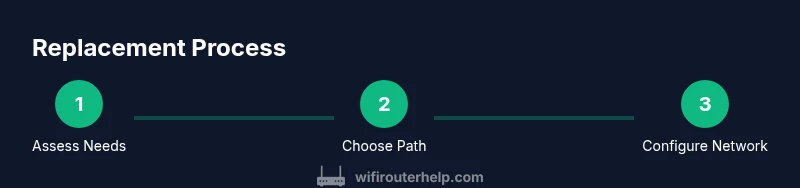
Deciding how to proceed involves a clear sequence of checks and choices. First, confirm your current plan and whether the Spectrum gateway can be bridged, not just placed in a passthrough. Next, assess device count and usage pattern to decide between a standalone router or a mesh system. Then, compare total costs: ongoing rental vs upfront purchase plus potential replacement cycle. After picking a path, check compatibility with your ISP and confirm that your modem (if separate) is provisioned properly. Finally, plan for a quick setup with a plan for testing coverage after installation and adjusting settings as needed. The process should be documented so you can reproduce the steps later if you add devices or expand coverage.
Security and privacy considerations you shouldn’t overlook
Security should be a top priority when replacing your Spectrum router. Update firmware on any new device as soon as it’s connected and enable WPA3 whenever available. Create a strong, unique admin password and turn off unnecessary features like WPS. Set up a guest network to keep visitors from accessing your main devices, and enable firewall settings on the router. If you’re using bridge mode, ensure your primary router’s security features are active, and consider a separate network for IoT devices. Regularly reviewing connected devices helps you spot suspicious activity early and maintain control over your home network.
Setup and optimization tips after replacement: bridging, SSIDs, and testing
After you have selected a replacement, plan a clean setup sequence. Connect your new router to the ISP modem (or enable bridge mode on the gateway if you replace it entirely). Configure your SSID and password, enable guest networks if needed, and set up your preferred security settings. Update firmware to the latest available version and run a speed test to verify baseline performance. If you’re using a mesh system, follow the manufacturer’s guidelines to place nodes for optimal coverage, and run a roaming test to ensure seamless handoffs. Finally, document your settings and keep a record of firmware versions for future updates. Monitoring performance over the next few days will help you fine‑tune QoS rules and device priorities for the best experience.
Costs and ownership models: weighing upfront purchases vs ongoing rental
Replacing a Spectrum gateway with a third‑party router or a mesh system involves cost considerations beyond the sticker price. Upfront purchases can range across a broad spectrum depending on the performance you require, from modest upgrades to high‑end systems. Compare this to ongoing rental costs and how long you plan to stay with Spectrum service. If you expect to stay for several years and want advanced features, ownership often pays off over time. Also consider potential resale value of your hardware if you upgrade again later. While price isn’t the only factor, a holistic view that includes coverage, reliability, and future compatibility will help you determine the best path for your home.
Authority sources and practical references you can trust
To support the guidance here, consult established sources on wireless networking and consumer safety. For regulatory and policy context, see FCC resources on wireless networking and Wi‑Fi standards. For security best practices, refer to trusted industry guidance and consumer protection publications. These references help validate the decision framework for deciding when to replace spectrum router and how to implement a secure, high‑performing home network.
Common myths and missteps about replacing Spectrum routers
Myth: A newer gateway always solves all problems. Reality: Sometimes the issue is coverage layout or device placement—replacing hardware without optimizing placement yields limited gains. Myth: Bridging is always required. Reality: Depending on your setup, you may get benefits from a dedicated router without bridging, though bridging is often the cleanest path when integrating with a primary router. Myth: All third‑party routers are compatible with Spectrum. Reality: Some features or modes require specific configuration; verify compatibility before you buy.
Tools & Materials
- Ethernet cable (Cat5e or newer)(1–2 meters is enough for initial setup and lab testing)
- PC or smartphone to access router admin page(Use wired connection if possible during setup)
- Backup of current router settings(Screenshots or written notes of current config)
- New router or mesh system(Wi‑Fi 6/6E recommended for future‑proofing)
- ISP login information and account details(Needed to provision service and activate features)
- Power strip or surge protector(Protect hardware during setup)
- Coaxial cable tester (optional)(Useful if you suspect signal quality issues at the line)
Steps
Estimated time: 20-40 minutes
- 1
Check compatibility
Verify Spectrum service supports a bridge setup if you plan to use your own router. Confirm if your modem and gateway require any specific configurations and note down current speeds and device count.
Tip: Document current performance metrics before changes so you can measure improvements later. - 2
Decide on path (rental vs ownership)
Choose between continuing a rental contract and purchasing a standalone router or a mesh system. Consider upfront costs, anticipated upgrade cadence, and long‑term value.
Tip: Balance convenience against control; owning usually provides more customization options. - 3
Choose replacement hardware
Select a device that fits your home size and device load, prioritizing Wi‑Fi 6/6E and robust CPU for multi‑device networks. If you have a large home, a mesh system may be the best option.
Tip: Look for features like QoS, guest networks, and strong security profiles. - 4
Prepare your setup
Unbox the new equipment, update firmware, and gather login credentials. If bridging, decide which device will act as the primary router and which as the bridge.
Tip: Update firmware before connecting devices to ensure recent security fixes are active. - 5
Connect and configure
Connect the new router to the modem or enable bridge mode on the Spectrum device, then configure SSID, password, security, and parental controls. Create a backup of your configuration once complete.
Tip: Choose unique SSID names for your primary network and guest network if you’ll provide guest access. - 6
Test and optimize
Run speed tests and roaming checks, adjust channel settings, and fine‑tune QoS rules to prioritize latency‑sensitive activities like gaming and video calls.
Tip: Place nodes or the router centrally, away from thick walls and metal objects. - 7
Secure and maintain
Enable WPA3, turn off WPS, disable remote management unless needed, and set up automatic firmware updates. Schedule periodic reviews of connected devices.
Tip: Set a reminder to verify firmware updates and security settings every few months.
People Also Ask
What counts as outdated when considering a Spectrum router replacement?
Outdated typically means hardware that cannot support current Wi‑Fi standards, has limited processing power for multiple devices, or lacks modern security features. If you notice slowdowns on multiple devices, frequent drops, or weak coverage, it’s a good sign to reassess.
Outdated means hardware that struggles with current Wi‑Fi standards and security; if you notice slowdowns and weak coverage, consider upgrading.
Can I keep Spectrum’s gateway and add my own router?
Yes. You can typically place the Spectrum gateway in bridge mode and use your own router to manage the network. This can improve performance and give you more control over features like QoS and security.
Yes, you can bridge the Spectrum gateway and run your own router for better control and performance.
Is it better to buy a router or rent one from Spectrum?
Buying usually makes sense if you want long‑term cost savings and feature flexibility, especially for a busy home. Renting is convenient and includes support, but ongoing costs add up over time.
Buying often saves money long‑term and offers more features; renting is convenient but adds ongoing costs.
Will a third‑party router improve gaming performance?
A modern third‑party router with QoS settings and sufficient bandwidth can reduce latency and stabilize connections for gaming, especially in busy home networks.
Yes, a newer router with QoS can improve gaming responsiveness.
Are mesh systems worth it for large homes?
For larger homes or multi‑story layouts, mesh systems provide better roaming and fewer dead zones than a single router.
For large homes, mesh systems offer better whole‑home coverage.
How often should I replace a router?
Most households find replacing every 3–5 years reasonable to keep up with performance and security updates.
Every 3–5 years is a practical replacement window to stay current and secure.
Watch Video
What to Remember
- Upgrade when coverage or speed no longer meets household needs
- Choose between rental and ownership based on cost and control
- Prioritize Wi‑Fi 6/6E and security features in new gear
- Bridge mode can simplify network management with a separate router
- Regularly test and update firmware for best security and performance