When to Replace Your Router: A Practical Guide
A comprehensive, 2026-ready guide to decide when to replace your router, what features matter, and step-by-step setup for stable home Wi-Fi.


According to WiFi Router Help, goal: determine when to replace your router. You should consider replacement if your device cannot keep up with your internet plan, shows frequent failures, or lacks current security and features. Look for slow speeds, frequent drops, overheating, and outdated firmware. Age alone isn't fatal, but beyond 5–7 years signals performance losses.
Why replacement might be necessary
Deciding to replace a router isn't only about age; it's about performance, security, and future-proofing your home network. According to WiFi Router Help, a practical replacement plan starts with evaluating whether your current device can reliably support your ISP speed, provide uniform coverage, and run modern security features. If you encounter frequent slowdowns, unexplained drops, devices that won't stay connected, or a router that overheats, it's time to consider an upgrade. Below are common triggers and how to weigh them.
- Persistent slow speeds on multiple devices across rooms
- Frequent disconnects during peak usage times
- Incompatible with newer Wi-Fi standards (e.g., Wi-Fi 6/6E/7) or security protocols
- Increasingly costly repairs or maintenance that exceed a reasonable cost of a replacement
- A device that fails to receive firmware updates for critical security patches
This is not just about raw speed; it’s about reliability, security, and the ability to support new smart-home devices. If your router has started to require frequent resets or drops connections when you stream video or game online, those are strong signals that a replacement will pay off in a smoother, more secure network.
tipContent”:null},
How to audit your current router
Auditing your current router helps you separate perception from reality. Start by noting the model and age of the device. If you’re unsure, check the label on the bottom or log into the administrative interface to view the firmware version and hardware revision. According to WiFi Router Help, an honest appraisal should cover coverage gaps in your home, speed tests from several rooms, and the stability of connected devices. If you can’t achieve consistent performance with your current hardware, a replacement is likely warranted.
- Check the age of the device; older models often lack modern security features.
- Run a multi-room speed test and compare results to your ISP plan.
- Review firmware version and update history; if updates are infrequent or unavailable, plan for replacement.
- Observe heat buildup and physical condition; persistent overheating is a warning sign.
A well-documented audit helps you justify the expense and choose the right model later.
tipContent”: null},
Understanding replacement options
Modern routers offer more than just faster speeds. When choosing a replacement, look for features that align with your home’s needs: Wi‑Fi 6/6E/7 support, WPA3 security, robust parental controls, flexible guest networks, and reliable QoS for gaming or work-from-home traffic. Consider whether you need a single-router setup or a mesh system to cover large or multi-story homes. Processor speed and RAM affect how well the router handles simultaneous devices and new features. WiFi Router Help recommends evaluating compatibility with your devices, your ISP, and any smart hubs you use.
- Wi‑Fi standard: Prioritize Wi‑Fi 6/6E or newer for efficiency and capacity.
- Security: WPA3 with automatic updates is preferred; disable outdated protocols.
- Coverage: Mesh or additional access points can fill large homes.
- Management: Look for an intuitive app and remote management without compromising security.
This is the stage to balance budget, coverage, and future-proofing, rather than chasing the highest advertised speed alone.
tipContent”: null},
Making a smart replacement plan on a budget
Replacing a router doesn’t have to break the bank. Plan by defining a budget range and mapping features to price bands. For most households, mid-range models around $100–$250 offer a significant upgrade over a 5–7-year-old device, including better security, coverage, and support for newer standards. If you have a larger home or many smart devices, a mesh system or higher-end router with multiple bands may be worth the investment. WiFi Router Help suggests prioritizing security, coverage, and ease of setup when budget is a constraint, rather than chasing raw speed.
- Budget tier: entry ($100–$150), mid ($150–$250), premium ($250+)
- Coverage needs: single room vs. multi-story home vs. entire property
- Future-proofing: Wi‑Fi 6/6E/7, WPA3, and QoS capabilities
Choose a model that meets current needs and allows for scalable enhancements as your home grows.
tipContent”: null},
Step-by-step plan to install your new router
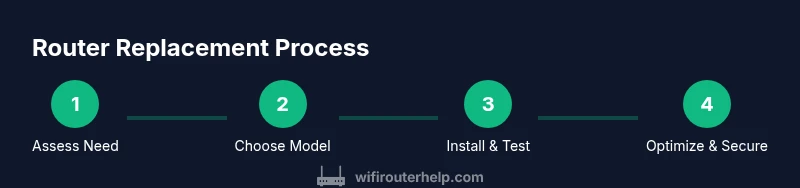
Getting a new router up and running smoothly involves a clear sequence of actions. Start with unboxing and verifying all components, then physically connect the device to your modem, configure the internet connection, secure the network, and test performance. For best results, follow a consistent setup routine and document your settings for future reference. WiFi Router Help emphasizes not rushing through security configurations and updating firmware first before enabling additional features.
- Prepare the new router and gather accessories.
- Connect the router to the modem using an Ethernet cable on the WAN/Internet port.
- Access the admin interface via a browser and log in with the default credentials.
- Configure internet settings (DHCP/PPPoE), set a strong admin password, and enable automatic firmware updates.
- Create a Wi‑Fi name (SSID) and password; enable WPA3 if available.
- Test speeds in multiple rooms and tune the placement for optimal coverage.
This block intentionally does not include the final conclusion; keyTakeaways summarize afterward.
tipContent”: null},
Tips & warnings
- Pro tips: Use a unique SSID for the main network and a separate guest network to isolate visitors. Enable WPA3 and disable WPS to improve security. Place the router centrally, away from metal objects and thick walls.
- Warnings: Do not place the router inside cabinets or behind large entertainment centers; heat buildup can reduce performance. Don’t enable remote management unless you need it, and change default admin credentials immediately.
- Maintenance: Regularly check for firmware updates and back up configuration settings if your router supports it. Keep a spare Ethernet cable handy for quick swaps.
Following these practices reduces the risk of security vulnerabilities and coverage gaps while keeping management simple for non-technical users.
tipContent”: null},
Common mistakes to avoid
Common mistakes include ignoring firmware updates, using default credentials, and placing routers in suboptimal locations. Skipping the network password reset after replacement leaves you exposed to intrusions. Another frequent error is underestimating coverage needs, which leads to dead zones that a mesh system could avoid. WiFi Router Help recommends planning placement first and testing performance before finalizing a purchase.
- Don’t skip firmware updates
- Don’t use weak passwords or default credentials
- Don’t ignore placement and channel selection
- Don’t overspec without considering budget and network size
By avoiding these mistakes, you’ll achieve a more reliable, secure home network from day one.
tipContent”: null},
Maintenance and future-proofing
A replacement router is a long-term investment. Schedule regular firmware checks and enable automatic updates if possible. Periodically reassess your coverage, especially after adding new devices or moving to a different home layout. As technology evolves (new Wi‑Fi standards, security protocols, or smart-home devices), you’ll benefit from a device that can adapt without frequent hardware replacements. WiFi Router Help’s guidance is to treat the router as the backbone of your home network: keep it secure, up-to-date, and appropriately sized for your space.
tipContent”: null}
Tools & Materials
- New router (Wi-Fi 6/6E/7 recommended)(Supports modern security (WPA3) and features; ensures compatibility with your ISP and devices)
- Ethernet cable (Cat5e or better)(1–2 meters is usually enough for a clean setup)
- Power adapter(Original supply from the router manufacturer)
- ISP credentials (if required)(Some ISPs require login or activation during replacement)
- Device to test speeds (laptop/phone)(Used to verify coverage and speeds across your home)
- Optional: USB drive for firmware backup(Backups enable quick recovery if supported by the router)
Steps
Estimated time: 45-75 minutes
- 1
Prepare for replacement
Power down the old router and unplug all cables. If possible, take a quick photo of the current port mapping and settings to reference during setup. This helps you re-create important network rules after the new device is in place.
Tip: Backing up settings, if supported, avoids re-creating rules later. - 2
Connect the new router to the modem
Connect the new router’s WAN/Internet port to your modem with an Ethernet cable. Plug in the router and let it boot fully before proceeding with configuration.
Tip: Use a short Ethernet cable for a clean, unobstructed setup. - 3
Access the admin interface
Open a web browser and enter the router’s default IP (e.g., 192.168.1.1). Login with the default credentials and immediately change the admin password.
Tip: Use a strong, unique password and save it securely. - 4
Configure internet and security settings
Choose the appropriate connection type (DHCP or PPPoE) per your ISP. Disable remote management and enable automatic firmware updates for ongoing security.
Tip: Starting with a secure password and auto-updates reduces risk. - 5
Set up Wi-Fi name and security
Create a unique SSID for your network and enable WPA3 (or at least WPA2). Create separate guest networks if you have visitors or smart devices.
Tip: Avoid using the same SSID as the old network to prevent device confusion. - 6
Test, optimize, and document
Test speeds in multiple rooms, adjust placement, and tweak channel/band settings. Save your configuration and note key settings for future reference.
Tip: Run a final speed test after optimizing placement.
People Also Ask
When should I replace my router instead of updating firmware?
Firmware updates can fix security issues and add features, but hardware constraints often require replacement if speeds are insufficient, coverage is poor, or devices fail to connect reliably.
Firmware updates help, but replacement is needed when hardware can’t support newer standards or keep up with your network load.
Will a new router improve Wi‑Fi coverage in a large home?
Yes. A newer router with better radios and antennas can improve coverage, and a mesh system or multiple access points can fill large or multi-story homes.
A newer router often improves coverage, especially with a mesh setup for bigger spaces.
Do I need a separate modem with a new router?
If you have a separate modem, ensure compatibility. Some ISPs provide gateway devices that combine modem and router functions. A dedicated router can improve performance and flexibility.
Sometimes you’ll use a separate modem; other times you’ll use a gateway from the provider. A standalone router often gives more control and better features.
How long does setup take?
Basic setup and optimization usually take about 30–60 minutes, depending on your home size and feature requirements.
Expect around half an hour to an hour for a full setup and initial testing.
What features matter most when choosing a replacement router?
Prioritize Wi‑Fi 6/6E/7, WPA3 security, QoS, guest networking, reliable apps for management, and sufficient processing power for your home load.
Look for the latest Wi‑Fi standard, strong security, and good management tools.
Watch Video
What to Remember
- Replace when performance, coverage, or security no longer meet needs
- Audit your current setup before buying a new device
- Prioritize Wi‑Fi 6/6E/7 and WPA3 for future-proofing
- Plan placement and test coverage after setup
- Keep firmware up-to-date for ongoing reliability