Routing Your Spectrum Internet: A Practical Setup and Optimization Guide
A practical, step-by-step guide to choosing a Spectrum-compatible router, setting it up, and optimizing home WiFi for Spectrum Internet.


This guide helps you pick a Spectrum-compatible router, connect it to your modem, and optimize your home network for the best speeds and reliability. You’ll verify Spectrum compatibility, choose the right features (Wi‑Fi bands, QoS, security), and complete a clear setup sequence. According to WiFi Router Help, start by confirming your plan, selecting a router with an appropriate DOCSIS-bridge option if needed, and following the step-by-step setup below.
Understanding Spectrum Internet and Your Router
When you have Spectrum Internet, the router you choose needs to complement your service and fit your home layout. The phrase router for spectrum internet isn’t just about speed; it’s about compatibility with Spectrum’s network practices and any gateway devices you may be offered or required to use. In practical terms, you want a router that can handle typical home loads, supports modern wireless standards (preferably Wi‑Fi 6 or newer), and offers robust security settings. This section lays a foundation: you’ll learn how Spectrum typically handles modems and routers, what to expect from third‑party hardware, and how to align your hardware choices with your plan. The WiFi Router Help team stresses clarity here—verification of your plan’s requirements is the first step to a smooth setup. If your plan requires bridge mode or a specific modem compatibility, you’ll find those considerations outlined below. Despite the jargon, the goal is simple: a reliable, fast, and secure home network that works with Spectrum.
Key terms to know include DOCSIS (the cable modem standard), gateway devices (modem+router combo), bridge mode (disables the built-in router in a gateway), and dual-band vs tri-band Wi‑Fi. As you read, map your home needs to these features and keep a record of the equipment you’ll purchase or reuse. This approach helps you avoid gaps where your network performance could suffer, especially in larger homes or areas with many connected devices.
How Spectrum Handles Modems and Gateways
Spectrum typically supports third‑party routers when you pair them with your own modem or a Spectrum gateway. If you’re using your own router with Spectrum, you may need to set the gateway into bridge mode or configure your router as the primary router in your network. The important idea is to avoid double NAT and ensure your router’s WAN port is connected to the modem or gateway’s Ethernet output. Spectrum’s policies can vary by region and plan, so confirm whether bridge mode is required for your service tier. In practice, this means you’ll either use a standalone modem + router or a gateway device provided by Spectrum with bridge/DMZ options. For best results, ensure the modem (if you supply one) is DOCSIS 3.0 or 3.1 capable and tested for reliability with your chosen router. The goal is a clean path for traffic from the internet to your router and then to your devices.
Router Features That Maximize Spectrum Speed and Reliability
Your router’s feature set directly impacts how Spectrum Internet performs in daily use. Look for:
- Wi‑Fi 6 or newer for higher throughput and better device capacity;
- Multi‑Gig Ethernet (2.5Gbps) WAN if you expect fast backhaul;
- Advanced QoS (Quality of Service) to prioritize latency‑sensitive activities like video calls and gaming;
- Band steering or smart connect to optimize 2.4 GHz and 5 GHz bands;
- Strong security features (WPA3, guest networks, automatic firmware updates);
- Stable firmware and reputable vendor support. A router with robust MU‑MIMO and beamforming helps maintain speeds as more devices connect. WiFi Router Help recommends prioritizing hardware that balances speed, range, and manageability, especially if you live in a larger home or have many smart devices.
Beyond the tech specs, consider your budget and the aesthetic of your router placement. A compact, well‑ventilated unit placed centrally tends to deliver the most reliable coverage. If you’re upgrading from an older model, aim for a device that supports modern encryption, guest networking, and simple parental controls to protect family devices on Spectrum.
Wired vs Wireless: Placement, Channels, and Interference
Placement matters. For best results, place the router on a central, elevated shelf away from walls and large metal appliances. Minimize interference from microwaves, cordless phones, and thick walls. Channel selection can also affect performance: for 2.4 GHz, choose channels 1, 6, or 11 to avoid overlap with neighboring networks; for 5 GHz, let the router pick the best channel or manually select a clear option if you’re near dense Wi‑Fi usage. Use a wired connection for devices that require low latency, such as desktop PCs or gaming consoles, whenever possible. Spectrum’s service often benefits from a strong, stable wired backhaul to the router for consistent performance. Keep firmware updated to maintain security and feature parity across devices. A well‑placed router reduces dead zones and improves overall home coverage.
Step-by-Step Setup Overview for Spectrum with Your Own Router
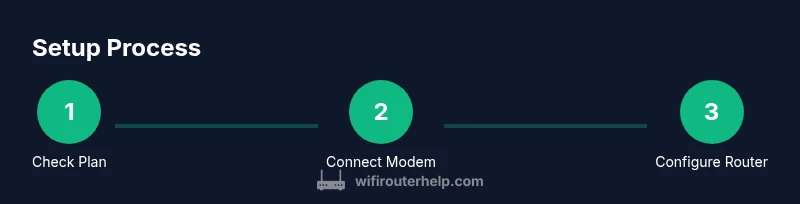
To set up a Spectrum-compatible router, start by confirming your service plan and any modem requirements. Connect the modem to the coax outlet, plug in power, and wait for a stable link light. Connect the router’s WAN/Internet port to the modem with an Ethernet cable, then power on the router. Access the router’s admin page (usually by entering 192.168.0.1 or 192.168.1.1 in a browser) and follow the setup wizard to configure a unique SSID, a strong password, and WPA3 if available. Enable the guest network if you have visitors, and consider enabling QoS for streaming devices or gaming. If you need bridge mode, disable the Spectrum gateway’s router features and ensure your own router handles all routing functions. Finally, run speed tests in multiple rooms to confirm coverage and adjust placement as needed. This process may take 30–60 minutes depending on your familiarity with the devices.
Pro tip: Take screenshots of each step during setup so you can reproduce the configuration if you ever reset settings.
Troubleshooting Common Issues with Spectrum and Third‑Party Routers
If you encounter issues, start with the basics: verify that the modem and router are both powered and the Ethernet connections are secure. Check you’re not in bridge mode by accident; ensure the WAN IP is assigned and that the router’s DHCP server is active. If devices can’t reach the internet, reboot both devices, test with a wired device to confirm the issue isn’t wifi‑only, and try a different LAN channel or 2.4/5 GHz bands. For performance problems, ensure QoS rules are configured correctly and firmware is up to date. If you continue to see DNS or connectivity problems, try changing the DNS server to a public option (e.g., 1.1.1.1 / 8.8.8.8) and verify there are no IP address conflicts or misconfigured NAT settings. The WiFi Router Help team notes that patience and methodical testing usually resolves most spectrum router setup challenges.
Authority sources
- FCC: https://www.fcc.gov
- NIST: https://www.nist.gov
- University of California, Berkeley: https://www.berkeley.edu
Tools & Materials
- Modem (DOCSIS-compatible, if not using Spectrum gateway)(Prefer DOCSIS 3.0/3.1 for broad compatibility)
- Router (own device)(Wi‑Fi 6 or newer preferred)
- Coaxial cable(Only if using a separate modem)
- Ethernet cable (Cat5e or Cat6)(Connects modem to router)
- Laptop or smartphone(For accessing router admin page)
- ISP account information(To verify service status and settings)
Steps
Estimated time: 45-75 minutes
- 1
Verify Spectrum compatibility and requirements
Check your Spectrum plan and any modem requirements. Confirm whether you’ll need bridge mode or a separate modem. This ensures your third‑party router will work without conflicts.
Tip: Document plan details and any restrictions before purchasing equipment. - 2
Gather and prepare hardware
Assemble your modem, router, and necessary cables. Ensure the firmware on both devices is current or download the latest firmware if you’re setting up a new device.
Tip: Have all cables labeled to avoid misconnection. - 3
Connect the modem to the service line
Connect the coax line to the modem (or power cycle a Spectrum gateway if using one). Wait for a solid online status indicator before continuing.
Tip: Do not power cycle during the initial connection if indicators are unsure. - 4
Link the router to the modem
Plug the router’s WAN/Internet port into the modem’s Ethernet port. Power up both devices and allow a few minutes for the connection to stabilize.
Tip: Use a direct Ethernet connection for initial setup to avoid wireless interference. - 5
Configure basic router settings
Access the router admin page and set a unique SSID, a strong password, and WPA3 if available. Enable the guest network if needed.
Tip: Write down admin credentials somewhere safe. - 6
Tune and test your network
Enable QoS for latency‑sensitive devices, set channel options, and run a speed test in multiple rooms. Reposition the router if coverage gaps exist.
Tip: Aim to minimize walls and metal appliances between router and devices.
People Also Ask
Can I use my own router with Spectrum Internet?
Yes, in many cases you can use your own router with Spectrum Internet by connecting it to a modem or enabling bridge mode on a Spectrum gateway. Check your plan details and follow Spectrum’s guidance for bridging or DMZ settings to avoid double NAT and ensure proper routing.
Yes, you can use your own router with Spectrum in most cases. Connect it to a modem or bridge the Spectrum gateway as instructed to avoid double NAT, then follow the setup steps.
What is bridge mode and do I need it?
Bridge mode disables the router functionality on a gateway device, turning it into a pure modem. You’ll use your own router as the primary router. Whether you need bridge mode depends on your gear and plan; it helps prevent conflicts between two routers.
Bridge mode turns the gateway into a modem only, so your own router handles routing. You’ll likely use it if you want full control over your network.
Why does my router not get an IP address?
This usually indicates a DHCP or bridge issue. Ensure the router’s WAN port is connected to the modem, the modem is online, and the router’s DHCP server is enabled. If in bridge mode, verify you’re not double‑NAT’ing.
If you don’t see an IP, check that the router is connected correctly, DHCP is on, and you’re not in an unexpected bridge mode.
How can I improve Wi‑Fi range in a large home?
Prioritize central placement, reduce obstacles, and consider a high‑gain antenna or a mesh system if coverage remains spotty. For Spectrum users, ensure your main router broadcasts both bands and that client devices can roam between bands.
Center your router, remove obstructions, and consider a mesh system if needed for wide coverage.
Do I need a new router for Spectrum Internet speed upgrades?
If your current router can handle multi‑gig speeds and supports current Wi‑Fi standards, you may not need to upgrade immediately. However, newer routers offer improved security, efficiency, and coverage, especially in busy homes or with many devices.
Upgrading isn’t required for every speed tier, but newer routers improve range, security, and efficiency, especially with many devices.
How do I secure my Spectrum router setup?
Use WPA3 when possible, create a strong admin password, enable automatic firmware updates, and set up a guest network for visitors. Regularly review connected devices and disable WPS if not needed.
Enable WPA3, use strong passwords, update firmware automatically, and monitor connected devices.
What to Remember
- Choose a Spectrum-compatible router with modern Wi‑Fi standards.
- Avoid double NAT by using bridge mode correctly when needed.
- Central placement and proper channel selection improve coverage.
- Keep firmware updated and enable strong security settings.