Xfinity Router Troubleshooting Guide
Urgent, step-by-step guide to diagnosing and fixing common Xfinity router issues—from drops to slow speeds—with a diagnostic flow, quick fixes, and safety tips.


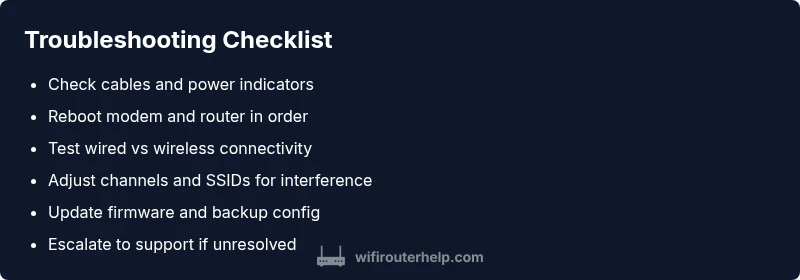
Xfinity router troubleshooting: start with the basics—check cables and power, then reboot the modem and router. Isolate wired versus wireless issues to identify whether the problem is with the gateway, the LAN, or your devices. Follow the diagnostic flow below for step-by-step fixes and safe, repeatable paths to regain stability. These quick checks typically resolve most outages without calling support.
Why xfinity router troubleshooting Matters
In modern homes, a reliable Wi-Fi connection is not a luxury—it's essential. When your Xfinity router misbehaves, every connected device from smartphones to smart hubs feels the pain. This guide focuses on practical, repeatable steps you can perform yourself to restore stability quickly. According to WiFi Router Help, a structured approach reduces guesswork and downtime, cutting frustration and keeping your network secure. By following a documented diagnostic flow, you can pinpoint issues ranging from simple misconfigurations to hardware faults and service outages. Start with the basics, then progress to targeted checks, and only escalate to professional support when the situation warrants. The goal is predictable performance, not heroic salvaging. With the right steps, you can restore confidence in your Xfinity setup today. This is the practical core of xfinity router troubleshooting you can implement today.
Start with the Basics: Check Physical Connections and Power
The simplest problems are often the culprit: loose cables, a faulty power adapter, or a modem that isn't receiving power correctly. Begin by inspecting the coax cable from the wall to the Xfinity modem, the Ethernet cable to the router, and the router’s power supply. Reseat connections firmly, listen for the modem's power-on chime, and ensure the LEDs show normal activity. If the router is plugged into a surge protector, try a direct outlet to rule out protector faults. This is also a good moment to confirm that your service account is active and the modem is provisioned by Comcast. Handling these basics first saves time and avoids chasing phantom issues. According to WiFi Router Help, most outages trace back to hardware or connection problems rather than complex configuration.
Reboot and Reset: The Fastest Fix That Works
Power cycling is a time-tested remedy for many router problems. Start by unplugging both the modem and the router, wait 60 seconds, then plug the modem back in first and wait for lights to stabilize. Next, reconnect the router and allow it to boot fully. If problems persist, perform a soft reset through the router’s admin interface (not a factory reset) to refresh the device without losing your settings. If you’ve recently updated firmware and issues began afterward, rolling back to a previous version can also help in some cases. Keep in mind that repeated resets can disrupt connected devices, so proceed with care. If this doesn’t restore service, move to more advanced checks in the flow.
Distinguish Between Modem, Router, and Device Issues
Sometimes the problem isn't the Xfinity router itself but the network chain or a single device. Test by connecting a wired computer directly to the modem (bypassing the router) to determine where the fault lies. If the wired connection works but wireless devices fail, the issue is likely wireless or router-related; if both fail, the problem may be with the modem, service, or line. Use a different device to verify. To isolate further, try a guest network or disable any VPNs on your devices. Documenting symptoms (which device, what time, what lights show) helps you and any support reps reproduce and diagnose the issue quickly. WiFi Router Help emphasizes a clear fault map to avoid guesswork.
Common Xfinity Router Problems and Quick Remedies
Here are frequent pain points and how to address them without waiting on hold: slow speeds, frequent drops, DNS resolution issues, and Wi-Fi range problems. For slow speeds, check your plan against the actual throughput, test wired vs. wireless, and ensure your devices aren’t starving for bandwidth with background apps. For drops, verify the gateway status in the admin page, ensure your firmware is current, and scan for interference from neighbors’ networks. DNS issues can often be resolved by using Google DNS (8.8.8.8) or Cloudflare (1.1.1.1) in the router settings. If Wi-Fi coverage is weak, try relocating the router to a central, elevated position, reduce channel overlap by altering 2.4 GHz vs 5 GHz usage, and consider a Wi‑Fi extender or mesh system if the home is large. The key is targeted tweaks rather than broad changes.
Advanced Checks: DNS, IP, and DHCP Settings
If basic fixes fail, dive into the router's admin panel and verify DNS servers, IP addressing, and DHCP scope. Ensure the gateway is not assigning conflicting static IPs and that the DHCP pool is large enough for your devices. Consider enabling DNS over HTTPS if supported and test with alternate DNS servers temporarily to rule out ISP DNS quirks. Confirm that NAT is functioning and that UPnP is enabled only if you need it for gaming or port forwarding. Keep a backup of your current configuration before making wholesale changes. These settings can improve stability, security, and performance when done carefully.
Wireless Performance: Channel, Interference, and Band Selection
A crowded 2.4 GHz channel or overlapping SSIDs can throttle performance. Log into the router admin page and run a quick spectrum scan if available, then switch to a less congested channel. Separate SSIDs for 2.4 GHz and 5 GHz to simplify device connections and reduce interference. If devices support it, enable band steering to help newer gear hop to the faster band automatically. Consider enabling QoS for latency-sensitive devices like work laptops and video calls. Remember, walls, microwaves, and Bluetooth devices can degrade signals; relocate the router away from metal appliances and large metal objects to maximize coverage.
Security and Ports: Firewalls, NAT, and Access Control
Security settings can affect performance as well as access. Review firewall rules and ensure they aren’t blocking essential traffic. If you use a guest network, isolate it from your main network to protect devices without complicating access. For gaming or port-forwarding needs, verify that the relevant ports are open and correctly mapped, and test with a basic connectivity tool to confirm reachability. If you enable bridge mode or a separate router, ensure the firewall and NAT are configured appropriately to avoid double NAT, which can break certain applications. Regularly updating credentials and disabling weak remote management increases security without sacrificing usability.
When to Call for Help and How to Document the Issue
If you’ve walked through every step without a stable fix, or if you suspect a line fault, it is time to contact Xfinity support. Have your account details, modem serial number, firmware version, and a fault timeline ready to speed up the process. Write down symptoms, times of outages, and devices affected to share with a technician or support chat. In some cases, a simple swap of the gateway or a service outage will resolve the issue, but professional assistance can identify more complex problems such as line faults or outages impacting service in your area.
Steps
Estimated time: 45-60 minutes
- 1
Power down and inspect hardware
Power off both devices, inspect coax and Ethernet cables for damage or looseness. Re-seat connectors firmly and check LED indicators for normal activity. Power the devices back on in sequence and confirm service status before proceeding.
Tip: Take a quick photo of the LED status to compare with the user manual. - 2
Reboot with purpose
Perform a complete power cycle: unplug modem and router, wait 60 seconds, plug in the modem first, wait for it to stabilize, then plug in the router. Confirm internet comes back on multiple devices.
Tip: Avoid unplugging power while the modem is still initializing. - 3
Check firmware and admin access
Log into the gateway admin page to verify firmware version and update if available. If you can’t access the interface, reset network credentials and ensure you have the correct login details.
Tip: Back up current settings before updating firmware. - 4
Test wired connectivity
Connect a computer directly to the modem using an Ethernet cable to determine if the issue is modem-service-related or router-related. If wired works but Wi-Fi doesn’t, focus on wireless settings.
Tip: If wired is slow, contact ISP for line checks. - 5
Optimize wireless settings
Change the 2.4 GHz and 5 GHz channels to less congested options. Ensure SSIDs are distinct and devices favor the faster band when possible.
Tip: Pause smart home devices that auto-connect to optimize manual changes. - 6
Check NAT, UPnP, and DNS
Review NAT and DHCP scope; enable UPnP only if needed. Temporarily switch DNS servers to test ISP resolution issues, then revert to preferred settings.
Tip: Document changes for easy rollback. - 7
Factory reset if necessary
If all else fails, perform a factory reset and reconfigure from scratch. This erases prior settings, so ensure you have login info and ISP provisioning details.
Tip: Reset only after you’ve saved essential configuration.
Diagnosis: Intermittent internet, slow speeds, or no connectivity from an Xfinity router.
Possible Causes
- highLoose or damaged cables and power supply
- highOutdated or corrupted firmware on the router/gateway
- mediumModem-router bridging or compatibility issues with third-party gear
- mediumWireless interference or crowded channels affecting Wi-Fi performance
- lowISP service outage or line fault
Fixes
- easyCheck and reseat all cables (coax, ethernet) and verify power indicators
- easyPower cycle the modem and router; allow time to re-provision
- mediumUpdate firmware via the admin page or schedule an update
- mediumEnable bridge mode only if you’re using a separate router; adjust DHCP/NAT as needed
- easyChange wifi channel and split 2.4/5 GHz networks; consider a mesh if large home
- hardFactory reset if all else fails (backup configs first)
- easyIf the issue persists, contact Xfinity support and run diagnostics
People Also Ask
What is the first step in xfinity router troubleshooting?
Begin with a visual check of cables and power, then perform a quick reboot. This often resolves most common issues without advanced steps.
Start with cables and a quick reboot to rule out basic problems.
Why is there no internet after power cycling?
If rebooting doesn’t restore service, verify the modem is provisioned and that lights indicate a stable connection. Move to wired testing to isolate the fault.
If rebooting doesn’t help, test with a wired connection to locate the issue.
Modem vs router—how do I tell which is at fault?
Connect a device directly to the modem with an Ethernet cable. If you have internet, the router is likely the limiting factor; if not, the modem/service may be the issue.
Test wired to the modem to distinguish modem from router problems.
Is it safe to factory reset the router?
Factory reset is safe if you have the credentials to reconfigure the router afterward. It erases custom settings, so back up before proceeding.
A factory reset will erase settings; back up first and only proceed if you can reconfigure.
How often should I update router firmware?
Check for updates monthly or after major issues. Turn on automatic updates if the option is available to reduce risk.
Check for updates monthly and enable automatic updates if possible.
What if there’s an outage in my area?
Verify service status on Comcast/Xfinity pages or with support; an outage can affect multiple customers and require waiting for the provider.
Check if there’s a known outage in your area with your provider.
Watch Video
What to Remember
- Rule out hardware first with cables and power.
- Isolate wired vs wireless to pinpoint faults.
- Use a diagnostic flow for fast, repeatable fixes.
- Keep firmware updated and avoid double NAT when using multiple devices.